Google+ High Tech House Calls
Expert Computer Consulting for Homes and Small Businesses

Let there be hope...

Life has changed there is no doubt and we wanted to reach out to see how you are doing.

As we go through this interesting time, we are trying to look at this as an opportunity to focus on our family and on friends like you. Let us use this extra time to catch up and talk more. Let us cook food that is not fast, but interesting and satisfying. Let us learn to enjoy a time to try new things. Let us find ways to enjoy time at home!

Computer Security

If my client base is any experience, anyone can be a victim of a Ransomware, Malware or Virus attack.

What can you do about it?

I conduct audits of your entire computer infrastructure and apply best practice solutions to plug the security holes on your computers, Smartphones and networks.

Now offering consultations to give you the best protection possible:


404.229.0839
carlthorne@hthcatlanta.com

Jack of All Trades, Master of Many

Jack of All Trades, and Master of Many

We provide technical support for:


Homes and small businesses

Windows and the Mac OS platform

iPhones and Android Smartphones

Wireless and wired networks

New device setup

Old device upgrade or repair

One-on-one training

Remote assistance


How To Stop Malware

Thursday, September 18, 2014

How to set up 2-step Google account verification (step-by-step) by AndroidGuys

You can never be too safe when it comes to your online accounts. Luckily Google has a way to make it nearly impossible for anyone to log into your account even if they have your login credentials. 2-step verification is a truly great way to keep intruders out of the picture and if you’d like to find out how to set it up… read on.

Visit this link where you’ll find all the required information about the 2-step verification and why it might be a good idea for you to set it up for your Google account.
  1.  You’ll see a “Get Started” icon in the upper right corner, click it.
  2.  Enter your credentials and sign in to your Google account
  3. You’ll see some more information and a blue “Start setup” icon on the right, click it.
  4. Enter your mobile phone number and choose how would you like Google to send you codes (more on this later), via SMS or by a voice call and confirm
  5. You’ll get a 6-digit code on your phone, enter it and click “verify”
  6. Next step will ask you if you trust the computer you’re doing this from, if you confirm that Google won’t ask you to enter the 6 digit code again, same thing goes for all your devices if you choose it to be so.
  7. The last step gives you a short description what you just did and ask you to confirm the changes one last time.
  8.  That’s it, you’ll need to sign in again to your Google account (this goes for every device you’re using your Google account with)
Google will now require a 6-digit code when someone tries to sign in to your account and you’ll be the only one who can get it (it will be different every time) via your phone. If you mark a certain device as a “trusted device”, you won’t be required to enter the code there any more. This is a great way of doubling your security and I do recommend to every single one of you to active this feature.

Thursday, August 28, 2014

Intuit's Quicken 2015 for Mac revamps interface, expands investment features by Dan Moren

Venerable financial software Quicken is ready to help you with all of your newest accounting needs. Intuit on Thursday announced the release of Quicken 2015 for Mac, the latest update to the long-running app for tracking your personal finances.

Highlights of the new version are a simplified interface designed ground-up for the Mac and ne
w features related to keeping track of investment portfolios. The latter allows for users to create Schedule D tax reports for capital gains, making things easy when April 15 rolls around.

Lest you think that finances haven’t yet entered the 21st century, Intuit is also offering a free mobile app for iOS and Android that works with Quicken for Mac, allowing you to photograph and keep track of your receipts while you’re on the go. You can also use the mobile app to keep tabs on your finances, check account balances, view budgets, see transactions, and more.

Quicken for Mac 2015 supports more than 14,500 banks, credit cards, and loan and investment accounts, presenting them all in a unified interface that lets you get a single top-down view of your finances. And, if you’re a user of Quicken Essentials for Mac, Quicken Mac 2007, or Quicken 2010 for Windows or later, you can easily import your data from any of those apps into Quicken for Mac 2015.

That’s not to say that the app has complete parity with either its predecessor, Quicken 2007, or with Quicken Premier for Windows. Among the missing features in Quicken 2015 are native bill payment, a calendar view of bills and transactions, paycheck deduction tracking, and more. Intuit has posted a feature comparison along with an opportunity for users to vote on which feature they’d most like to see added. (Apparently “all of them” is not currently an option.)

Intuit earned some ire from its customers a couple years ago: The company was slow to adapt Quicken 2007 to Intel Macs, leading to problems when OS X Lion removed the Rosetta compatibility system that allowed PowerPC-based apps to run. The company eventually released a patch to update the software. 

The new version, which is available from Intuit, the Mac App Store, and Amazon is available for $75; it’ll go on sale at retail locations in October. 

6 million laptop power cords recalled under fear of fires by Kim Komando

Do you have a Hewlett-Packard or Compaq notebook and mini notebook?

It's time to check and see if you're one of the 5.6 million people with a defective power cord that has
just been recalled by HP.

The faulty chargers are said to be able to cause fires and burn hazards.

Affected cords will look like the photo below and will have LS-15 embedded on it.
However, note that not all cords with this label have been recalled, but it's better to be safe than sorry.

PowerCord, HP, recall
Here's the official statement from HP:
On August 26, 2014 HP announced a worldwide voluntary recall and replacement program in cooperation with various government regulatory agencies, for affected AC power cords distributed worldwide with HP and Compaq notebook and mini notebook computers, as well as with AC adapters provided with accessories such as docking stations, sold from September 2010 through June 2012.

HP customers affected by this program will be eligible to receive a replacement AC power cord for each verified, recalled AC power cord at no cost.

HP believes that certain power cords shipped with notebook PC products and AC adapter accessories may pose a risk of a fire and burn hazard to customers. We are taking this action as part of our commitment to provide the highest quality of service to our notebook customers.

Note: Not all HP and Compaq notebook and mini notebook PCs were sold with an affected power cord. Please validate the power cord shipped with your notebook PC or purchased with an accessory, or as a spare.

The good news here is that HP is being proactive in this situation. In order to get a replacement power cord, click here to contact the company for your replacement. 

The top iOS 8 features for business users by Ryan Faas

When it shows up in the coming weeks, Apple’s iOS 8 is set to bring several new features, including its HealthKit and HomeKit platforms, to the iPhone and iPad. Many of the advances are consumer-oriented and focused on creating a seamless experience across iOS devices and Macs running the forthcoming OS X Yosemite. Even with that consumer focus, however, there are some incredible features for business users in iOS 8.


Better keyboards

When Steve Jobs announced the iPhone in 2007, the feature that stood out most from competing phones was its whole-device display and onscreen keyboard. Although Apple pioneered that keyboard, other platforms have improved upon it as well as the associated auto-complete and auto-correct capabilities. Every other platform offers users a choice of auto-complete guesses to choose while typing a word—delivering much better productivity and avoiding the occasional embarrassing gaffe of iOS inserting the wrong word (many of them shared on Damn You Autocorrect). Similar functionality will debut in iOS 8. 

Another feature, long touted by Android users, is custom third-party keyboards. These too will be available to iOS users thanks to the new extensions system that Apple has developed across both iOS and OS X. That system allows apps to extend their functionality into other apps and system events.
wwdc ios8 text
Advanced auto-complete (long available on Android phones) could make iPhone text-input a whole lot more efficient

Extensions for storage and collaboration

Extensions aren’t limited to keyboards. They also allow apps to insert options into the standard share sheet of other apps, and Apple has promised more traditional file management in iOS 8 as well.
Although some apps already have the ability to send content to another app (typically the standard iOS apps from Apple) or to a third-party cloud service, such functionality is far from universal and when even when available, there are often limitations. The result is often a multi-step process to create, edit, save, and share content across multiple apps or services.
Streamlining these workflows will be significant for mobile collaboration and productivity. Removing the barriers between apps and services that can access the same types of content will make it much simpler to accomplish tasks that require more than one app or that access multiple data stores—on a device, cloud service, or enterprise storage solution.
In addition to streamlining workflows, extensions will make it easier to multiple people working with the same set of content—a report, project, or information for a specific client or manager—to share information and collaborate. Easy access to third-party and external services should also ease syncing of information across devices and systems as well.

Better mail management

Although there are third-party email clients for iOS, most of us stick with the built-in Mail app. Doing so offers a range of options for businesses, not the least of which is the ability for organizations to secure email using Exchange ActiveSync or the managed account capabilities that Apple introduced in iOS 7.
Mail has gotten improvements in every iOS release and iOS 8 is no exception:
  • New gestures will make it easier to flag messages for later follow-up.
  • The ability to designate specific emails and email threads as VIP (in addition to the existing ability to set specific Contacts or email addresses as VIP) allows you to look for and receive notifications of important responses.
  • Exchange users will finally be able to set auto-reply messages from within Mail.
  • Messages from external addresses will be able to be marked in red, making them more obvious and increasing message security.
  • Secure email using S/MIME will also be able to be enabled on a per-message basis.

Meeting availability

One of the most convenient features of Exchange and other corporate calendaring options is the ability to see the whether or not individuals will be available for a meeting or event when creating or modifying it. This ability has been a standard feature on the desktop, but not in the standard iOS Calendar app—until iOS 8.
Calendar is also gaining the option to notify attendees of a meeting that you’re running late by email without needing to launch Mail.

Touch ID makes security easier

iOS 8 expands the capabilities of Touch ID, which is available to iOS devices with a fingerprint scanner. Currently this means just the iPhone 5s, but new iOS devices expected this fall will probably include Touch ID sensors and supporting hardware.
In iOS 8, developers can leverage Touch ID as an alternative to passcodes and username/password combinations. This includes apps for accessing cloud services and other secure public resources, password managers (1Password has already announced and demoed support for Touch ID), and accessing secure on-device storage. This feature is also available to enterprise app developers, meaning businesses can build Touch ID into enterprise apps as a security or authentication option. In all, it will be easier for users to secure sensitive content, apps, and services.

Actionable notifications and widgets

Notifications in iOS have always left something to be desired. Although the current Notification Center feature is a vast improvement over the early days when notifications would show up as alerts and then vanish once you’d seen them, there’s room for improvement, particularly as notifications become a more common way of handling business tasks and communication.
iOS 8’s Notification Center will expand in two major ways. First, it will let users respond or interact with the app that generated a notification directly in Notification Center—deleting or marking emails, responding to messages, accepting meeting invitations, and other quick and common tasks—without leaving the app you’re working in. That streamlines many tasks and reduces the impact that notifications can have on mobile productivity.
Second, developers will be able to create custom widgets that appear in the Notification Center’s Today page, much like weather, stocks, and calendar items appear on it in iOS 7. Those widgets may include static content or provide an interactive experience. The advantage here for business users is that apps that key information from specific apps can be made available at a moment’s notice for review without needing to launch an app or two switch between multiple apps.
iOS 8 handoff safari
Handoff will let users start a task on an iOS device and finish it on a Mac, and vice versa.

Continuity

Apple’s so-called Continuity features that enable seamless integration between Macs and iOS devices could also have a major impact on those that use both a Mac and iOS device(s) for work.
The first is Handoff, the ability for a task to be started on an iOS device and then finished on a Mac and vice versa. This ability could have significant impacts on common tasks like email and messaging.
Second is the ability to send and receive both texts and calls on a Mac paired with an iPhone.
Third, and probably most significant, is the automatic hotspot feature that allows a Mac to use an iPhone or iPad’s cellular connectivity to access the Internet. This feature offers ease of use and has the potential to offer greater security and performance than public Wi-Fi networks. It’s also worth noting, however, that business users could find features like Handoff blocked on managed devices as a security measure, particularly if those devices are corporate-owned.

Microsoft: Fix for Surface Pro 3 overheating issue coming soon by PC World

After several weeks of user complaints, Microsoft has acknowledged heat issues in the Core i& version of its Surface Pro 3 tablet.


In a statement sent to PCWorld, In a statement sent to PCWorkd, Microsoft avoided using the term “overheating,” but said users should expect the Core i7 model to run warmer than its less-powerful siblings. 


“The i7 version of Surface Pro 3 is a first-of-its-kind tablet delivering i7 processing power in a thin and light package,” Microsoft said. “As such, the increased power calls for the fan to spin more regularly and at higher speeds—and for the unit to run slightly warmer.” 

But what about users who've experienced a temperature warning icon on the screen? Microsoft said a software bug is actually triggering this warning by accident, and only on a “very small number” of Core i7 models. 

“Our investigation reveals that the system is triggering this event sooner than it should for some people, only when the device restarts, and this does not occur when the device is booted and running,” Microsoft said. “We have an update that will address this that will be ready for our customers as soon as possible.” 

It's possible that some of the heat issues—which users said would occur even during light computing tasks—are related to Windows updates that Microsoft applies in the background. As Neowin reported earlier this week, some users managed to cool the system down by killing Windows Installer Module and Windows Installer Module Worker in the Task Manager. One user told me that his Surface Pro 3's heat issues went away after the system installed its initial batch of updates. 

Still, if you'd rather have a Surface Pro 3 that's cooler to the touch, and don't mind sacrificing some computing power, you may want to stick with the Core i5 model, which is considerably cheaper anyway.

The 10 apps every college student needs to have by Jasmine France


Going off to college for the first time is an exciting experience, but it can also be a stressful one. There are books to buy, exams to take, friends to make—the list goes on. The life of a high schooler living at home is quite a bit different than that of a college freshman living on his or her own for the first time. The good news is that you can make the transition a lot smoother with some useful digital tools. The apps below will help you with everything from saving money to finding food to getting to class on time.

Save on books

amazon student
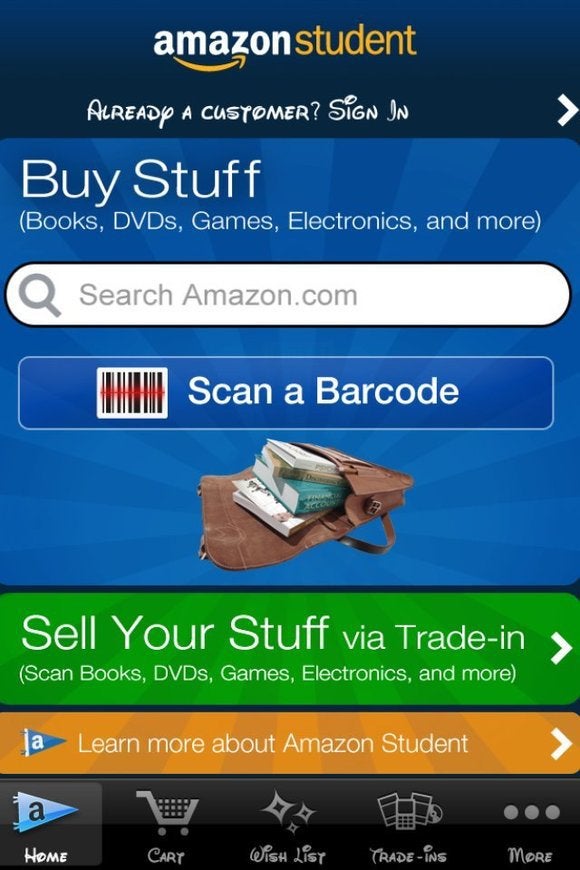
Amazon Student can help you save on tons of college gear.
The first thing any freshman needs are the textbooks required for each class, and the price of getting new ones is enough to break just about any budget. Luckily, there are plenty of ways to get discounted books these days, one of which is Amazon Student (free; web only). The retail giant offers students free membership for six months, which includes free two day shipping and exclusive deals and discounts for students—and not just on books. Collegiates can also take advantage of promotions on storage items, bedding and other essentials.
Plus, Amazon has a textbook section where you can buy, sell, and even rent books. After six months, students get half off Prime membership, which includes free music, TV and movie streaming—a good bargain over paying for cable and a music subscription service.

Study buddy

Once you’ve cracked open your textbooks and read all of your assigned chapters—which, ahem, of course you are going to do, and well before midterms roll around—you may find it useful to have a study aid. Believe it or not, the good old flash card is still useful beyond SAT prep, but who wants to waste all those trees? Enter StudyBlue (free; iOS and Android), an excellent flash card app that lets you simply input your school and courses, and then provides an extensive list card sets. User-populated study guides are free, while those provided by StudyBlue cost $9 a pop (or you can subscribe to the pro version for $48 per year).
studyblue
Flash cards are a classic way to prep for a test.
You can also create your own flash cards—ideally using the web version, since who wants to type all that on their phone? While studying, you can use the app’s thumbs up and thumbs down buttons to indicate what you get right and wrong, and then you’ll get a score at the end of each session. 

Crunch time

For those who want to dive beyond flash cards, there’s ExamTime (free; web-only), a study tool that’s populated with notes, quizzes, and mind maps created by students and teachers across the globe. The idea is to make studying interactive, which helps with learning and retention. In addition to the activities, you can study with groups online and set study goals.
examtime
ExamTime's study planner is an excellent tool for staying on track.
There’s also a handy built in study planner where you can enter classes, exams, homework, studying, and free time on a calendar. You can save the calendar as a PDF or in iCal format; it would be nice if you could export it directly into Google Calendars. The free version of ExamTime allows you to schedule up to three “subjects;” upgrading to Premium ($4 per month) or Premium+ ($5 per month) gets you nine or 25 subjects, respectively—plus access to more study resources. 

Don’t even think about sleeping in

Of course, all that handy-dandy scheduling will be for naught if you can’t make it out of bed in the morning. If you’re a repeat snooze offender, Alarmy: Sleep If You Can ($2; Android and iOS) is a worthy download. This simple app requires that you either take a specific photo or shake your phone an annoying number of times in order to turn off the alarm. The trick is to make the photo of something not right next to your bed. Once you’ve managed to silence it, Alarmy pops up a handy snapshot of the weather so you can properly attire yourself for the day.
alarmy
This annoying alarm makes it impossible to snooze through.

Perfect paper

Writing a bibliography can be a tedious process, particularly since it usually must be done right after finishing a lengthy term paper. Mercifully, the advent of barcode scanning via smartphone has made this much easier. With EasyBib (free; iOS and Android), you simply scan the barcode of each book you’ve referenced, and it will populate a bibliography in MLA, APA or Chicago style. You can then email the citations to yourself and simply copy and paste at the end of your paper.
easybib
Use EasyBib to help you properly cite your paper.

Don’t forget to call Mom 

Even for the most socially adept of us, going off to college for the first time can cause bouts of homesickness from time to time. Skype (free; iOS, Android, Amazon Fire OS) is an integral tool for keeping in touch with friends and family back home, especially if your school is not within easy visiting distance. Make all your contacts sign up for the service as well and you can all video chat for free as often as you want. There’s even a group video chat feature that supports up to ten callers at once. For a small fee, you can make calls to cellphones and landlines from the app, which is particularly useful for those who are studying abroad.
skype
Skype is a handy app, even if you're not a student.

Make new friends 

Of course, you don’t want to spend all your time locked in your dorm room tethered a digital communication device. Making new friends is a huge part of the college experience, and while you might luck out with an awesome roommate who becomes your BFF, likely you’ll want to branch out. For that, there’s Skout (free; iOS and Android), a social app that’s aimed at getting people together in person for fun activities. The app uses the GPS on your phone to find other users near you, and you can browse profiles to look for people with similar interests. Just remember: whenever meeting someone for the first time, do it somewhere public and safe.
skout
Use Skout to connect with other students you might not meet otherwise.

Drink responsibly

Let’s be real: although the legal drinking age in the United States is 21, there’s still an awful lot of alcohol consumption by first-year college students. No matter what your age, it’s important to be smart about drinking. That’s where Wise Drinking (free; iOS and Android) comes in. A team from French wine and spirits company Pernod Ricard created this well-designed app with the aim of helping users moderate their drinking and making them aware of when it’s time to call a cab.
wisedrinking
Watch your drink intake, people. 
The app uses your gender, weight, and height to calculate blood alcohol content (BAC) levels according to alcohol amount, type, and timing of consumption. It also prompts you to enter the last time you had a full meal. Of course, the BAC provided is just an estimate—and entirely dependent on user input—but at the very least, it can help keep you aware of your consumption. Also nifty is the built-in transportation map, which shows you the closest transit and taxis. There are even buttons for contacting a friend or making an emergency call.

Get your grub on 

Unless you go to school in a major metropolitan area, chances are popular delivery apps like GrubHub and Eat24 won’t be available to you at school. And let’s face it: food delivery is a necessity. Luckily, there’s Crunchbutton (free; web-only), a service just for college students. Currently, this web-only app is offered for about 20 schools, most of which are located on the east coast, but the company is planning to add many more schools throughout the year. For now, students attending the likes of Georgetown, Brown, and UNC Chapel Hill can use the site to order grub delivery from a handful of local restaurants and even fast food favorites like Taco Bell and Mickey D’s. 
crunchbutton
Late night munchies? No problem.

Work it out

With all of those late night snacks, unlimited meals at the dorm cafeteria, and free-flowing drinks, consider a fitness app to balance things out (and stave off the dreaded Freshman 15).
If you want to focus on bulking up and “getting ripped,” JeFit (free; Android, iOS, and Amazon Fire OS) is a good option. This app offers a plentiful array of free routines designed for men, along with a handful of general cardio and yoga workouts for mixing it up. 
ntc
JeFit and Nike Training Club (shown here) can help keep you in shape.
For the ladies, check out Nike Training Club (free; iOS and Android), a female fitness community app that focuses on three training categories: Get Lean, Get Toned, and Get Strong. You can then select between beginner, intermediate and advanced levels—and choose whether or not to add running to your routine—and the app will populate a four-week training program. Each workout includes a video (download is required) and lets you set your own music.

Apple launches free iPhone 5 battery replacement program for defective units by Ian Paul

Apple is offering a second replacement program for iPhone 5 users after offering to replace the sleep/wake button on some models in April. This time around it's the phone's battery that's giving users headaches. Apple says that a "very small percentage of iPhone 5 devices" may be experiencing poor battery life, requiring users to charge the device more frequently.

Affected devices were sold between September 2012 and January 2013 and are within a specific serial number range, Apple says. You can check your serial number on Apple's site to see if your phone qualifies for a free battery replacement.

If you have an affected device you'll have the choice to replace your battery free of charge at the Apple Store, an Apple authorized service provider, or you can send it off to Apple Technical Support.

Before bringing your phone in, Apple advises you to back up your data to iTunes or iCloud, turn off Find my iPhone, and do a factory reset. You can do that by navigating to Settings > General > Reset > Erase all Content and Settings.

Apple won't replace broken screens, cracked backs, or other physical problems free of charge. But the company also won't replace the battery for free until any damage that impairs battery replacement is fixed—including cracked screens.

Once your battery is replaced, Apple will guarantee the battery for two years after the device's initial retail sale or March 1, 2015, whichever is longer. The battery replacement will not extend your iPhone 5 warranty.

Apple's battery replacement program began on Friday, August 22 for iPhone users in the U.S. and China. Other countries will start seeing a replacement program this upcoming Friday, August 29.

But if your phone is getting close to its second birthday anyway, it might be time to ditch your handset for something newer. Rumor has it the iPhone 6 is set for a debut in the coming weeks.

Thursday, July 31, 2014

A complete list of movies that are leaving Netflix tomorrow - plus new ones coming by Kim Komando

Just about every month, Netflix removes and adds any odd number of movies and TV shows from its site.

Not only does this keep content fresh, but occasionally Netflix's licenses for certain movies expire and it has to remove those titles from rotation. It then replaces with newer movies.

This time around, Netflix is ditching 23 movies including "Braveheart," "The Pianist," "The Adams Family," "Star Trek VI: The Undiscovered Country," "Star Trek V: The Final Frontier,"  "Airplane," and "Runaway Bride."

New to Netflix this month include "The Killing Season 4," "Corky Romano," "Bridget Jones' Diary," "Chaplain," "Cleopatra" and more.  See the full lists of what has been removed and added below.

New to Netflix in August:

    Best Laid Plans
    Blink
    Blown Away
    Becoming Jane
    Blue Car
    Bounce
    Boys and Girls
    Brian's Song
    Bridget Jones' Diary
    Buffalo Soldiers
    Caveman
    Chaplin
    Chinatown
    Cleopatra
    Chocolat
    Corky Romano
    Cypher
    Deep Blue
    Down to you
    Elizabethtown
    The Killing Season 4

Leaving Netflix after July 30:
    American Psycho
    Airplane
    Runaway Bride
    Addams family
    Zach and Miri Make a Porno
    Braveheart
    Donnie Brasco
    Easy Rider
    Fido
    The Good Son
    The Ghost and the Darkness
    Somewhere in Time
    Monty Python's The Meaning of Life
    Waking Ned Devine
    Days of Thunder
    The Pianist
    Barbarian Queen
    The Rainmaker
    Unstable Fables 3 Pigs and a Baby
    Star Trek VI: The Undiscovered Country
    Star Trek V: The Final Frontier
    Valkrie
    Crime Zone

Tuesday, July 29, 2014

How to spot a shady gadget charger by Kim Komando

Q. Hi Kim. I recently read on your Breaking Tech News Page that a woman in China was

A. You're not alone. Many people are concerned about the scary details in this story, including Apple itself.

In July alone, there were two reports of serious injury and death resulting from answering an iPhone: Ma Ailun was killed by electric shock on July 18. She answered her iPhone while it was still on the charger. Meanwhile, a man in China was also shocked and is in a coma after he connected his phone to the charger.

What gives? Who is responsible?

It turns out it's not the iPhone, but the knockoff chargers the victims were using. People often buy these to avoid the cost of the real deal.

These shady chargers are cheaply made and sidestep safety regulations, making them quite dangerous. Therefore Apple has released several statements urging users to beware of knockoff chargers.

So, how can you avoid them? I understand that buying a knockoff or no-name brand of phone charger is tempting. After all, everyone wants to save money, and paying $1 for a charger is a lot more enticing than paying $20. But this is a corner I wouldn't cut.

Cheap chargers could cause your electric bill to go sky high. Also, your phone could overheat, cause a fire, or as we've seen now, can even kill you.

At first glance any charger could look like the real deal. Sure, it's only $2 and looks exactly like what you need. But if you dig a little bit deeper, you'll see that there are a lot of little differences.

For starters, if it's $2, it's probably too good to be true.

Next, take a look at the markings on the outside of the charger. Does it say "Designed by Apple" or "Designed by Abble"? Knockoffs are usually plagued with misspellings and mistranslations. Bad grammar should be a strong hint.

If you have an iPhone 5 or new iPad, it uses the Lightning connector. You won't have to try so hard to decide if it's genuine. These cables have authentication chips installed to ensure your safety. Only Apple-approved suppliers can get the chips.
electrocuted when she answered her iPhone while it was charging. How common is this problem? What can I do to make sure this doesn't happen to me?

Sunday, July 27, 2014

Do you have bad RAM? How to find it and how to fix it by Topher Kessler


The RAM in your Mac is in essence the active workspace of your computer, in which your programs run and your content is created. Because of this, healthy RAM is vital for properly running any software on your Mac, be it the system software that comes with OS X or third-party programs. 

Unfortunately, if the RAM in your Mac is faulty, those faults can sometimes persist undetected for a while, only to crop up unexpectedly and result in a crash, hang, or other unwanted behavior. Therefore, it is good to not only be able to identify faulty RAM, but also be able to properly test for it and then be prepared to fix the problem, if it arises.

Faulty RAM symptoms

If your system’s RAM is not working correctly, then you will likely see one of several symptoms when using your Mac:
Random Application Crashes: If programs randomly quit unexpectedly, and the generated crash report shows different potential reasons for the crash, this may indicate bad RAM.
Random Pauses: When a background task is addressing bad memory and is crashing, it may cause the system to continually re-launch it or otherwise hang up when attempting to use this task’s services.
Data corruption: If files you save or access regularly become damaged and cannot be opened, it could be corruption in your filesystem formatting—but it could also indicate faulty RAM.
Random kernel Panics and system freezes: This may happen when core OS components attempt to access bad RAM and crash, resulting in a kernel panic or the system immediately halting.
Three beeps from your Mac at startup: Before the boot chimes sound at startup, your Mac will run a rudimentary check to ensure RAM is available and accessible. If not, then you will hear a series of three beeps from your system, and no boot chime. The system will also not boot when this sound is played.
Other inabilities to boot your system: If you cannot get your system to boot, and especially if you don’t hear the boot chimes, this may suggest RAM is not accessible, and some fault is preventing the system even from issuing the three beeps warning.
While these symptoms suggest faulty memory as a possibility, keep in mind they may not necessarily occur regularly: They may instead happen only when the specific faulty areas of your installed RAM are accessed, the frequency of which may change depending on the amount of RAM installed and how much you use it, which will govern how often the faulty areas of RAM are accessed.

Testing your RAM

If you are experiencing some symptoms that suggest faulty RAM, then there are several ways to test your Mac’s RAM and ensure it is healthy and available.
applehardwaretestextended
Apple's classic hardware test suite requires you click the Test button, and optionally select the extended memory test.
 
The first of these is Apple’s built-in hardware tests suite, which can be accessed by holding the D key down while you restart your Mac. Doing this will load the diagnostics suite. Older systems, this classic utility has a blue interface with information about your Mac and a big Test button. To use it to test your RAM, check the box for the extended memory test (this will run multiple passes and different patterns to the memory), and then click the Test button.
On newer Macs, the tests run automatically when the utility is invoked; it appears with a gray background instead of blue.
Note that, if you have formatted your hard drive and reinstalled OS X, then the built-in hardware tests may have been wiped; however, you can still load them from the Internet by holding the Option-D key combination (as opposed to just D) at startup when you hear the boot chimes.
If the hardware test finds any faulty memory, it will list the faulty memory addresses. If everything is OK, you’ll see a message that states all tests passed and no problems were found.
In addition to Apple’s testing suite, there are plenty of third-party memory-testing utilities. One of the most popular is the free memtest, which is run from the Terminal command-line. You can also get a graphical wrapper for memtest, called Rember. But, as I say, there are many of them; just check the Mac App Store and search for RAM. Each will test memory differently and some may miss a problem that another can detect. Therefore, I recommend you use more than one.
newapplehardwaretestresults
Apple's new hardware test suite will run automatically and show you any results here.
 
For best results, you should run these RAM-testers under some special conditions:
Run in Safe Mode or Single User Mode: Since memory test programs can only test the RAM that is available, be sure to run it in as minimal of an operating system as possible. This means, if you use Rember or memtest, to do it in Safe Mode (for anything requiring a graphic interface), or better yet, in Single User mode, as these will ensure as much RAM is available for testing as possible. That’s why Apple’s Hardware Test is a great option: it loads only a rudimentary operating system, which loads just the tests, ensuring that RAM isn’t occupied with anything else.
Swap or rearrange RAM chips: If you have access to the RAM chips on your system, swap or rearrange them, especially if you have more than two available RAM slots (as you do on some iMac models and the Mac Pro), and then test again. This will help ensure that all RAM addresses are accessible to the testing program, because the system will load core OS components into different parts of RAM.
Keep in mind that, depending on the amount of RAM you have installed, these tests will take some time to complete. But this isn’t something you have to do regularly—perhaps once a year or even every few years, if you care to include it with regular system checks you perform on your Mac. (The only other regular one which I recommend is to check your hard drive for formatting errors.)

Replacing RAM

If any of the tests you run returns any status except for OK, then you should consider replacing it as soon as possible.
aboutthismac
The About This Mac windows show you some memory information, but not all you need to upgrade or replace your RAM.
 
You can look up the type of RAM your system uses by choosing About This Mac from the Apple menu, where you should see the current RAM amount (8GB or 16GB, for example), its speed (1600MHz, say), and its type (DDR3 is one possibility). However, that’s not all information you need; it’s missing things like pin counts. You can find that specific information in Apple’s support website, where it hosts an index of instructions for replacing RAM on your Mac.
If your Mac doesn’t support user-upgradable memory (the Retina MacBook Pro, say, or the MacBook Air), then you’ll need to contact an Apple technician.
Finally, if you do replace your Mac’s RAM, be sure to keep the receipts, packaging, and other proofs of purchase for it. Most RAM manufacturers offer lifetime warranties for their products. So upon receiving your replacement, be sure to test it thoroughly, and then do so periodically to ensure it is working correctly. If not, you can then contact the manufacturer for a replacement or a market-value refund of the purchase price. 


Why not sign up for my newsletter? We will never sell or sell your email address. Unsubscribe at any time by clicking the unsubscribe link at the bottom of the newsletter.

Email Newsletter icon, E-mail Newsletter icon, Email List icon, E-mail List icon Sign up for our Email Newsletter


For Email Marketing you can trust


My Photo

Carl Thorne
Expert Computer Consulting 

FCC report: DSL subscribers aren't getting their money's worth by Kim Komando

In the ongoing battle for better, faster Internet, some people are about to be disappointed. If you have DSL, chances are that your Internet speed is drastically different than advertised.

This means that a few DSL companies will soon be getting a letter from the FCC demanding why. Century Link, Frontier, Verizon and Windstream are on this list.
You can see the differences in the chart below. Click the picture for a larger image.

775012110657273233
Despite claims to the contrary, it seems that DSL just can't compete with broadband and fiber. This trend shows that perhaps Netflix wasn't just being vindictive toward Verizon in their recent finger-pointing incident.
 
To their credit, the Verizon FiOS service was almost as fast as advertised, but the Verizon DSL services were woefully under par.

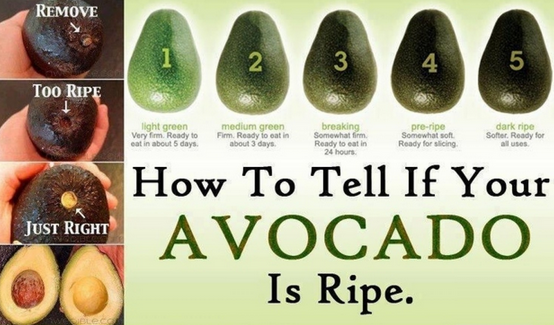
How to Tell Of Your Avocado is Ripe

Why not sign up for my newsletter? We will never sell or sell your email address. Unsubscribe at any time by clicking the unsubscribe link at the bottom of the newsletter.
Email Newsletter icon, E-mail Newsletter icon, Email List icon, E-mail List icon Sign up for our Email Newsletter


For Email Marketing you can trust


My Photo

Carl Thorne
Expert Computer Consulting 

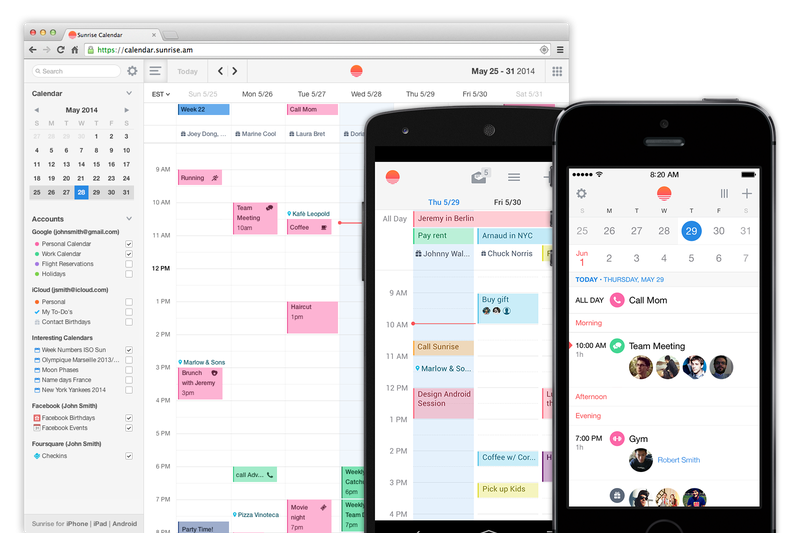
Sunrise for iOS and Android is the ultimate Google Calendar companion by Leah Yamshon


Until recently, we didn’t have very many solid third-party calendar apps for Android. Not that there’s anything wrong with the calendar that’s already on your phone, but it’s nice to have options, especially considering how many beautiful calendars there are for iOS. But, we’re in luck: One such iOS option recently made its Android debut. If you’re a Google Apps user who wants to try something new, look no further than Sunrise.
Sunrise is praised for its seamless integration with all things Google. It supports multiple Google Calendars, uses Google Maps data to direct you to events, and supports a handy “quick add” feature. If you don’t typically use Google Calendar, Sunrise has full support for Apple’s Calendar as well. iOS users can also sync Sunrise with a Microsoft Exchange account, but Android doesn’t have that functionality just yet.
sunrisecal
Sunrise works across devices, and even has a read-only Web client.
Getting started with Sunrise is just a matter of connecting to your existing calendar, where you’ll see a month or weekly overview of your schedule. The top half of the screen displays a quick calendar glance, and the bottom half shows off your appointments for the current day. Just slide the overview box to expand it to monthly view, or collapse it back to weekly view. Tap on any day to see what’s on deck. For a more detailed look at your appointments, you can switch over to agenda view.
sunrisewidgetandroid
Android users can take advantage of Sunrise's homescreen widget. 
When looking at the current day’s overview, Sunrise handily provides you with a weather summary, and gives a breakdown of how the weather will change throughout the day—perfect for helping you decide what to wear. To add a new event, tap the plus sign on the main page. From there, you can invite other people, set up a reminder, and jot down an address to get directions later.
I know, I know. This sounds just like any other calendar app. But really, it’s not. Its unique layout and other features make Sunrise a step ahead of many others. You can connect Sunrise with your social media accounts to pull in other scheduled events to keep everything in one spot. Sunrise also has a set of interesting calendars you can add, to stay in the loop about national holidays and the schedules of your favorite sports teams.
I love that Sunrise has a web client as well, but I’m waiting for it to get better. Right now, the web version doesn’t have support for Exchange, which is what I use for work. Unfortunately, that means I can only view my personal Google Calendar. You also can’t add or edit an event from the web version: It’s simply for viewing. I’d eventually like to use Sunrise as my go-to calendar, but I can’t do that until the web client gets a feature boost that matches its iOS offering. The iOS app is awesome, but I like using my Mac to manage my crazy work calendar.
Still, Sunrise looks lovely, works great on mobile devices, and is much less headache-inducing than other calendars out there. It's free in the iOS App Store and Google Play Store now.

Why not sign up for my newsletter? We will never sell or sell your email address. Unsubscribe at any time by clicking the unsubscribe link at the bottom of the newsletter.
Email Newsletter icon, E-mail Newsletter icon, Email List icon, E-mail List icon Sign up for our Email Newsletter


For Email Marketing you can trust


My Photo

Carl Thorne
Expert Computer Consulting 

Turn your iPad into a business assistant by PC World

The iPad offers a ton of options for fun and games, but Apple’s tablet has plenty of potential as a business tool, too. Here are five apps that can transform your iPad into a must-have work accessory.

Microsoft Office for iPad

Microsoft Word on the iPad retains the look and feel of using Word on a PC.

Microsoft’s Office suite is actually available as three separate apps for the iPad: Microsoft Word, Microsoft Excel, and Microsoft PowerPoint. All three are free if used to view documents, but if you want to create or edit files, you’ll need a subscription to Office 365 ($10 per month). While that may seem expensive, the experience of using Office on the iPad is impressive; Microsoft strikes a nice balance of including familiar Office tools, while also taking advantage of the iPad’s touch screen. It’s a great way to take your iPad one step closer to becoming a laptop replacement.

iWork

Like Microsoft Office, Apple’s iWork is sold as three separate iPad apps: Keynote, Numbers, and Pages. Each sells for $10, though these apps are included for free with newer iPad models. Either way, that’s a lower price than Microsoft’s offerings, which require a subscription to truly be useful. Numbers and Pages are not quite as robust as Excel and Word, but they are worthy apps and will be familiar to any Mac diehards who’ve used them on a desktop or laptop. And, with its slick feature set, Keynote is a true PowerPoint competitor.

Apple's iWork is sold as three separate iPad apps: Keynote, Numbers, and Pages.

GotoMyPC for iPad

GotoMyPC has long been one of my favorite programs because of all the time I spend working on different computers. This remote access program was one of the best ways to access information stored on one PC when you’re miles and miles away, sitting in front of another computer. Still, I was hesitant about trying it out an iPad (it also works on Android devices and Amazon’s Kindle Fire).

GoToMyPC lets you see and use a PC remotely, but viewing all of its contents on the relatively small iPad screen can strain your eyes.

I needn’t have worried: GotoMyPC’s iPad app seamlessly connected me to my home computer, allowing me to slide, tap, and touch the screen to access the files and applications I needed. The iPad’s smaller screen limits how much you can do with the contents of your PC, but GotoMyPC for iPad is incredibly useful nonetheless.

Cubby

LogMeIn is another excellent remote access tool, but with its Cubby service, I might never need to use it. That’s because Cubby stores files and folders in the cloud and allows you to access them from various devices—like an iPad, if you install the free Cubby app. (Cubby itself is free for limited personal use; plans with additional features, including more storage and security, start at $4 per month.) The app is easy to use and lets you access files and folders and save them for offline viewing. The iPad does limit what you can do with all of the files in your Cubby, as you might expect. Still, it’s a handy way to access important files when you’re on the go.
cubby

Cubby lets you view and share files stored in the cloud from your iPad.

Note Taker HD

Note Taker HD lets you write notes by hand, but your handwriting may benefit from using a stylus.

I spend a lot of time jotting notes on a notepad. Then, when I need to find what I’ve written, I’m left digging through piles of paper, often left with what I need written on a crumpled piece of paper, if I can find it at all. Enter Note Taker HD: this $5 iPad app lets me create handwritten notes in digital form, right on the iPad screen. You can write notes with your finger, but you’ll have more control if you invest in an iPad stylus. Note Taker HD also lets you enter text by typing, insert images and shapes, and annotate PDFs.  I like how you can organize multiples pages into one document and then store documents in folders. I may never have to dig around my bag for a crumpled notepad again.

Why not sign up for my newsletter? We will never sell or sell your email address. Unsubscribe at any time by clicking the unsubscribe link at the bottom of the newsletter.
Email Newsletter icon, E-mail Newsletter icon, Email List icon, E-mail List icon Sign up for our Email Newsletter


For Email Marketing you can trust


My Photo

Carl Thorne
Expert Computer Consulting 

Apple launches Back to School promo, offers gift cards with purchase by Dan Moren

Seems like the school year just ended, but it’s already time to start planning ahead for next fall. Apple on Tuesday kicked off its annual Back to School promotion, offering incentives for picking up its devices for the upcoming school year.
As in the past, Apple is offering gift cards for the Apple Store along with the purchase of Macs, iPads, and iPhones. Qualifying products include the MacBook Pro, MacBook Air, iMac, and Mac Pro; the iPad Air, iPad with Retina display, iPad mini, and iPad mini with Retina display; and the iPhone 5s, iPhone 5c, and iPhone 4s. (You’ll also be able to snag some modest education discounts on the Macs and iPads—no such luck with the iPhone.)

Buying a Mac will get you a $100 Apple Store gift card, while an iPad or iPhone will net you a $50 card—so you can pick up that Thunderbolt cable you’ve wanted and even have $10 left over.

In order to be eligible, you’ll have to make your purchase through the U.S. Apple Online Store for Education Individuals, or from one of the U.S.’s brick-and-mortar Apple Stores. You’ll also need to be qualified to actually buy from the education store, and picking up a iPhone for $0 on a carrier contract or installment plan won’t net you a gift card.

If you need some time to think it over, don’t fret: The discounts run from July 1 through September 9.

Why not sign up for my newsletter? We will never sell or sell your email address. Unsubscribe at any time by clicking the unsubscribe link at the bottom of the newsletter.
Email Newsletter icon, E-mail Newsletter icon, Email List icon, E-mail List icon Sign up for our Email Newsletter


For Email Marketing you can trust


My Photo

Carl Thorne
Expert Computer Consulting