Life has changed there is no doubt and we wanted to reach out to see how you are doing.
As we go through this interesting time, we are trying to look at this as an opportunity to focus on our family and on friends like you. Let us use this extra time to catch up and talk more. Let us cook food that is not fast, but interesting and satisfying. Let us learn to enjoy a time to try new things. Let us find ways to enjoy time at home!
Computer Security
If my client base is any experience, anyone can be a victim of a Ransomware, Malware or Virus attack.
What can you do about it?
I conduct audits of your entire computer infrastructure and apply best practice solutions to plug the security holes on your computers, Smartphones and networks.
Now offering consultations to give you the best protection possible:
10:42 AMHigh Tech House Calls, Expert Computer Consulting
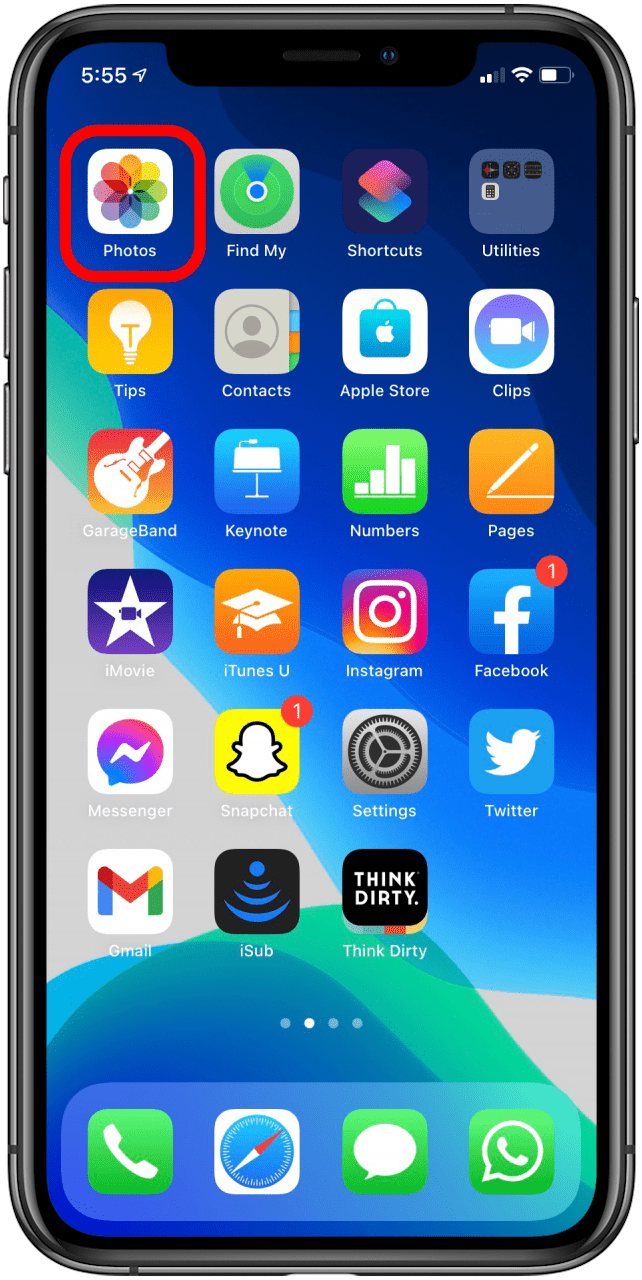
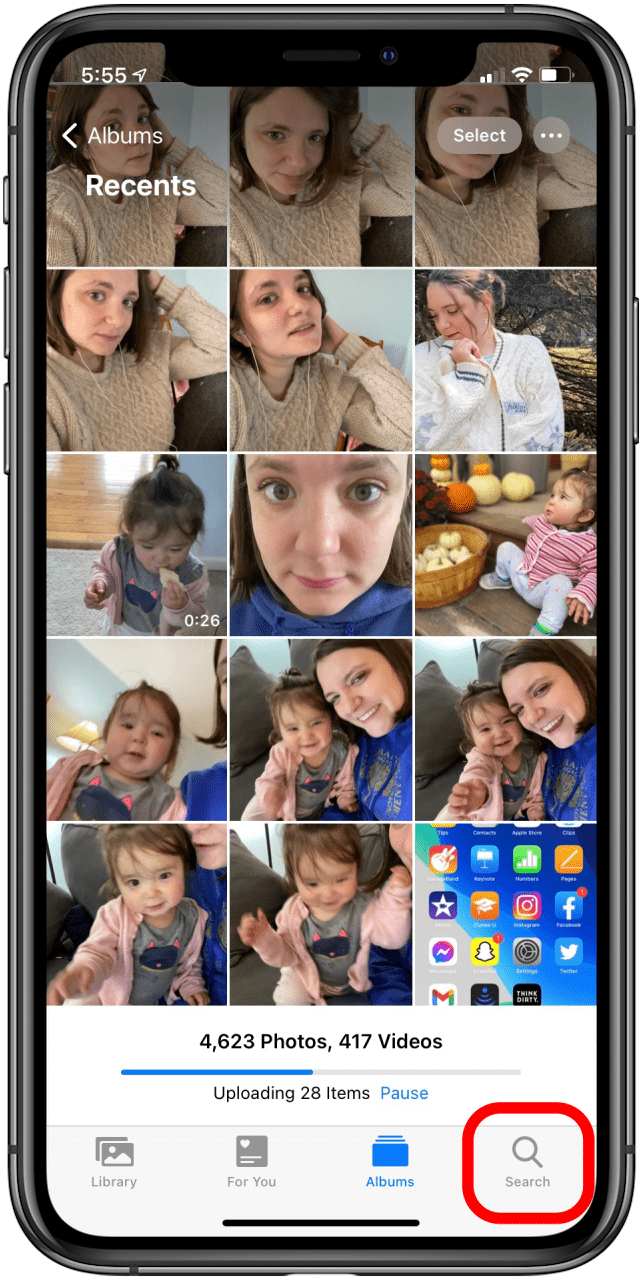
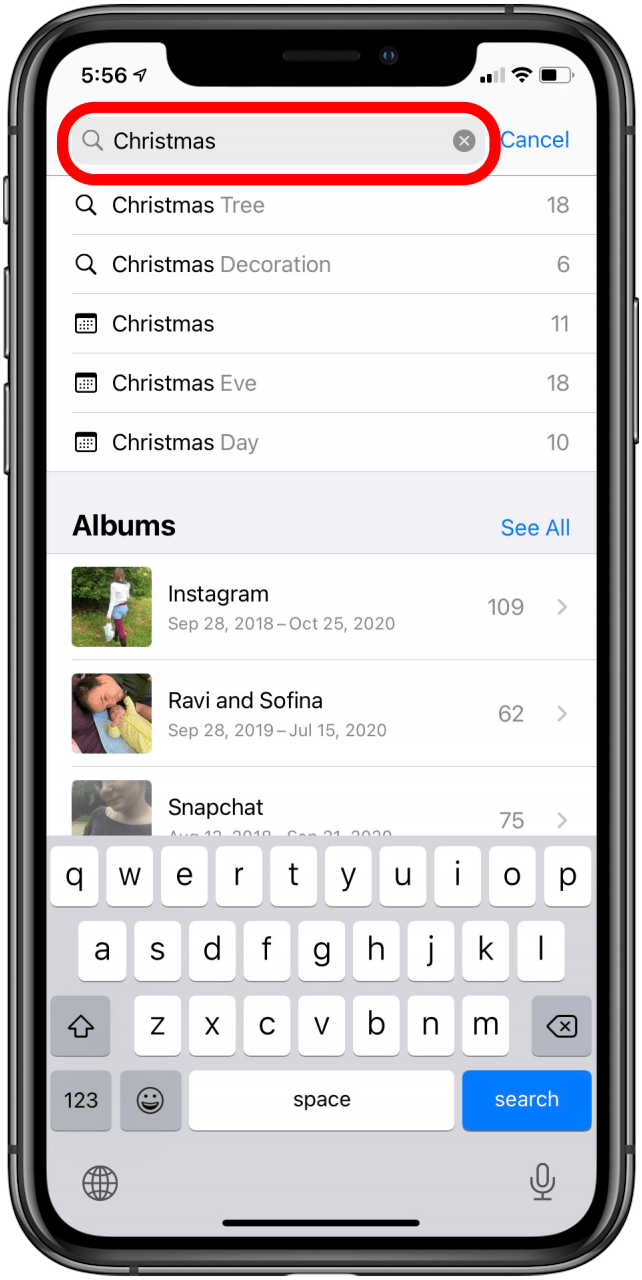
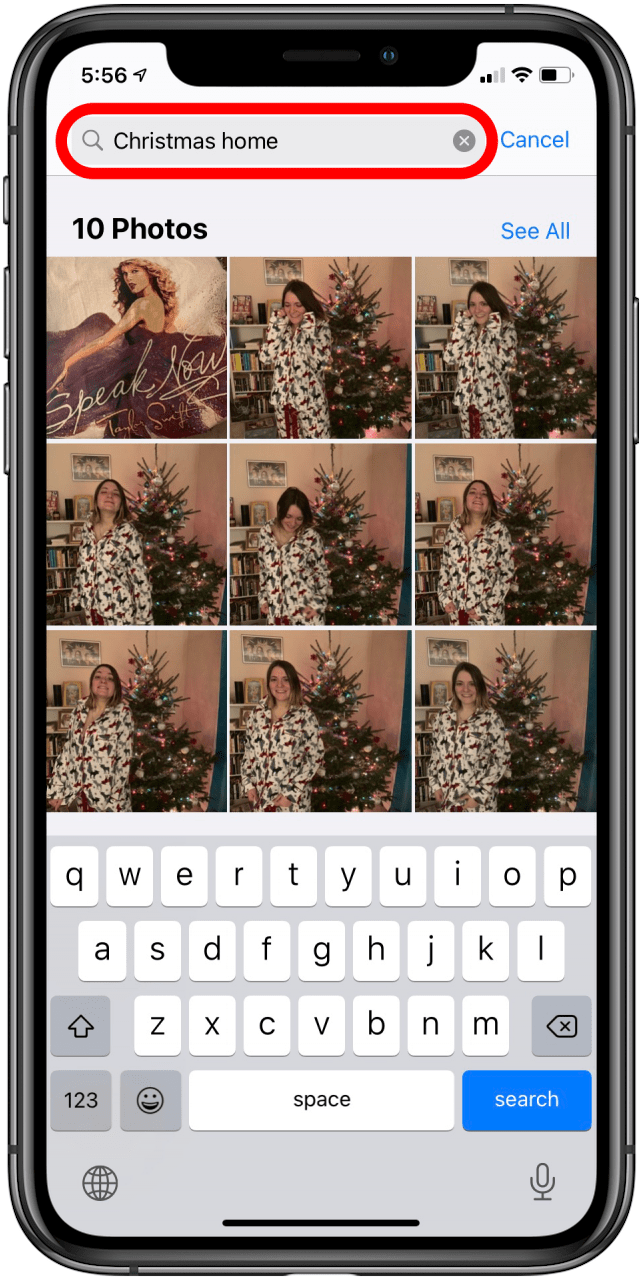
This article will tell you
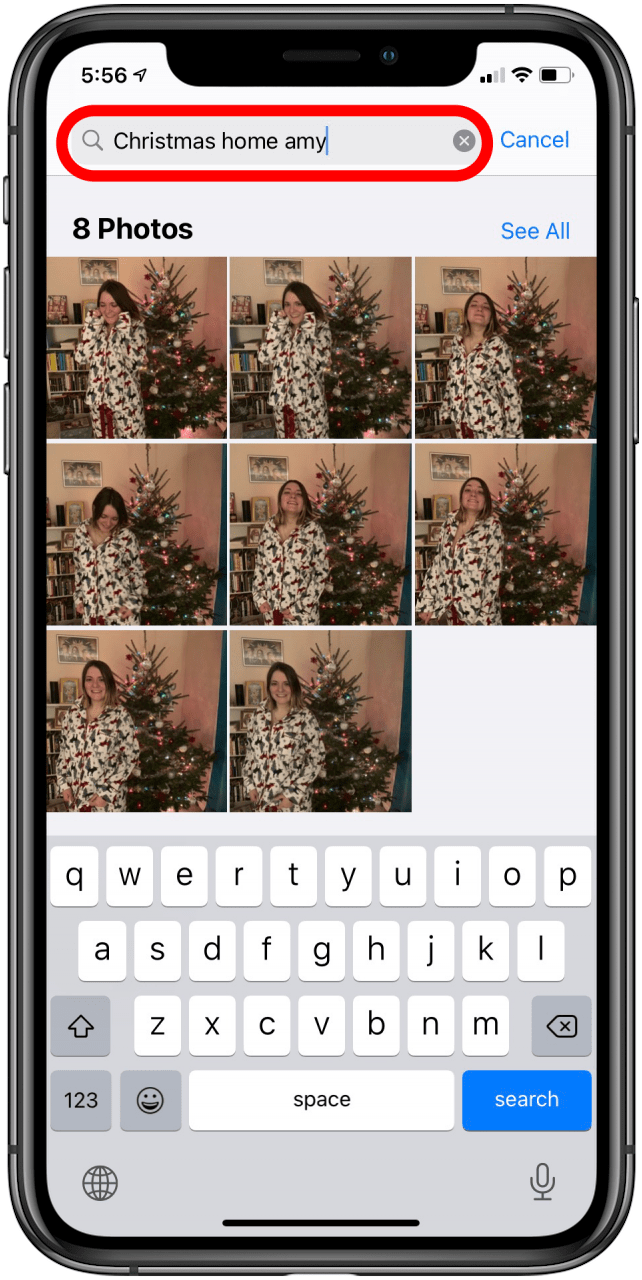
how to find a specific picture in your Photos app using multiple search
terms. One of my favorite apps on my iPhone is Apple's Photos
app. Not only are Apple's native Camera and Photos apps free, but they
also keep improving with every new operating system. With iOS 12 and
later, you can use multiple search terms to find specific
pictures in the Photos app. This photo search feature can use one or
more of the following categories: date, location, business name, events,
people, and type of photo. I'll show you how to use this time-saving
feature to search for specific pictures faster and more accurately
than ever before.
4:29 PMHigh Tech House Calls, Expert Computer Consulting
If you used a computer between 1997 and 2005, you probably burned valuable data
to at least one recordable CD (CD-R) or DVD-R. Unfortunately, these have a
limited lifespan, and many have already become unreadable. That’s why it’s
important to back up your recordable discs before it’s too late—here’s how to do
it.
The Problem: Optical Disc Data Rots
CD-Rs and DVD-Rs store data on a layer
of dye that is melted by the laser when the data is written. This dye layer
isn’t completely stable and can chemically break down over time, causing data
loss. Also, the reflective layer on the top of the disc can oxidize, making the
data difficult to read.
As a result, many CD-R and DVD-Rs burned in the late
’90s and early ’00s are now unreadable in modern optical disc drives. And for
those that remain, the clock is ticking.
Estimates on the lifespan of CD- and
DVD-Rs vary wildly, from between two and 100 years. In 2004, the U.S. Library of
Congress sponsored a study that estimated the shelf life of recordable discs
available at that time. It simulated the aging of CD- and DVD-Rs stored in
perfect environmental conditions (that is, a room temperature of 50 percent
humidity with no sunlight, and no rough handling).
The study concluded that most
recordable discs stored in ideal conditions would last at least 30 years, but
the results varied wildly by brand. However, it also stated that “discs exposed
to more severe conditions of temperature and humidity would be expected to
experience a shorter life.”
So, if you store your CD- or DVD-Rs in a hot attic,
you might find a higher portion of them have gone bad. From our anecdotal
experience, if you have a batch of 30 vintage consumer-grade CD-Rs, you might
expect a few of them to be unreadable. However, it depends on the quality of the
disc, the type of dye used, the speed at which they were recorded, and how they
were stored.
In 2010, the Canadian Conservation Institute published a detailed
analysis of CD-R and DVD-R longevity that broke down estimated lifespans based
on the dye and reflective layer composition. Like the Library of Congress
report, the estimates varied wildly, from between five and 100 years, depending
on disc composition. Unfortunately, the 100-year-minimum lifespan estimate only
applies to expensive, high-end gold-backed CD-Rs that very few people used.
Even
under ideal conditions, there’s still cause for alarm. Even if a
consumer-quality recordable disc has been stored in the perfect place, it might
last (on average) about 30 years. Many recordable discs are already 15-25 years
old, which means it’s time to back them up now.
How to Back Up CD-Rs and DVD-Rs
To back up your
old CD-Rs or DVD-Rs, you’ll need a computer and a compatible CD or DVD optical
drive to read the discs. Some people have had more success using older drives,
claiming they tend to read older discs better than modern ones. This is
anecdotal evidence, though.
Plus, older drives can be hard to get, unless you
find one on eBay. If you decide to look for an older model, focus on the
big-name brands. Sony, for example, was known for making high-quality drives. Of
course, whether a vintage drive will work with a modern computer is another
issue, entirely.
If you’d like to try a newer drive to read your discs, you can
easily purchase one online. Most new optical drives should work just fine, as
long as a CD- or DVD-R hasn’t begun to degrade.
We recommend the following
drives:
For Windows PCs: A brand-name optical USB drive, like this well-reviewed
one by Dell would be a good bet.
For Macs: A good bet would be the Apple USB
SuperDrive.
There are several ways in which you can copy the data from your CD-
and DVD-Rs.
Option 1: Copy the Data Directly
If your PC or Mac recognizes the
data on your CD- and DVD-Rs, the easiest way to back it up is to just manually
copy the files over to your hard drive or SSD. To do this, just place the CD- or
DVD-R in the optical media drive, and then open it on your computer.
It’s best
to do this with some kind of organizational structure if you’re backing up a lot
of discs. For example, you could create a separate folder for the contents of
each disc. Name the folder something that will identify its contents, such as
“CD-R – Photos from Tom’s 2002 Wedding.”
Option 2: Create Disk Images
Sometimes,
a CD-R or DVD-R might be from a platform you don’t use anymore, and you might
not be able to read it properly. For example, say you burned a CD-R for a game
console development kit, but Windows can’t read it. In cases like those,
consider making a disk image of the disc, instead.
A disk image captures the
entire structure of an optical disc, including all the file data and the file
system (if there is one), in a way that can be replicated later on another disc,
if necessary. Good utilities for making disk images include WinImage for Windows
and macOS’s built-in Disk Utility app.
RELATED: How to Create ISO Files From
Discs on Windows, Mac, and Linux
Back Up Your Optical Disc Backups
All consumer-grade digital storage media has a finite lifespan. It’s
only a matter of time before plastics chemically break down, metals oxidize, or
magnetic signals fade. This means digital preservation takes active maintenance.
So, after you’re done backing up your CD- or DVD-Rs, make sure the data you just
copied over will be backed up continuously in the future. You can do this via a
cloud backup, an external disk or NAS drive, and more.
One of the best ways to
preserve your data at home is to keep your files on redundant storage (such as a
RAID array). Then, just keep migrating the data onto new hardware, as necessary
(all drives wear out eventually) and onto new platforms as they emerge.
What If I Find a Bad Disc?
If you’re
backing up CD-Rs or DVD-Rs, and find a disc that can’t be read or has errors,
your best bet is to copy as much data as you can, and then try to the disc on a
different optical drive. If the second drive fails, try a third.
Sometimes, CD-
and DVD-Rs were burned at high speeds with high error rates that were normally
fixed on the fly by error-correcting code. This can make it more difficult for
modern optical disc drives to read them, so try them on an older drive, if
possible.
There’s also some software that claims to aid in the recovery of data
from optical media, such as IsoBuster (for Windows.) If that doesn’t work,
though, you might just have to call it a loss and hope you saved the data
elsewhere.
If the data is incredibly important and irreplaceable, you can hire a
forensic data recovery service to extract whatever’s left of it for you.
Unfortunately, finding a reliable data recovery service isn’t easy, so you’ll
have to do some research. Happy digging!
9:50 AMHigh Tech House Calls, Expert Computer Consulting
Windows 10 has a hidden emoji picker you can use to type emoji in any application, even desktop programs like Google Chrome. It’s accessible by pressing a keyboard shortcut combination.
To open the emoji picker, press Win+. or Win+; on your keyboard. In other words, hold the Windows key down and press either the period (.) or semicolon (;) key.
Your cursor must be somewhere that accepts text while pressing these keys, but you can use this shortcut in practically any application—from text fields in your web browser to messaging apps to Notepad to Microsoft Word.
Just click the emoji in the window that pops up to insert it. The panel also remembers your most recently-used emoji and presents them at the top of the list.
You can also click the magnifying glass button at the bottom left corner of the emoji panel, and then type to search for an emoji.
Depending on the application, you’ll either see the same full-color emoji you see in the panel (in Chrome, for example), or you’ll see a smaller black-and-white emoji character (in Notebook, for instance).
Starting with the April 2018 Update, the emoji panel stays open after you insert an emoji so that you can insert as many emoji as you like. To close it, either click the “x” button at the top right corner of the panel or press the Esc key on your keyboard.
If you switch over to the “People” category in the emoji picker (the human face button with the hair at the bottom), a button also appears at the top right of the window that lets you choose the skin color for the emoji. This only changes the color of the newer people-shaped emoji. The older circular face emoji stay yellow.
Emoji are standard unicode characters, so the emoji you type with this keyboard should be viewable on any modern operating system or device that supports emoji. Microsoft even added black-and-white emoji support to Windows 7 in an update available through Windows Update.
Windows 10’s touch keyboard also has emoji support, so you can type emoji if you’re using the software keyboard on a touch screen. This works just like typing emoji using the keyboard on other modern mobile devices, like iPhones, Android phones, and iPads.
To type emoji with the touch keyboard, just tap the emoji button to the left of the space bar.
You’ll see a list of emoji, which can insert by tapping. They should work in practically any Windows application.
Tap the “abc” button to go back to the standard alphabetical keyboard.
9:47 AMHigh Tech House Calls, Expert Computer Consulting
Withnext-generation consolesright around the corner, and ultra-high-definitionHDR contentin plentiful supply, 2020 is a great time to buy a new TV. Before you do, though, here are six mistakes to avoid.
00:00 of 01:13Volume 0%
Picking a TV Based on Store Demos
Many of us have relied too much on in-store demonstrations at some point. It’s a common belief that seeing is believing, so why wouldn’t you base a purchasing decision on a demo? While the theory is a sound one, the reality is quite different.
One thing to consider is some TVs have manufacturer-specific demos running on each unit, while others just show a basic feed on every screen. It’s not always obvious if this feed even reaches 1080p, let alone 4K or HDR. It’s hard to make a fair assessment without knowing what the TV is truly capable of when you feed it a high-quality source, like a UHD Blu-ray.
Then, there are the settings on the TV. Most have a demo mode designed to be used in stores, and these tend to jack everything up to 11. You’ll see over-saturated colors, the maximum possible brightness, and maybe even some artificial sharpening of the image.
This is done to make certain models stand out on the show floor, but it’s not an accurate representation of how you’ll be using the television long-term.
This goes double for anyone looking to buy a TV for gaming. Much of the image processing used in-store introduces significant latency when used with a console or PC. In reality, you want to see what a TV looks like with all the bells and whistles turned off.
Even the in-store demos themselves can be misleading. If you’ve ever seen an ad for an “ultra-high-definition HDR” TV, you’ll be familiar with some of the tricks manufacturers use. They always create the illusion that their product is pushing some serious pixels, even though you’re watching the ad on your current display.
Store demos can be useful, but not for judging picture or sound quality. Rarely do the lighting conditions in a store match those in your living or theater room.
Viewing angles, however, aren’t impacted by a retail environment. If you’re buying a TV for the whole family or groups of friends to watch with you, check in-store that everyone can see the screen no matter where they might be sitting.
You can also judge whether you like the overall design of the TV. Are the bezels thin enough? Does the stand wobble too much? Can you get a soundbar underneath the screen, or will you need a wall mount? It’s a lot harder to judge these things when you’re staring at a product on Amazon.
Then there’s the way you interact with the TV. How responsive is its operating system? Does the remote feel nice in your hand? How fast does the TV start up from standby mode? Keep in mind that some models might also have software updates that will improve them over the store models, which are rarely (if ever) updated.
Listening to a Sales Person
Most major chain retailers train their staff to sell, rather than provide unbiased consumer advice. Their main goal is making money. This means they’ll often steer you toward the more expensive options, even though you don’t necessarily want or need them.
Speaking from past experience, store staff aren’t always the most well-informed about the products they’re selling. Working long hours for little pay is a job, not a passion. This is why the retail sector has one of the highest turnover rates of any industry.
As such, thoroughly training every new member of staff simply isn’t a priority. Plus, if you work in a department that sells 50 to 100 different models, you can’t be expected to be an expert on all of them.
Store staff often push particular products because that’s what their manager told them to do. If they work on commission, they also have a vested interest in steering you toward a model that’s more expensive than what you need.
Brand representatives likely have a much better understanding of the products than general retail staff. Of course, why would a representative of a specific brand give you unbiased advice if a rival’s product is the better buy? You should always take their recommendations with a big pinch of salt.
It’s worth adding that specialist retailers (usually independent stores) do train their staff to match customers with a product that suits their needs and budget. You should always be a discerning customer, though.
For a truly unbiased opinion, look at independent sources, like journalists, reviewers, and experts in the field.
Believing Spending More Will Improve Picture Quality
The best budget TVs don’t sacrifice image quality. In fact, image quality is all the best budget TVs have going for them. This is why TCL and Hisense have both gained so much market share selling no-frills sets at affordable prices.
You could spend double the price of something like the TCL 6-Series ($650 for a 55-inch) and somehow end up with worse image quality. How is this possible? You’re paying for features, not a better picture.
Manufacturers like TCL have cornered the budget end of the market by paring back their products to the bare minimum required to impress. In the case of the 6-Series, it’s a good-quality 4K panel that delivers a bright image with Mini-LED local dimming to improve black reproduction.
What you won’t get is an 8K resolution, a next-generation image processor, excellent motion handling, a 120 Hz refresh rate, or HDMI 2.1 ports.
TCL
If you want better upscaling, the latest HDMI specification for next-gen gaming, and a high refresh rate that delivers smoother motion, you’ll either have to spend more or sacrifice image quality to get it. It’s virtually impossible to find a mid-tier TV that does it all.
Image quality is determined by the panel type, contrast ratio, overall brightness, and other factors, including whether the TV has a backlight or uses local dimming.
There are many other features that go into a TV that don’t impact image quality directly. To improve image quality beyond even a good budget set, you’ll either have to spend substantially more on a premium model or make some sacrifices to fit your budget.
The good news is, if you just want a TV with a great picture so you can stream a few shows and movies, you don’t need to spend a huge amount on features you won’t use.
Forgetting to Budget for a Soundbar or Better
As TVs get thinner and bezels shrink, manufacturers have less space for built-in speakers. In fact, most TVs don’t even use speakers that face the viewer directly. Instead, manufacturers are angling speakers toward the bottom, and then “bouncing” sound out toward the viewer.
This results in poor sound reproduction, especially when it comes to bass response. Your next TV might sound worse than the one you’re replacing, even if it’s a flagship model. If audio is important to you, you’ll definitely want to budget for a soundbar or surround sound.
Soundbars are an ideal option for those who lack the space or budget for proper surround sound. You can find a soundbar to suit just about any budget, and any soundbar is better than no soundbar at all.
If you have a little more to spend, you can invest in a receiver, satellite speakers, and a subwoofer for true surround sound.
Yamaha
If you’re looking at soundbars, keep an eye out for ARC or eARC. ARC stands for audio return channel, and it vastly simplifies connecting a soundbar to your TV. You can use an HDMI cable to connect your soundbar to your TV. The TV then outputs the correct source to the soundbar, whether it’s a Blu-ray player, game console, or cable box.
eARC is the next generation of ARC, and it offers better lip-sync compensation and higher bandwidth to support technologies like Dolby Atmos and Dolby TrueHD. You can always connect your soundbar via a dedicated cable, but using ARC means you have one less cable to worry about. Some soundbars even have additional HDMI ports if you need them.
If you’re spending big on a TV, remember, even the best picture quality in the world won’t excuse tinny, uninspiring audio.
Avoiding Smart TVs
When you last bought a TV, you might have decided you didn’t want a “smart” model. Maybe the software on the TVs at the time was slow or frustrating to use. Or, maybe you just weren’t crazy about the way your viewing habits could be shared with third parties.
Unfortunately, pretty much all TVs are now smart models. If you want the latest features and advances in technology, you’re going to have to bite the bullet and purchase a smart set. You might be able to find a few older models that lack these features, but why would you want to buy a TV that’s already outdated?
You can always just ignore the smart features, if you prefer. This might be as simple as never connecting your new TV to the internet, but we wouldn’t recommend that. Most TV manufacturers now deliver updates via the web. These often add new features, fix bugs, and—in the case of some older TCL models—unlock the HDMI 2.1 functionality that was always in there.
You can also grab a Chromecast, Apple TV, or Roku to use for streaming. While TV interfaces have come a long way in the last decade, streaming boxes are usually even better.
ASUS
If you’re absolutely determined to get a “dumb” TV, your only options are either a projector or big format gaming display (BFGD). Projectors are expensive, often require lots of space, and greatly depend on the lighting in a room.
BFGDs are just as expensive as flagship TVs from LG and Samsung. However, they lack a tuner for terrestrial viewing and, in the case of the ASUS PG65UQ, they have audible fans inside.
Putting Off an Upgrade Indefinitely Due to FOMO
Do you need a TV or do you want a TV? If you want a TV and can afford one, get the one you’re happy with for a price that suits your budget.
Enthusiasts and window-shoppers are prone to wait for the next big thing before parting ways with their cash. Unfortunately, this can become an obsessive case of FOMO, where you never buy anything because you’re worried about missing out on what might be available next year.
Display technology seems to be moving at a much quicker pace than the days of fat CRTs, and early flat-panel LCDs. This might lead some to think that technologies like MicroLED and QNED—neither of which will be commercially viable for years—are just around the corner.
Even when these technologies do finally make their way to consumer TVs, they’ll be incredibly expensive.
LG
It’s also easy to think these technologies will leave what’s currently on the market in the dust. While this might be true to a certain extent, if you’re happy with your new TV in 2020, why let the promise of a better model next year rain on your parade? The arrival of new tech doesn’t degrade your existing tech; it just shifts your perception.
There are also a lot of perils that come along with being an early adopter, like paying a huge premium for technology that might not be all that great.
Just a few years ago, OLED sets were almost twice as expensive as they are today. They were also quite prone to burn-in (permanent image retention). Now, they’re much cheaper and more resilient to burn in (although the problem still exists).
It’s better to buy a mature technology that’s reaching its peak of overall performance, instead of a fledgling that still has a long way to go.
Find Your Perfect TV
Now that you know what to avoid, it’s time to buy your new TV! Again, we recommend checking independent sources, like RATINGS (confusingly pronounced “ratings”). This site reviews most budget, mid-tier, and flagship models that hit the North American market. They also consider those in European markets (and even further afield), where manufacturers release slightly different models.
It can be helpful to identify what’s most important to you, particularly if budget is a concern. If you aren’t playing next-gen video games or watching director’s cuts in a pitch-black theater room, you can save a lot of money by going cheap and cheerful.
For your convenience Venmo and Zelle are also accepted for payment.
Fed up with Windows based computers?
Think an Apple Computer might be what the doctor ordered?
We can help you with that decision for free! Give us a call so we can discuss your computing needs!
Gift Certificates
What will you use your certificate for?
Making the move to an Apple laptop? My business has been running on an Apple laptop for 6 years.
You bought an iPhone. Now what? We have been working on iPhone problems since they came out and we can help.
Summer will be here before you know it. You want to surf on the internet on your wireless network from your pool. We are wireless network experts in both design and deployment.
Or you can use this gift card for any help needed (including training) for the computers in your home or small business.
The perfect present for any occasion:
Available in one hour increments.
No expiration date.
Can be used for service calls or training.
Giving a technology gift that requires setup or training? Why not add a gift certificate?