Life has changed there is no doubt and we wanted to reach out to see how you are doing.
As we go through this interesting time, we are trying to look at this as an opportunity to focus on our family and on friends like you. Let us use this extra time to catch up and talk more. Let us cook food that is not fast, but interesting and satisfying. Let us learn to enjoy a time to try new things. Let us find ways to enjoy time at home!
Computer Security
If my client base is any experience, anyone can be a victim of a Ransomware, Malware or Virus attack.
What can you do about it?
I conduct audits of your entire computer infrastructure and apply best practice solutions to plug the security holes on your computers, Smartphones and networks.
Now offering consultations to give you the best protection possible:
11:02 AMHigh Tech House Calls, Expert Computer Consulting
Do you have a Chromebook in your arsenal of gadgets? If you don't
know, they are similar to a laptop but just a little bit different.
Chromebooks run on a web-based operating system by Google known as
Chrome OS. It's specifically built to be used with an internet
connection and they are fairly inexpensive.
Most of the apps and
documents for a Chromebook are based in the cloud. The great thing is,
Google provides 100 GB of cloud storage for free on all Chromebooks for
the first two years.
(Note: 100 GB of storage is $1.99 per month or $9.99 for 1 TB per month after the first two years.)
There
are many practical reasons to get yourself a Chromebook. One is to use a
dedicated Chromebook to take care of your finances. Some of you might
be skeptical, asking yourself, why not just buy a laptop?
That's why you need to know Kim's five reasons to set up a financial Chromebook.
1. Conduct your financial business with peace of mind
The
best reason to set up a financial Chromebook is for security purposes.
Using a Chromebook strictly for the purpose of conducting financial
business is a procedure known as "sandboxing."
Sandboxing is a
security term that refers to programs that are set aside from other
programs in a different environment. This is important in situations
where errors or security issues occur. When programs are separated like
this, issues will not spread to other areas of your gadget. Programs or
files are sequestered in their own area, in the case of Chromebooks, in
the cloud.
Since Chromebooks store everything in the cloud and not
on a hard drive, you don't have to live in fear of being infected with a
virus. Using Google's Chromebook means you don't have to worry as much
about security.
Google has multiple layers of protection built into Chromebooks. Those include:
Automatic Updates - Chromebooks are always running the most updated version of the OS, so you don't have to download patches.
Sandboxing
- Each webpage and application runs in a confined area called a
sandbox. If the Chromebook is directed to an infected page, it can't
affect the other tabs or apps, or anything else on the machine. The
threat is contained.
Verified Boot - Chromebook automatically checks for malware when you start it up, and it fixes any problems before it opens.
Data Encryption
- Most data on Chromebooks are saved to the cloud, but anything saved
to the computer is encrypted so it's nearly impossible to be hacked.
Recovery Mode - If anything goes wrong, you can simply revert to an earlier version that was safe.
Another
reason Chromebooks are secure is its operating system does not allow
the installation of traditional apps or programs. This really cuts down
the chance of downloading a virus.
To keep your finances secure,
only use the Chromebook for financial business. Don't use it to surf the
web, check email, shop online, or visit any social media sites.
Also,
delete all financial bookmarks that you might have on your old computer
and don't forget to clear its history. Once your financial Chromebook
is set up, never use another gadget to access your financial accounts.
2. The right gadget at the right price
Another
reason to set up a financial Chromebook is the low cost. Laptops can
run you over $1,000, which wouldn't be cost effective to exclusively use
it for one function.
However, you can pick up a powerful Chromebook for under $200. (Psst!
Keep reading and we'll show you a few under $200 Chromebook options.)
That makes it the perfect device to have for the sole purpose of
conducting financial business.
3. Programs you want with no extra costs
When
you're working on your finances, you might want to use some of the
programs that come with Microsoft Office. As you know, that can be
expensive and not something you want to pay for if you're trying to save
some money.
Good news! Chromebook's use the free Google Drive
suite for its spreadsheet and word processing functions. Since it's
free, you won't have to pay for Office and you can keep some coin in
your wallet.
4. Super easy to use
With a portable design
and seamless offline transition, Chromebooks make work easy for everyone
on the go. It's basically an instant-on gadget.
What I mean is,
once you've logged into your Google account, you're ready to go. No long
load times and no confusing setup. Just flip it open and get going.
5. Stay charged all day
Chromebooks
are known to have extremely long-lasting batteries. In fact, there's a
good chance that your Chromebook's battery will last from one charge for
most of the day.
The typical Chromebook has up to 10 hours of
battery life. That makes it a reliable device to keep track of all your
financial business whenever you need it.
Keep reading for a few of our Chromebook picks that you can choose from. They're easy on the wallet so you're sure to love them.
Check out these impressive under $200 Chromebooks
Google
created the Chromebook operating system. Then, manufacturers like Acer,
Asus, Dell, HP, Lenovo and Samsung make the gadgets that run Chromebook
OS.
So, you have a lot of options when buying one. Of course,
when you're paying $200 or so for a Chromebook, you're not getting all
the bells and whistles you will with a more costly laptop.
Yet,
you can do just about everything on a Chromebook that you would on a
more expensive laptop. You'll want to check each Chromebook's specs,
though, to compare one to another.
If you're thinking about
picking up one of these inexpensive devices, here are a few to look
into. These Chromebooks are available for under $200 on Amazon. HP Chromebook
This HP Chromebook 11 G5 is affordable but still packs a punch. It has an 11.6-inch screen with a sharp LCD display.
It
comes with a 16 GB hard drive, 4 GB of RAM, and an Intel Celeron processor with a processing speed of
1.6 GHz. It weighs just 3.9 pounds and runs the Chrome operating system.
You can't go wrong with this
HP Chromebook. Order yours from Amazon for under $185 today while
you're thinking about it by clicking the link below.
Samsung Chromebook 3
If
you're looking to spend even less, this certified refurbished Samsung
Chromebook 3 might be perfect for you. It comes with a 90-day warranty,
so don't fear the refurbished tag.
This Chromebook has an
11.6-inch display and a 16 GB hard drive with an Intel Celeron
processor. The Google Chrome operating system is used and has 4 GB of
RAM. Simply click the link below to pick one up today.
Acer CB3
Here's
another under $200 Chromebook that will get the job done. Acer's
Chromebook CB3 has an 11.6-inch screen that provides sharp images.
It
has an Intel Celeron processor and runs the Chrome operating system.
This slick gadget has a 16 GB hard drive with 2 GB of RAM. Order yours
from Amazon for under $185 by clicking the link below.
10:45 AMHigh Tech House Calls, Expert Computer Consulting
Do you have a specific need or problem? With more than a million
websites you can visit now with a click of a button, there's bound to be
something that you can use to solve your tech issue. That's why Kim put
together this list of some of the most useful sites.
Most
of the time, smaller websites are like hidden gems just waiting to be
discovered, you just have to know where to look. Some of these sites are
so useful, you can't believe you haven't heard of them before!
So Kim did all the work for you. Here's a big list of incredibly useful websites that you wish knew earlier.
1. Print webpages minus the clutter
Printing
an article straight from the web can be frustrating. Ads, links, images
and all that extra text can ruin an otherwise perfect page. This
clutter is not just unnecessary, it's a waste of ink and paper too.
Thankfully, there's an easy way to clean up all that unwanted junk.
CleanPrint is a free print tool that will save you precious printer ink, paper and money by keeping your printed webpages tidy and clean.
Simply
install the CleanPrint browser extension, press its menu button and it
will automatically trim the output and delete the extra information for
easy printing.
Not only that, you can tweak your print output
further by manually deleting the sections you don't want and by
adjusting the font size. If you want to get rid of wasted ink and paper,
CleanPrint is a must-have. Click here to clean up online articles before printing them.
2. Send a fax straight from your computer
Email
and messaging apps may be the preferred means of sending documents now
but the humble fax machine is still sticking around. While it is slowly
being phased out, there are still plenty of businesses that use it. In
fact, people in the legal, finance and medical industries still rely on
fax machines for essential documents.
But what about the regular people like us? Not everyone has access to a fax machine.
If
you absolutely need to send out a fax, you don't have to rush out to
the nearest FedEx. Just do it from home with this useful site!
With FaxZero, you
can send faxes completely free from your computer. You can attach up to
three documents (up to five free faxes a day), with a total fax limit
of three pages, including the cover page. Note: There will be an ad on the cover page.
Keeping
your gadget's printed manual around can be handy especially when you're
trying to look up a quick fix. But not everyone keeps their manuals and
they often end up in the trash can.
Thankfully, all of these manuals are available online nowadays, you just need to know where to look.
If you're ever in need of a gadget's manual, check and see if it's available on ManualsLib.
There are manuals for more than 40,000 different brands, 1.5 million
different products and more than 2 million PDF manuals for major brands
and manufacturers like Apple, LG, Sony, GE and many more.
It has
information on everything you'll need, from your smartphone to your
refrigerator. Best of all, access to all of the manuals are free!
Ever wished you can send a confidential self-destructing note to anyone ala Mission Impossible?
Type
a note, send it, then have it destroy itself after it's read. Well, get
your Ethan Hunt mask out because this cool site will let you do just
that.
Privnote
is a web tool that lets you write notes that can self-destruct
(virtually, of course) after a recipient reads them. You can also do
scheduled self-destructs instead and have your notes expire after a set
time.
5. An easy way to delete any online account or profile
There
are dozens of sites that I have accounts on that contain bits and
pieces of my information. But guess what? They have the same scoop on
you. Most sites will have your email address, username and password at a
minimum. This could be a problem if any of the sites have a data
breach.
There are steps you can take to keep yourself protected. I
recommend getting rid of old, unwanted and unused accounts. Just wipe
the slate clean.
Sound like a tough thing to tackle? Sure, every
site has different rules on how to close your account, and some are more
difficult to get rid of than others. The good news is, this cool site
can help with that.
AccountKiller
is a free site that has a collection of direct links and instructions
on how to easily delete your accounts with Facebook, Twitter, Google,
Groupon and hundreds of other sites and services. With its color-coding
system, you can see at a glance if a site will be easy or hard to leave.
Deleting your online accounts doesn't need to be a chore. Try this useful tool to get rid of your unwanted online accounts.
6. Paper templates you can print for free
Although
it's now preferable to save our notes and papers on our smartphones and
apps, there's still that occasional need to write some of it on hard
copies. School assignments, music scores, budget plans, decorations,
there's always a need for those old-style sheets.
With Printable
Paper, you can download and print more than a thousand varieties of
old-school templates for free. Choose from lined notebook paper,
graphing paper, monthly budget spreadsheets, music sheets - any
throwback paper sheet you can imagine, Printable Paper has them all.
In
this age of social media and photo sharing, stylistic individuality is
almost a must. Filters, effects, borders and stickers can transform an
average photograph into a spectacular work of art if done right.
For those quick spontaneous artistic photo edits, try Pixlr's web apps.
They're all browser-based so you don't need to download or install
extra software. (It does require the Flash plugin to run, though.)
For
starters, you can start with Pixlr Express. It is the web-based brother
of Pixlr desktop with almost the same set of tools, effects and
filters.
For more advanced photo editing, try Pixlr Editor. It is
an advanced photo editor with layering support and a complete set of
tools similar to other software like GIMP. For experienced photo
editors, Pixlr Editor is a great web-based alternative. Click here to create your inspired photo creations with Pixlr.
8. Learn how to create your own apps
Creating
apps is a great project for anyone, whether for fun or business and
it's one good skill to have in this highly digital world we live in.
If
you want to learn how to create your own apps but you don't know where
to start, here's a useful site you can visit to get you going.
It's MIT's App Inventor and
it has step-by-step guides and tutorials to start your app creation
journey. You don't even need coding knowledge to get started! Just
select one of the site's guides, install the necessary programs and you
can start building and sharing your very own apps in no time.
You
only get one chance to make a first impression. When you're applying
for jobs, that means you have to create a killer resume that's organized
the right way and looks good, too.
If you're looking for a way to stand out from the pool of job applicants, give this free resume site a try.
CVMaker
lets you choose from a vast range of professionally created resume
templates, save them and print them anytime. You can even select
different resume templates for different types of job applications and
have them handy when they're needed. Just edit any template as you wish
then save on the fly.
We
all love fonts. Especially unique fonts that make websites and posters
and flyers stand out. If you're getting creative, you might want to go
hunting for the perfect new font (or more than one) for your project.
Many
sites charge for fonts, and if you're going to use a font for a
commercial purpose, rather than personal use, you'll likely have to pay
for it. But did you know that Google has its very own site for free
fonts?
Google Fonts is
a collection of free fonts that you can download and use for free. From
exotic to edgy fonts, Google has you covered! Just hit the "quick use"
button of any font that you may fancy and start using it for your
projects, papers or websites.
You probably have an idea of what your dream home will look like, right?
With
the blueprint outlined inside your head - the floor plan, the number of
rooms, even the type of furniture and appliances, all the way down to
the type of paint or wallpaper you're going to adorn it with, you just
can't wait to make that dream a reality.
Don't you just wish
there's a way to render your construction or remodeling ideas into
something that's in three-dimensional space?
With EasyHome
Homestyler, you can. This free site lets you design, build, visualize
then render your dream house. You can even virtually walk around it!
Simply design
a floor plan, populate it with doors, windows, furniture, appliances,
and even people and then experience it in a real-time 3-D space! And if
you want to visualize your virtual home design in a more pleasing,
real-world setting, you can try rendering a snapshot of a specific view.
Now that's cool!
To start designing and visualizing your dream house with Homestyler, just click here visit its homepage. There's no place like home - your virtual home!
12. Send files that are too big to email
Let's
face it, file sizes are getting too big. We now have to contend with
high-resolution photos, ultra-high definition videos, and uncompressed
audio files even when we're out and about. Even modern mobile apps can
take gigabytes of data these days.
So what can you do if you need
to send out a lengthy HD video or a big application file but it is
deemed too big by your email program?
Here's a free solution - a free online tool called WeTransfer.
WeTransfer lets you share files of up to 2 GB in size with its free service and it's very simple to use.
Here's
how: Go to the site, select the free option, then click "Add your
files" to upload them from your computer. Enter both your email and your
recipient’s email, an optional message and hit the “Transfer” button to
start the process.
With
the internet, social media, YouTube, game apps and other marvels of the
digital age at your fingertips, it's easy to get distracted by things
you actually need to do. You might decide to take a break for a second
and end up wasting the whole day.
If you've ever reached the end of the day and wondered where the time went, take a look at this site. RescueTime
will show you how long you spent working in your programs, how long you
were using your browser and even what sites you visited.
A handy
graph shows how long you spent on each thing so you know your weaknesses
to avoid. You can get an overall productivity score and weekly summary
email for quick measures of how you're doing. There's even an option to
set daily goals so you know what you need to work on. Click here to manage your daily schedules with RescueTime.
14. Free sounds to melt that stress away
Have
you ever been at your job and just wanted to get away? Maybe your
co-workers won't stop talking or are just making too much noise, keeping
you from concentrating and making your deadline. Don't worry, here's a
free site that can help you melt that stress away.
A Soft Murmur has
a collection of calming sounds and mixes that you can play for free.
Choose from a variety of sounds you can mix and match - rain, thunder,
waves, wind, fire, birds, crickets, coffee shop, singing bowl, and white
noise.
It even has individual volume sliders for each sound so
you can create your perfect mix of serenity. You can then save and share
your own mixes with friends.
15. Fun game that drops you somewhere in the world
Take a break with this surprisingly fun online game you can play by yourself or with friends.
It's called GeoGuessr and it drops you on a random map location and you have to guess where in the world you are.
The
game uses Google Maps' images to show you the surrounding area. For
clues, you can navigate around these images to see people, roads and
anything else that can be used to give you an idea of your whereabouts.
Once
you begin to play, you have five rounds. Each round you're dropped in a
new location and you have to guess where it is. The closer you are to
being correct, the higher the score that you receive.
Beware though. GeoGuessr is quite addictive. You can get lost for hours just exploring the maps, figuring out where you are.
16. Search Craigslist, eBay and Amazon all at once
When
you're looking for an item, doing multiple searches on various online
shopping and classified ads sites is a hassle. Having multiple browser
tabs and websites open while searching for one item is tedious and quite
aggravating.
SearchTempest
eliminates this problem. This handy search engine lets you look up
multiple classified ads in one easy search. Just enter your ZIP code,
your search keywords and it will crawl through eBay, Amazon, and eBay
for relevant results.
If the price is right, you'll find the exact item you're looking for in no time at all.
Even
better, SearchTempest also has a section called AutoTempest that lets
you search eBay, Craigslist, Cars.com, Auto Trader, Cars Direct and
Oodle all at once for car listings.
17. Test your vision at home with this free web tool
Do
you sometimes mess with your eyes to read signs properly? Does your
vision go fuzzy when you read? Maybe it's difficult for you to drive at
night. Whatever the case may be, you should begin by testing your vision
online.
Essilor.com
allows you to check for things like myopia or hyperopia, test both your
near and far vision, find out if you could have astigmatism or
daltonism (color-blindness). The tests are quick and easy and shouldn't
take you more than 10 minutes to complete them all.
Recognitions
from the U.S. military such as medals, decorations, and awards are
often considered as historical mementos and priceless family heirlooms.
Although
the honor that these military medals represent should endure forever,
the physical medals themselves may not. They can be misplaced, lost,
stolen or simply begin to show their age over time.
The U.S.
military understands the importance of this legacy to families and it
offers replacement medals, decorations, and awards available to
decorated veterans and their families.
Have
you ever wondered where confiscated items from airport security end
up? On average, the TSA seizes an estimated 750,000 items a year. That's
a lot of stuff with nowhere to go.
When people voluntarily surrender certain belongings such as knives or sports equipment, they become available on GovDeals.com. It's an online auction site that gathers confiscated or surplus items from government agencies.
You
will be amazed by some of the things up for bid. Last time I checked, I
found retired police cars in working condition, a collection of lost
Bluetooth headsets, an old hockey arena scoreboard and even traffic
lights! There are plenty of practical items listed on the site too, from
working automobiles to generators to motorhomes and RVs.
20. See how much crime takes place in your neighborhood
No matter how pristine a neighborhood is, you shouldn't assume that it's free of crime.
Whether
you're searching through real estate listings to find a new home, or
have lived in the same neighborhood for over a decade, you're probably
wondering: Is this neighborhood safe?
There's an easy way to find out. A site called SpotCrime
collects public data from police agencies and plots it on a map, giving
you access to timely information about reported crimes in an area.
With
SpotCrime, you can find safety information for an entire city or town
anywhere in the country, and many other countries worldwide. You can
also narrow it down to see reported crimes in a particular neighborhood
or ZIP code, even on the street you live on.
11:14 AMHigh Tech House Calls, Expert Computer Consulting
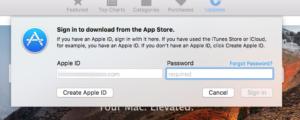
Macworld reader Arthur is trying to download
updates via the Mac App Store, but is stymied, because an Apple ID
associated with the previous owner of the machine appears prefilled in
the Sign In dialog and can’t be changed. He wonders what to do. IDG
Apps purchased or downloaded with another Apple ID will persist in
prompting you for that account’s password when they need to be updated. Apple associates app purchases with the account
that made the purchase. This includes “free” apps, because such apps
can have in-app purchases, which would also be associated. If you
bought, inherited, were given, or found on the street a Mac that was
previously owned and not wiped clean, you can wind up with apps
installed that are registered to a previous user.
Because
it’s a design feature, not a bug, there’s no way to get rid of this
without deleting all the apps that were purchased or downloaded under
that other Apple ID.
However, when you update individual
apps, the login for an Apple ID other than your own shouldn’t appear
unless that app was purchased or downloaded by that other party. That
could help you sort out which ones to remove. Or you could ignore
updating those apps.
This can be a real problem with apps
like Pages and Numbers, which are free for everyone with a Mac, but are
registered to a specific user. You should be able to delete them and
then re-download while logged into your own Apple ID account in the App
Store, and the apps should then be registered to your Apple ID.
12:19 PMHigh Tech House Calls, Expert Computer Consulting
Last month, Apple (AAPL)
CEO Tim Cook took the stage at the Lane Tech College Prep High School
to lay out his company’s plans to take over the education technology
market. And the key to Apple-powered classrooms, Cook explained, was the
iPad.
Not
just any iPad would do, though. Which is why Cook and company debuted a
new slate that packs a more powerful processor and Apple Pencil stylus
compatibility, but costs the same $329 as the 5th-generation iPad.
But the 6th-generation iPad isn’t only meant for students and teachers. It’s also the company’s new mainstream consumer slate. In other words, the best tablet you can buy just got a lot better.
More of the same … in a good way
The
6th-generation iPad looks and feels exactly the same as the
5th-generation model. The slate is still 1-pound, still 0.29 inches
thick and still easily fits in your bag. The company basically replaced
the iPad’s guts and called it a day. And that’s fine by me.
Even
the 9.7-inch Retina display is the same as last year’s offering, which
is actually a bit of a bummer, as the iPad mini 4’s screen is fully
laminated and has an anti-reflective coating. Both of those features are
missing from the 6th-generation iPad.
The 6th-generation iPad doesn’t get the iPad Pro’s upgraded display, but it still looks great.
The
tablet’s 8-megapixel rear camera is also a carryover from the
5th-generation iPad, which isn’t quite as sharp as the iPad Pro’s
12-megapixel rear camera, but matches up with the iPad mini 4’s.
If
Apple raised the price of this iPad, I’d be questioning its decision to
keep so many aspects of the tablet the same. But since the company is
still charging $329, which is a solid price, it’s not really an issue.
Different where it matters
What
makes Apple’s decision to maintain the size and weight of the iPad
especially interesting is the fact that this slate packs the same A10
Fusion processor found in both the iPhone 7 and iPhone 7 Plus. In order to do that, Apple told me, the company had to build a completely new logic board.
The A10 chip allows for the use of augmented reality apps. One such app Apple offered up was Froggipedia.
The app allows users to set a virtual frog down on a flat surface and
interact with it using the iPad. A dissection tab even lets you dissect a
digital frog without having to deal with the awful smell of the real
thing.
The base iPad now gets Apple Pencil support.
It’s
not that the 5th-generation iPad was underpowered. The tablet had more
than enough oomph to tackle any task you threw at it. But if Apple wants
to ensure its 6th-gen tablet can keep up with new apps and updates, it
needed to bring along the faster chip.
The
6th-generation iPad is also the first non-Pro iPad to offer support for
the Apple Pencil stylus, and packs all of its features including its
impressive pressure sensitivity and tilt functionality. Using the Pencil
on the 6th-generation iPad is every bit as flawless as it is on the
iPad Pro. The stylus’ tip glides across the tablet’s display with ease.
It’s not quite a pen and paper, but then, nothing else is.
The
vast majority of consumers are unlikely to purchase the $99 Apple
Pencil. I’m sure it’ll be great for graphic artists and their ilk, but
for the average person it’s an expensive add-on that they won’t use
much.
The
Pencil’s real value is in the classroom, where students and teachers
can write directly on the slate to take notes, annotate articles and
grade quizzes. Still, even with
the $89 student pricing option (the iPad is also reduced to $299 for
students and teachers), the Pencil might be a tad bit expensive for
classrooms with younger pupils who are bound to misplace the stylus.
To
alleviate those concerns, Apple teamed up with Logitech to create the
Logitech Crayon, a $49 Apple Pencil alternative. The Crayon offers many
of the Apple Pencil’s features including its tilt functionality but
sacrifices pressure sensitivity.
Compared to the iPad Pro
So, if the 6th-generation iPad offers Apple
Pencil capabilities, what’s the difference between it and the iPad Pro?
A lot, actually. First off, the 12.9-inch and 10.5-inch iPad Pros cost
significantly more than the 6th-generation. The base 10.5-inch carries a
$329 premium over the iPad tablet, and for good reason.
The 6th-generation is physically identical to the 5th-generation model.
Not
only are the Pros’ screens larger than the 6th-generation iPad’s panel,
they are also fully laminated, have anti-reflective coatings, use
Apple’s ProMotion and True Tone technologies and feature wide color
capabilities. Put the 6th-generation iPad next to the Pro and you’ll
immediately notice the difference. The Pro simply looks cleaner and more
colorful. The 6th-generation is certainly no slouch, but the Pro offers
a better picture.
The
Pros also have more powerful A10X Fusion processors, which means you’ll
get slightly better performance from the Pros versus the standard iPad.
That said, I haven’t had any issue with the 6th-generation iPad. Games
and apps all ran smoothly including titles like “Flower” and “Inside”“Player Unkown’s Battlegrounds Mobile” and “Fortnite.”
The
iPad Pros also have one major difference compared with the iPad, which
is that they have Smart Connectors that allow you to physically connect a
keyboard to the tablet. The 6th-generation iPad, on the other hand,
uses Bluetooth to connect to a keyboard. That’s because the Pros are
meant to serve as laptop replacement devices, while the standard iPad is
largely meant to be used as a tablet.
In
terms of battery life, Apple claims up to 10 hours of use on a single
charge across the iPad line. I’ve used my review unit on and off for a
day or two and still had plenty of juice left.
Naturally,
both the 6th-generation iPad and its more expensive brethren can run
the millions of iOS apps available through Apple’s App Store.
Should you get it?
The
iPad is the go-to tablet for consumers for a good reason: it’s the best
there is. No Android or Amazon Fire tablet can compare, especially when
it comes to app availability and overall capabilities.
For
the average consumer looking to update their old iPad or simply wants
to purchase their first slate, the 6th-generation iPad is the gold
standard.
If
you want something that can replace your laptop, then you might want to
opt for the iPad Pro with its larger screen and more powerful
processor, or something like Microsoft’s Surface Pro, which is a full-on
Windows 10 machine.
But
for everyone else who just wants a fantastic slate with plenty of
functionality, the 6th-generation iPad is easily the tablet to buy.
11:42 AMHigh Tech House Calls, Expert Computer Consulting
Hackers and cybercriminals are out to get you. Heck, nefarious governments are spying on you, too.
It sounds like the plot of a low-budget sci-fi movie. But, unfortunately, your family and you are targets.
These days, it's so easy for people to steal your ID,
credit card credentials and your online passwords. The problem is, the
internet's worst downside is that criminals can remotely track your
online movements from anywhere in the world.
You hear about the unfortunate results every day. Hackers steal billions of dollars from people just like you every year.
Criminals
steal your tax refunds. They use your home address, Social Security
number and other stolen information to use your ID to buy things, apply
for credit and even take your home from you.
This is a serious problem in the digital age we're living in. Fortunately, you do not have to be an easy target.
In fact, it's fairly straightforward to remain anonymous when you're online by using a Virtual Private Network, or VPN. That's especially important when you're using public Wi-Fi at places like your local coffee shop or fast-food restaurant.
Bonus: VPNs can hide you from advertisers by masking your IP address - keep reading for more details.
How VPNs keep you safe
Virtual
Private Networks hide your online activity in two key ways. First, your
online activity is sent to the VPN's servers and sent back to you with
their IP address.
You have an IP or Internet Protocol address that
identifies the device you're using to get online, even though you may
not know it. Your computer, tablet and smartphone each have a distinct
IP address.
VPNs hide you by making it appear that you're using
their IP address. That IP address could be halfway around the world, so
hackers have no idea where you are.
Second, VPNs use encryption to
make it nearly impossible for hackers, cybercriminals or government
snoops to find you. Encryption, you might remember from the 2015 San
Bernardino terrorist attack, scrambles your information.
The
result is, hackers cannot access your online activity without a
password. They also cannot see anything valuable because it's scrambled
into jibberish.
There
are several ways to use Virtual Private Networks, including some good
VPNs that charge you money. If you're fine with that, great.
However,
there are several FREE options to remain anonymous online. That
includes accessing a VPN if you're using Microsoft's Windows 10.
First,
you have to create a VPN profile. Here's what you do: Start button
>> Settings >> choose Network & Internet >> VPN
>> Add a VPN connection. Then, choose Windows (built-in) under VPN
provider >> create a name for it >> choose VPN type and
Type of sign-in info >> Save.
Second, you can connect to a
VPN. Here's how to do that: Select Network >> choose the VPN
connection >> Connect >> type in your profile name if it
asks for that.
Note: Look in Windows Store for VPN apps if you don't have one.
Free VPNs
You
always pay a price, right? In the case of free websites, including free
VPNs, that usually means you'll see ads before you can access the free
features.
But, so what? A lot of free VPNs do a good job of hiding you from hackers and keeping advertisers from grabbing your IP address.
There are quite a few FREE VPNs. These include TunnelBear, Hotspot Shield, CyberGhost, NordVPN and VPNbook.
Note:
Do you know of a free VPN that we haven't mentioned here? Let other
Komando readers know by sharing it in the Comments section.
Premium VPNs and features
Many
free VPN sites offer more features for a price. You may need these,
especially if you are using a VPN for your job or your small business.
You may also want to forgo ads on free VPNs. If so, you can pay for VPN services such as StrongVPN, ExpressVPN and others.
Browse the internet anonymously with this easy-to-use VPN tool
You
can easily remain anonymous when you're online. That's important
because otherwise hackers and cybercriminals can easily track you to
steal your ID and credit card credentials.
11:13 AMHigh Tech House Calls, Expert Computer Consulting
Last Wednesday, Facebook announced
that as many as 87 million people may have had private data
surreptitiously harvested by voter-profiling firm Cambridge Analytica in
the lead up to the 2016 presidential election. It's a total that's
millions higher than the initial, still horrifying reports. Are you one of the people effected? Starting today, Facebook is letting people know.
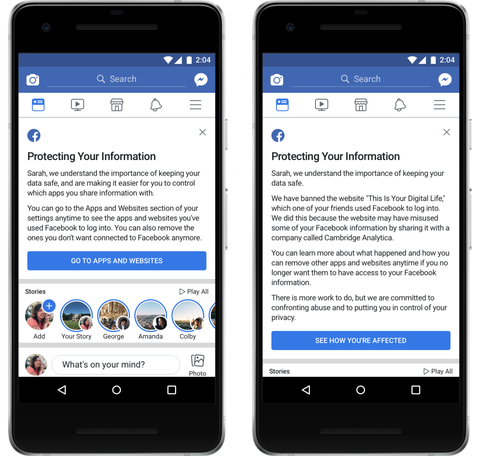
The notification comes by way of a message you'll find pinned atop your newsfeed (if you haven't already deactivated or deleted your account)
and will manifest in one of the two ways shown below. The shorter
version means your data wasn't taken—at least not by this company, in
this instance. The longer version means it was.
Facebook
This notification comes along with a host of
changes to the Facebook API that are ostensibly designed to prevent a
similar breach from happening in the future. This, of course, does
nothing to change the fact that Facebook's business model is designed
around collecting and collating information about you and selling it to
advertisers, though you can take steps to limit the information it has access to. The only way to really make sure your data is safe with Facebook is to limit how much of it they have.
11:05 AMHigh Tech House Calls, Expert Computer Consulting
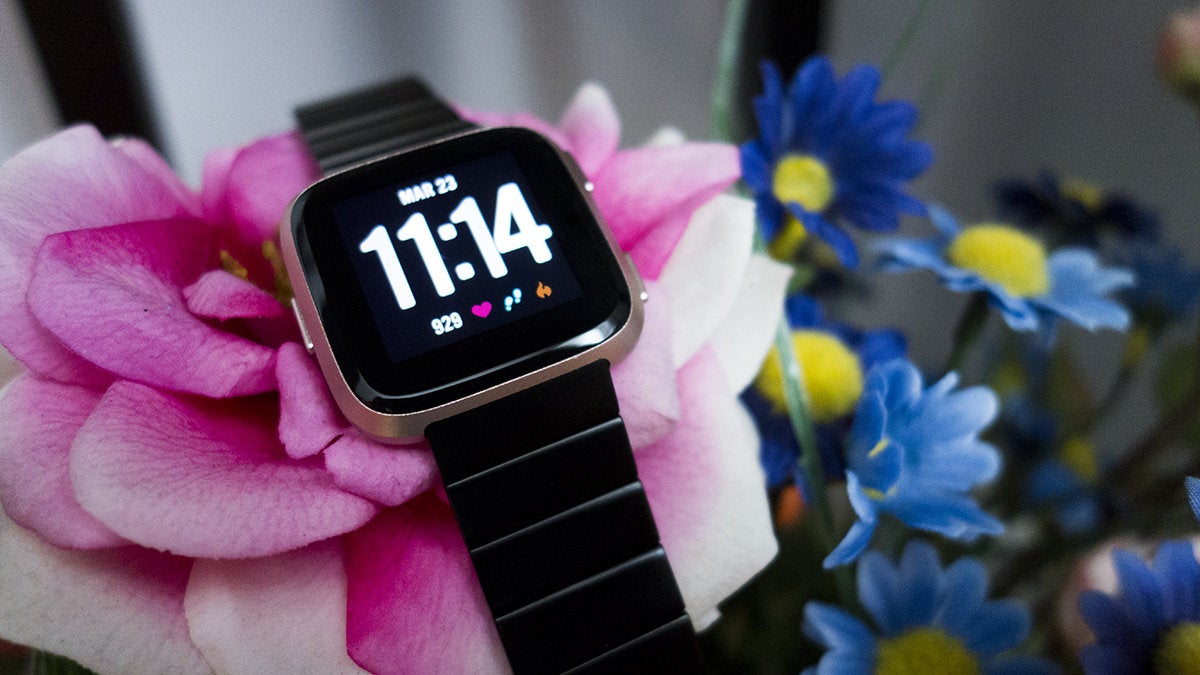
If you don’t remember Pebble,
it’s easy to write off Fitbit’s Versa as a cheap Apple Watch
knockoff. It has the same square body as Apple’s dominant wristwatch.
Its size strikes a perfect balance between the 42mm and 38mm sizes. You
can dress it up with a similar series of metal and leather bands. And it
comes in rose gold.
But spend a little time with Versa and you’ll
see that it’s not as much of an imitator as it is Apple Watch’s first
real competitor. Granted, that’s not saying all that much. Fitbit shut
down Pebble before Apple Watch hit shelves, most Android Wear/WearOS
watches have been dead on arrival, and Fitbit’s own Ionic smartwatch was
too buggy and expensive to seriously challenge Apple Watch.
But Fitbit’s new $200 wearable is the Pebble Watch we always wanted,
combining fitness acumen with technological smarts into a sleek,
attractive package.
Note: This review is part of our roundup of various Fitbit models. Go there for details on each product and our testing methods. Michael Simon/IDG
Fitbit Versa is small, light, and packed with features. It still has a heavy focus on fitness and health, of course, but Versa is a something of a watershed product
for both Fitbit and the smartwatch industry, a true lifestyle product
that rights many of Ionic’s missteps and proves that Apple Watch isn’t
the only game in town.
When
Fitbit launched its Ionic wearable last year, it was a bit of a
disappointment. While it predictably excelled at fitness tracking with
multi-day battery life
and on-watch coaching, it was more than a little underwhelming as a
smartwatch. Too big to appeal to anyone other than bulked-up athletes,
Ionic and its app-starved Fitbit OS was most certainly at the beginning
of what seemed to be a lengthy work in progress. Michael Simon/IDG
One button is probably enough to control Versa but it actually has three. But less than six months later. Versa is pretty much
everything Ionic isn’t. While Fitbit has thankfully stuck with its
square shape, the lugs that extended aggressively above and below
Ionic’s screen are gone, leaving a squat square body. Without the extra
frame, Versa’s bands attach directly to the edges of the watch body,
giving it a more natural wristwatch look. The similarities to Pebble
Time and Apple Watch are inevitable, but Versa is still very much its
own device.
Like Ionic, Versa comes in three colors, but the black,
silver, and rose gold here feel much softer than Ionic’s gray and burnt
orange. It’s both thinner (11.2mm versus 11.4mm) and shorter (37.6mm
versus 38.6mm) than the female-friendly 38mm Apple Watch, and its
decidedly non-athletic aesthetic makes it look more like a fashion
statement than a fitness one. Where Ionic is more at home on a treadmill
or triathlon, Versa is, well, versatile enough to be worn to a business
meeting or a night out. And perhaps most importantly, it won’t look
ridiculous on a tiny wrist.
At just 23 grams, Versa is also incredibly light, even when
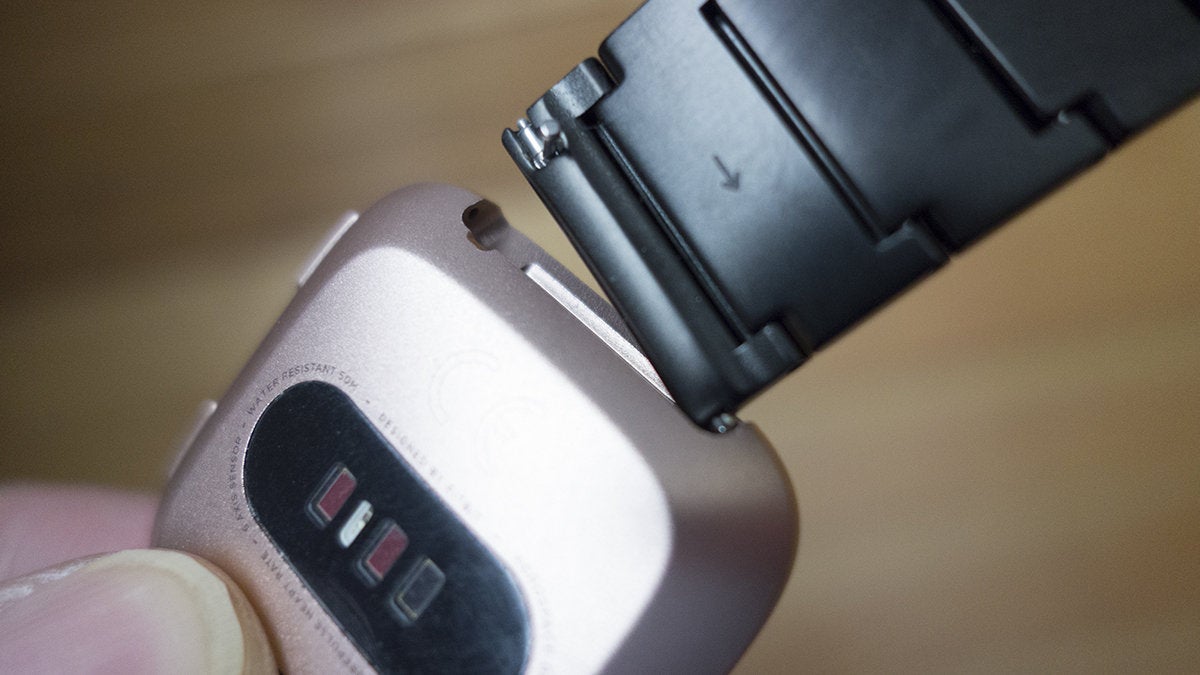
using one of the heavier metal link bracelets. Swapping the bundled
sport band for one of the 16 leather or fabric ones Fitbit is selling is
easy enough, with a small lever that controls a standard 22mm watch
pin. Though Ionic’s snap-on system is far superior, as is Apple’s
slide-out mechanism, Versa’s band options are attractive and affordable,
particularly the metal link band that Fitbit is selling for $100. It’s
not as luxurious as Apple’s Space Black link bracelet, but it’s also $450 cheaper.
Not all meeting solutions are created equal. Transform your meeting experiences with Cisco WebEx.
Michael Simon/IDG
Versa's band-switching mechanism isn't as elegant as Ionic's, but it does the trick. Versa’s display is on the small size at 1.34 inches—and
slightly off-center due to Fitbit’s insistence on putting its name on
the front of the device—but it’s incredibly bright and crisp. The bezels
are a little chunkier than the ones on Apple Watch, and without a
black-friendly OLED screen, you’ll notice them a whole lot more on
Versa.
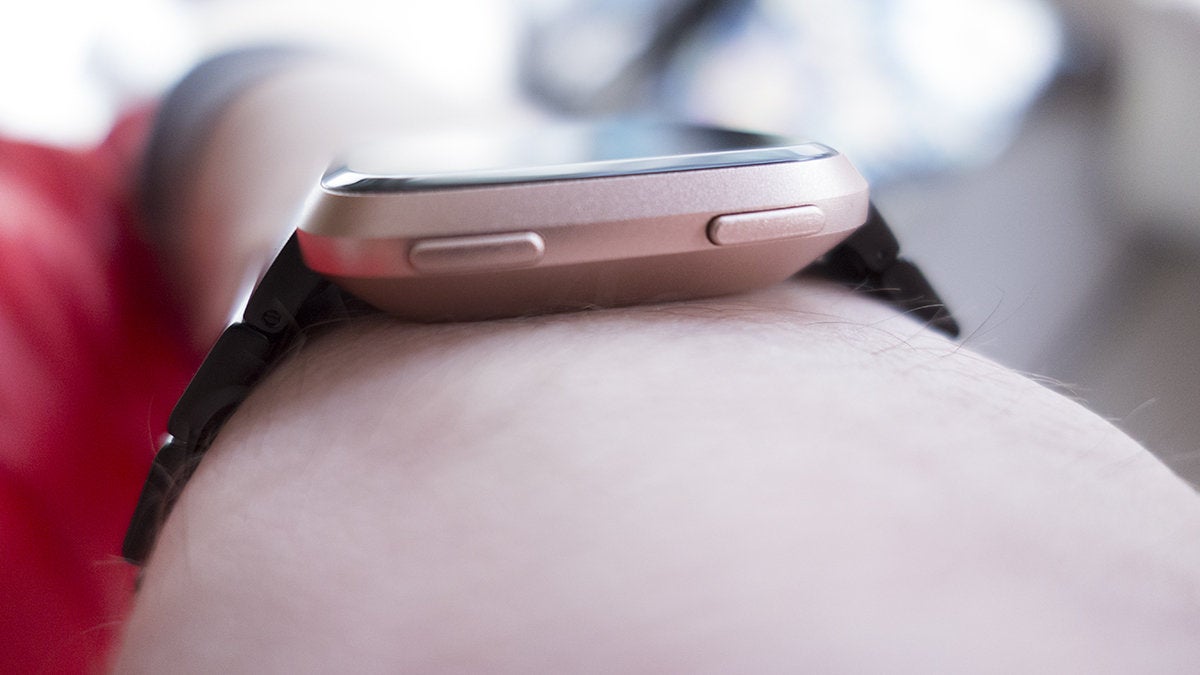
The sides of the frame feature the same three-button layout
as Ionic, which is probably one button too many. Two shortcut keys are a
bit of overkill, especially since you really don’t really need to use
the buttons for navigation anymore. Swipes and taps register much
quicker on Versa than Ionic, and Fitbit has tweaked the interface so
it’s much more intuitive and touch-friendly.
A fitness tracker with a focus on health
As
a fitness tracker, Versa is pretty much Ionic without on-board GPS, but
for the price, the lack of a dedicated tracking chip isn’t a surprise.
(Apple’s Series 1 watch doesn’t have GPS either.) More bothersome is the
absence of NFC on the base model. If you want to make payments using
Fitbit Pay, you’ll need to spring for one the $230 special-edition
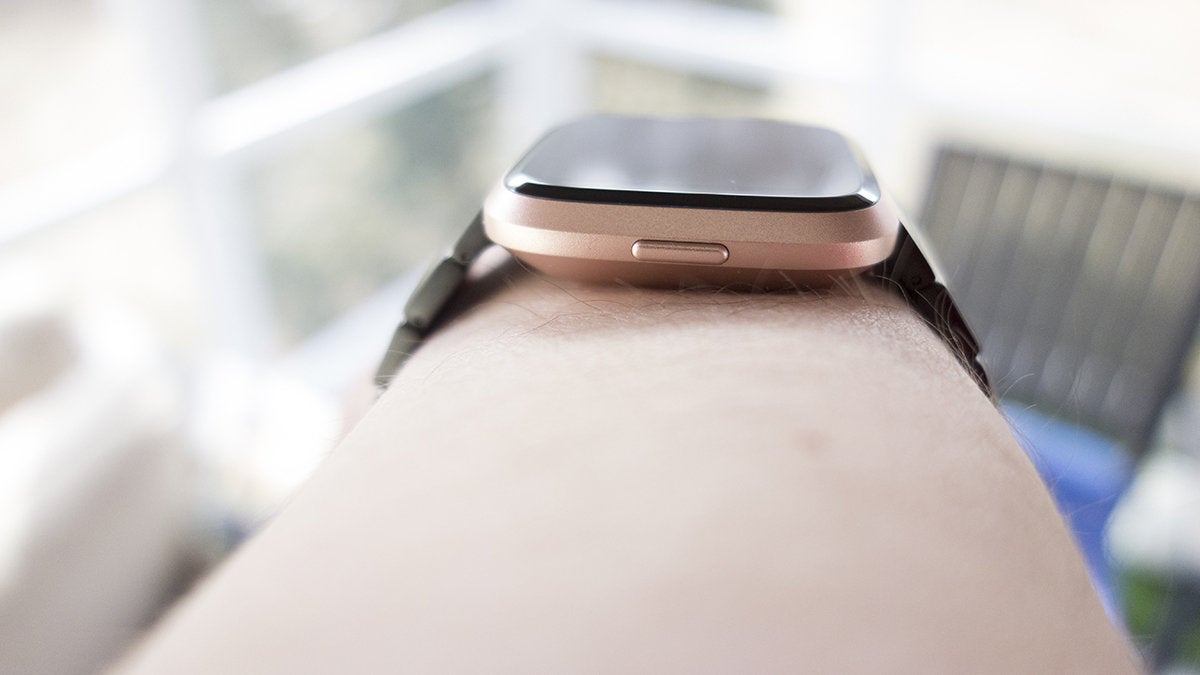
models, available in graphite or rose gold with woven bands. Michael Simon/IDG
Versa's concave design cuts a nice profile on your wrist. Otherwise, everything else is here, including on-watch
training, specialized exercise tracking, and advanced heart rate
monitoring. It runs the same Fitbit OS as well, whose library of apps
have been greatly expanded from the early days of Ionic. While it’s
still nowhere near as robust as the Apple Watch store or even Samsung’s
Gear store, you’ll find a decent selection of apps, including Yelp, The
New York Times, Philips Hue, and Nest, as well as several
fitness-related apps. There are 550 apps and clock faces available for
Ionic, with about half of them available for this review and the rest on
the way, Fitbit tells me.
Like Pebble, Fitbit’s apps are decidedly specialized and
mostly single-featured—for example, the Starbucks app is still just a
place to store your loyalty card—but I can see a similarly passionate
community building around it as Versa grows. Fitbit has started the ball
rolling with its own Fitbit Labs section, which contains more
specialized, nonessential titles, such as Think Fast, a mental agility
game, and the upcoming New Parents app that lets moms and dads track
diaper changes and feedings.
Apps load far more quickly and
effortlessly than they did when Ionic launched, and I didn’t receive any
error messages when switching clock faces. That’s an important
improvement, because users are going to want to swap out their faces a
lot. While writing this review, I counted more than 50 styles to choose
from, many of which are professionally designed with smooth animations
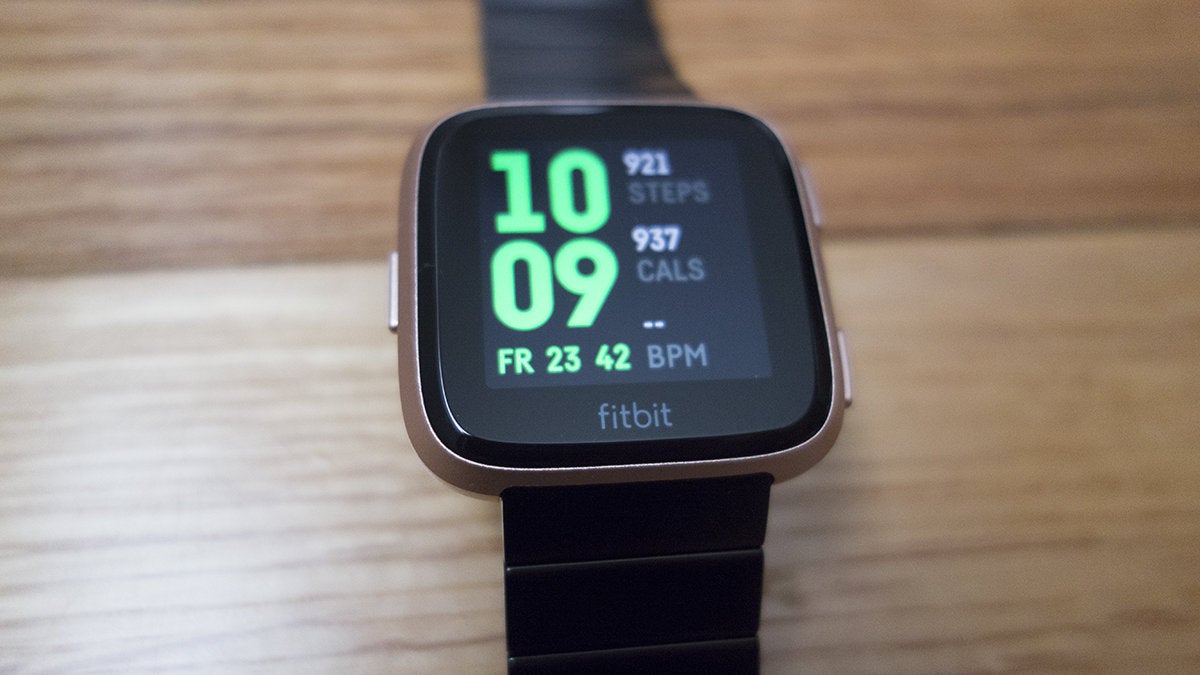
and up-to-date stats, and Fitbit says hundreds more are on the way. Michael Simon/IDG
Versa's new Today screen will show your steps, heart rate, and other stats. Fitbit’s impressive sleep tracking is on display here too,
though the lack of a dedicated app means you’ll have to log into your
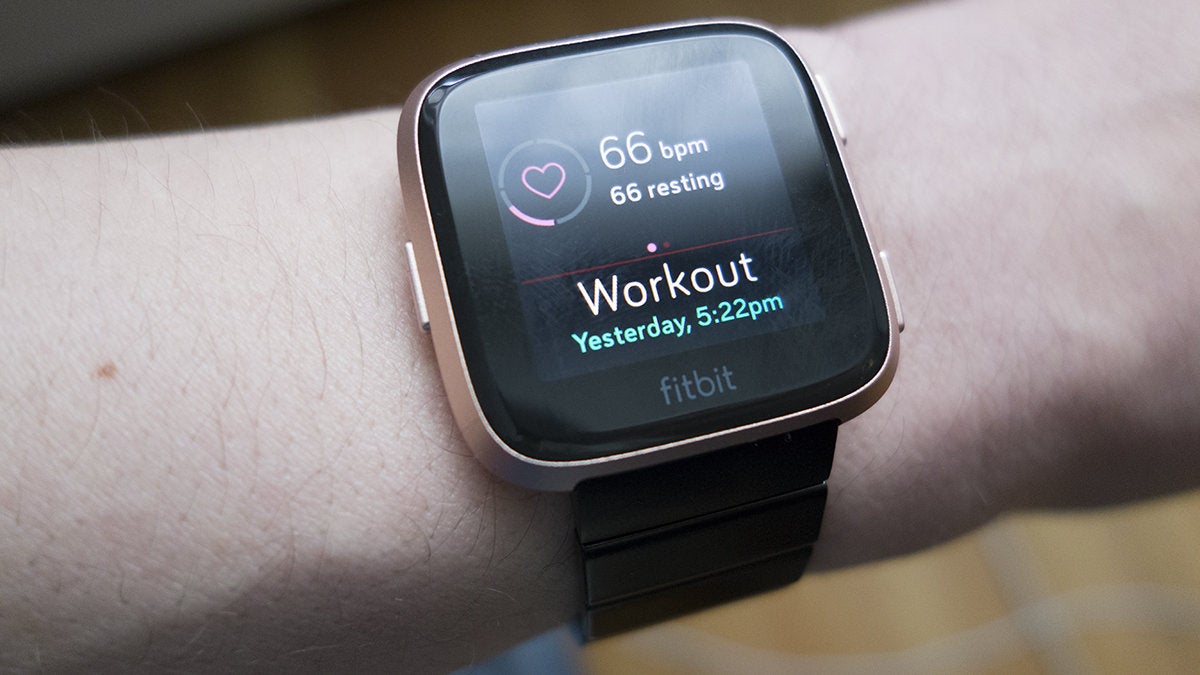
dashboard to see the results. Fitbit has added a nifty Today screen that
shows your daily stats by swiping up from the bottom of the screen.
While it isn’t as visually polished as Apple’s Activity app, it’s a
smart way to see steps, goals, floors, distance, and workouts. And
coming soon, women will also be able to track their menstrual cycle on
this screen, an important piece of Versa’s feature set that isn’t quite
ready yet.
Period tracking gives Versa an important distinction
over Apple Watch. While Apple gives women a way to track their cycles
using Health or various third-party apps on the iPhone, Fitbit will be
baking it more deeply into its ecosystem, pushing it to Versa and
prominently displaying it in the Fitbit app. Women have long been
underserved by the smartwatch, and Fitbit’s whole approach with Versa is
a breath of fresh air.
The killer feature is battery life
Versa’s
battery life is about the same as Ionic, but it’s even more impressive
in such a small package. I wore Versa along with an Apple Watch Series 3
while listening to an hour of music, two half-hour workouts, six hours
of sleep, and lots of notifications, and here’s what was left after 24
hours:
Fitbit Versa: 75 percent Apple Watch: 38 percent
That’s
not a small difference by any stretch. Those numbers put Versa's
battery life at exactly four days, but I reckon most people will be able
to push it into a fifth. The biggest battery suck was music playback,
but even then, I lost just eight percent after an full hour of
listening, as compared to 14 percent on Apple Watch.
When you need
to charge it, Fitbit has introduced yet another plug with Versa, and
this one is a little less portable than Ionic's magnetic cable. The
watch comes with a small cradle that opens when you pinch the sides and
shuts to hold the watch in place. It's a nice piece and I liked it
better than Apple's inductive puck, but some outdoors enthusiasts might
miss being able to toss a simple cable into their bag on lengthy
sojourns. Michael Simon/IDG
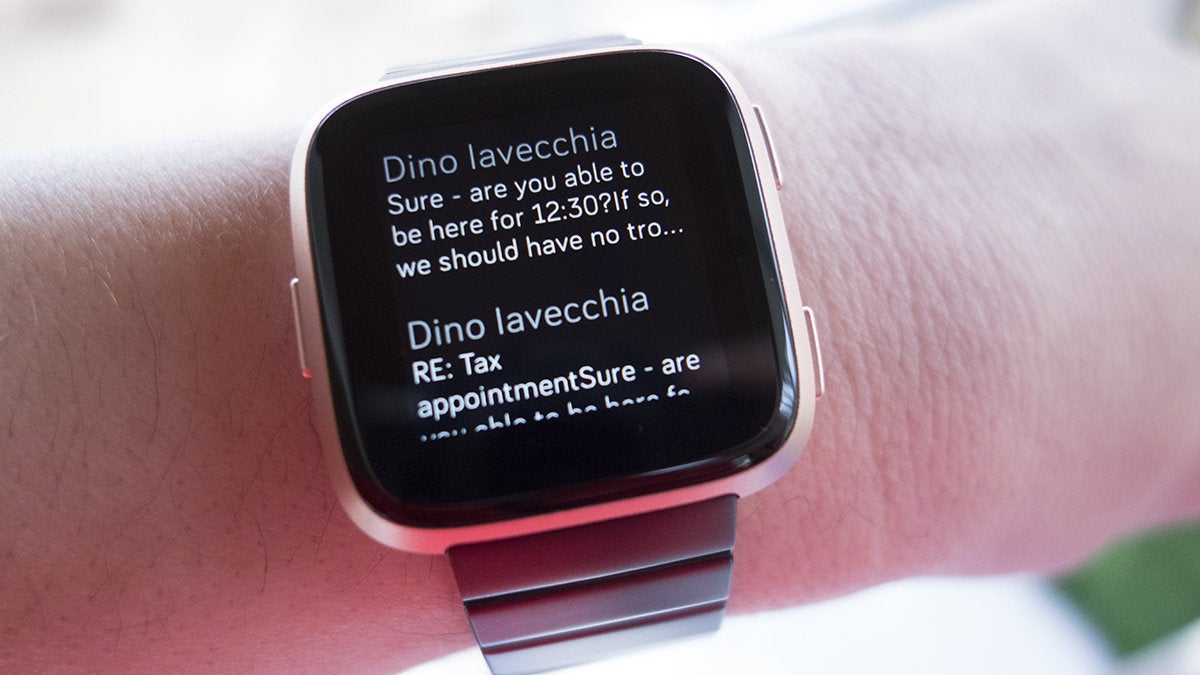
Notifications aren't interactive in Versa and sometimes you'll get duplicates. Notifications on Versa mimic the ones on your phone, so
unless you spend some time managing them on the Fitbit app, you’ll
probably be getting a pretty consistent stream of buzzes. You can set
default message, calendar, and email apps from the ones installed on
your phone, and notifications from those apps will receive a degree of
prominence, but the system isn’t nearly as robust or refined as Apple’s.
You can’t interact with notifications in any way (even if a Versa
version of the originating app is installed on your watch), and they
occasionally duplicated or didn’t show up at all.
Fitbit has at
least promised to bring Android quick replies in a future update, but
for the most part, notifications on Versa or any other Fitbit smartwatch
will never be central to the experience. I can live with that, though I
wouldn’t mind Fitbit adding voice control or teaming with Amazon to
bring Alexa to Versa. The lack of any sort of assistant is a glaring
omission in the age of AI, and it would make a great addition to Versa
2.
Should you buy a Fitbit Versa?
The
$200 Fitbit Versa is hardly a perfect smartwatch. It’s missing GPS and
NFC, has a small library of apps, and doesn’t have any sort of voice
control or AI assistant. However, it has three important things going
for it: it’s small, it’s attractive, and it has a great battery. Plus it
costs $50 less than the cheapest Series 1 Apple Watch. Michael Simon/IDG
Versa has decidedly softer aesthetic than Ionic, which should appeal to a broader range of buyers. If you aren’t an Apple devotee, Versa is a no-brainer, but
iPhone users who don’t want to spend $350 to $400 on an Apple Watch
Series 3 should take a hard look at Fitbit's new smartwatch. And since
it works across multiple platforms (iOS, Android, and any remaining
Windows Phone users) you won’t be stuck with a piece of costume jewelry
if you switch.
Back when Apple Watch was just a glimmer in Jony
Ive’s eye, Pebble was showing the world what a smartwatch could and
should be. That spirit can be felt all over Versa. And something tells
me it’ll make a much bigger dent in the smartwatch landscape than a
pebble would.
This story, "Fitbit Versa review: The first non-Apple smartwatch that’s worth your time" was originally published by
Macworld.
For your convenience Venmo and Zelle are also accepted for payment.
Fed up with Windows based computers?
Think an Apple Computer might be what the doctor ordered?
We can help you with that decision for free! Give us a call so we can discuss your computing needs!
Gift Certificates
What will you use your certificate for?
Making the move to an Apple laptop? My business has been running on an Apple laptop for 6 years.
You bought an iPhone. Now what? We have been working on iPhone problems since they came out and we can help.
Summer will be here before you know it. You want to surf on the internet on your wireless network from your pool. We are wireless network experts in both design and deployment.
Or you can use this gift card for any help needed (including training) for the computers in your home or small business.
The perfect present for any occasion:
Available in one hour increments.
No expiration date.
Can be used for service calls or training.
Giving a technology gift that requires setup or training? Why not add a gift certificate?




 Do you have a Chromebook in your arsenal of gadgets? If you don't
know, they are similar to a laptop but just a little bit different.
Chromebooks run on a web-based operating system by Google known as
Chrome OS. It's specifically built to be used with an internet
connection and they are fairly inexpensive.
Do you have a Chromebook in your arsenal of gadgets? If you don't
know, they are similar to a laptop but just a little bit different.
Chromebooks run on a web-based operating system by Google known as
Chrome OS. It's specifically built to be used with an internet
connection and they are fairly inexpensive.


 IDG
IDG


 Michael Simon/IDG
 Michael Simon/IDG

 Michael Simon/IDG
 Michael Simon/IDG
 Michael Simon/IDG
 Michael Simon/IDG
 Michael Simon/IDG


