
Google+ High Tech House Calls
Expert Computer Consulting for Homes and Small Businesses

Let there be hope...

Life has changed there is no doubt and we wanted to reach out to see how you are doing.

As we go through this interesting time, we are trying to look at this as an opportunity to focus on our family and on friends like you. Let us use this extra time to catch up and talk more. Let us cook food that is not fast, but interesting and satisfying. Let us learn to enjoy a time to try new things. Let us find ways to enjoy time at home!

Computer Security

If my client base is any experience, anyone can be a victim of a Ransomware, Malware or Virus attack.

What can you do about it?

I conduct audits of your entire computer infrastructure and apply best practice solutions to plug the security holes on your computers, Smartphones and networks.

Now offering consultations to give you the best protection possible:


404.229.0839
carlthorne@hthcatlanta.com

Jack of All Trades, Master of Many

Jack of All Trades, and Master of Many

We provide technical support for:


Homes and small businesses

Windows and the Mac OS platform

iPhones and Android Smartphones

Wireless and wired networks

New device setup

Old device upgrade or repair

One-on-one training

Remote assistance


How To Stop Malware

Thursday, July 5, 2018

Amazon Prime Day 2018: Everything you need to know about Amazon's shopping extra By Ian Paul and Alaina Yeevaganza

Prime Day, Amazon’s summer shopping event, is back for its fourth appearance. On Monday, July 16, Amazon will offer deals for thirty-six hours on over a million products on its sites around the world. Bargain hunters can track all the action starting at noon Pacific time via the company’s Prime Day landing page.
If you still haven't checked out Prime Day, it may sound like an overhyped "Black Friday in July" sale. But while the company did fall flat in its first year with a crop of lackluster deals, the last two years featured a selection of genuinely good tech bargains.


For 2018, Amazon appears to be kicking up its efforts even further and tempting shoppers with more deals, better deals, and greater supplies of the best deals—new for this year are deals at Whole Foods and a new initiative called "Prime Day Launches." Here’s what you need to know about Prime Day and how to prepare.
Note: To take advantage of Prime Day sales, you must be a member of Amazon Prime. This service is Amazon’s $120-a-year club that offers free two-day shipping on orders, as well as a litany of frills like free premium video and music streaming, free online photo storage, a Kindle lending library, and various promotional offers. New Prime members get a free 30-day trial, which means you can sign up, get the Prime deals, and then dump the membership before the $120 fee kicks in.

Prime Day: A brief history

The first Prime Day wasn’t that great. Amazon introduced it in 2015 to celebrate the company’s 20th anniversary—and of course increase the number of Prime members. As for the sales, there were a few decent deals, but critics and shoppers largely agreed the day was a bust compared to the holidays.
ADVERTISING
amazon prime day 2016 infographic usa croppedAmazon
In 2016, the deals got better, but smart shoppers still had to do some legwork to separate the good buys from the bad. Prime Day 2016 was also hit with technical issues surrounding Amazon’s checkout system. There was also some stiff competition for Lightning Deals, with many of them selling out crazy fast.
(For the uninitiated, Lightning Deals generally offer some of the best sale prices on Amazon. They feature limited stock available at a low price for a short time, which makes the demand for them that much higher.)
For its third outing in 2017, Amazon promised Prime Day would offer better deals and higher inventories yet again, plus a focus on new items—the two previous Prime Days were heavy on open-box items. But for the tech-obsessed, the deals on devices, components, and gadgets weren't as expansive as we'd hoped.

What to expect from Prime Day 2018

Similar to 2017, we expect Amazon to launch a series of sales leading up to Prime Day as an appetizer for the main deals smorgasbord. If the inaugural deals announced are any indication, these early bargains may span a much wider variety of categories and products than last year's daily themes (e.g., Amazon Music, Everyday Essentials, Amazon Reading). Sneak peeks of select products that will receive Prime Day discounts will be available from July 9 through July 15 in the Amazon app.
The initial batch of deals starting on July 3rd are:
The official start time is 12 noon p.m. Pacific / 9:00 p.m. Eastern on Monday, July 16. Unlike 2017, owners of Alexa-enabled device won't get early access to deals, but they will be able to still Alexa for information on "the best Prime Day deals" and the status of Prime Day orders.
After the 12 p.m. Pacific start time, Prime Day continues for another thirty-six hours until closing time at 11:59 p.m. Pacific on Tuesday, July 17. (Last year, the event lasted for 30 hours.) For the east coast that means the deals stop at 2:59 a.m. on Wednesday, July 18.

New for this year

Fresh initiatives for this year include Smile boxes, which are available in select cities (New York City, Los Angeles, London, Tokyo and Milan). Amazon describes these as "unforgettable event[s]" that are a nod to "the unparalleled benefits that come with a Prime membership including music, video, gaming and more."
Amazon is also premiering Prime Day Launches, which the company describes as "exclusive new items, content and special-edition products available just for Prime members for a limited time." Teased items include the Delta Trinsic Touch2O, the first Alexa-enabled kitchen faucet; and the Moto G6 64GB, an exclusive version of the phone with 4GB RAM and 64GB storage.
Finally, shoppers at Whole Foods Market stores can enjoy an additional 10% off hundreds of sale items; "deep discounts on select popular products"; and a hefty 10% back for Amazon Prime Rewards Visa card members between July 14 through 17, on up to a total of $400 in purchases. For their part, Amazon Prime Credit Card and Amazon Prime Store Card members get 5% back on all Prime Day purchases placed on either card.

Prime Day Tips

Let us guide you to the best deals

If you want to avoid doing any legwork, we’ll be posting our own curated lists of the best deals on electronics and tech. Just check back here or the PCWorld homepage for the links on July 16. Easy-peasy.

Do your research

If you plan to strike it out on your own, it pays to do your research. Like any retailer, Amazon mixes true deals with “sales” that are really just regular prices (or close to it) with a deal tag. To avoid that pitfall, look up historical prices before buying.
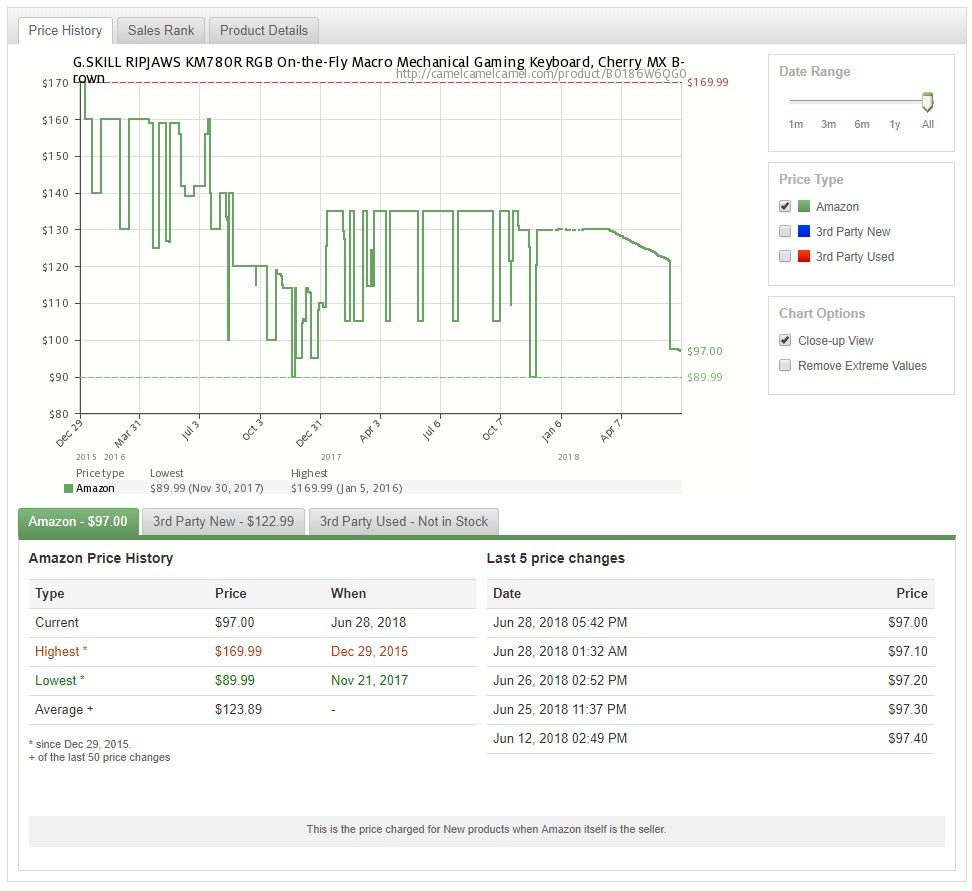
The number one site you need to bookmark (besides Amazon) is CamelCamelCamel.com. This is an Amazon price-tracking site with historical charts and a brief summary of recent price changes.
camelcamelcamelprimeday2018
IDG
Let’s say you saw a deal on a G.Skill Ripjaws KM780 mechanical keyboardwith Cherry MX Brown switches. You’d type KM780 into CamelCamelCamel and find the historic pricing of that product (pictured above).
CamelCamelCamel says the best pricing on this keyboard was $90 last November, and that the highest was $170 in late 2015. With that information and the larger pricing chart, you have the tools to decide whether or not that keyboard is worth the current sale price.
If the sale price were $85, for example, that would be a good deal—you'd be getting the lowest price ever. A $90 price tag would also still be a pretty good deal, since it'd still hit the current lowest-ever mark. However, the graph also shows that for most of June, the price hovered at $97, which means neither discount would be cause for extreme urgency in purchasing.
However, if the sale price were $60, we would advise snapping up that keyboard as soon as you could.

Plan ahead for Lightning Deals

Historical price tracking is great, but what about those all important Lightning Deals? That’s where you’ll find most of the very best Prime Day prices, and the more popular ones sell out fast—like hot-concert-tickets fast.
With little time to buy, forget about historical price-checking in the moment. One thing you can do is look ahead, as Amazon often teases its lightning deals in advance. If you visit the Prime Day webpage, for example, you may see a carousel of Lightning Deals. Keep scrolling through those deals, and you’ll soon hit products that are on deck but haven’t yet started as deals.
If you find something in those upcoming Lightning Deals you’d like to buy, that’s the time to do historical price-checking. Then when the product goes on sale, you’ll know right away if Amazon’s limited-time price is worth it.

Get alerts for specific Lightning Deals

Speaking of which, you don’t have to wait around or keep an eye on the clock to know when your deals are going live. The Amazon app for Android and iOS lets you build a deals watch list and then get notifications when your deals are active.
Once you’ve installed the Amazon app and signed in, go to Settings > Notifications > Your Watched & Waitlisted Deals. Activate the slider in that section. You can now add an upcoming item to your watch list—go to the deals page in the app, find the upcoming deals you’re interested in, and tap Watch this deal.

If it’s too good to be true, it might be a knockoff

Remember that it’s not only Amazon that offers sales on Amazon on Prime Day. Third-party Amazon marketplace sellers are also eligible to sell items at low prices. Many of these sellers are great, but sometimes there are less-than-honest brokers out there pushing fake or low-quality products, as The Guardian reported in April.
Before you buy—even with Lightning Deals—take a second to check that the seller and the product appear legitimate. We advise consumers to only buy products that come from, or are fulfilled by, Amazon. That won't protect you from counterfeits, but if anything goes wrong, you're 100-percent covered by Amazon’s excellent customer service. With independent third-party marketplace sellers, you have to deal with them directly and can appeal to Amazon only if that effort fails.

Look beyond Amazon

Check out the rest of the Internet on Prime Day. With Amazon building so much hype, other retailers offer their own sales to compete. It’s a long shot to find the exact same deals elsewhere, but it’s always worth checking online shops like Newegg, Staples, and Best Buy for a close match.
Amazon’s a great place to find deals, but not every deal is what it seems. With a little preparation and a good dose of research you can find the truly great deals on Prime Day.

Friday, June 29, 2018

Apple’s Terrible Keyboards and Why Repairability Matters by Justin Pot

Apple is fixing busted MacBook keyboards for free, which is going to cost them money. This all could have been avoided if the keyboard were easy to repair or replace.
As laptops become thinner repairability is compromised. Apple’s MacBook and MacBook Pro are prime examples, and the keyboard issues show why this is a problem.
Here’s Kyle Wiens, writing for iFixIt:
You can’t switch key caps. And it gets worse. The keyboard itself can’t simply be swapped out. You can’t even swap out the upper case containing the keyboard on its own. You also have to replace the glued-in battery, trackpad, and speakers at the same time. For Apple’s service team, the entire upper half of the laptop is a single component. That’s why Apple has been charging through the nose and taking forever on these repairs. And that’s why it’s such a big deal—for customers and for shareholders—that Apple is extending the warranty. It’s a damned expensive way to dust a laptop.
It’s a terrible series of design choices, and it’s one that’s costing them money. Apple also can’t expect to sell $2,000+ laptops with keyboards that are constantly breaking, which is why ultimately had no choice but to offer the free repairs. Wiens continues:
Apple’s profit on every machine that they warranty under this new program has been decimated. There is a real business impact caused by unrepairable product design. Samsung recently had a similar experience with the Note7. Yes, the battery problem was a manufacturing defect. But if the battery had been easy to replace, they could have recalled just the batteries instead of the entire phone. It was a $5 billion design mistake.
Repairability is treated as a niche concern by a broader tech press obsessed with tiny bezels and thin frames. That should change. The entire article outlines this point very nicely; you should check it out.

Thursday, June 21, 2018

3 Problems With USB-C You Need To Know About by Justin Pot

USB Type-C is clearly the future, but getting to the future isn’t always painless, and USB-C has a lot of problems. Here are a few things every new USB-C user needs to know.
Most new Android phones use USB-C, Apple’s laptops use this port exclusively, and it’s increasingly common to see at least one such port on new PCs. But not every USB-C port is the same, and not every USB-C cable you can buy works the same way.
If you have a USB-C port for the first time, here are a few things to look out for.

The Wrong Cable Could Fry Your Devices

This is the most pressing thing new USB-C users need to learn about. In previous generations of USB, a cable was pretty much a cable. Sure, if you plugged a USB 1 cable into a USB 2 port, it might not work—or at least, work well—but that was the extent of it. People mostly didn’t need to think about which cables to buy.
That’s not the case with USB-C, and ignoring this could cost you dearly.
The problem is specific to cables with the older USB-A connector on one end and the new USB-C connector on another. (USB-A, if you didn’t know, is the traditional USB plug we’ve all been using for years.) But, USB-C devices (and cables) support faster charging than USB-A. So, for example, if you plug a USB-A device (like a cell phone) into a USB-C port using one of these cables, the phone may draw too much power, frying your phone, USB-C port, or even computer.
Now, to be fair, properly-made cables can have resistors inline to prevent this from happening. The trouble is, it can be really hard figuring out which cables are good and which are not, unless you’re buying from a reliable vendor that provides good technical specifications.
My colleague Chris outlined how to buy a USB-C cable that won’t damage your devices, so I won’t re-hash that too much here. But it’s important to keep in mind that not all USB-C cables are created equally, and it’s up to you as a consumer to make sure what you’re buying is compatible with your device. Assuming a cable is fine because it fits is not good enough anymore—check out resources like USBcCompliant.com to ensure your cable won’t cause any problems.

Not All USB-C Ports Are The Same

With USB-A, things were relatively simple: basically anything you could plug in would work. That’s not quite how USB-C is: adapters and cables may or may not work, depending on what features your device offers. And most of the cables on the market support USB 2.0 rather than USB 3.0 or 3.1.
Editor’s Note: we can’t overstate that last bit enough—most of the USB-C cables on the market are USB 2.0 rather than 3.1 because they are only designed for charging. If you need to use them for anything else, like connecting devices or transferring data, they will either not work, or will be extremely slow. Make sure you’re buying the right cable. We recommend Amazon Basics cables.
The complexity here is introduced by alternative modes, which use the USB-C form factor to offer additional features. Thunderbolt 3, for example, is a collaboration between Intel and Apple that offers transfer speeds of 40 gbps—four times faster than the USB 3.1 standard—and support for two 4K displays connected to a single port. But only devices built to be compatible with Thunderbolt 3 can get those speeds, and even then only if you have a Thunderbolt 3 compatible cable.
Are you confused yet?
There are a few other alternative modes: HDMI and MHL, for example, both allow certain kinds of displays to be connected. There’s also DisplayPort, which is bundled with ThunderBolt 3 but also offered independently on some devices. Your laptop has DisplayPort if there’s a D-Shaped icon next to your USB-C port, but it also might have it and not have that icon.
If you plan on connecting external displays to your laptop, you need to know which alternate mode your device supports and buy a display, or an adapter, that supports that mode.
There’s a lot of stuff a USB-C port might offer in addition to USB itself, and figuring out which devices and adapters work is entirely up to you. You could argue that this is a good thing, because it makes the USB-C port flexible. For most users, however, this is just confusing: cables and devices that fit into the plug may or may not work. And figuring out what things will work means spending some time plugging terms like “MHL” and “Thunderbolt 3” into Google.
That’s my idea of a good time, but possibly not yours.

Dongle Hell Is Real

Switching to a device with only USB-C ports is a bit of a hassle. I know, because I’m a MacBook Pro user.
Here’s the problem. Most people have collected USB cables over the years for things like phones, hard drives, e-readers, printers, and so on. Switching to USB-C means those cables no longer plug directly into your laptop.
You’ve got two options. The first is to replace all of your cables with USB-C ones. This is tidy, but means potentially replacing a large number of cables. The second option is to purchase a couple of simple adapters, like these, and just use your old cables. This means keeping track of a couple of dongles, but it gets the job done quickly.
But that’s just USB. There are more potential dongles for things like Ethernet and displays. And outlined above, not every USB-C port supports the same display protocols, so you’ve got to purchase one that works with your device. It means that purchasing a compatible dongle can be a pain, and buying into all of these things can get expensive quickly. And if you carry your laptop around and connect it to different types of displays or projectors? More dongles.
But there is a bright spot in the USB-C world: USB-C docking stations. These things are great if you sometimes connect your laptop to multiple devices to use like a desktop—displays, mouse, keyboard, and so on. That one USB-C port can offer all sorts of connectivity, meaning that you can dock your laptop by plugging in one cable. My colleague Micheal outlined a few of the best ones over at ReviewGeek, and I recommend you check that out if you want to use one port on your laptop for basically everything at your desk.

Your Best Bet is AmazonBasics Cables

We’ve scared you enough at this point that you are probably going to be concerned about plugging in random USB-C cables into your devices, and that’s a good thing. But we shouldn’t leave you without a solution, and we won’t.
Your best bet for almost any cable, including USB-C cables, is to buy AmazonBasics cables—they aren’t just really affordable, but they are consistent, and most important, the listings on Amazon are clearly labeled with the speed. You can see in the screenshot above that the cable itself is labeled “SS” for SuperSpeed, and the listing clearly sayswhat connectors are on each end, and says “3.1” for USB 3.1 speeds.
The listings for cables for most random manufacturers will usually bury the information and use meaningless buzzwords, and you never know what quality you’re going to get. So based on our experience, we recommend Amazon Basics.

Amazon Fire TV Cube review: Now it's okay to talk to your TV by Daniel Howley

Amazon’s (AMZN) Fire TV Cube is what happens when a company takes two great ideas and asks, “What if we just smashed these together?” And as it turns out, that’s also a great idea. At least in the case of the Cube.
Available Thursday, June 21, Amazon’s Fire TV Cube brings you the best of the Amazon Echo and Fire TV — letting you control your smart home devices, get news updates, check the weather and more with Alexa. At the same time, the 4K, HDR-capable Cube lets you binge your favorite shows on Netflix, Hulu and any other number of services.
And it does all of that for $119, making the Fire TV Cube less expensive than the $229 Echo Show and $129 Echo Spot, while offering more functionality than both. In other words, if you’ve been looking to buy a Fire TV or Echo, the Fire TV Cube is a no-brainer.

Welcome to the Cube

Amazon’s Cube isn’t exactly a Cube. It’s more of a glossy black rectangle. Still, I’m willing to forgive the tech giant for that. Unlike Amazon’s cylindrical Echo, the Cube’s blue indicator light is only visible along its top, front edge. Amazon says that’s because the Cube is meant to face one direction, toward you. So putting the indicator on the back or sides would be unnecessary. It could also cast a light on your TV, which would be incredibly annoying.
When you’re using Alexa and your TV is on, the indicator light will appear both on the Cube and at the top of your television screen, which helps if you’re lying down and can’t see the Cube over the piles of soda cans and random nonsense on your coffee table. Not that I know that from experience or anything.
The Fire TV lets you control your television, smart home and streaming services with your voice.
During setup Amazon will repeatedly remind you to make sure the Fire TV Cube is about a foot away from your speaker to ensure its microphones can pick up what you’re saying even when you’re listening to “The Bachelorette” at full volume.
Amazon includes pretty much everything you need in the box including an IR extender and ethernet adapter. The one thing the company skimps on, though, is an HDMI cable, which is just ridiculous.

Talking to your TV

What makes owning a Cube better than simply connecting your Echo to your existing Fire TV, besides that fact that it’s cheaper than buying both, is that the Cube allows you to control your television and connected accessories in addition to certain apps.
For instance, say your TV and soundbar are off, but you want to switch them on and watch the New York Mets bludgeon the very concept of baseball to death. Instead of turning on your TV with your remote, then turning on your soundbar with another remote and, finally, flipping to the game, you can say, “Alexa, turn on the TV and tune to channel 62,” and the Cube will switch on your set and start broadcasting the waking nightmare that is Mets baseball.
When the TV is off, the Cube handles speaker duty, but when your set is on, it takes over audio output. This way, if you’re using your PlayStation and want to switch back to the Cube, you can still hear Alexa confirm your request. It also means you can still listen to music, use skills, get your flash briefing or activate smart home devices without having to also turn on your TV.
Unfortunately, Amazon doesn’t include an HDMI cable with the Cube.
Amazon built a number of impressive voice controls into the Cube beyond just turning on your TV and soundbar. You can also ask Alexa to change outputs, or, if you’ve renamed them, ask the assistant to switch to your PlayStation (SNE) or Xbox (MSFT). You can also control videos by telling Alexa to fast forward or rewind, and switch to specific apps. I ran into some trouble with these commands, though, especially rewind and fast forward, but Amazon says it’s always improving its products.
Amazon said it wanted to essentially let users control their Cube with just their voice, and the company has largely accomplished that goal. If you’re on the Home screen, for example, you can say, “Alexa, show me more,” and the voice assistant will scroll to reveal additional apps.
The Cube’s menu also changes when you use your voice, adding numbers to each selection so you can say, “Alexa, select number 1,” to choose an app or show. It’s not necessarily the fastest way to do things. I still prefer to use the included remote to scroll through menus since it’s faster. But it’s helpful knowing that if I misplace my clicker, I can still get to Netflix without having to download the awful Fire TV remote app for my phone.
I’m also not a huge fan of using Alexa to turn up the volume on my TV, since it moves in such small increments, and requires that you ask the assistant to pump up the audio several times. If Amazon lets you change the volume to a specific level, it would be much more useful. Rewinding TV shows and videos was equally slow, and at times didn’t seem to work quite well. Thankfully, the software I tested on the Cube isn’t the final retail version, and should be updated to address any issues.
Since the Cube is also an Echo, it pretty much provides the same utility as the Echo Show. Ask it what the weather is like, and you’ll see the weather forecast on your TV just like the Show. Listen to music, and your television will display the album art and lyrics. Check sports scores, your flash briefing or play “Jeopardy” and, you guessed it, they will all show up on your TV.
And since the Echo Show is still $229, the Cube pretty much makes it obsolete. At this point, the only reason to own a Show is if you don’t have a TV in the room you want to keep it in.

Should you get it?

Amazon’s Fire TV Cube is an easy purchase for anyone looking for an Echo or Fire TV. The Cube offers virtually all of the Echo’s features with the added abilities of a Fire TV. You’d be silly not to pick up the Cube rather than a regular Echo or Fire TV. The only time I’d say you should skip the Cube is if you’ve already got a perfectly fine Fire TV and have no interest in owning an Echo.
For, everyone else, the Fire TV Cube is an impressive device that’s worth picking up. Just make sure you buy an HDMI cable too.

Tuesday, June 19, 2018

Ring vs. Nest Hello vs. SkyBell HD: Which Video Doorbell Should You Buy? by Craig Lloyd on June 19th, 2018

If you want a video doorbell for your front door, but aren’t sure which one to get, we’ve tested out the top three models—the Ring Video Doorbell 2, Nest Hello, and SkyBell HD—to see which one might best fit your needs.

RELATED: Should You Buy a Video Doorbell?
While there are a handful of video doorbells available on the market, the Ring Video Doorbell 2, the Nest Hello, and the SkyBell HD are the three most popular options. But which one is the better buy? Here are some things to keep in mind about all three units so that you can make an informed decision when it comes time to purchase.

The Ring Can Run on Battery Power

IMG_2823_stomped
One of the biggest benefits of the Ring Doorbell (and what separates it from the pack) is that it comes with an internal battery that can power the unit for months. This means you don’t need to wire it up to an existing doorbell system—simply mount it anywhere you want and off you go. This makes the Ring the easiest to install.

RELATED: How to Charge Your Ring Doorbell When the Battery Gets Low
Both the Nest Hello and SkyBell HD, on the other hand, must be powered by your existing doorbell’s wiring, as they don’t come with an internal battery. If it’s easy enough to replace your current doorbell with a video doorbell in the same location, then this really isn’t a huge deal, but if you’re like me, a video doorbell unit wouldn’t fit where the existing doorbell is, so re-routing wires is required.

Take note, though, that the Ring Video Doorbell 2 can hook up to your existing system; it just doesn’t need to. However, the Ring Pro (which is smaller in size) and the Elite model must hook up with wires. If you do decide not to connect the Ring to your existing doorbell’s wiring, just know that it won’t be able to use your existing doorbell chime, so you’ll have to buy an electronic chime from Ring.

The Nest Hello Has a Bit More Smarts


While the Ring and SkyBell can sense motion, the Nest Hello takes things a step further by being able to detect whether or not that motion is an actual person.

Furthermore, the Hello can even recognize certain faces with a little help on your end. So not only can it detect people in general, but it can also tell you who exactly is at your door if it recognizes them.

However, this feature does require a Nest Aware subscription, which starts at $10 per month. So unless you’re paying for that, then the Nest Hello will only detect whether it’s a general person or not, which is still a bit better than the other two video doorbell options.

Ring Has Better Motion Sensitivity Controls

IMG_2918_stomped
Motion sensitivity can be adjusted on the Ring and SkyBell HD, but the Ring is much more versatile in this area.

You can set the sensitivity for specific zones and make one side more sensitive than the other, which can come in handy if your driveway is off to the left and you don’t want to get an alert whenever you or someone else pulls into your driveway—just when they’re at your front door.

RELATED: How to Adjust the Motion Sensitivity on the Ring Doorbell
On the SkyBell, you only get Low, Medium, and High options, and there’s no customization when it comes to zones. And on the Nest Hello, you can’t customize motion sensitivity at all.

Regardless, all three doorbells are susceptible to false positives, depending on where your house is situated. For example, I live on a fairly busy street, so whenever larger vehicles pass by, it triggers my video doorbell and tells me there was motion at my front door. So keep that in mind.

The Nest Hello Has the Best Video Quality


Out of the three doorbells, the Nest Hello definitely has the best video quality out of the bunch. While it doesn’t quite get up to the 1080p resolution (instead, it’s 1600×1200), the colors look way better than the other two video doorbells, and the image looks a lot sharper.

You can customize the video quality of the Nest Hello and the SkyBell HD, while the Ring has no such customization and just sets itself to 1080p (or 720p on the first-gen Ring).

Of course, your Wi-Fi connection will have a lot of say in the video quality you actually use. 1080p would require a faster Wi-Fi connection, while 480p or even 720p would be ideal for slower connections.

And if night vision is on your want list, all three video doorbells come with that capability out of the box.

The Nest Hello Is the Perfect Size


Because of its internal battery, the Ring Doorbell is comically large compared to other video doorbells. This isn’t a huge deal, but if you want to install it on your door trim where the existing doorbell might be, have fun getting it to fit.

The SkyBell HD is sort of the same way—it’s much smaller, but its circular shape doesn’t fit well on door trim. However, SkyBell does make a skinnier version called the Trim Plus, which has most of the same features, but only does 15 frames per second rather than the SkyBell HD’s 30 frames.

The Nest Hello is naturally small and skinny enough that it can be installed on most door trims with ease, preventing you from having to install it somewhere else and possibly requiring a wire reroute if your existing doorbell is installed right on the door trim.

Smarthome Integration Varies

IMG_2765_stomped
One thing that many smarthome enthusiasts will want to consider is interoperability with other third-party products and services with their video doorbells. In this case, both the Ring and SkyBell HD work with IFTTT and Alexa, but only the Nest Hello works with Google Assistant.

The Ring can also integrate with a few smart lock models (including Kwikset’s Kevo) so that you can unlock your door from the Ring app. The SkyBell HD only works with the Kevo, though, and the Nest Hello only works with Yale smart locks.

The Nest Hello and SkyBell Worked Best for Me, But Your Mileage Will Vary

IMG_2834_stomped
All three video doorbells will be very dependent on the speed and strength of your Wi-Fi network. In my experience, though, the SkyBell HD and the Nest Hello were the most reliable.

When I installed the Ring, it often took 6-7 seconds before I’d get a notification on my phone—sometimes longer. Both the Nest Hello and the SkyBell HD only took a second or two on the same network, if that.

Again, this is very dependent on your house and your Wi-Fi. Our editor tried the Ring Doorbell at his house, and says the notifications are nearly instantaneous. The smaller your house (and thus the closer your doorbell is to the router), the fewer problems you’ll probably have. It could also have a lot to do with what your walls are made out of, how they’re arranged, and so on. In my case, the SkyBell worked better.

But no matter which you try, if one video doorbell isn’t working quite well for you, it might be a good idea to try the other and see if you get better results.

Which Macs will run Apple's macOS Mojave? by Gregg Keizer

As the Cupertino, Calif. company has done before, its two-year cycle scratched out Macs that had been able to run the immediate predecessor, macOS High Sierra. Apple's odd-even cadence has alternately retained the prior year's models (odd-numbered years, odd-numbered editions) and dropped models (even-numbered years, even-numbered editions).

In 2016, for instance, macOS Sierra (10.12) struck 2007's, 2008's and some of 2009 Macs from support. Last year, High Sierra (10.13) stuck with the same models as Sierra.

Apple has not published an actual list of Mojave-works Macs, but when it rolled out the developer beta two weeks ago, the company said macOS 10.14 is "for Macs introduced in mid-2012 or later, plus 2010 and 2012 Mac Pro models with recommended Metal-capable graphics cards."

That short sentence rubbed out all Macs introduced in 2009, 2010 and 2011, leaving these on the Mojave approved list:
  • MacBook Air; mid-2012 (6/2012) and later MacBook;
  • early-2015 (4/2015) and later MacBook Pro;
  • mid-2012 (6/2012) and later MacBook Pro with Retina, 15-in. model;
  • mid-2012 (6/2012) and later MacBook Pro with Retina, 13-in. model;
  • late-2012 (10/2012) and later iMac;
  • late 2012 (10/2012) and later iMac Pro;
  • 2017 (12/2017) and later Mac Mini;
  • late-2012 (10/2012) and later Mac Pro;
  • late 2013 (12/2013) and later, mid-2010 (8/2010) with Metal-capable GPU, mid-2012 (6/2012) with Metal-capable GPU.
The revamped requirements dropped Macs that were up to nine years old, including MacBook models sold between October 2009 and July 2011, and MacBook Air machines sold between October 2010 and June 2012. Those older systems were supported by High Sierra at its debut last year and can continue to run that edition even though they cannot upgrade to Mojave. They will receive macOS 10.13 security updates through the summer of 2020.

macOS Mojave will be offered as a free download from the Mac App Store when it launches this fall, most likely in September.