Google+ High Tech House Calls: Mac OS
Expert Computer Consulting for Homes and Small Businesses

Let there be hope...

Life has changed there is no doubt and we wanted to reach out to see how you are doing.

As we go through this interesting time, we are trying to look at this as an opportunity to focus on our family and on friends like you. Let us use this extra time to catch up and talk more. Let us cook food that is not fast, but interesting and satisfying. Let us learn to enjoy a time to try new things. Let us find ways to enjoy time at home!

Computer Security

If my client base is any experience, anyone can be a victim of a Ransomware, Malware or Virus attack.

What can you do about it?

I conduct audits of your entire computer infrastructure and apply best practice solutions to plug the security holes on your computers, Smartphones and networks.

Now offering consultations to give you the best protection possible:


404.229.0839
carlthorne@hthcatlanta.com

Jack of All Trades, Master of Many

Jack of All Trades, and Master of Many

We provide technical support for:


Homes and small businesses

Windows and the Mac OS platform

iPhones and Android Smartphones

Wireless and wired networks

New device setup

Old device upgrade or repair

One-on-one training

Remote assistance


How To Stop Malware

Showing posts with label Mac OS. Show all posts

Friday, December 11, 2020

New Computer Setup Checklist by Carl Thorne


New Computer Setup Checklist (Windows)

Create Microsoft Account for login and to use Microsoft Office

Adjust page file size

Update operating system

Update vendor specific software

Update Intel drivers

Update other software provided by vendor (video, photo editing, etc.…)

Install Microsoft Office

update Microsoft Office

Setup Outlook

Setup access to Gmail

Install Chrome and Firefox browsers

Log into Gmail account for Chrome browser

Install iTunes

Install cloud storage solutions (iCloud, DropBox, Google Drive, Microsoft OneDrive, etc.…)

Setup shortcuts on task bar and desktop

Remove unneeded files to free up space on computer

If standard hard drive, defragment it

If solid state drive, trim it

If solid state drive, install vendor administration software

Install Adobe Reader

Install Anti-Viral software

Install Malware Removal software

Set up power plan

Customize privacy setting for Windows

Remove bloatware from Microsoft and vendor

Install printers

Connect to client Wi Fi network

 ------------------------------------------------------------------------------------

New Computer Setup Checklist (Mac OS)

Create Microsoft Account for login and to use Microsoft Office

Update operating system

Update vendor specific software

Update other software provided by vendor (video, photo editing, etc.…)

Install Microsoft Office

update Microsoft Office

Setup Outlook

Setup access to Gmail

Install Chrome and Firefox browsers

Log into Gmail account for Chrome browser

Install iTunes

Install cloud storage solutions (iCloud, DropBox, Google Drive, Microsoft OneDrive, etc.…)

Setup shortcuts on task bar and desktop

Remove unneeded files to free up space on computer such as foreign language packs

Install Adobe Reader

Install Anti-Viral software

Install Malware Removal software

Set up power plan

Install printers

Connect to client Wi Fi network


Wednesday, October 14, 2020

Microsoft Office 2010 and 2016 for Mac are no longer supported by ZDNet

October 13 is new iPhone day. It's also the last day of support for Office 2010 and Office 2016 for Mac. After today's Patch Tuesday fixes and updates, Microsoft won't provide any further security updates, bug fixes or technical support for these products. Office 2010 and 2016 for Mac still can be used after today, but will no longer be officially supported.


In addition to reminding Mac users that support for these two perpetual Office versions ends today, Microsoft also is repeating its guidance that users are advised to go with Office 2016, Office 2019 or Microsoft 365 Apps (formerly known as Office 365 apps) to connect to back end Office 365 services. Microsoft won't block customers using older Office client variants from connecting to Microsoft 365/Office 365 services, but it has warned those who do so won't get all the latest feature updates and fixes.

Microsoft announced in February 2018 that business users would need Office 365 Pro Plus or Office 2019 clients in mainstream support to access the Office 365 back-end services. But it changed its policy due to customer feedback in September 2018, allowing users to continue to use the Office 365 services with Office 2016 through October 2023

A couple other Office support dates worth noting:

  • Office 2010 Service Pack 2 end of support is October 13, 2020. Office 2010 Personal, Professional, Professional Plus and Professional Academic and Home and Business end of support also is October 13, 2020.
  • Office 2013 on Windows end of support is April 11, 2023.
  • Office 2016 Home and Business end of support is October 14, 2025. Office 2016 Professional and most of the other Office 2016 variants also exits support on October 14, 2025. (Note: As I said above, the cut-off for Office back-end service connectivity for Office 2016 is in October 2023. This means users can keep running the Office 2016 suite until 2025 but without back-end Microsoft services access after 2023.)
  • Office 2019 Home and Business end of support is October 14, 2025. The same end-of-support date holds for most of the other Office 2019 variants.
  • Office 365 Pro Plus (Microsoft 365 Apps) on Windows 8.1 will be supported until January 2023.
  • Office 365 ProPlus (Microsoft 365 Apps) on Windows Server 2016 will be supported until October 2025.

Microsoft recently announced it will be delivering new non-subscription (perpetual) version of its Office desktop clients for Windows and Mac in the latter half of 2021. These new perpetual Office clients will likely be branded Office 2022 if Microsoft sticks with past naming conventions. Microsoft also announced there will be another version of its on-premises Office servers coming in the second half of next year, but they will require a mandatory subscription for security updates, fixes and patches.  

Monday, May 11, 2020

Remote Support Primer by Carl Thorne


High Tech House Calls uses two different methods to connect to client computers remotely:
  1. Team Viewer
  2. Chrome Remote Desktop

I prefer the Chrome Remote Desktop application. The connection must be allowed by the client I am connecting to. There is a way that Team Viewer can be configured so that the Team View connection program is running all at times and the connecting remotely can be accomplished without the knowledge of the client. I consider this a huge security issues.

Team Viewer is used as a backup to Chrome Remote Desktop. To use Chrome Remote Desktop, you must have a Gmail account and the Chrome browser must be installed. Some clients may have privacy concerns with having a Gmail account.

Top Ten Things I Find Wrong with the Computers I work On by Carl Thorne


  1. No anti-virus program installed. Both Windows and Mac computers need to have an anti-virus program installed. I also encounter the virus scan is also scheduled to run when the computer is not running.
  2. No anti-malware/spyware program installed.
  3. No backup/recovery procedure in place.
  4. Not updating the operating system and application software when needed.
  5. Not updating vendor-specific drivers where indicated.
  6. Running out of disk space.
  7. No password used to log into the computer when booting.
  8. Neglecting basic things that you can do to make your computer perform faster.
  9. Using post-it notes to document passwords to different internet accounts.
  10. Buying a new computer before ruling out upgrading your old one.
Bonus Item:
Running an unsupported operating system such as Windows XP of Windows 7. Unsupported means no new patches to address security holes. 


Apple MacBook Pro review (13-inch, 2020): Easier to recommend by Dana Wollman

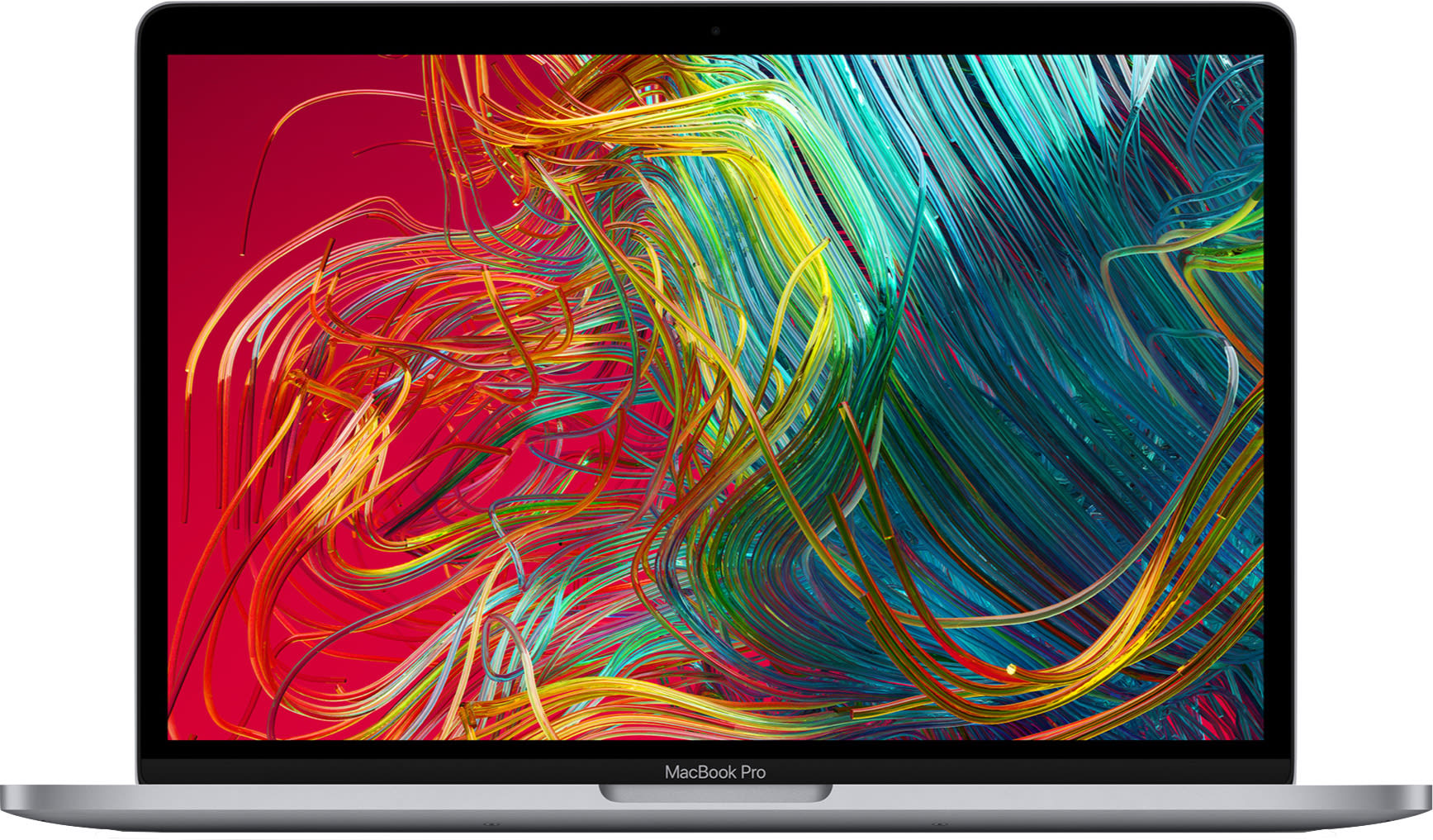
I had a feeling I’d be reviewing a new 13-inch MacBook Pro sooner rather than later. When Apple refreshed the MacBook Air back in March with a new keyboard, I knew it was only a matter of time before the company did the same for the 13-inch Pro. Sure enough, earlier this week Apple unveiled a new model with the so-named Magic Keyboard already in use on the Air and 16-inch MacBook Pro. With that, Apple’s laptop lineup is completely rid of the controversial butterfly keyboard.
As you’d expect, a MacBook Pro refresh also means updated internals. The 13-inch Pro ($1,299-plus) now comes with 10th-generation Intel CPUs and new Intel Iris Plus graphics on select models. The entry-level model now has double the storage: 256GB. The higher-end configurations also start with 16GB of RAM instead of 8GB, and there’s a 32GB upgrade option for the first time on the 13-inch model.

Engadget Score
POOR
UNINSPIRING
GOOD
EXCELLENT
Key

Pros
  • Much-improved keyboard
  • Bright and colorful display
  • Apple doubled the base storage
  • Healthy battery life
 
Cons
  • Bottom side can get hot
  • You have to buy at least the $1799 model to get 10th-gen Intel processors
  • No discrete graphics option on the 13-inch model
  • We still miss USB-A ports and the SD card reader
  • Still not feeling the Touch Bar

Summary

The 13-inch MacBook Pro is the third and last laptop in Apple’s lineup to receive an upgraded keyboard, meaning those much-maligned butterfly keys are now a thing of the past. In addition to a pleasant typing experience, the 13-inch MBP brings improved graphics performance, healthy battery life and the same lovely Retina display as before. It’s mostly a solid choice, save for a few shortcomings (namely, a hot bottom and the ongoing omission of pro-grade ports).
How would you rate the MacBook Pro 13-inch (2020)?
We want to hear what you think. Post a quick review now to join the conversation!
Write a review

The Magic Keyboard (redux)

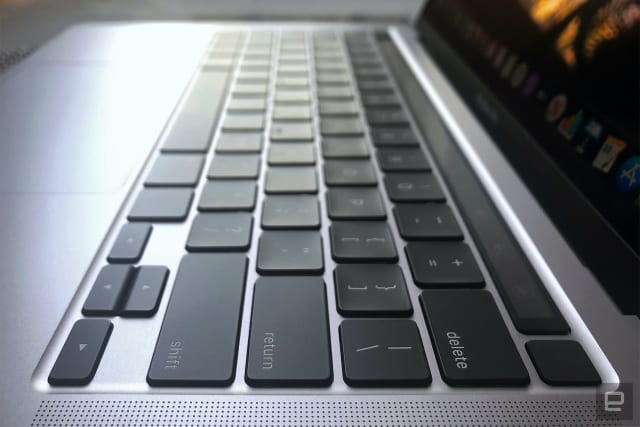
If you’ve perused my review of the 2020 MacBook Air or my hands-on with last year’s 16-inch MacBook Pro, you already know my thoughts on the Magic Keyboard’s design. Feel free to skim ahead if you’ve heard this all before. For those just joining us (hello!), the Magic Keyboard was inspired by the standalone Magic Keyboard that ships with iMacs. That’s just to say both have scissor-style keycaps, as opposed to the butterfly design used over the past few years. That mechanism was intended to reduce key wobble, but in practice it resulted in flat buttons that too often either failed to register presses or, conversely, registered double-presses. My work-issued MacBook Pro has a butterfly keyboard and I’m constantly. Inserting. Periods. Where. I. Don’t. Want. Them. 
In contrast, these backlit keys here are cushier, with a full millimeter of travel. We’re not talking a full return to the pre-butterfly MacBook keyboards some of you have been missing, but they are noticeably deeper than on the last-gen model. It happens that I’m quarantining with my boyfriend, a contrarian who has been squeezing life out of his 2010 MacBook Pro for a decade. One reason he hasn’t upgraded is he had read enough bad things about the butterfly keyboard (and had enough hands-on time at the Apple Store) that he decided he’d rather wait for Apple to change course. He, too, says the new Magic Keyboard feels more substantial, even if it doesn’t have the same satisfying clackiness of his 2010 machine. 
Apple's 13-inch MacBook Pro.
Dana Wollman/Engadget
On the other hand, the new keys also aren’t as wobbly as those ancient ones we all remember so fondly now. This is due to two things: a rubber dome that sits just below the keycap, and a design that locks the scissor mechanism into the keycap at the top of the stroke. 
What can I say? it’s a lovely typing experience. Between this review and the MacBook Air that came out earlier this spring, I’ve twice now had to switch back to my work Mac after testing a newer one. It’s a letdown every time. 
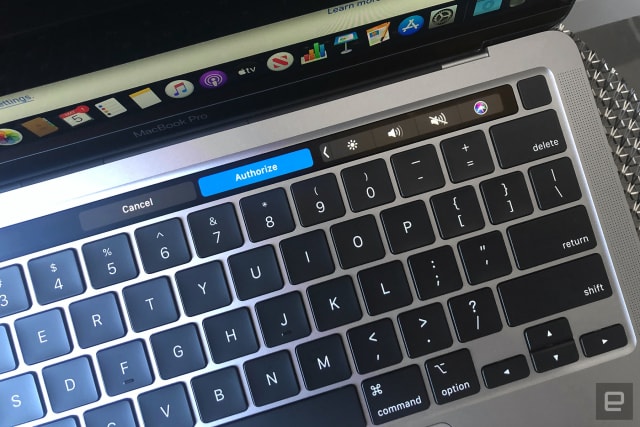
Last note on the keyboard: like the other Macs with Magic Keyboards, this one has a so-called inverted-T arrow button layout, where the right and left buttons aren’t quite as tall as the up-and-down button stack, in theory making them easier to find by feel. I’ve mostly enjoyed this layout on the various new Macs I’ve tested, though for the first time during this most recent round I accidentally pressed the forward slash button a few times when I meant to hit the left arrow. 

Everything else

Otherwise, this is the same design as before, from the aluminum chassis (available in silver and Space Gray), to the smooth trackpad, to the port selection (a headphone jack and four Thunderbolt 3 USB-C ports, two on each side). I still miss having at least one full-sized USB port, not to mention an SD card reader. I don’t think Apple will ever reverse course on this but it still boggles my mind that a machine aimed at creative professionals wouldn’t have these things built in. 
Rounding out the list, there’s the same stereo speakers as last time, the same three-array mic and the same 720p webcam, which served me adequately enough in my never-ending stream of work-from-home meetings. The Touch Bar is back too, as is the Touch ID fingerprint sensor in the upper-right corner of the keyboard deck. As ever, Touch ID takes less than a minute per finger to set up and works reliably; the MacBook Pro never rejected my fingerprint when I used it to log in.
As for the Touch Bar, I still wish it weren’t there, but I’ve mostly made peace with it. I’d much prefer a row of physical function keys, which you’ll still find on the MacBook Air. I haven’t found much use for Touch Bar shortcuts, but I do miss the physical pause button. Also annoying: I have a tendency to accidentally hit the Touch Bar’s mute button in the upper-right corner, and then I might not notice until I wonder why I can’t hear anyone on my call. Good times.
Apple's 13-inch MacBook Pro.
Dana Wollman/Engadget
As recently as two months ago, there were reports in the press that Apple was preparing to unveil a MacBook Pro with a 14.1-inch screen, not unlike the way the 16-inch MBP came to replace the 15-inch model. As it happens, the 13-inch MacBook Pro is, well, still a 13-inch MacBook Pro. It still has a 13.3-inch Retina display with 2,560 x 1,600 resolution and Apple’s True Tone tech, which automatically adjusts the color temperature based on the ambient light. 
So far, these screen specs are identical to what you’ll get on the Air, a machine that costs $300 less. For the money, you do get a couple perks, including support for the P3 color gamut and a brighter 500-nit display (the Air only goes up to 400 nits. It came in handy when I was working near the window on a sunny day, though I also found myself cranking up the brightness in the Apple Arcade game Sayonara Wild Hearts just because I could. The game’s neon colors and deep blacks lend themselves really well to the panel here.
All of which is to say, it’s a very nice screen. My only concern is that if someone buys the 13-inch Pro now only for Apple to come out with a more substantially redesigned 14-inch MacBook Pro not long after, they might feel cheated. Then again, one never knows what Apple will do. We’ve been waiting for an Apple television set and electric car for years now.

Performance and battery life

Apple's 13-inch MacBook Pro.
Dana Wollman/Engadget
As with the recently refreshed MacBook Air, Apple partially upgraded the 13-inch Pro line with 10-generation Intel processors -- Intel’s 10-nanometer “Ice Lake” chips, to be exact. Though the 13-inch MBP starts at $1,299, the model I tested was a $1,799 configuration with a 2GHz quad-core Core i5 processor, Intel Iris Plus graphics, a 512GB solid-state drive and 16GB of RAM. On the graphics front, Apple is touting Intel’s latest Iris Plus architecture and its 64 execution units, a 33 percent increase over the previous generation. 
It’s important to note that while all configs have quad-core processors, the two lower-end ones ($1,299 and $1,499) use eighth-gen chips, not 10th-gen, and they run on Intel Iris Plus 645 graphics. They also only come with 8GB of memory, not 16GB, and the speed of the RAM is slower too: 2133MHz LPDDR3, as opposed to 3733MHz LPDDR4X on the higher-end $1,799 and $1,999 configurations.
In other words, even if the $1,299 or $1,499 configuration is likely to be just fine for you, you’ll need to test at least the $1,799 model to enjoy what Apple is touting as improved performance.
Let’s start with a few benchmarks. In Geekbench 5, it logged 1,202 for single-core performance and 4,384 for multi-core. That’s right in line with what we recorded in our recent review of the Samsung Galaxy Book Flex, which also has 16GB of RAM and Intel Iris Plus graphics (albeit with a Core i7 CPU). 
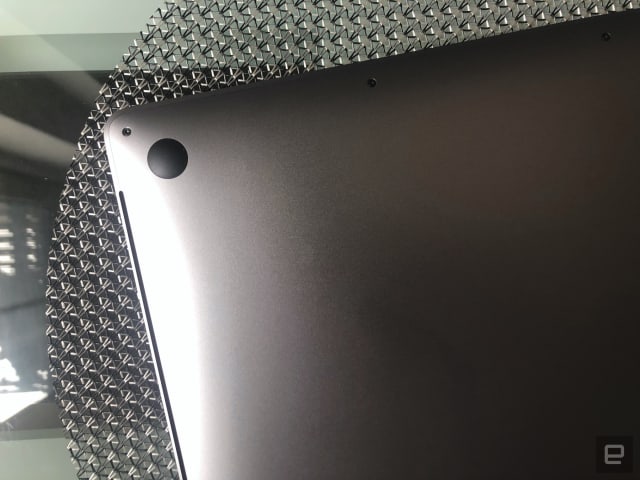
Meanwhile, in our 4K encoding test, wherein we transcode the same minute-long 4K trailer to HD using Handbrake, the 13-inch MBP got the job done in 1:26. After running the short test twice, the bottom of the laptop got quite hot, though the fans at least stayed reasonably quiet. That roughly 90-second finish time isn’t bad considering other machines with integrated graphics such as the Galaxy Book Flex have approached or exceeded the two-minute mark. For the Pro to have managed a sub-minute time, it probably would have needed a discrete GPU. If that’s what you’re after, you’ll want to consider the 16-inch Pro over the 13-inch model (or take a look at some of the 13-inch Windows machines in the competition section).
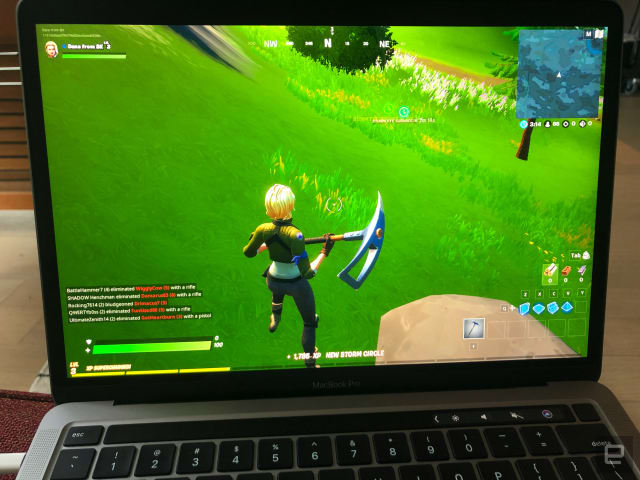
Fortnite on the 13-inch MacBook Pro.
Dana Wollman/Engadget
In real-world use, the Pro had no problem handling my workload, which includes multiple Chrome windows and tabs, plus Slack, Spotify, Notes, Photos, Messages and, increasingly, video calls on different platforms. For the purposes of my testing, I also introduced something that’s not normally part of my routine: Fortnite. The game ran smoothly at 1,280 by 800 on low settings with a frame-rate limit of 60FPS, although the fans definitely started to pipe up. In addition to Sayonara Wild Hearts I spent some time with Where Cards Fall. Those games ran well too, and pushed the fans less than Fortnite.
It’s worth noting that the 13-inch Pro maxes out at Intel Iris Plus graphics, though other components are upgradeable through Apple’s online store. You can opt for a 2.3GHz quad-core Core i7 CPU for an extra $200. There’s also that 32GB RAM option, which will cost you $400. On the storage front, the lower- and higher-end models start at 256GB and 512GB, respectively, but you can also outfit your machine with a 1TB ($200), 2TB ($600) or even 4TB ($1,200) SSD. 
When it comes to battery life, Apple promises up to 10 hours each of wireless web usage and Apple TV video playback, the same claims it made with the last-gen model. In our standard video rundown test, my machine managed 11 hours and 33 minutes. Not the 13 hours or more you can expect from competing machines  like the Galaxy Book Flex and Dell XPS 13, but still pretty good. 

The competition

Here’s what we think you’ll be cross-shopping (or should be!) if you’re considering shelling out $1,299-plus for the new 13-inch MacBook Pro:
  • Microsoft Surface Book 3 ($1,600-plus): Like previous generations, the newly announced Surface Book 3 is available in 13.5- and 15-inch sizes. The starting price on the 13.5-inch model is higher than the entry-level 13-inch MacBook Pro, but if it’s a 10th-gen Intel processor you’re after, Microsoft undercuts Apple by $200. For sub-$1,799, both brands offer 8GB of RAM and 256GB of storage, so on those counts they’re equal. The Surface Book 3 also touts longer battery life (up to 15.5 hours) and it has a detachable touchscreen and pen. Importantly, though the 13-inch model starts with Intel Iris Plus graphics, higher-end configs step up to a 4GB NVIDIA GeForce GTX 1650 GPU. In exchange for those extra features and longer battery life, you’ll have to deal with a slightly heavier weight: 3.38 pounds versus 3.1 pounds on the 13-inch MBP. 
  • Microsoft Surface Laptop 3 ($1,000-plus): Whereas Microsoft’s Surface Book has a removable touchscreen, the Surface Laptop line is more of a conventional laptop. No surprise: The 13-inch MBP is more comparable to the 13.5-inch Surface Laptop than the 15-inch version. Both have Intel Iris Plus graphics and 10th-gen Intel processors and deliver around 11.5 hours of battery life, though Microsoft’s line doesn’t bother with 8th-gen chips at the lower end. Microsoft also offers a custom AMD CPU with Radeon graphics on the 15-inch model, which is also the only Surface Laptop that can match the MacBook Pro’s 32GB RAM option. As a bonus, the Surface Laptop 3 is lighter: 2.79 or 2.84 pounds, depending on the configuration. 
  • Dell XPS 13 ($1,299-plus for the newest model): The latest edition of Dell’s XPS 13 has the same starting price as the 13-inch Pro. For that price, you get a 10th-gen Intel processor, not an 8th-gen chip. You also get 8GB of RAM and 256GB of storage, the same as what Apple is offering at the price. For Intel Iris Plus graphics you’ll need to step up to the $1,549 model, but that’s still less expensive than Apple’s cheapest Iris Plus 13-inch Pro. It’s also much lighter than the MBP, at 2.64 pounds, but still bests it on battery life (nearly 16 hours in our test!). And, to sweeten the deal, you also get a USB-A dongle in the box. We actually used the p-word in our review: perfect.

Wrap-up

The new 13-inch MacBook addresses one of our biggest complaints with the last-gen model: the frustrating typing experience. Now, the smaller MBP is that much easier to recommend, with the Retina display, speakers, touchpad, battery life and overall performance rounding out the mix. There’s also enough performance clout here that it’s clear why someone would choose this over the similarly sized MacBook Air. 
The case for choosing the 13-inch MBP over a competing Windows machine will be tougher, at least for someone who’s open to using either OS. Other machines offer some combination of lighter weight, longer battery life, discrete graphics or better on-paper specs for less money (e.g., 10th-gen Intel chips at a lower price point). For shoppers who have been holding out for a new MacBook Pro with a more usable keyboard, you can upgrade now, confident you’re making a good choice. For folks in the market for a portable machine with decent graphics and long battery life, the 13-inch Pro is just one of several strong options available right now.

Monday, February 17, 2020

PC vs. Mac: 10 of the biggest differences explained BY JESSICA LANMAN, KOMANDO.COM

Mac vs. Windows: the debate that’s raged since the 1980s. Whole commercial campaigns were put together around this very concept, claiming one was better than the other.
But what are the true, bias-free differences between Mac computers and Windows ones? Tap or click here to hear Kim’s take on Macs getting more attacks than Windows PCs.
We’ve done our research and we found 10 objective differences between Macs and Windows computers. So what sets them apart? Let’s start with their price tags.

1. What you pay

Price is one of the big differences between Windows PCs and Macs. If the price point is a big consideration for you, you’ll want to pay attention.
PCs come in a variety of forms since they’re made by different manufacturers (more on that later). This means they can be very cheap or very expensive, depending on what bells and whistles are included.
On average, Macs are going to cost you more money. They have higher upfront prices for laptops and desktop computers. Macs also cost more to maintain. To get repairs and parts under warranty, you have to go to an Apple store.
This means choosing to pay high Apple prices for everything, or risk going to a general repair place. But if things go wrong, Apple won’t help you pay for a new computer, or even a repair. Given the prices of Macs, it’s not really worth the risk.
So in general, PCs are more affordable. Mac may prove to be worth the cost in other areas, though, like the ease of use.

2. User-friendly?

What helps define a PC vs. a Mac is which operating system it utilizes — but what differentiates these systems?
The big difference is ease of use. How quickly a user can figure out how to do a task they want to do and how easy that task is to accomplish. In general, Mac OS is easier to learn. In fact, since Windows 7, Microsoft seems to be imitating Apple’s simple layout to offer a similar experience to its customers.
Apple Stores also offer classes to use Mac OS, which is a huge help for new users. Microsoft Stores have lots of manufacturers to worry about, so classes like these aren’t as easy to hold.
So, for the technophobes in your life, get a Mac. A PC can be fine, but Macs tend to be more self-explanatory, and if you want to get someone used to using a computer, this might be the best way to go.

3. What software is available?

Apple technically made the first personal computer, but Microsoft helped found more of the basic software it uses. The end result was most software is designed to work on a PC, and Apple is still catching up with compatible or comparable programs for Macs.
This situation was far worse a decade ago, before the iPhone led to the supremacy of the App Store. Now that more people have Apple products, its software has become more accommodating.
But in general, beyond very specific Apple apps, all software is available and compatible with PCs.
If access to software is important to you, PC is the clear winner here. With Apple, you can get by, but you may be learning Apple-specific software instead of the standard, which could limit you if there are only Windows devices available in public areas such as the library, company computers or school computers.

4. Safety

There’s a lot you can do to protect your PC or Mac on your own. Tap or click here for 5 tips for better computer security. But PCs and Macs have different built-in protections and different risks for malware.
Since there are more PCs in use in the world, the common belief is they are at a considerably higher risk for malware. Most viruses are designed to attack PCs, and many can’t or won’t affect a Mac at all.
Though this was true at one point, the rise of the Mac has attracted scammers and hackers. Now, Macs aren’t as safe from viruses and malware as they used to be. Tap or click here to see whether Macs are really less at risk for malware. It’s also important to note Macs have fewer built-in protections.
Windows PCs have more firewall programs and safety measures, so if you know how to use them, and how to safely navigate the internet, they can provide better security against potential hacks. Tap or click here for 3 downloads you need to keep your Windows PC safe.
Safety is a huge deal, and neither a Mac or Windows computer is 100% safe. Both are at risk of being hacked, so which one is better is entirely dependent on what anti-virus program you use, how you set up your router, whether you understand how to safely navigate the internet and other similar factors.

5. What they’re made of

We already mentioned Macs are more expensive, and what parts and materials make them up is a big reason why.
Apple’s use of aluminum chassis and rounded corners increases production costs, but it also makes some strong — and beautiful — machines. PCs save costs by using a lot of plastic, but they can end up flimsier for it.
Internally, both computers have many of the same parts. Apple and Windows can both utilize Intel chips and they can both get great graphics cards and added memory.
But Windows PCs are far more customizable. You can even do it at home. With a Mac, you need a special tool to open the computers, so you often end up going to the Apple Store for repairs — and they won’t upgrade your device. So if you want a better graphics card, you’ll have to buy a whole new computer.
So for aesthetics and strength, you might prefer a Mac. For customization and the ability to self-repair (or get cheaper repairs at several stores), you might prefer a PC. But what about their lifespans?

6. How long they last

When we talk about the longevity of Windows PCs and Macs, we’re talking about how long the machines can generally run. We’re also talking about how soon upgrades come up, and if that forces you to purchase a new computer.
The average lifespan of a laptop is five to six years. But both PCs and Macs can exceed that time with a little bit of care.
Mac customers tend to have fewer complaints about their machines, though, so Macs at least appear to last longer. Apple also doesn’t upgrade its computers every year, while some PC manufacturers do.
New tech released each year can make consumers believe they need to upgrade too, or that they get more by doing so. The truth is, differences may be minimal, so it can be a tricky marketing tactic.
When Apple does upgrade, it tends to stop manufacturing older computer models, and even stops repairing them. In this way, the company forces you to upgrade, while PCs can wait years before taking such actions.
So PCs and Macs can both last for years, but their treatment of upgrades is different.
And don’t forget, you can always upgrade your Windows PC, which gives it new life and removes the need to buy the latest and greatest computer when all it offers is more storage or better graphics. You can install these yourself and save hundreds, if not thousands.
Case in point, if you want to speed up your slow Windows computer, tap or click here for 7 simple tips and tricks. But if you really want to upgrade, buy and install more RAM so your computer can run several programs at once without the lag. Try the Corsair Vengeance 16GB LED DDR4.
Corsair Vengeance RGB PRO 16GB (2x8GB) DDR4 3000MHz C15 LED Desktop Memory - Black
By Corsair Memory Only
$89.95$89.99
Rated 4.5 out of 5 by 1535 reviewers on Amazon.com
If you want to decide for yourself when to upgrade, you might favor Windows — especially since many upgrades are under $100. Just make sure the parts are compatible with your motherboard. But if you want the decision made for you, go with Mac.

7. Who makes them?

As we said above, Windows computers are created by different manufacturers. Acer, Alienware, Sony, HP, Dell, IBM — the list goes on.
This means you have a ton of options when buying a PC, and you can shop based on what specifications you need. If you game a lot, you can get a gaming PC. If you need something easy to carry, you can look at lightweight models.
Meanwhile, Macs are all made by Apple. Apple makes several kinds of laptops, and a few versions of the iMac desktop, but the options are severely limited. You can’t get a Mac that’s specifically good at one thing. You can really just get a Mac, with slightly different charging ports, weights and features.
For the freedom of choice and specificity, PC manufacturers have your back. If you just want specific ports or Apple-specific built-in features, Mac is the way to go.

8. What they show you

Graphics may seem completely different on Windows vs. Mac. Apple prides itself on being ahead of the curve with graphics cards and screen quality, but is it really?
The bottom line is both Mac and Windows PCs can have similar or even the exact same parts under the hood. Some believe Apple provides better graphics, but remember Windows users can use 4K TVs as monitors.
All they have to do is customize with the right graphics card, like the MSI Gaming GeForce GT 710 2GB graphics card. Most are under $100.
Meanwhile, Apple offers a 21.5″ iMac with 4K display for $1,299.00. Sure, Windows users have to buy a 4K TV, but you can get a 32″ 4K HD TV with a built-in Wi-Fi bundle and backlit keyboard for less than $400.
So it’s pretty obvious you can get amazing graphics from both Apple and Windows PCs. It just depends on whether you know how to customize your machine.

9. Where do you go?

Perhaps because they come from so many different manufacturers, Windows PCs are a lot easier to find in different stores, while Macs are only found in a few places.
You can go to Microsoft to get a computer, shop online at almost any tech retailer or buy in person at places like Best Buy, Walmart or even Costco. These stores also offer discounts throughout the year.
Since Apple manufactures its own computers, you mostly find them at the Apple Store. If they’re available at Best Buy or Amazon, they rarely come with a discount. If you manage to find a discount on Macs at these stores, they’re usually refurbished models. These generally work fine, but can come with dings or bugs.
So Windows PCs are available in more places, with more price variations while Macs are available are very specific locations, and you don’t get the options or the discounts of PCs.

10. Smartphone compatibility

Windows PCs and Macs both work well with your smartphone — but each is optimized to work with specific devices.
Unsurprisingly, Macs go well with iPhones. You can answer texts and calls from your iPhone on a Mac and can open webpages from one device on the other. But Macs are not nearly as compatible with Androids. You can still plug things in and transfer music and pictures, but it takes more steps.
PCs are the same, but they favor Androids and can have difficulty with iPhones. So the type of smartphone you have may influence whether a Mac or Windows PC is better for your lifestyle.
These are 10 objective differences between PCs and Macs. They ultimately generate subjective opinions, but that’s what learning does. Hopefully this list taught you something about computers and can help guide you through your next purchase. Just remember to get the best one for you.