Google+ High Tech House Calls
Expert Computer Consulting for Homes and Small Businesses

Let there be hope...

Life has changed there is no doubt and we wanted to reach out to see how you are doing.

As we go through this interesting time, we are trying to look at this as an opportunity to focus on our family and on friends like you. Let us use this extra time to catch up and talk more. Let us cook food that is not fast, but interesting and satisfying. Let us learn to enjoy a time to try new things. Let us find ways to enjoy time at home!

Computer Security

If my client base is any experience, anyone can be a victim of a Ransomware, Malware or Virus attack.

What can you do about it?

I conduct audits of your entire computer infrastructure and apply best practice solutions to plug the security holes on your computers, Smartphones and networks.

Now offering consultations to give you the best protection possible:


404.229.0839
carlthorne@hthcatlanta.com

Jack of All Trades, Master of Many

Jack of All Trades, and Master of Many

We provide technical support for:


Homes and small businesses

Windows and the Mac OS platform

iPhones and Android Smartphones

Wireless and wired networks

New device setup

Old device upgrade or repair

One-on-one training

Remote assistance


How To Stop Malware

Monday, October 22, 2018

10 things you can do in iOS 12 that you couldn't before By Amanda Kooser

Getting a fresh operating system from Apple is usually an occasion for celebration as we explore new features and upgrades. We've come a long way since the early days of iPhones and iPads, and Apple's iOS 12 is the latest step forward in the journey.

Now that iOS 12 is available for most Apple devices from recent years, it's time to dive in and discover the latest and greatest it has to offer. Most iPhones and iPads dating as far back as 2013 can handle the new system, so check to see if the update is available if you haven't already installed it.

The new features in iOS 12 cover a lot of different angles. They will help you get a handle on your screen use, make Siri more useful, and keep you in touch with more people than ever before. There's plenty of fun to be had as well. Here are 10 things you can do with iOS 12 that are new and better than ever before:

1. Manage your screen time

One of iOS 12's most interesting new features is one that actually encourages you to moderate how much time you spend on your Apple device. Screen Time can be found in your settings. This is where you can access a detailed usage report showing how much time you're spending staring at your screen, and which apps you use the most.

If you find your Screen Time report a bit shocking, then you can take some steps to control your use. The simplest way to to do this is to set a downtime schedule and also set time limits for apps. You will find those controls in the Screen Time settings. Click or tap here for more tips on getting a handle on your screen time.

2. Set up Siri shortcuts

If you're ready to get more out of Siri, then head to the App Store and download Apple's free Shortcuts app. The app enhances Siri to help you set up personalized shortcuts that work with your apps, including favorites like Maps, Music, Photos, and Safari. You can then run those shortcuts by talking to Siri using voice phrases you set yourself. You can choose from a large gallery of shortcut suggestions, or make your own.
Running out of space on your phone? Click or tap here to learn about 3 apps that can help free up storage.

3. Group your notifications

It can be challenging to wrangle your many notifications, but Apple will give you a helping hand with a new grouped notifications feature. This gathers notifications from the same app together and stacks them on top of each other to help keep your notifications from getting out of hand. Tap on the group of notifications in order to expand the stack and see them all. You can choose to turn this feature off in the settings if you prefer the old way.

4. Take digital measurements

Measure
Augmented reality (AR) holds a lot of promise as a way for our digital devices to enhance our interactions with the world around us. Apple's new Measure app is a prime example of just how useful this can be. Measure doesn't work with all Apple devices that can run iOS 12, but for those that are compatible, you can use it in place of an actual measuring tape.
Keep in mind this isn't a perfect science, so don't rely on Measure for those times when you need to be stone-cold accurate. The old adage of measuring twice and cutting once applies here. If you need to be absolutely exact, then double check your phone's estimate with a real measuring tape.

5. Turn yourself into a Memoji

If you're a fan of Apple's cute and fun Animoji animated animal figures, then you'll enjoy the arrival of Memoji, which is a custom animated version of yourself available in iOS 12. You can give yourself orange skin, some big glasses, or a bright mohawk for use in the Messages app with an iPhone X, Xs, or XR. Memoji works just like regular Animoji, but gives you the option for a much more personalized look.

6. Get more out of Photos

When you open up the Photos app, you'll notice a new option down at the bottom called "For You." This tab curates memories from your photo and video collection. This alone is a nice addition to Photos, but one of the more interesting features is called Sharing Suggestions. This is for people who use iCloud Photos. It will suggest people to share your photos with, a feature that will get more accurate as it learns over time based on you assigning contacts to faces in your photos.
Click or tap here to see how the new iPhone holds up to drop tests.

7. Track your stocks in style
Apple Stocks

Stock market fans are going to enjoy the upgrade to the Stocks app and its new availability on iPads. The look of the app is improved through a new design. You can also track all of your favorite stocks and easily access key news stories or go more in depth on how companies are performing.

8. Use iPhone X gestures on your iPad

Fans of Apple's iPad tablets have a couple new tricks to try out in iOS 12. The new system brings some of the gestures from the iPhone X right onto your iPad screen. Go ahead and try it out by swiping up from the bottom to return from an open app back to your home screen. Now swipe up from the bottom and hold briefly to open the app switcher. You can also swipe down from the upper right-hand corner to open your Control Center. This update hints at a future Apple world where the home button is obsolete.

9. Navigate better with an upgraded Apple Maps

Apple Maps
Apple Maps has always faced tough competition from the popular Google Maps, but the app is getting quite a nice overhaul timed for the release of iOS 12. Updated maps with more detailed data and better navigation are rolling out starting with Northern California locations, including the Bay Area. Apple plans to roll out more locations over time.

10. Talk to a crowd with Group FaceTime

How many people can you fit into one FaceTime chat? With iOS 12, the answer is 32. Apple's Group FaceTime is finally arriving and it can handle a whole lot of simultaneous video conversations. You may be eager to start chatting with your entire extended family, but you'll have to wait a little. Apple delayed Group FaceTime, but still plans to release it in an iOS 12 update later this year.
Apple's iOS 12 is a worthy update for your devices. If you haven't already upgraded your eligible iPad or iPhone, then go ahead and do it and enjoy the new features.

How to know which iPhone is right for you by Daniel Howley

Apple’s new iPhone XS and iPhone XS Max hit store shelves on Sept. 21, with the iPhone XR set to go on sale a month later on Oct. 26. Along with the iPhone 8 and 8 Plus, and the iPhone 7 and 7 Plus, you’ve got the option of purchasing one of 7 different iPhones.

So which iPhone should you call your own? Should you drop a bank-account-busting $1,449 on an iPhone XS Max with 512GB of storage? Or opt for the more affordable iPhone 7 with 32GB of space for $449?

I’ve got the lowdown to help you decide.

iPhone XS Max

Buy this if:

If you want the absolute best iPhone you can buy with the largest battery and most storage space, go with the iPhone XS Max.

The breakdown:

The mammoth handset that only iPhone lovers with the deepest pockets will opt for, the iPhone XS Max features the biggest display ever offered on an iPhone at 6.5 inches. Despite that, the XS Max’s edge-to-edge screen design means the Max is actually a hair shorter than the iPhone 8 Plus, which only has a 5.5-inch panel.

Naturally, the XS Max comes with Apple’s Super Retina HD OLED display technology, which offers more vibrant colors and deeper blacks than the LCD panels found on older iPhones.
View photos
Outside of their screen sizes, the iPhone XS Max and XS are virtually the same device.
From a performance standpoint, the XS Max includes Apple’s new A12 Bionic chip, which features a CPU that’s two times faster than the CPU found in last year’s A11 Bionic chip and a 50% faster GPU. The A12’s power is especially useful when playing games and using augmented reality apps. Then there’s the Max’s storage capacity. The base model includes 64GB of space for $1,099, while the 256GB model will cost $1,249. The 512GB version of the XS Max, meanwhile, costs a staggering $1,449.

The XS Max also gets Apple’s best smartphone camera, a dual-lens, 12MP unit with wide-angle and telephoto capabilities. The wide-angle lens has a 1.8 aperture, while the telephoto lens has a 2.4 aperture. The lower the aperture number the larger the lens opening, which allows the camera to capture more light. This difference between the lenses helps create the bokeh look of Apple’s Portrait mode photos. The telephoto lens also includes a 2X optical zoom, which means you can zoom in on a subject without the distortion you normally see with digital zooms.

The XS Max’s battery is rated for 15 hours of wireless video playback that’s an hour and a half longer than the iPhone X’s battery.

iPhone XS

Buy this if:

You want the best Apple has to offer, but in a more compact package and at a better price.

The breakdown:

Apple’s iPhone XS is a virtual clone of the iPhone XS Max, but in a smaller form factor. You get the same processor, the same cameras, the same storage options and display type. But instead of a 6.5-inch screen, the XS has a more pocket-friendly 5.8-inch panel. The XS’s smaller size means it also gets a shorter battery life than the Max: 14 hours of wireless playback versus the XS Max’s 15 hours.
Naturally, that also means the XS comes with a lower price tag. The base model gets you 64GB of storage for $999, while the 246GB model will cost you $1,149. The 512GB version costs $1,349.

iPhone XR

View photos
The iPhone XR has all of the power and performance of the iPhone XS and XS Max, but doesn’t have the same OLED display and lacks a telephoto camera.

Buy this if:

You want the performance and power of the iPhone XS without the hefty price tag.

The breakdown:

The iPhone XR is the kind of phone you’d buy if you care more about your smartphone’s performance than anything else. Like the XS and XS Max, the XR has an edge-to-edge screen. But unlike its pricier stablemates, the XR features an LCD Liquid Retina HD display, which means you won’t be able to take advantage of HDR content.

Sporting a 6.1-inch panel, the XR slots in between the 5.8-inch XS and 6.5-inch XS Max in terms of screen size. The XR also drops the XS’s and XS Max’s telephoto lens, and instead uses a single 12MP wide-angle camera. You can still take photos with a bokeh effect, but they might not look as good as those taken with the XS or XS Max. Surprisingly, the XR also misses out on Apple’s 3D Touch technology.

The XR does, however, get more battery life with up to 16 hours of wireless video playback.
As far as pricing, the XR starts at $749 with 64GB of storage. For $799 you’ll get 128GB of space, while a 256GB model will cost you $899.

iPhone 8 Plus

View photos
The iPhone 8 Plus might be last year’s model, but it’s still incredibly powerful, packs a dual-lens camera and can be charged wirelessly.

Buy this if:

You want a big-screen iPhone, but can’t let go of the Home button.

The breakdown:

Apple doesn’t sell the iPhone X anymore, so if you  still want a larger display without forking over a lot of dough, the iPhone 8 Plus is your best bet. The 8 Plus is available for $699 with 64GB of storage or $849 with 256GB of space.

With a 5.5-inch Retina HD display, the 8 Plus won’t produce the kind of vivid colors you’d find on the XS Max or XS. Instead it will match what you’d see on the iPhone XR. The 8 Plus runs on Apple’s previous generation A11 Bionic chip, so it won’t be as speedy as the iPhone XS, XS Max or XR, but it will certainly hold its own.

Like the iPhone XS and XS Max, the 8 Plus includes a dual-lens camera with wide-angle and telephoto lenses. The Plus’s wide-angle lens, though, has a 1.8 aperture, while the telephoto lens has a 2.8 aperture.

iPhone 8

View photos
The iPhone 8 offers the same performance as the 8 Plus, though it doesn’t have a dual-lens camera.

Buy this if:

You want a newer iPhone, but don’t want to pay a huge price tag.

The breakdown:

Apple’s iPhone 8 packs all of the power and performance of the iPhone 8 Plus without the added bulk of that 5.5-inch display. The phone’s 4.7-inch screen and relatively diminutive proportions make it the most pocket-friendly iPhone in Apple’s lineup. As with the 8 Plus, the 8 comes with a Retina HD display and an A11 Bionic chip. Unlike, the 8 Plus, though, the 8 only has a single wide-angle camera, so you don’t get that 2X optical zoom.

The iPhone is available with 64GB of storage for $599 and 256GB for $749. For handsets that are a year old, those are some solid prices.

iPhone 7 Plus

View photos
The iPhone 7 Plus is the iPhone to get if you want a big-screen handset, but don’t want to fork over a ton of cash.

Buy this if:

You want a big iPhone, at the lowest price.

The breakdown:

The iPhone 7 Plus is the classic big-screen smartphone in Apple’s garage. The handset features the same kind of 5.5-inch Retina HD display as the iPhone 8 Plus — with the exception of the 8 Plus’s included True Tone display feature, which adjusts the screen’s white balance depending on the kind of lighting you’re in.

The 7 Plus comes with Apple’s A10 Fusion processor rather than the iPhone 8 Plus’s A11 Bionic. The 7 Plus also gets a dual-lens camera, like the 8 Plus, though you don’t get the 8 Plus’s auto HDR feature. The 7 Plus has most of the features the 8 Plus has — except wireless charging and faster speed — making the 7 Plus a solid choice for most consumers.

And at $569 for 32GB of storage space and $699 for 128GB, the 7 Plus is a handset that won’t break the bank.

iPhone 7

View photos
The iPhone 7 is the best iPhone if you don’t want a large display, and want to save some cash.

Buy this if:

You want an iPhone, but are tight on cash.

The breakdown:

Apple’s iPhone 7 is the least expensive iPhone Apple sells through its stores. You can still pick up older models through resellers, but if you want to purchase your handset through Apple, you should go with the 7. With a 4.7-inch Retina HD display and an A10 Fusion processor, the iPhone 7 is a smaller version of the iPhone 7 Plus. Unlike the 7 Plus, though, the 7 doesn’t have a dual-lens camera. 

For $449 you get a handset with 32GB of storage, or you can pay $549 for 128GB.
More from Dan:
Email Daniel Howley at dhowley@oath.com; follow him on Twitter at @DanielHowley. Follow Yahoo Finance on Facebook, Twitter, Instagram, and LinkedIn

Apple XR: Is the new low-cost iPhone worth the money? By Francis Navarro

As you all know, Apple's newest premium iPhones have been out for weeks now. Did you get out and drop a pretty penny for the latest thousand-dollar-and-beyond iPhones? Or are you waiting for something that's a bit more reasonably priced?

Fortunately, the expensive iPhone XS and iPhone XS Max will be joined by their less expensive sibling, the iPhone XR, very soon.

If you're looking to get your hands on this shiny new gadget early, open your wallet (ever so slightly), Apple will finally make the iPhone XR available for preorder on Friday, Oct. 19.

But what exactly is the difference between the iPhone XR and the pricier iPhone XS models? Is this more budget-friendly iPhone worth the money? Or should you go the distance and shell out more for the premium models? Let's find out.

Aesthetics


Since edge-to-edge screens and Face ID are the biggest innovations on Apple's flagship phones in years, the iPhone XR will also share the same thin bezel design and the upper notch that the iPhone XS and the iPhone XS Max have.

Although the XR appears to have larger bezels around the screen compared to the XS, the difference is not that significant. The thicker bezels also have their own benefits. It may mean better screen protection against drops and since the XR has an LED screen (more on that later), the black borders can improve its perceived contrast.

Physically, the XR is the largest of the current crop of iPhones at 6.2 by 3 inches, mainly because of its wider bezels. (The iPhone XS is 5.7 by 2.79 inches while the iPhone XS Max is 5.7 by 2.8 inches.)
Another difference is the build material. Apple stuck with steel and glass on the iPhone XS models but went with aluminum on the XR to cut down on production costs. To make up for it, the XR will come in six different colors: black, white, red, yellow, coral, and blue.

Display


The biggest difference between the XS models and the XR is the display, more precisely, the display technology used.

Instead of having an OLED screen like its more expensive counterparts, the XR will sport a cheaper LCD display instead. And despite its larger physical size, the XR actually has a smaller screen than the XS Max.

The XR has a 6.1-inch LCD display Apple calls the "Liquid Display." It also a lower 1,792 x 828 resolution compared to the XS's 5.8-inch 2,436 x 1,125  and the XS Max's 6.5-inch 2,688 x 1,242 panels. This means the XR's display won't look as sharp as the premium iPhone XS models.

In fact, even the older iPhone 8 Plus' 5.5-inch 1920 x 1080 Retina Display has a higher pixel density and is sharper than the XR's. But don't worry, unless you put these iPhones side by side, the difference should be negligible in everyday use.

Fun fact: OLED (Organic Light Emitting Diodes) is a relatively newer and better display technology. Since the pixels in OLED displays emit their own light, they don't require backlighting like LCD screens. This allows for thinner screens, crisper blacks, higher brightness, more vivid colors, less power consumption and faster refresh rates. The downside? OLED displays are still expensive.

Camera


Another defining characteristic of the iPhone X and the XS models is the vertical dual-camera array composed of a wide angle and a telephoto lens. This allows for the beautiful bokeh and depth of field effects in Portrait Mode.

The iPhone XR, on the other hand, only has a single rear 12 MP wide-angle camera lens, but with software, it can also replicate those fancy Portrait Mode effects.
And like the XS models, the XR will also support adjustable Bokeh depth-of-field post-processing edit capabilities.

Features and specs


Now, the good part. Although Apple made display, camera, and design concessions to make the iPhone XR more affordable, it actually gets almost every other feature that's available on the XS models.

For one, it is the cheapest way to get Apple's new Face ID technology. Face ID is Apple's biometric security system of choice moving forward and it's worth getting the XR for that alone.

The XR will likewise get Qi wireless charging capabilities and IP67 water and dust resistance. Although this is a notch below the XS models' IP68 rating, this is enough to protect it from water splashes, short dips and rain.

Processor-wise, the XR is also powered by Apple's new 7-nanometer A12 Bionic chip, the same chip that runs the XS models. I'm glad Apple decided to use this chip on the XR instead of the iPhone X's older A11 bionic processor. According to Apple, this chip is crazy powerful with a 6-core CPU, 4-core GPU, a Neural Engine and two performance CPU cores. The A12's  CPU runs 15 percent faster than A11, and the GPU runs 50 percent faster.

With its efficient processor and lower resolution display, expect the iPhone XR to have the best battery life on an iPhone ever. There are no real-world tests available yet, but Apple claims that the XR will last an hour and a half longer than the iPhone 8 Plus, the current king of iPhone battery longevity.

Storage wise, the iPhone XR will offer 64 GB, 128 GB, and 256 GB variants. (Sorry, no 512 GB option like with the XS models.)

So is it worth it?

The iPhone XR starts at $749 and ramps up to $1,149 for the 256 GB version. Compared to the iPhone XS models' outrageous prices, the iPhone XR is definitely worth it, especially if you're already knee-deep in Apple's ecosystem and you're looking to upgrade your aging iPhone 7 or iPhone 8 this year.

For that price, you're future-proofed with Face ID, you get Apple's latest A12 processor and potentially the best battery life on an iPhone yet.

It may have a lower resolution LCD display and a cheaper aluminum body, but these concessions will be hardly noticeable for average users who will use the XR as their daily driver.

However, keep in mind that there are Android smartphones that have comparable and better specs than the iPhone XR at the same and even cheaper price points. It's all about software experience and the ecosystem, of course, and you can't accurately compare apples to oranges with their pricing. Like I said, if you're not tied into the Apple experience and ecosystem, Android phones can give you comparable specs at better price points.

And finally, if you're looking for even cheaper iPhones and you don't mind not having Face ID, the iPhone 7 ($499) and iPhone 8 ($599) are now cheaper than ever. However, Face ID will definitely future-proof your investment and the iPhone XR is worth trading up for if you have the extra $150 to spare.

How to preorder the iPhone XR

As usual, to preorder the iPhone XR and be among the first to get it on the day it ships (October 26), you'll have to stay up late (or wake up early) and watch Apple.com (or your carrier's website) like a hawk on Friday, October 19 at 12:01 AM PST.

I'm expecting that the demand for the iPhone XR will be extremely high (definitely higher than the XS and XS Max) because of its price point and the earlier you put your pre-order in, the better your chances of getting your iPhone XR within the first week of release or so.

You can also apply for Apple's iPhone Upgrade program now and get preapproved to purchase the XR. This can help you sneak in your order faster amidst the crazy virtual queues for the iPhone XR come Oct. 19. As always, the early bird gets the early (Apple) worm.

iOS 12 security settings you need to change right now By Brittany Vincent

With iOS 12, Apple has made major moves to tighten its security and tie up some of the loose ends you may have.

But your iPhone can't do everything for you. Despite the fact that Apple has done what it can do on its end and in terms of security to make things safer for you, there are still things you need to do on your own to make sure your phone is appropriately protected from those who might want to get into it.

Here's a list of security settings in iOS 12 you need to change now to make sure you're taking advantage of everything you can to protect yourself.

Make sure your passcode is appropriately complex


The default lock screen passcode used to be four digits, but Apple has since changed this into a six-digit passcode to help you keep your phone and data safe. Don't make this code a bunch of zeroes, like we recently learned rapper Kanye West does.

Make sure this code is a unique six-digit passcode that isn't a string of sequential numbers or the same number six times, either. Make sure it's something you can remember, but also something unique. This will ensure it's a lot more difficult for hackers to brute-force their way through your phone.

To change it, go to Settings > Touch/Face ID & Passcode, and type in your current passcode. Then select Change Passcode. From there, choose Passcode Options, and set your Custom Numeric Code. You'll be good to go from there.

Turn on automatic updates


Apple ensures it's on top of the latest security updates for your phone, but if you're not letting said updates go through, they're not doing anything for you. You may as well not have updated. To thwart this problem, make sure you keep your phone in auto-update mode. That way, you'll never miss any of the important updates sent out to keep your phone working as intended.

Head to Settings > General > Software Update and choose the "on" option to make sure this is enabled.

Keep two-factor authentication enabled by default


Two-factor authentication can be a bit of a pain when you want to log in quickly, but it can also add an extra layer of protection against anyone who may somehow get your password. When you log into a website or app with your regular password, this feature will send a text message to your phone with a special verification code that you'll need to enter if you want to continue your login.

iOS 12 has this particular feature already integrated into its framework, and it will auto-fill your codes so you don't have to worry about typing them all in. It's very simple to get set up, too. If this isn't turned on, go to your name and Apple ID at the top of the screen and choose Password & Security, and then choose Turn on Two-Factor Authentication. You can set up your important passwords from here.

Restrict your phone from access with USB-only mode


Apple went forward with an interesting feature in iOS 12 where you can choose to lock down access to a phone while connected to a computer when it's been only an hour after you last unlocked it. Previously, this time window was seven days. It's been shortened considerably for security reasons, which keeps hackers from being able to use a series of special programs and hacks to log into your phone, and therefore ruining their day.

Make sure this is set up correctly by heading into Settings > Face/Touch ID & Passcode and check near the bottom of the list for USB Accessories. Turn it off, and make sure there is no green switch but a gray switch here. Now, no USB devices will be able to get into your phone after it's been an hour since your last unlock. Very simple, and very safe.

Keep location-based features turned off


iPhones are good at tracking you -- in fact, that's how many of your favorite features on the device come to life. Siri, Maps, Photos, and a handful of other apps on your phone all use this manner to track where you've been and where you go to make things simpler for you. But if you want to remain as secure as possible, go ahead and turn this off. It's best to keep your location hidden, so go to Settings > Privacy > Location > System Services and choose Significant Locations. You can turn this feature off and your iPhone will stop keeping track of those locations it thinks are important.

Stop using the same passwords everywhere


With iOS 12, you should be aware that your phone has a special way to help you manage all the passwords you use across the internet. If you use a lot of same passwords, go ahead and change them, which your iPhone can help you figure out. If you go to Settings > Passwords & Accounts > Website & App Passwords, your phone can tell you which passwords are the same. You should take this as a cue to go change things up.

You can change your password directly from your phone by going to Settings > Passwords & Accounts > Website & App Passwords and entering your passcode, then choosing Change Password on Website. Then make sure you keep track of your changes, and don't use the same ones over and over.

Sunday, October 14, 2018

How to Find Out if You Were Affected by the Recent Facebook Hack by LOWELL HEDDINGS

A few weeks ago, Facebook had to admit that up to 50 million accounts were accessed by hackers, and after an investigation, they’ve created a tool to let you know if you were affected.
For those that had no idea that this happened, essentially hackers abused a security hole in the “View As” feature on your profile that let you check whether your profile had private information visible to other people, friends, or the general public. Ironically this feature, designed to help you protect your privacy, had a huge bug that would actually temporarily log you in as the other user. Hackers then figured out how to harvest tons of information this way.
Facebook has now confirmed that hackers stole access tokens for “only” 30 million people, not 50 million. For 15 million of those people, the hackers were able to get phone number, email address, or both. And for 14 million more people, the hackers were able to get a lot more information, like username, gender, relationship status, religious, birthday, and a ton of other information including things you’ve searched for.
We now know that fewer people were impacted than we originally thought. Of the 50 million people whose access tokens we believed were affected, about 30 million actually had their tokens stolen.
You can check whether you were affected by visiting the update page on Facebook’s Help Center and scrolling down to the bottom, where you’ll see a notice like this, which will indicate whether you were or weren’t hacked. As you can see, my account was not accessed.

So What Does This Mean for Me?

It’s worth noting that details like those accessed by hackers are often used to guess security questions and access other, more useful, accounts. There has been a huge increase in CryptoBlackmail, where hackers steal information about you, and then send you detailed threats to expose private information about you if you don’t pay them.
We know that the Facebook hackers were not able to steal any of your passwords, and they did not use these access tokens to get into any other third-party accounts.
If you were affected, the main thing that you should consider is that information that was accessed about you could be used to answer security questions on other sites to reset your password. You should never use common facts about yourself as the answer to security questions, and if you have, you should change them.
And just like every other day of the week, it’s time to start considering using a password manager if you haven’t already—iOS 12 has fantastic autofill that makes it a no-brainer. And to further protect your accounts, make sure you’re using two-factor authentication everywhere, even if it’s just the SMS variety.

Wednesday, September 5, 2018

Is Your iPhone 8 Crashing Constantly? You Might Need This Free Repair by Justin Pot

Is your iPhone 8 restarting unexpectedly, freezing, or not turning on? You might have a faulty logic board, and if so Apple will replace it for free.

“A very small percentage of iPhone 8 devices contain logic boards with a manufacturing defect,” according to Apple. “Affected units were sold between September 2017 and March 2018 in Australia, China, Hong Kong, India, Japan, Macau, New Zealand, and the U.S.”

Think that might be your phone? You can enter your serial number here to find out. If eligible, your phone can be fixed free of charge at an Apple Store or an Apple Authorized Service provider. There’s also a mail-in option.

This only applies to the iPhone 8, which came out late last year. The larger iPhone 8 Plus is not affected, and neither is the iPhone X or any earlier iPhone releases.

Sunday, August 26, 2018

How to Wrap Text Around Pictures and Other Illustrations in Word By Rob Woodgate

7 Top Secret Features of the Free VLC Media Player by Saikat Basu

A few months back, VLC Media Player got Chromecast support and 360-degree video views. It’s just another tiny notch on the popularity of the open source player which can handle anything that you throw at it (as long as it’s a media file!).

The Windows version of the player is closing in on 50 million downloads, and that’s discounting all the other platforms it can be installed on. Perhaps the secret to its longevity is the modular design which gives it a rich set of features. Today, let’s focus on the few “secret” features under the hood which you can use every day.
1. Use VLC as a Video Downloader for YouTube

There are several capable free downloaders available for YouTube. But, VLC has this feature built in. Though it’s not a one-click downloader and you will have to take the help of your browser.
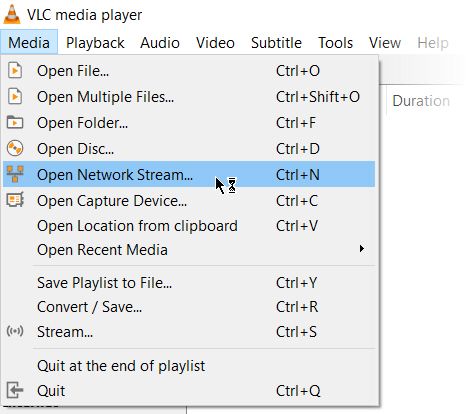
  1. Click on Media > Open Network stream.
    Capture YouTube URL
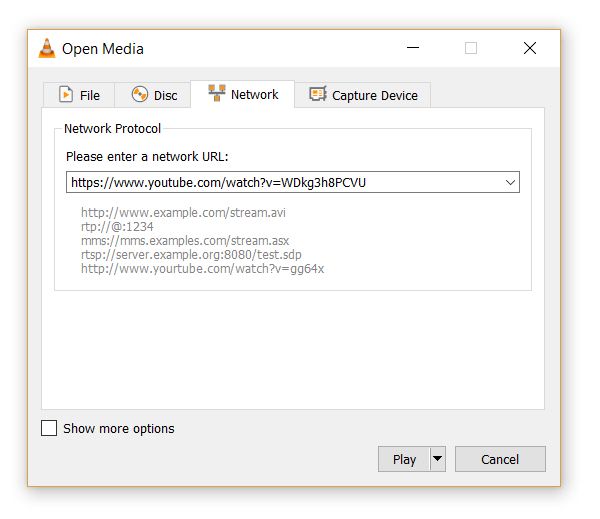
  2. Paste the YouTube URL and click the Play button in the player.
    Stream YouTube
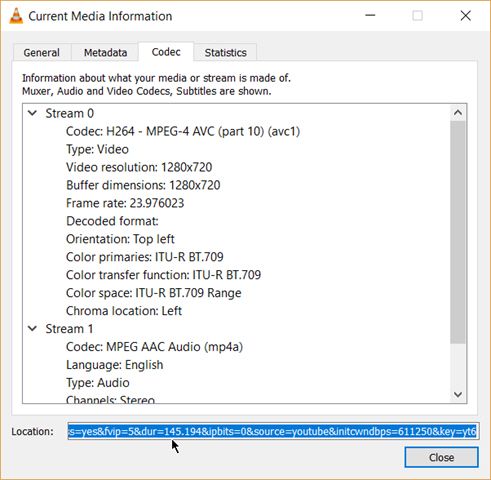
  3. VLC Media Player starts streaming the video.  Now, click Tools > Codec Information and at the bottom of the window you will see a Location box.
    Copy-paste YouTube location information.
  4. Copy the long URL in the box and paste this into your browser’s address bar. The browser will now start playing the video file. You can download the video file to your desktop by doing a Save video as with a right-click on the video. Or you can choose to record the video.

2. Convert Videos to Any Format

Downloading a video is often the first part. Converting that video so you can play it on a device of your choice is the second part. The VLC Player can do this too.
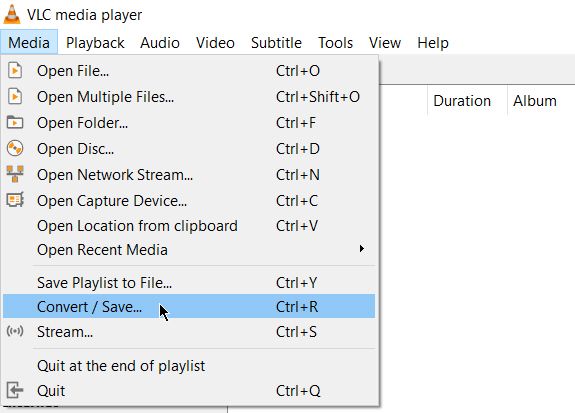
  1. From the toolbar, click on Media > Convert / Save.
    VLC Convert Video
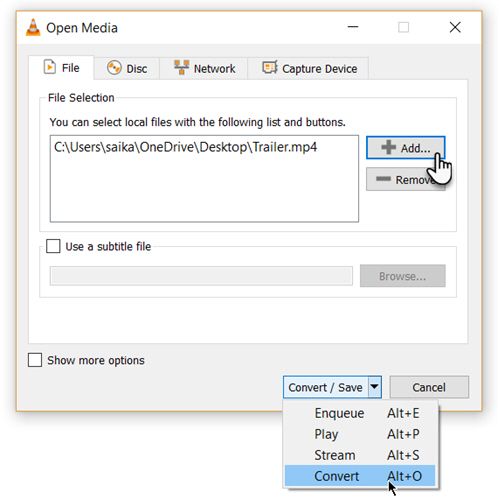
  2. In the Open Media dialog box, click on the Add button and choose the media file for conversion. Then, click on the Convert / Save dropdown > Convert.
    VLC - Convert Video-Choose File
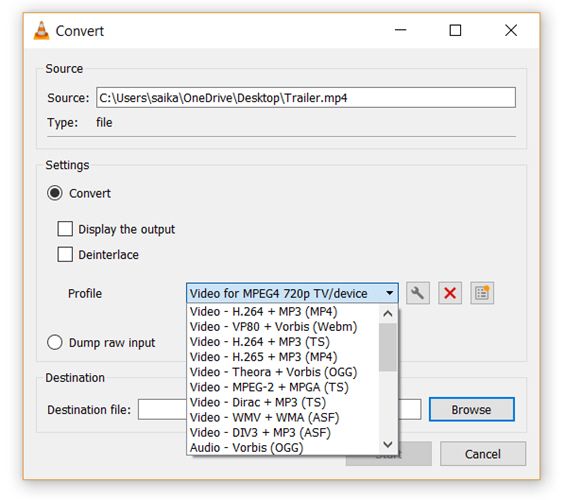
  3. Open the dropdown menu for Profile and select the file format that you would like to convert your file to. You can also click on the gear icon next to it and edit the chosen profile.
    Pick a profile and start conversion.
  4. Click on Browse and select a location to save the converted file. Then, click on Start to begin the conversion and monitor its progress in the bar below.

3. VLC as a Graphic Equalizer for Your Music

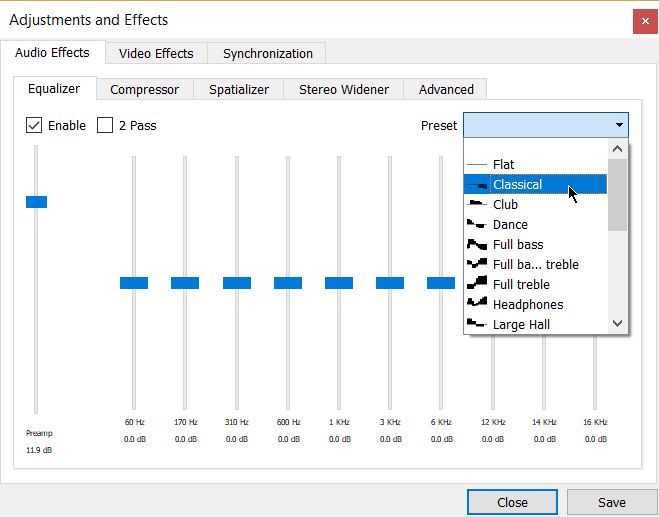
VLC Graphic Equalizer
You may be using VLC as a video player only, but VLC is a cross-platform standalone media player too and that brings full audio effects with playlist support. VLC not only displays cover art but also has a pretty good graphic equalizer tucked away inside it.

Display it with the shortcut keystrokes Ctrl + E (or go to Tools > Effects and Filters > Audio Effects). Adjust the sound quality with the available presets, or fine-tune it with the Equalizer, Compressor, and Spatializer tabs.

4. Activate Audio Normalization to Protect Your Ears

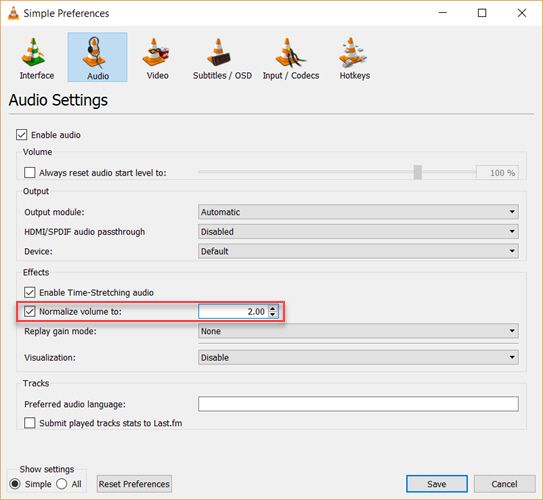
Normalize Volume
The general audio settings for the VideoLan Player are located under Preferences. One of the key features called Audio Normalization helps to optimize the volume of any media by a fixed amount and improve the sound quality.

Go to Tools > Preferences > Audio > Enable Normalize volume to. The value you set here will help to adjust the decibel levels of dialog, music, explosions, gunshots etc. in the movies you watch. Restart VLC after enabling the setting.

In fact, configure this immediately after you download and install the VLC player. It will make your audio sound better.
Want Your Audio to Sound Even Better? Here Are 5 Top Tips Want Your Audio to Sound Even Better? Here Are 5 Top Tips When you're recording and editing your own audio, the chances are that you'll want to make the output sound as great as possible. Here are five top tips that'll help. Read More

5. Play Internet Radio and Podcasts in VLC

One of VLC’s little used features could definitely be its ability to find and play internet radio. The VLC Player can fill all your audio needs as it can not only stream radio but also play podcasts.
  1. Launch VLC and open the Playlist sidebar.
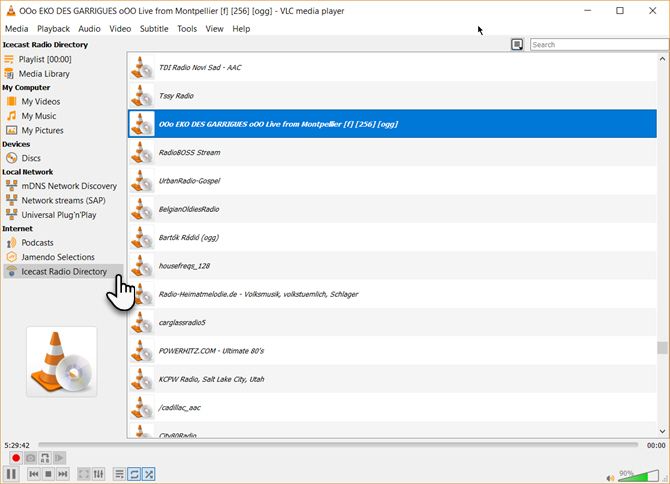
  2. Under Internet, you can browse through the two radio servers—Jamendo and Icecast—and choose a station of your choice by clicking on it. Also, make sure the Playlist view mode is set to List (Go to View > Playlist View Mode > List).
    VLC - Internet Radio
  3. If your favorite internet radio station is not on the list, use the station’s URL to stream it via VLC. Go to Media > Open Network Stream… Enter the URL and press Play in order to begin listening.
And to play podcasts in VLC:
  1. You can manage your favorite podcasts via the same Playlist interface.
  2. Go to Playlist and under the Internet section, select Podcasts.
  3. As soon your cursor is over the Podcasts section, click the plus sign.
  4. Copy and paste the RSS feed URL of the podcast you wish to listen and click on OK. The podcast will be added to the sidebar and you can pick the episode you want to listen to.

6. Loop a Section of a Video or Audio File

Most media players can loop an entire video or a soundtrack. With VLC, you have the added bonus of looping any specific section of a media file.
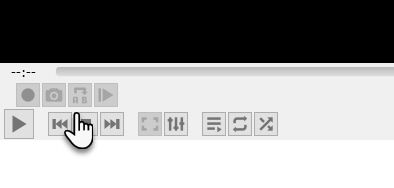
  1. Open the video or audio file with VLC. Go to View > Advanced Controls.
  2. Now, a few more buttons will be displayed above the normal play and stop controls.
    VLC Advanced Controls
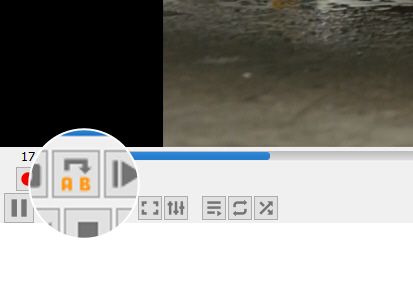
  3. To start the loop from a specific part of the video, move the playhead to the part where you want the loop to start (Point A).
  4. Click the loop button once. The “A” mark on the button will turn red. To finish the loop, take the video to the endpoint and click on the same button again. You will see both the A and B points of the button are red.
    Set VLC Loop
  5. Now play the video and the section will loop. Click the loop button once again if you want to switch it off.
This is a handy feature when you want to review a how-to video or hear an audio file over and over to get it right. I often use this feature to study Photoshop tutorial videos.

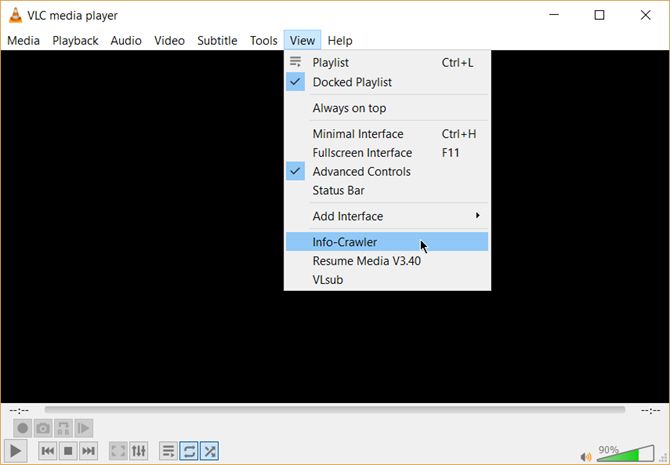
7. Add Features With VLC Add-Ons and Extensions

Install and View VLC Add-ons
For everyday use, VLC’s default package of features may be enough. But if you are looking for added functionality then there’s an entire catalog of add-ons you can install alongside. Remember, VLC has a huge open-source community behind it and they have helped create extensions, skins, playlist parsers, and other assorted tools.

These extensions will help you add more “secret” features to the player like tools which will help you search for subtitles from the player itself. Extensions may also work in macOS and Linux, so do doublecheck the instructions on the add-on’s page.
  1. Visit the VLC add-ons page and browse through the two views—Top or Latest.
  2. Click the Download button on the add-ons page and download the ZIP file. Extract the file. (VLC add-ons have the LUA extension.)
  3. On Windows, place the .lua files in this Windows directory:
    C:\Users\NAME\AppData\Roaming\vlc\lua\extensions folder.
  4. Restart VLC. You can access all your installed extensions from the View menu.
Some of the better extensions to consider include:

VLC Is Full of Cool Tricks

If you know about these features, then VLC hides few secrets from you. Now, flex your muscles and explore the more advanced possibilities of this fantastic player that has stood the test of time. Maybe create a streaming media server for your home or cast your media files from a Windows PC to your Android phone.