Let there be hope...
Life has changed there is no doubt and we wanted to reach out to see how you are doing.
As we go through this interesting time, we are trying to look at this as an opportunity to focus on our family and on friends like you. Let us use this extra time to catch up and talk more. Let us cook food that is not fast, but interesting and satisfying. Let us learn to enjoy a time to try new things. Let us find ways to enjoy time at home!
Computer Security
If my client base is any experience, anyone can be a victim of a Ransomware, Malware or Virus attack.
What can you do about it?
I conduct audits of your entire computer infrastructure and apply best practice solutions to plug the security holes on your computers, Smartphones and networks.
Now offering consultations to give you the best protection possible:
Jack of All Trades, Master of Many
Jack of All Trades, and Master of Many
We provide technical support for:
Homes and small businesses
Windows and the Mac OS platform
iPhones and Android Smartphones
Wireless and wired networks
New device setup
Old device upgrade or repair
One-on-one training
Remote assistance
How To Stop Malware
Home » All posts
Tuesday, February 14, 2017
New video messaging app everybody's using, and you should too By Amanda Kooser, Komando.com
Monday, February 13, 2017
The best consumer antivirus products of 2016 are Avira and Norton, test labs say by TechConnect
How to find hidden charges on your cellphone bill By Robert Isenberg, Komando.com
Cellphone bills are pretty annoying, right? Who likes to authorize that payment at the end of the month?
But maybe they're more than annoying. Maybe you're throwing away money on a plan that could be cheaper.
If you're accustomed to a $140 phone bill, you might try some cost-cutting measures, especially if you don't use your phone for anything special, like using Facebook Live repeatedly in the middle of a tundra. Some of these techniques are simple and cooperative, and a sales rep will be happy to help you out. Others are a little more drastic, but they may save you bundles of cash in the end.
Where should you start?
Before you can identify which of these tips (or which combination) will save you the most money, you first need to know what you're currently spending. To do this, you'll need to review your cellphone bill with a fine-toothed comb. And, keep in mind, mobile carriers can sometimes make things confusing. Click here to learn the truth about Verizon Wireless and Sprint's latest cellphone ads.Every cellular service provider is different, but here are the general areas you should look for:
- Account summary: Typically, this is where you'll find records of your payment history so you can see how things have changed over time. Are your rates increasing? Go back three to six months to find out.
- Monthly service charges: To compare plans, you'll need to know this number. This is the cost your mobile service provider charges to connect each line to their network. In your bill, you should see this number itemized for each phone that's connected to your account.
- Local and extended charges: This area could include charges for overages on minutes used, text messaging, and other limitations that are included in your plan. For example, if you have a plan that only allows 700 minutes per month, and you use 750, you could be charged for that airtime. If you're on a plan that's meeting your needs, ideally, you shouldn't see any charges in this area.
- Roaming charges: These charges will show up on your bill if you've traveled outside of your local and extended coverage areas, and they can add up quickly. If you're seeing these charges regularly on your bill, then your mobile provider may not offer the best coverage in your area.
- Other charges and credits: This is a section you should monitor closely at all times. Click here for hidden cellular fees you should watch out for.
How to save:
Now that you understand the key areas of your cellphone bill, it's time to identify areas where you can save money. Here are six ways you can cut costs each month.1. Join a family plan
These days, millennials tend to join family plans right off the bat. But maybe you've been a lone wolf for a while. You like your provider, you like your phone, but the bills are killing you. Family plans generally allow you to share minutes and data with parents and siblings, which can be very cost-effective, especially if you choose a rollover plan. Although "family plan" is the generic term, you don't necessarily have to be related. You can start a shared plan with a roommate, coworker or significant other.2. Roll back your service
When we first sign up for a plan, we often overshoot our needs. Why not get the biggest package? Heck, why not get the unlimited plan? We don't necessarily know how much data we use, so we hear "10 GB" and that seems about right. If you're not streaming music or videos, or if you tend to log onto Wi-Fi at home and at work, you may be surprised how little data you use. Most services will let you check your data usage. Pick a typical month, monitor how much you use, and if it's less than you expected, consider switching to a cheaper plan.3. Look for employee discounts
Some people don't even realize their employers have special deals with service providers. This is especially true among big corporations, but small companies often have partnerships as well. It's worth checking with the administrator if only to get a few bucks knocked off. If you're a little older, don't forget about the senior discount as well.4. Audit your own account
Signing up for cellphone service can be an exhausting process, and no one expects you to read all of the contract's fine print. That's why you might consider reviewing your account and seeing if you're paying for an add-on you didn't realize you had, and possibly don't even want. The term for this is "cramming," and cellular carriers are notorious for charging extra fees for, say, voicemail. Look over your bill, and even have a sales rep explain what all the costs actually are. You may be able to remove something from your final tab.5. Switch teams
Big-time carriers will do almost anything to retain their customers, especially if you threaten to go to their competitors. In the past, cellular providers have roped their customers into two-year contracts that instantly renewed, making it difficult and expensive for people to quit. But now that consumers are rejecting those stodgy old contracts, they often have more freedom to try another company. This can work on both ends: Your current provider might offer you an incentive to stay, and another provider might give you a special bonus to join. Either way, the winner should be you.6. Try a B-list carrier
Years ago, no self-respecting middle-class person would have been caught dead with a Cricket phone. But times have changed. Prepaid and contract-free providers often get great reception and many people like their flexible service. You can avoid credit checks and hefty fees, and you can switch off the service whenever you want. Even big companies like Verizon and AT&T have started their own lines of prepaid service.6 essential settings to make your iPhone and iPad display easier on the eyes by By Ben Patterson
Nope, you don’t have to settle for itty-bitty text on your iPhone screen, nor must you deal with buttons that don’t look anything like buttons. Once you know which settings to change, you can boost the size of on-screen text on your iPhone or iPad, make words a bit more bold, zoom in with a virtual magnifying glass, warm up—or cool off—Night Shift, and more.
Change text size
You don’t have to squint if the text on your iPhone or iPad is a little too small. There are a couple of ways to boost the size of text on an iOS device.If you want to make everything look a bit bigger—icons and buttons included—you can try the Display Zoom setting. Tap Settings > Display & Brightness > Display Zoom, then flick on the switch. Keep in mind that you’ll see less stuff on the screen with the Display Zoom setting enabled, including one fewer row of icons on your home screen. Note that you’ll need to restart your iOS device each time you toggle the setting on and off.
Give text a bold boost
Size matters, sure, but maybe you’d like the text on your iPhone or iPad to look a tad thicker, too. If so, give this setting a try.Zoom in with a virtual magnifying glass
Not to be confused with the Display Zoom setting, the iOS Zoom feature will zoom the entire display on your iPhone or iPad—and with the help of a “windowed” mode, you can drag a virtual magnifying glass around the screen.Next, try this: back on the Zoom settings screen, tap Zoom Region, then pick the Window Zoom option. Once you do, the three-finger double-tap will call up a zoomed-in window that looks like a rectangular magnifying glass. You can drag the handle at the bottom of the magnifying lens to move it around the screen, or double-tap the handle and tap Resize Lens to make it bigger or smaller.
Make buttons more obvious
When iOS got its big makeover with the arrival of iOS 6, one of the most confusing changes was the new look for the onscreen buttons, which stripped away everything that made buttons look like buttons. Since then, buttons on the iPhone and iPad are basically just words floating on the screen. If you don’t know intuitively that a word is a button, you could be in for a confounding experience.Tap Settings > General > Accessibility, then toggle on the Button Shapes setting. Once you do, buttons and other tappable elements on the screen will either be underlined or surrounded by a shaded rectangle.
Customize your Night Shift settings
Tap Settings > Display & Brightness > Night Shift, then tap the times under the Scheduled setting to change when Night Shift turns itself on and off. Better still, you can set Night Shift to switch on automatically at sunset in your location, then go back off at sunrise.
Also on the main Night Shift settings screen you’ll find a color temperature slider. Nudge the slider to the right to warm up the hues of Night Shift, or to the right for a cooler look.
Make the screen stay on longer
Once you stop tapping on your iPhone or iPad, its display will shut off and lock itself after a brief period of time—generally, after a minute or so. That’s a security feature, since a locked device will require your passcode to unlock, which keeps your data safer if you happen to lose your device somewhere public.Tap Settings > Display & Brightness > Auto-Lock, then pick a setting—anything from 30 seconds to five minutes. There’s also a “never” setting, but I’d recommend against using it unless your iPhone or iPad never leaves the house.
Keep in mind that if you enable Low Power Mode when your iPhone is running low, your display will dim slightly from its default setting, and lock more quickly than the setting you’ve selected here. (You’re prompted to enable Low Power Mode once at 20 percent battery life remaining, and again at 10 percent, or you can manually switch it on at Settings > Battery.)
Sunday, February 12, 2017
Best cell networks revealed - and it's a tie By Mark Jones, Komando.com
Are you happy with your mobile provider? There are many factors that go into choosing a cellphone carrier: price and the quality of coverage to name a couple.
An important thing to look for when selecting a mobile service provider is the strength and speed of its network. One company in particular has dominated the field for years, but you might be surprised to find out that's no longer the case.
Which mobile provider has the fastest network?
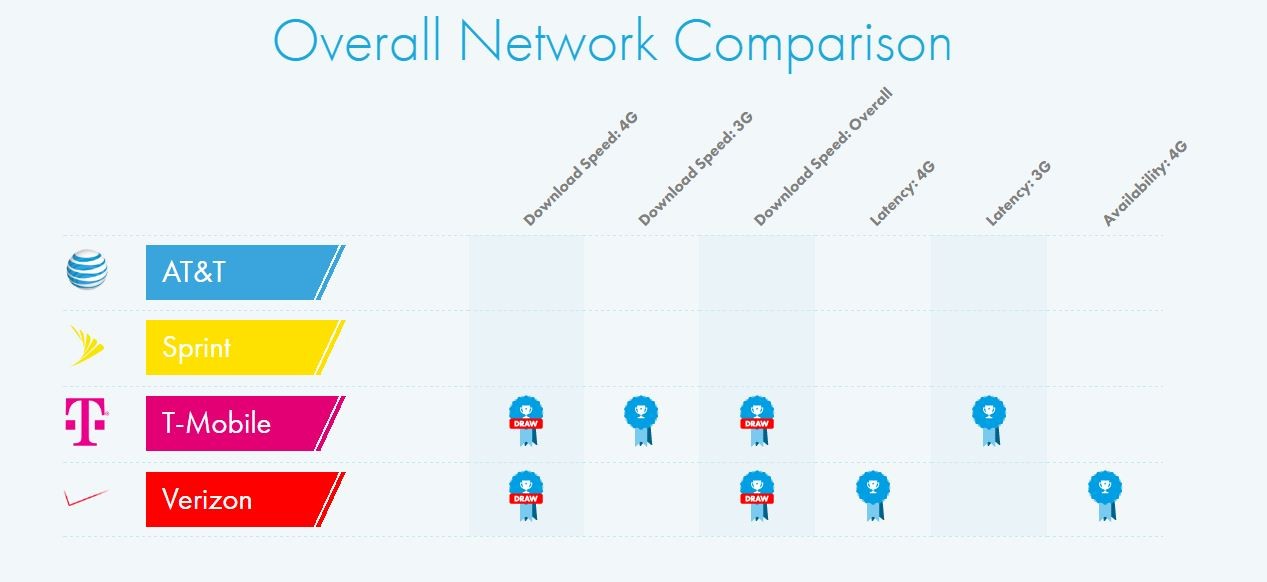
OpenSignal found that Verizon and T-Mobile are tied when it comes to overall speed on their 4G networks. T-Mobile took a slight lead over Verizon in 4G speeds six months ago, but Verizon improved its network since then to catch up to a virtual tie.Overall download speed is the the average download speed users experience throughout all of a provider's networks. This factors in 3G and 4G LTE speeds, along with availability of each network technology. Companies with lower 4G LTE coverage typically have lower overall speeds because its customers spend more time connected to slower 3G networks.
Here are the overall download speed results:
- T-Mobile - 14.70 Mbps
- Verizon - 14.63 Mbps
- AT&T - 11.69 Mbps
- Sprint - 7.14 Mbps
- Verizon - 16.89 Mbps
- T-Mobile - 16.65 Mbps
- AT&T - 13.86 Mbps
- Sprint - 8.99 Mbps
This chart shows OpenSignal's overall network comparison:

OpenSignal completed this study by collecting data from almost 170,000 users. Click here if you would like to see the study's full results.
As you can see by the chart above, Verizon and T-Mobile lead the way in every category. This can be helpful if you are looking to change providers. You now have more than just price to compare.
Saturday, February 11, 2017
How to Siri to Search for Objects in Photos by iPhoneLife
Pogue’s Basics: How to end a call on your iPhone by David Pogue
Roku upgrade guide: Should you buy a new box? By Jared Newman
Out of all the companies making streaming TV devices today, Roku is the most prolific, having released more than two dozen streaming players and sticks over the last eight years.
With so many Roku players in the wild, the decision on when to upgrade can be daunting. I’m generally in favor of keeping what you have for as long as you can tolerate it; but if you’re curious what you’re missing by holding out on upgrading to a new Roku, here’s a rundown.
Do you want the latest apps?
All Roku players that launched in 2010 or earlier are no longer receiving firmware updates, app updates, or new app releases. By sticking with one of these “Classic” Roku models, you’re missing out on countless new apps, including some major streaming services such as PlayStation Vue, Starz, HBO Now, and CW. Consider upgrading if you’re not getting all the content you care about.Roku models missing out: Roku N1000, Roku SD (N1050), Roku HD (N1100 and 2000), Roku HD-XR (N1101), Roku XD (2050), and Roku XDS (2100).
Do you want universal search and watchlists?
“Classic” Roku players aren’t just lacking new apps. They’re also missing new features like universal search and Roku Feed, which lets you keep track of new TV episodes and movie price changes across multiple streaming services. All Roku players produced after 2010 include these features, both on the device itself and in Roku’s mobile apps.Roku models missing out: Roku N1000, Roku SD (N1050), Roku HD (N1100 and 2000), Roku HD-XR (N1101), Roku XD (2050), and Roku XDS (2100).
Do you have multiple Netflix users?
Many older Roku models—including any that launched in 2012 or earlier—run an outdated version of Netflix that doesn’t support profiles. That means users can’t get individualized recommendations or access to “Kids” mode. Avid Netflix users might want to upgrade, if only to cut down on wasted time browsing through irrelevant content.Roku models missing out: Roku N1000, Roku SD (N1050), Roku HD (N1100, 2000, and 2500), Roku HD-XR (N1101), Roku XD (2050 and 3050), Roku XDS (2100), Roku LT (2400, 2450, 2700), Roku 2 HD (3000), Roku 2 XD (3050), Roku 2 XS (3100), Roku Streaming Stick MHL (3400, 3420), Roku 1 and SE (2710), and Roku 2 (2720).
Have you upgraded to a higher-end TV?
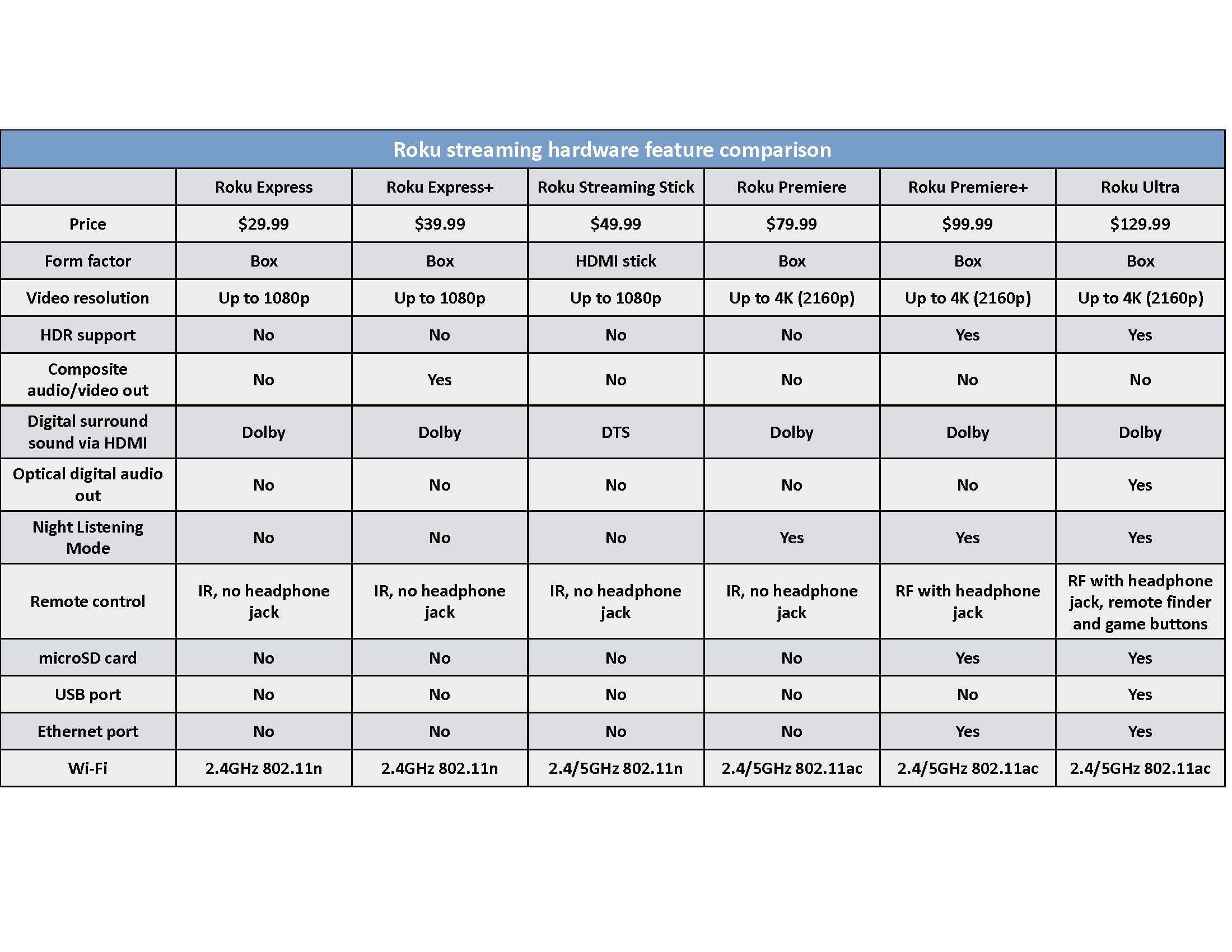
Some older Roku players don't support full high-definition video (1080p); they're limited to high definition (720p) or standard definition (480p). The newest players start at full high definition (1080p), and some support 4K (2160p) resolution and HDR (high dynamic range). If you care deeply about picture quality and have a television that supports these formats, it’s time to consider an upgrade.Roku models missing out (limited to HD or SD): Roku N1000, Roku SD (N1050), Roku HD (N1100, 2000, and 2500), Roku LT (2400, 2450, and 2700), and Roku 2 HD (3000).
Roku models missing out (limited to full HD or lower definition): All Roku players except Roku 4, Roku Premiere, Roku Premiere+, and Roku Ultra. (Premiere+ and Ultra also support HDR.)
Does your remote feel finicky?
Many early Roku remotes—and some current ones—use infrared instead of radio frequency to communicate with the box. This requires line of sight, which precludes you from mounting the Roku behind the television or hiding it inside an entertainment center cabinet. IR can also be unreliable at long range. (The only upside to IR-enabled Rokus: They’ll work with lower-end programmable universal remotes, such as Logitech Harmony models that don't support RF.)Roku models missing out: All Roku players except Roku Streaming Stick (3400, 3420, 3500, 3600), Roku 3 (all versions), Roku 4, Roku Premiere+, and Roku Ultra.
Do you want to listen privately?
One of Roku’s neatest features is its ability to play audio through headphones, either with a supported remote control or with Roku’s mobile app. It’s a nice way to watch action films at night without waking the kids.Roku models missing out (lacking remote private listening): Roku 3 (4200 and 4230), Roku 4, Roku Premiere+, and Roku Ultra.
Roku models missing out (lacking smartphone private listening): All Roku players except Roku Express, Roku Express+, Roku Streaming Stick (3600), Roku Premiere, Roku Premiere+, and Roku Ultra.
Do you lose the remote a lot?
In recent years, Roku has introduced a handy feature for the forgetful: Press a button on the box, and a siren will sound on the remote to help you find it. Unfortunately, this feature has only been available on the priciest players.Roku models missing out: All Roku players except Roku 4 or Roku Ultra.
Do you have connectivity problems?
With a dual-band wireless router, you can get a more reliable connection on the less-congested 5GHz frequency band, but only if your device supports it. Many older Roku models only support single-band Wi-Fi, and even some recent ones don’t support the latest 802.11ac standard. Consider upgrading if your Roku’s streaming quality doesn’t seem to match your internet speed and/or your router's capabilities.Roku models missing out: All Roku players except Roku 4, Roku Premiere, Roku Premiere+, and Roku Ultra.
Could you use a speed boost?
Roku players have generally become much more powerful over the past few years, allowing you to scroll smoothly through menus and load apps without delay. If you’re frustrated by the performance of your current Roku, consider upgrading to one of the models below.Roku models missing out: All Roku players except Roku 3, Roku 4, Roku Streaming Stick (3600), Roku Premiere, Roku Premiere+, and Roku Ultra.
Should you even buy a Roku?
Roku, of course, isn’t the only streaming-device maker on the market. Although Roku’s Premiere+ and Streaming Stick are fine options, you might also want to consider the competition. Check out our reviews of the Amazon Fire TV, Amazon Fire TV Stick, Apple TV, Nvidia Shield TV, and Chromecast for more details.Did Apple deliberately break FaceTime on old phones to force people to upgrade? By Kelli Uhrich, Komando.com
Remember last summer when Microsoft was pushing everyone to upgrade to Windows 10? To encourage people to make the switch, the company used some questionable tactics - at one point, even using annoying ads to grab users' attention.
But Microsoft may not be the only company that's guilty of taking a controversial approach to getting people to upgrade. Apple has just come under fire, facing accusations of the same thing. A class action lawsuit has been filed against the company in California, claiming the tech giant deliberately caused one of its most popular features to malfunction so that users would be forced to upgrade.
For Apple, pushing iPhone users to iOS 7 was a solution that allowed them to cut ties with a company called Akamai for data costs.
Getting a bit technical here, but when FaceTime first launched, Apple relied on two separate technologies to connect one caller with another via video chat. The first used what's called "peer-to-peer" standard to transfer audio and video data back and forth, and the second used a "relay method." This relay method required Apple to contract with third-party data companies, such as Akamai.
After spending millions of dollars per month to support the relay method required in FaceTime, Apple executives naturally began looking for ways to cut this expense out of the equation. A solution was built into iOS 7, however, many iPhone users decided to stick with the older operating system.
Apple's role in this incident is being placed under high scrutiny, however, due to a series of emails that were exchanged among staff members. These emails essentially document the deliberate breaking of the FaceTime feature in iOS 6, leaving only one solution.
One email stated: "It was a big user of relay bandwidth. We broke iOS 6, and the only way to get FaceTime working again is to upgrade to iOS 7."
Another said: "For iPhone 4 and iPhone 4S users, for example, the coerced move to iOS 7 subjected their devices to slowness, system crashes, erratic behavior and/or the elimination of their ability to use critical functions on their phone."
Only time will tell how the lawsuit will turn out. But what do you think? Does this change how you feel about Apple products? Let us know in the comments.
Samsung's Chromebook Pro is the best Chromebook yet Daniel Howley
Plus and Pro: The same, but different
Handsome hardware
Styling stylus
Keyboard problems
Android goes Chrome
Should you buy it?
3 ways hackers can easily bypass your passcode, and how to stop them By Komando Staff, Komando.com
Cybercriminals are always looking for ways to steal your personal data. We've seen a huge uptick in the number of data breaches over the past few years.
It's not always your information that the criminal is after though. Sometimes the thief is just looking to steal your gadget, for either personal use or to sell for profit.
That's why you need to know these three ways hackers can bypass your Android passcode, and how you can stop them.
International Mobile Equipment Identification (IMEI)
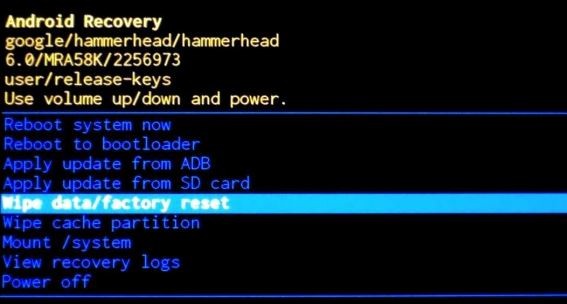
If a thief steals your Android gadget for use or sale, they are not necessarily going to be concerned with saving your favorite apps. An easy way for them to bypass your passcode is to perform a factory reset. By doing this, everything on your phone will be deleted.During the factory reset process, the criminal will select the wipe data/factory reset option.

How to block your stolen gadget from being used
All mobile phones have an International Mobile Equipment Identification (IMEI). This is a unique identification number found on every device.When you turn on your phone, the SIM card registers your IMEI number to the service providers' server and is permanently stored in its database. If your phone is stolen, you can use this IMEI number to have the phone's service cut off.
Here are the steps you need to take to cut off your stolen phone's service:
- Find your IMEI number - Obviously, this step needs to be completed before your phone is stolen. The easiest way to find the IMEI number is to open the phone's dialer as if you were making a call >> type Star Pound Zero Six Pound >> this will display the phone's IMEI number. This option isn't available on all carriers. For those who don't have this option, you can find the IMEI number under Settings >> About Phone >> Status >> IMEI information >> the IMEI number is displayed here. Once you have this number, write it down and store it in a safe place.
- Report stolen phone to the police - Call the police and tell them your phone has been stolen. Make sure to give them the IMEI number and have them put it in the report.
- Call your service provider - After filing the police report, call your service provider and ask them to block the IMEI number. They require the police report number before they will do this to avoid pranksters shutting off someone's phone without it actually being stolen. All of the major mobile providers use the same IMEI blocked number list, so if you only report it stolen with your provider it will still be blocked on the other mobile networks.
Android Debug Bridge (ADB)
If your phone has USB debugging turned on, hackers can delete the password file using a desktop tool called Android Debug Bridge (ADB). A hacker can connect your Android phone to a computer via USB and simply run a command via a command prompt window from an ADB directory.To prevent this hack, make sure you disable USB debugging on your Android phone by going to Settings >> Developer Options (If enabled) >> scroll down to Debugging then toggle USB debugging to off.
Alternatively, you can turn off Developer options altogether.
Important: If you don’t have the Developer options on your Settings app, don’t worry, it’s not turned on by default. It is a secret section recommended strictly for advanced users. The secret way to turn it on is by going to Settings >> About Phone then scroll down to the Build Number and tap it seven times.
Booting into safe mode
If you’re using a third-party app to lock your screen, hackers can simply boot into safe mode to bypass that lock screen.
To prevent this from happening to you, don’t rely on third-party lock screen apps. Not only are they security risks themselves, they can be bypassed easily.