Google+ High Tech House Calls
Expert Computer Consulting for Homes and Small Businesses

Let there be hope...

Life has changed there is no doubt and we wanted to reach out to see how you are doing.

As we go through this interesting time, we are trying to look at this as an opportunity to focus on our family and on friends like you. Let us use this extra time to catch up and talk more. Let us cook food that is not fast, but interesting and satisfying. Let us learn to enjoy a time to try new things. Let us find ways to enjoy time at home!

Computer Security

If my client base is any experience, anyone can be a victim of a Ransomware, Malware or Virus attack.

What can you do about it?

I conduct audits of your entire computer infrastructure and apply best practice solutions to plug the security holes on your computers, Smartphones and networks.

Now offering consultations to give you the best protection possible:


404.229.0839
carlthorne@hthcatlanta.com

Jack of All Trades, Master of Many

Jack of All Trades, and Master of Many

We provide technical support for:


Homes and small businesses

Windows and the Mac OS platform

iPhones and Android Smartphones

Wireless and wired networks

New device setup

Old device upgrade or repair

One-on-one training

Remote assistance


How To Stop Malware

Saturday, July 2, 2016

How to Turn off Predictive Text Completely on Your iPhone by iPhone Life Magazine


Thanks to Apple's predictive text feature, called QuickType, your iOS device will suggest words that it thinks you want to use next so you don't have to type them yourself. While AutoCorrect guesses at a word, based on the letters you typed, QuickType predicts what word you might type next based on the context of your message or document. If you find QuickType's context-based suggestions creepy rather than cool, you can easily hide the feature, or you can turn it off completely. Here's how to turn off predictive text completely on your iPhone. 
To do this:
  • Open the Settings apps.
  • Tap General.


  • Select Keyboard.
  • Toggle Predictive off.

Now Apple won't put words in your mouth. If you want to turn AutoCorrect off as well, toggle Auto Correction off. It can be found in the columns above Predictive. This little tip could save you from those hilarious autocorrect mistakes, but you'll have to do all the typing yourself if both predictive and AutoCorrect are turned off. 

Friday, July 1, 2016

5 Common VPN Myths and Why You Shouldn’t Believe Them by Jackson Chung


 A Virtual Private Network (VPN) is a decades-old technology that allows any computer to securely connect to a remote server in distant location, yet appear as though it’s connected locally.

Most of you would already be familiar with VPNs and probably use one to circumvent geo-restrictions, engage in P2P activities, or otherwise remain anonymous online. Although VPNs have been around for a while, there are still several damaging myths about them that could potentially negate the benefits of the service, or even confuse you when looking for the best VPN provider.

In this article, we’ll take a look at the top five myths about VPNs and why they’re simply not true.

Myth #1: I Don’t Need a VPN If I’m Not Doing Anything Illegal Online

One of the most common misrepresentations about VPNs is that it’s only needed when the legality of your online activity is in question. For instance, when accessing geo-restricted video content that’s otherwise not available in your region, or circumventing legal roadblocks in your country. Although a VPN might help in these cases, it’s not really the most important reason for using one.
vpn myths illegal online makeuseof
VPNs are designed to encrypt your communication, thereby securing your data. So even if you’re not engaged in shady internet activities, using a VPN whenever your data security could be at risk (e.g. when connected to a public hotspot) is always a good idea.

Myth #2: VPNs Slow Down Your Connection

You’ve probably heard that since VPNs route all of your data through another server in some far off land, that using one will slow your browsing speed significantly.
slow wifi vpn myths makeuseof
That’s not entirely true.
First of all, the speed of the VPN is limited to the speed of your connection to the internet, which it will not be able to exceed. Secondly, it also depends on the location of the server to which you’re connecting — usually the further the server is from you, the greater the latency.

That’s why it’s important to choose a VPN service provider with lots of well-maintained servers in a variety of locations to help you get the connection speeds you’re used to.

Myth #3: A Free VPN Is Good Enough

While free is usually good, there’s an old economist rule: there’s no such thing as a free lunch. You’re usually giving up something to get something else in return. In this case, you could be giving up quite a lot.

First of all, while free VPNs are able to offer you service at no cost, they’re usually accompanied by a few restrictions. Speeds are usually severely limited, and bandwidth usage per month not entirely generous. Unsurprisingly, that’s quite normal.

However, it may shock you to learn that you may be voluntarily offering your browsing data, email address, and other personal information in order to use a free VPN service. Think about it: the free VPN providers have to pay for their server fees. There are costs to bear, and something’s got to give.

To understand what you’re getting yourself into, always read the terms and conditions carefully. And remember, you get what you pay for.

Myth #4: All VPNs Are the Same

Not even close. If you’re using a VPN, it means you have decided that it’s worthwhile to secure your online data transmissions, so that what should be private, remains private.

For that purpose, you should understand that a crucial part of a VPN service is to encrypt your communications as you connect via their servers; but that level of encryption can vary across VPN services. Some will offer weaker encryption, while others offer industry-leading secure encryption systems. Strive to pick a VPN provider that offers OpenVPN; avoid PPTP at all cost.
vpn myth servers makeuseof
As far as privacy goes, you should most certainly make sure that your VPN provider doesn’t keep logs. Some VPNs do retain minimal logs, and they will explain what’s included. In any case, you should always check that no personal data is stored, and that the activities you were engaged in while using their VPN service are not stored in any way.

Myth #5: I’m Using a VPN, so I Can Do Anything I Want Online

This last myth is important to dispel: VPNs can’t provide you with absolute protection while you’re engaging in potentially risky activities. When visiting dodgy websites — even while using a VPN — there’s still a good chance you’ll encounter malware such as keyloggers or phishing attempts.
vpn myths hacking makeuseof
You must still remain vigilant while you’re online. That means staying safe while you’re connected to free public Wi-Fi, being cautious about suspicious emails, and employing other measures such as using an adequate firewall, anti-virus, anti-malware; in addition to being savvy.

Your safety and online privacy are important. Therefore, understanding the truth about VPNs and signing up with a good VPN provider can help alleviate any worries you may have about your security online.

How to Get Siri to Stop Interrupting You by iPhone Life Magazine


It's like the Interrupting Cow joke that delights school-age kids everywhere; you activate Siri and start speaking your request, only to be interrupted by, "Here's what I found on the web." At which point you probably say something like "If you'd just let me #$@%ing finish, Siri, you'd know I'm trying to call my wife, not do a web search!" 
I can't help you with your anger issues, but I do have a very simple solution to your problems with Interrupting Siri. Here's how to get Siri to stop interrupting you. 
Once the Home button is released, Siri sees that as a cue to reply.
  • Instead of releasing the Home button once you've activated Siri, continue holding while you speak.


It's that simple. Now aren't you sorry you yelled at Siri when she was just trying to help?

5 apps I put on my mother's phone and tablet By Kim Komando, Komando.com


One of the best things about my job is the fact that I'm always hearing about new gadgets and apps that can help you, my listeners. But, as I find these new tools, I also enjoy sharing them with my family.

Earlier this week, I shared an app with you that I had my mom, Ian and Barry start using in case of an emergency. It's called Medical ID. Click here if you missed why I feel it's so important that you start using it.

My mother loves receiving recommendations from me on apps she might enjoy using. That's why I put together this little list of five apps I just put on her smartphone and tablet. I think you'll really enjoy them, too!

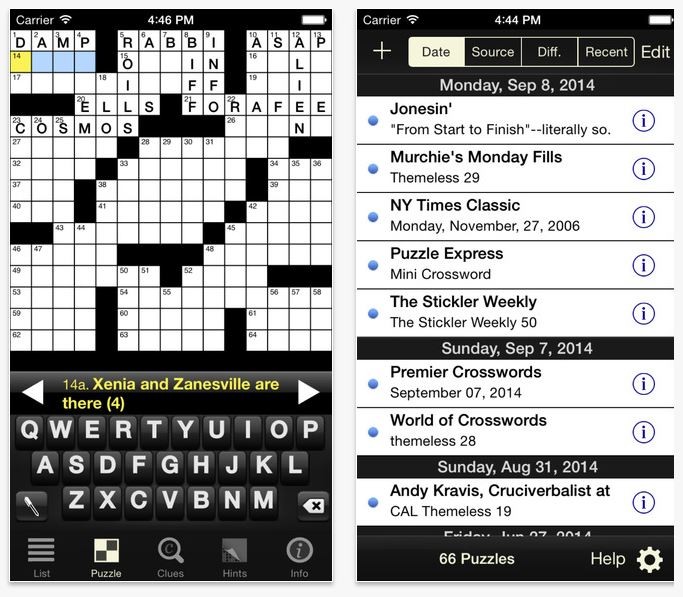
1. Crosswords Classic

Crossword Classic
We all know that puzzles and games can keep your brain sharper for longer. So make sure you leave time in your day for one of the most famous brain-expanders anywhere: The crossword puzzle.
Crossword Classic for iOS lets you play all the newspaper online crosswords right on your phone or tablet! New crossword puzzles are available daily and the app could track your progress. It will even give you hints if you are stuck or having a tip-of-the-tongue moment.

For Android users, get your crossword fix with the Crosswords app.

2. Med Reminder Pro

Med Reminder Pro
If you take more than one pill a day, keeping track of which pill you take when can be tough, even with a fancy pill organization holder. But don't worry, there's an app that can help you, or a family member, keep everything straight and organized.

The Med Reminder Pro app helps you manage medications and refills, and helps you keep track of doctor's appointments, too. The app also stores your notes after each medicine intake and organizes them in your own "History Table" for reference.

For Android users, don't worry, check out Medisafe.

3. Magnifying Glass

Magnifying Glass iPad
Even if  you aren't a detective, a magnifying glass is still something great to have around. You never know when you'll need to read tiny print on a document, minuscule instructions in a cookbook, microscopic writing on a computer part or some equally inconvenient text. Unfortunately, you might not have a magnifying glass just lying around. However, you probably do have a smartphone within arm's reach.

Turning your smartphone or tablet into a magnifying glass just takes the right app. I recommend the Magnifying Glass for iPad gadgets and Magnificent Magnifier HD for Android users. Both apps have the zoom feature as standard but the iPad version has added exposure control, rotation and freeze framing. These apps are definitely much more versatile than your average magnifying glass!

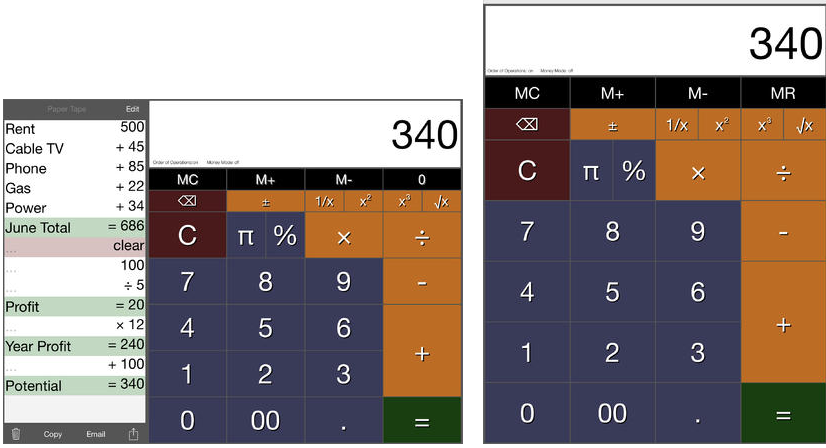
4. Big Calculator
Big Calculator 3

Despite the iPhone's large screen size, and the iPad's larger displays, you know it's not always easy to read the tiny print on those screens. Fortunately, there are a couple of ways to make your Apple display easier to read. If you'd like to make your text bigger, and bolder, here's how to do that: Go to Settings >> General >> Accessibility >> Larger Text >> Larger Accessibility Sizes. Then, move the slider to adjust the size of the font. To bold the text, tap on the Bold Text button.

But what about the calculator? If you need bigger numbers to figure out all the math, check out Big Calculator. This iOS calculator supports fun, color themes, automatic decimal points with its own Money Mode plus all the basic functions you would expect from a calculator. And did I mention it has BIG buttons?

For an Android equivalent, you can check out Fat Finger Calculator. 

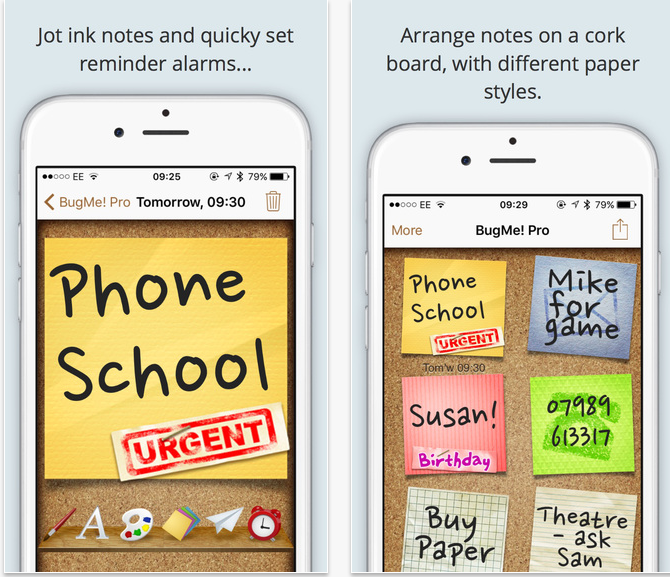
5. BugMe! Stickies Pro

BugMe!
The sticky note was a brilliant invention. They're so simple, but amazingly useful! You can turn any surface into a bulletin board of ideas or reminders - even your phone or tablet. iOS users can do all this and more with the BugMe! Stickies Pro app.

This app creates fully customizable, virtual sticky notes you could share with friends. You could even set alarms and reminders for each note then drag and drop them to a virtual cork board. This is a fun and functional app I'm sure you'll use everyday.

Meanwhile, Android users can look into the Sticky Notes! app.

Disclosure: This post is brought to you by the Komando Staff. We aim to highlight products and services you might find interesting, and if you buy them, we may get a small share of the revenue from the sale from our commerce partners, including Apple.

How to Save an Apple Map Location in the Notes App by iPhone Life Magazine


Whether you want to use this feature to take travel journaling notes about your adventures or to remember a particular place you went that you liked, saving a Map location in Notes is easy to do on your iPhone. You could add the location to your Map Favorites as well, but placing the location in Notes gives you a chance to add extra information. Here’s how to save a map location in notes.
·         Open Maps and search for the location you’d like to save.
·         Tap the information box above the red pin.
·         Select the share icon in the upper right corner.

 How to Save a Map Location in Notes


 How to Save a Map Location in Notes
·         Choose Add to Notes.
·         Add any text to your note you’d like and choose what note to place the saved location in or Create new note.
·         Tap Save.

 How to Save a Map Location in Notes How to Save a Map Location in Notes
The location and address will appear with a small map icon within the note. You could easily make a list of places to visit this way or begin a road trip route.

How to Set Speakerphone as the Default for Answering Incoming Calls by iPhone Life Magazine


Do you find yourself answering the phone and quickly putting it on speaker mode? Well, there’s an easier way than tapping buttons. You can set your iPhone settings to answer in speaker mode automatically within the Settings app. It’s part of Apple's accessibility features. Here’s how to set speakerphone as the default for answering incoming calls.
To do this:
·         Open the Settings app
·         Tap General
·         Select Accessibility


·         Scroll down and tap on Call Audio Routing
·         Then select the Speaker option.

Your calls will automatically be answered with speakerphone from now on. In the same settings, you can also choose Bluetooth Headset if you often use one of those and would like audio to automatically redirect to your headset.
If you want to take a call without speakerphone, answer the call and then tap the speaker icon to go back to the regular iPhone speaker sound. That’s all there is to it!