Life has changed there is no doubt and we wanted to reach out to see how you are doing.
As we go through this interesting time, we are trying to look at this as an opportunity to focus on our family and on friends like you. Let us use this extra time to catch up and talk more. Let us cook food that is not fast, but interesting and satisfying. Let us learn to enjoy a time to try new things. Let us find ways to enjoy time at home!
Computer Security
If my client base is any experience, anyone can be a victim of a Ransomware, Malware or Virus attack.
What can you do about it?
I conduct audits of your entire computer infrastructure and apply best practice solutions to plug the security holes on your computers, Smartphones and networks.
Now offering consultations to give you the best protection possible:
3:17 PMHigh Tech House Calls, Expert Computer Consulting
When your computer is just a landing
pad for your cloud connections, broken laptops aren't the end of the
world. They're not even the end of your work day.
My primary computer — my practically perfect Pixelbook
— is broken and likely going in for repairs later this week. Three
years ago that would have terrified me, but today? Today, it's a mild
annoyance, and that's mostly because I had to waste half a morning on a
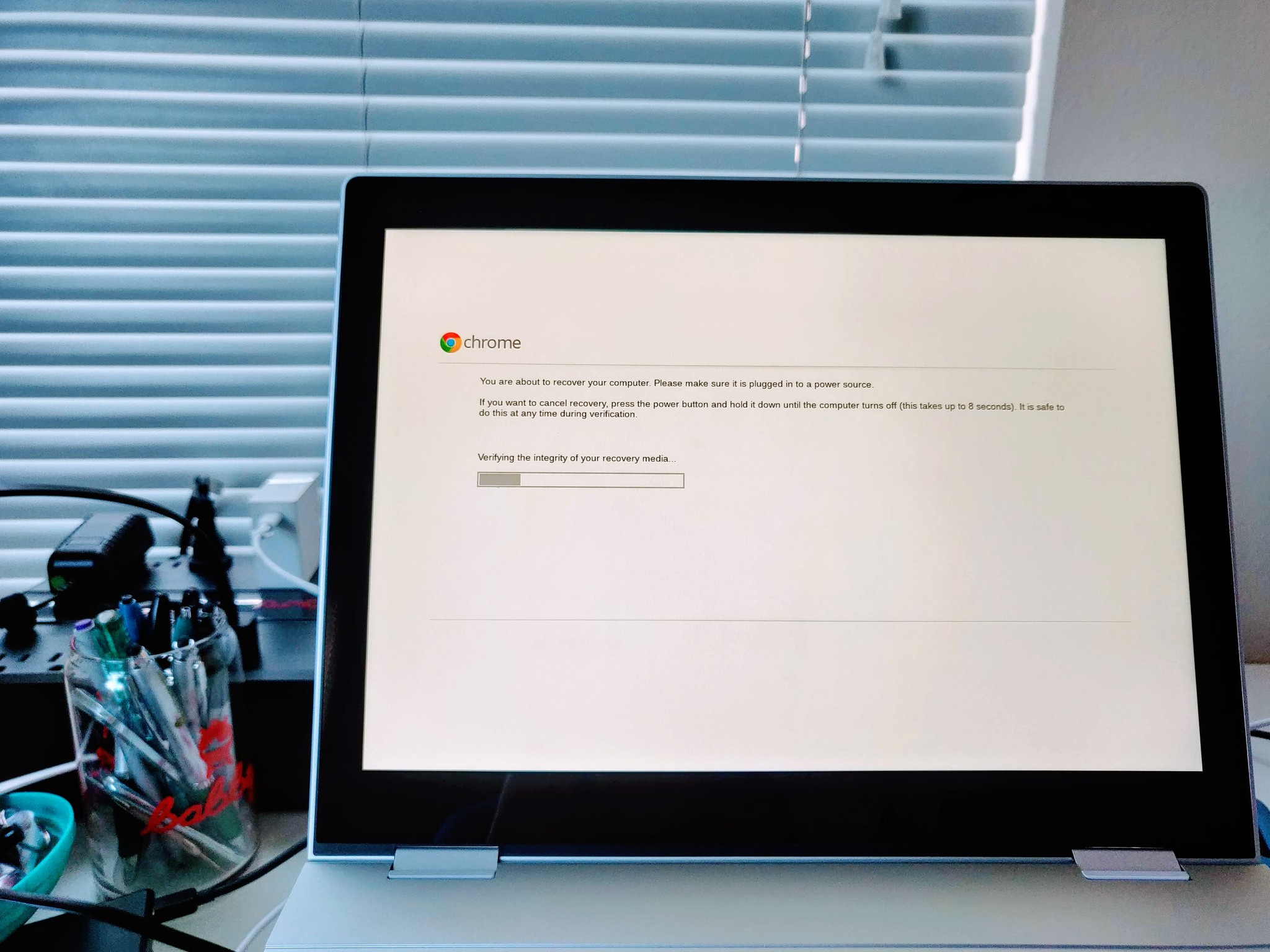
full-tilt System Recovery to prove my hardware issue to Google support.
The spartan setup that made Chrome OS a godsend for enterprise and
educators has given me the freeing realization that not even a broken
computer can put a damper on my peace of mind — or my productivity.
If my Windows laptop needed to be sent off for repairs — or even just
factory reset for troubleshooting purposes — backing up my data would
eat at least half a day, and the factory reset and restoration of my
apps and services would take the rest of the day and then some. Despite
Windows increasing compatibility with cloud storage and syncing, the
majority of your programs and data aren't easily backed up, and even
once they are, restoring that data after a factory reset — and the hours
of system updates that follow it — can eat hours and hours of time you
could be working or redditing or living your life.
From writing a system recovery flash drive
to wiping my Chromebook and getting set back up and troubleshooting the
clean system, I needed less than an hour. Backing up my local files
took 2 minutes — after all, just about the only locally stored files are
in the Downloads folder — and my Chrome extensions like Auto Text Expander
synced back up before I even finished logged into the freshly recovered
Pixelbook. It was quick and it was as painless as starting over on a
fresh machine could be.
Chromebooks are expendable by design, and that is indispensable.
For years, Google's touted the expendable nature of individual
Chromebooks to system administrators and the board members that approve
their G-Suite contracts: If
your student/employee breaks their Chromebook, simply sign them into a
new machine and they'll be back to work in minutes. This may feel like
something you can only take advantage of if you have the luxury of
owning multiple Chromebooks — I'm using a four-year-old Lenovo Chromebook
while my Pixelbook is out of commission — but even if you only own one,
this way of computing can save your deadline and your delicate sanity.
If someone walked in and Hulk-smashed your one and only Chromebook,
you could go to any other computer in town — from Grandma's Gateway
laptop to the public library's Chromebox lab to that 24-hour net cafe
downtown that always smells like weed — and the second you signed into
Chrome, you'd get back 70% of your normal setup. When my parents helped
me move cross-country, my mother didn't bother bringing a laptop with
her. She just signed into her accounts on my Chromebook, did her email
checking and Facebook browsing, and then she signed out when she was
done.
This versatility is doubly helpful for Chromebook troubleshooting and
security. The vast majority of your Chromebook is already backed up, so
if your Chromebook ever even starts to feel sluggish or "off" for any
reason, you can Powerwash it as easily as a game of Solitaire, and in
less time than a game of Solitaire.
Chromebooks have become the go-to platform many international travelers
turn to not just because they're easy to replace if someone steals it;
they can Powerwash a Chromebook before and/or after they give it to
Customs, ensuring that no one is snooping through their files or bugging
their machines.
Before I ever call up the support line for my Chromebook, I can — and
have — done every single troubleshooting step tech support could ask in
the span of a lunch break. That shortens the support call and speeds
along a warranty support claim, getting me back to work before I fall
behind. This saves me — and the unfortunate support rep that takes my
call — time and sanity, and it is a simple, speedy superpower that I've
yet to see from any other platform.
Best of all, whether your Chromebook is out for repairs or simply
gone forever, you can still get your work done on a loaner machine or a
public machine while you're waiting for a replacement Chromebook to ship
out to you. Your Chromebook is just a landing pad for your cloud
connections and your Chrome browser settings, and you can re-establish
those anywhere you, your internet, and your two-factor authentication codes are.
And that's just as amazing for you and your tech-illiterate uncle as it is for your overworked office sysadmin.
3:11 PMHigh Tech House Calls, Expert Computer Consulting
When researchers asked consumers if they use smart LED bulbs,
only 11 percent said yes, but the majority -- 62 percent -- said they
hadn't yet, but they could imagine using them. How about you? Are smart
lightbulbs on your wish list?
Smart bulbs are internet-connected
lightbulbs. They're among the most affordable smart devices on the
market, so if you're new to connected devices and aren't sure if you
like the idea, smart bulbs could be a good starting place. What do smart
bulbs do? We'll tell you.
We have five reasons why you'll love
smart bulbs like Philips Hue and Kasa Smart Bulb, including one that
might surprise you. You can save money buying smart bulbs, rather than
incandescent bulbs - keep reading and we'll tell you how.
Internet-connected lightbulbs can protect your home
You
control smart bulbs by downloading the manufacturer's app and
installing it on your smart phone or smart device. After you pair your
device with the lightbulb, you'll be able to turn the lights on when
you're away, dim them, and set routines based on your time, location or other triggers.
You
can hook some of them up to turn on when motion sensors are triggered.
Your smart bulbs will light up your house to scare off would-be
intruders. 6 smart home upgrades to help sell your house
Smart bulb mood settings
One
of the coolest (or warmest?) features of smart bulbs is the rainbow of
colorful settings. You can choose from a whole spectrum of whites, from
cool fluorescent-like bright whites (which is great for finding a
dropped contact lens) to warmer, softer whites that are better for
reading.
If you live in an older home that doesn't have dimmer
switches, you can use the smart bulbs and your smart devices to dim the
bulbs; no need to hire an electrician to install dimmer switches or buy
special lamps with dimmers.
Some bulbs, like the Lifx brand, can
turn red, orange, yellow, green -- every color of the rainbow. You can
also set lights to blink (great for parties) or toggle through colors.
Lifx claims to have over 16 million colors!
Do smart bulbs save money?
You're
not alone if you think it costs a lot of money to set up a smart
lighting system in your home. You should be prepared to spend about $99
on a system like the Philips Hue A19 60W Equivalent LED Smart Bulb
Starter Kit.
You can spend $20 or more for a set of smart bulb
after that. That is true, but you might be surprised that you can save
money over time with smart bulbs.
For one thing, there are more
companies manufacturing them, which should force prices down. You can
also buy smart bulbs like the Alexa-compatible Kasa smart light bulb that costs less than $20 and doesn't require you to set up a costly smart home hub.
More
to the point, smart bulbs can save you money on your electric bill.
It's estimated that you'll save $6 each year for each incandescent light
bulb you replace with a smart LED bulb. 3 easy ways to get free and discounted smart home gadgets
Use your voice to control your bulbs
Your smart home and smart LED bulbs are increasingly compatible with smart speakers like Amazon's Alexa-enabled Echo
and Google Home. You can set up your smart bulbs to turn on, turn off
and dim with your voice -- "OK, Google, turn off the lights."
Use your smartphone to turn on your lights
You do just about everything imaginable with your smartphone - we all do! You're making calls for work.
You're
getting alerts on your calendar for everything from picking up your
kids from school to getting to the airport on time. If you have smart
home gadgets like a thermostat, you're using your smartphone from
anywhere in the world to adjust it.
You can do the same thing with
your smart LED lights. You can use your phone to turn them on or off,
so you're saving money on your electric bill, scaring away burglars or
making your home warm and inviting for your grandkids, your dog sitter
and you!
You're always cranking up your thermostat. Why is it so cold? Why is it so hot?
With record low temperatures this winter and soaring summer temps,
it's no wonder you're constantly adjusting your thermostat. The problem
is, you're also cranking up your electric bill.
We have 5 reasons you'll want to switch to a smart thermostat,
including the convenience of letting it do the adjusting for you. But
the biggest reason you'll want to switch is that it can help lower your
electric bill.
11:01 AMHigh Tech House Calls, Expert Computer Consulting
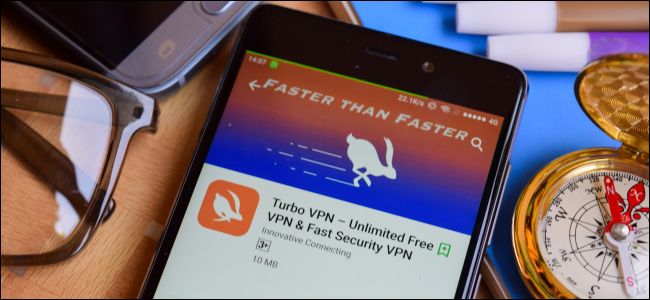
While using a VPN, you’re placing an immense amount of trust in the
VPN operator. Sure, a VPN prevents your Internet service provider or
Wi-Fi hotspot operator from snooping on your browsing. But it doesn’t
stop the operator of the VPN server from snooping.
When your traffic leaves the VPN, the operator of the VPN server can see the websites you’re accessing. If you’re accessing unencrypted HTTP websites,
the VPN operator can see the full content of the pages. The operator
could keep logs on this data, or sell it for advertising purposes.
Let’s put it this way: When you use a VPN, you’re preventing the
hotspot at the hotel or airport and your Internet service provider from
spying on your traffic. But you’re letting the VPN provider spy on your
traffic instead. Why would you trust a free VPN provider you’ve never
heard of?
A recent investigation by Metric Labs spotted by The Register
drew attention to this problem, discovering the majority of free VPN
apps have links to China and 86% of them had unsatisfactory privacy
policies. Some explicitly stated they transfer user data to China. Most
of them had customer support emails pointing to generic personal email
accounts on services like Gmail or Hotmail. These don’t sound like
services worthy of your trust.
If you’re using a VPN for privacy or escaping Internet censorship, you probably don’t want to use a VPN based in China.
China aside, you wouldn’t want to use a shady VPN hosted in a country
with a less repressive government either. The VPN company may just be
capturing and selling your data. Or they may keep lots of logs—and,
if you’re using a VPN for something like BitTorrent, you probably don’t
want to choose a VPN that logs all your traffic.
What You Should Use Instead
Stay away from free VPNs. It costs a company money to host a VPN
server and pay for traffic, so why would that company give you a free
service without getting something out of it?
As a free VPN for occasional use, we recommend Tunnelbear.
This service only gives you 500 MB of data every month, which isn’t
much. But it’s well-regarded, and the company’s business model is
selling you unlimited VPN data. It’s like a free sample every month, but
it can do if you only occasionally need VPN service in a pinch.
If you’re serious about using a VPN for privacy, torrenting,
bypassing censorship, or getting around geographical restrictions
online, we recommend doing some research and paying for a service you
feel is trustworthy. We have a guide for selecting a VPN service.
You don’t have to use our top picks but do some research. Your VPN
provider sits between you and all your online traffic, and they can see
it. You should find a company with a solid privacy policy and
reputation. You’ll have to pay for that.
For serious privacy and anonymity, you should check out Tor. Tor is free, but it’s nowhere near as speedy as a VPN. It’s not something you’d want to use for all your Internet traffic.
If you’re an advanced user, you should seriously consider setting up
your own VPN. Pay for hosting on a server or cloud service somewhere,
install a VPN server, and connect to it. You’re now your own VPN
operator—although the hosting service could potentially spy on you.
There’s no escaping it.
You’re always placing trust in someone, so choose your VPN service (or hosting company) carefully.
11:56 AMHigh Tech House Calls, Expert Computer Consulting
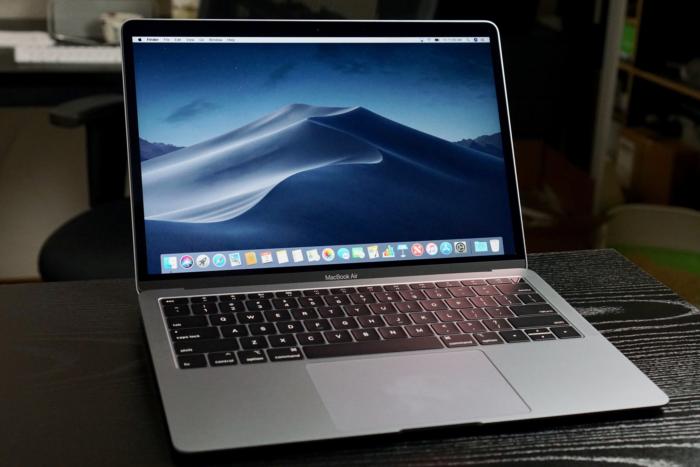
If you’re in the market for a Mac notebook, there are basically two
options: the 15-inch MacBook Pro, which offers a range of options to
satisfy the most demanding of users, and everything else. Apple offers
no less than four MacBooks with 12- or 13.3-inch screens, and deciding
between them can be enough to give up and buy a Dell XPS 13.
We’re
here to help. Whether you’re shopping for yourself or someone else,
we’ve considered every angle, color, spec, and port to help you cut
through the confusion and make sure you make the right choice.
MacBook Air vs MacBook vs 13-inch MacBook Pro: Price
Apple’s
pricing matrix for its smallest MacBooks isn’t much of a help when
choosing which one to buy. While $300 separate the entry-level MacBook
Air and the MacBook Pro, the MacBook Air is a 2017 model. Then there’s a
cluster of three laptops with similar prices.
MacBook Air (2017): $999 MacBook Air (2018): $1,199 MacBook: $1,299 MacBook Pro (no Touch Bar): $1,299
If
you want the Touch Bar MacBook Pro, you’ll need to spend at least
$1,799, a significant increase over any of the prices here. But, you’re
also getting a lot more computer, with twice as much storage as the
non-Touch Bar Pro, an eighth-gen processor, True Tone display, and four
USB-C ports. But for the sake of comparison, we’ll be comparing the
non-Touch Bar model with the other models here.
MacBook Air vs MacBook vs 13-inch MacBook Pro: Screen
Jason Cross/IDGThe
MacBook is the smallest notebook here, with a 12-inch screen rather
than a 13.3-inch one. However, it has the same resolution as the larger
retina models: MacBook Air (2017): 13.3-inch, 1440x900, 128 ppi MacBook Air (2018): 13.3-inch, 2560x1600, 227 ppi MacBook: 12-inch, 2304x1440, 226 ppi MacBook Pro: 13.3-inch, 13.3-inch, 2560x1600, 227 ppi
The
2017 Air is the only MacBook with a non-Retina display, and the
difference is palpable. It only has 128 pixels per inch, so images and
text will definitely appear aliased. It also uses a twisted nematic (TN)
display, which suffers from poor viewing angles and lesser overall
quality as compared to the IPS displays on the other Retina
MacBooks. One more tidbit: The Touch Bar version of the 13-inch MacBook
Pro includes a Wide Color (DCI-P3) True Tone display while the non-Touch
Bar model does not.
MacBook Air vs MacBook vs 13-inch MacBook Pro: Size
If
you’re buying one of these laptops, size is obviously a very important
factor in your decision. Unsurprisingly, the four models are very
similar in stature, with mere tenths of an inch separating three of the
models: MacBook Air (2017): 12.8 x 8.94 x 0.11-0.68 inches MacBook Air (2018): 11.97 x 8.36 x 0.16-0.61 inches MacBook: 11.04 x 7.74 x 0.14-0.52 inches MacBook Pro: 11.97 x 8.36 x 0.59
As
you can see, the MacBook is the smallest of the three, but not by much.
Just 0.83 x 0.62 inches separate it from the MacBook Air and MacBook
Pro, and it’s less than a tenth of an inch thinner than the MacBook Air.
At its thickest point, the new MacBook Air is actually thicker than the
MacBook Pro, but since the latter doesn’t have a wedge design, the Pro
will feel a bit thicker when carrying it. Defying its surname, the 2017
MacBook Air is the thickest and largest of the bunch, clocking in at
nearly two inches wider than the MacBook despite having the same-sized
screen.
MacBook Air vs MacBook vs 13-inch MacBook Pro: Design
Jason Cross/IDGThe
MacBook Pro, MacBook, and 2018 MacBook Air have a very similar
aesthetic: Skinny black bezels flank the screen and a giant trackpad is
centered below the black keys. As the MacBook is the smallest model, the
keys abut the sides of the enclosure and the speakers are above the
keyboard, while the 2018 MacBook Air and MacBook Pro have enough space
alongside the keys for a pair of stereo speakers. They’re all instantly
recognizable as modern Apple notebooks, even if they no longer have a
glowing Apple logo.
The 2017 MacBook Air, however, is the last remaining Apple laptop that does
have a logo that lights up, though it comes with a much older design.
The bezels around the screen are silver and much bigger than on the
other MacBooks, and the trackpad is significantly smaller, leaving quite
a bit of dead space below the keyboard. It’s a nice design but feels a
little dated.
MacBook Air vs MacBook vs 13-inch MacBook Pro: Colors
You can get any of these MacBooks in silver, as well as a few other colors: MacBook Air (2017): Silver MacBook Air (2018): Silver, Space Gray, Gold MacBook: Silver, Space Gray, Gold MacBook Pro: Silver, Space Gray
It basically boils down to a matter of preference, but if you have your heart set on gold, the MacBook Pro is out.
MacBook Air vs MacBook vs 13-inch MacBook Pro: Weight
All
of Apple’s notebooks are light enough to toss in a bag without adding
too much weight, but the MacBook is still significantly lighter than the
others: MacBook Air (2017): 2.96 lbs MacBook Air (2018): 2.75 lbs MacBook: 2.03 lbs MacBook Pro: 3.02 lbs
There
was a time when the 2017 MacBook Air was Apple’s lightest laptop. But
now, compared to its modernized brethren, it’s fairly heavy, weighing
nearly as much as the beefier MacBook Pro. The 2018 MacBook Air sheds
about a quarter of a pound, but it’s still a good deal heavier than the
non-Air MacBook. That’s just plain confusing.
MacBook Air vs MacBook vs 13-inch MacBook Pro: Processor
Goran Ivos(CC0)As
with any PC, processor speed is where the MacBooks really set
themselves apart from each other. First let’s check out the base
processor for each model: MacBook Air (2017): 1.8GHz dual-core fifth-gen Intel Core i5, Turbo Boost up to 2.9GHz MacBook Air (2018): 1.6GHz dual-core eighth-gen Intel Core i5, Turbo Boost up to 3.6GHz MacBook: 1.2GHz dual-core seventh-gen Intel Core m3, Turbo Boost up to 3.0GHz MacBook Pro: 2.3GHz dual-core seventh-gen Intel Core i5, Turbo Boost up to 3.6GHz
To
the untrained eye, the old MacBook Air might seem faster than the new
one. That’s not the case. The 2017 Air uses a dusty fifth-generation
Core i5 chip while the new model uses a current eighth-gen one. So it’s
quite a bit faster. The MacBook Pro, meanwhile, uses a seventh-gen i5
with a much higher clock speed, so it’s the fastest of the lot, as it
should be.
The MacBook uses Intel’s slower Core m3 processor, so
it’s markedly slower than the new MacBook Air and MacBook Pro, but a bit
faster than the 2017 Air. However, you can bump it up to 1.3GHz
dual-core seventh-generation Intel Core i5 processor if you desire for
an extra $300. The Pro can also be seriously souped up, with options up
to a 2.3GHz quad‑core eighth‑generation Intel Core i7 processor in the
Touch Bar model and going up from there.
MacBook Air vs MacBook vs 13-inch MacBook Pro: Graphics
With
integrated graphics, none of the MacBooks here are going to get you
very far if you’re looking to do high-end gaming or serious
graphics-intensive work. Still, they all offer slightly different GPUs,
with the Pro leading the pack once again: MacBook Air (2017): Intel HD Graphics 6000 MacBook Air (2018): Intel UHD Graphics 617 MacBook: Intel HD Graphics 615 MacBook Pro: Intel Iris Plus Graphics 640
Despite
having a higher number, the 2017 MacBook Air brings up the rear as
usual, with an old, slow GPU. The others are far more capable, with the
Iris Plus in the MacBook Pro edging out the UHD unit in the Air. And if
you step up to the Touch Bar version, you get a slightly better Intel
Iris Plus Graphics 655 with 128GB of eDRAM (versus 64GB on the non-Touch
Bar model).
MacBook Air vs MacBook vs 13-inch MacBook Pro: RAM
Michael DeAgonia/IDG
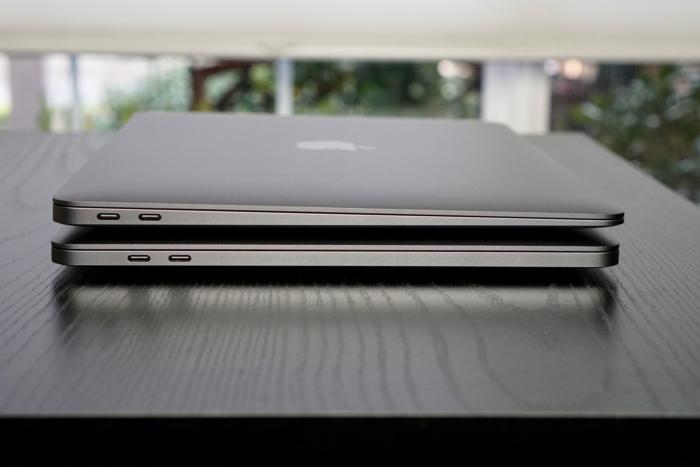
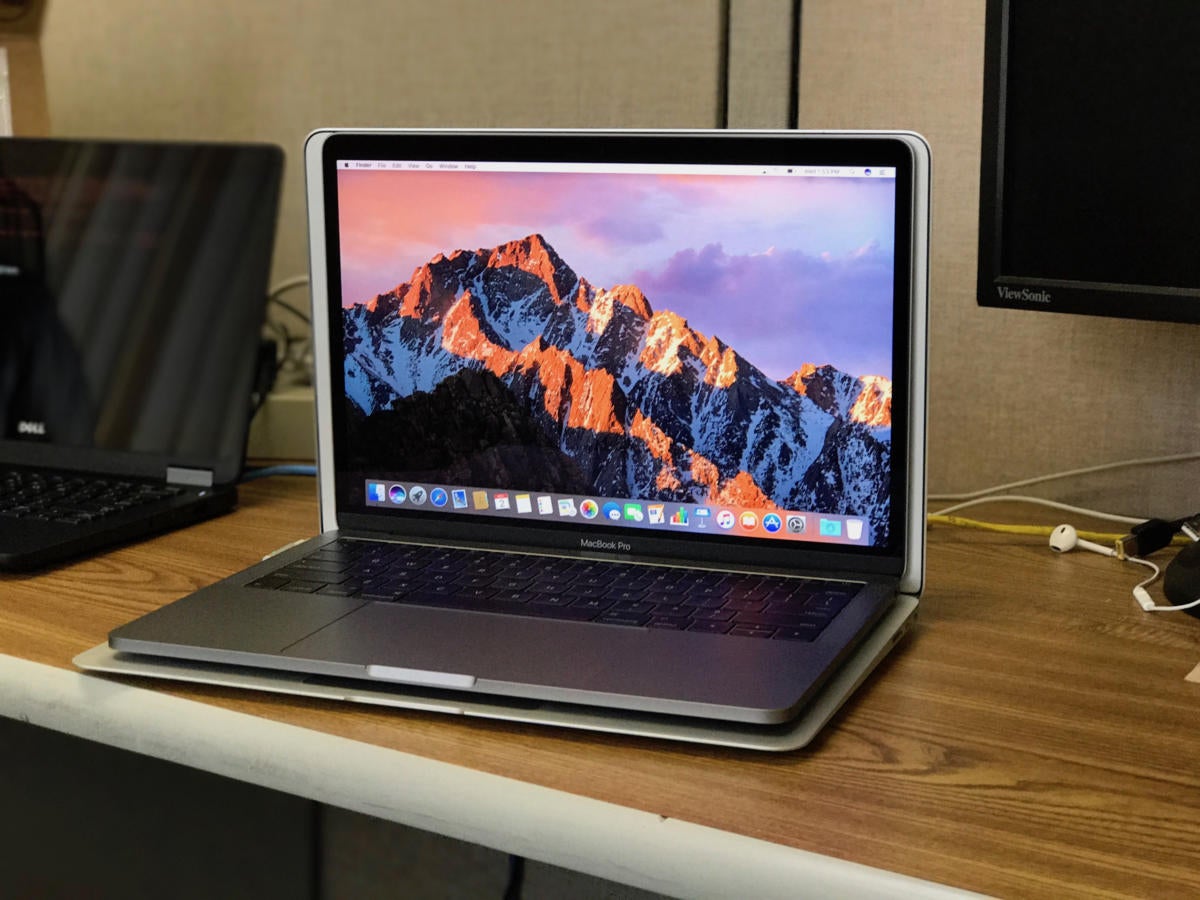
The new 13-in. MacBook Pro sitting in top of a MacBook Air, showing the new model’s smaller footprint. All of the models start at 8GB of RAM and offer up to 16GB, but there’s a slight difference in speeds between them:
MacBook Air (2017): 8GB 1600MHz LPDDR3 memory MacBook Air (2018): 8GB 2133MHz LPDDR3 memory MacBook: 8GB 1866MHz LPDDR3 memory MacBook Pro: 8GB 2133MHz LPDDR3 memory
RAM
speed won’t make a noticeable difference in performance (even jumping
from 1600MHz in the 2017 Air to 2133MHz in the 2018 model), but if you
can afford it, more RAM is always better. On each of these models
(except the 2017 Air), you can double the RAM to 16GB for an extra $200.
That’s a steep price for 8GB of RAM, but since you can’t upgrade it
after the fact, it’s something to consider, no matter which model you
buy.
MacBook Air vs MacBook vs 13-inch MacBook Pro: Storage
All
of Apple’s laptops offer SSD storage, so no matter which model you
choose, you’re going to be getting a very fast drive. The only
difference is the entry-level capacity: MacBook Air (2017): 128GB MacBook Air (2018): 128GB MacBook: 256GB MacBook Pro: 128GB
Like
RAM, you’ll want to get the most you can afford at the time of
purchase. Apple offers a slew of upgrade options for the MacBook Air and
Pro, topping off at 1.5TB, and we definitely recommend upgrading from
the 128GB offered in the base models. As a general rule, Apple charges
$200 per extra 128GB, but strangely, there are no SSD BTO options on the
MacBook. If you want more storage, you’ll have to buy the Core i5 model
with 512GB of storage for an extra $300.
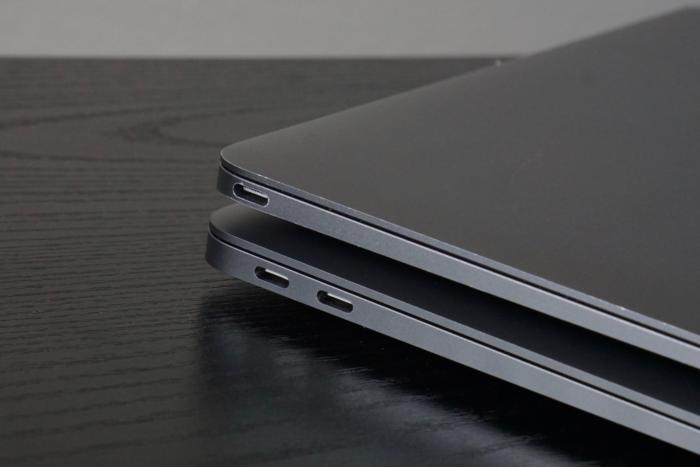
MacBook Air vs MacBook vs 13-inch MacBook Pro: Ports
Jason Cross/IDGHere’s
what separates the machines from the toys. On the MacBook you get just a
single USB-C port and headphone jack, while you get several
connectivity options on the Pro: MacBook Air (2017): Two USB 3, one Thunderbolt 2, SDXC card slot, 3.5mm headphone jack MacBook Air (2018): Two Thunderbolt 3/USB-C, 3.5mm headphone jack MacBook: One USB-C (non-Thunderbolt), 3.5mm headphone jack MacBook Pro: Two Thunderbolt 3/USB-C, 3.5mm headphone jack
Once
again, the 2017 MacBook Air shows its age here, with USB-A ports and a
previous-gen Thunderbolt port, as well as an old-school MagSafe magnetic
connector for charging. The MacBook is also frustratingly weak with
I/O, with just a single non-Thunderbolt USB-C port to handle charging
and peripheral connections. So a dock and dongles are pretty much a
requisite if you’re going to be doing anything resembling work.
The
newer Air adds a second USB-C Thunderbolt port, which lets you do two
things at once, but you’ll still probably want to pick up a hub to add
some extra functionality. You’ll also get a pair of USB-C ports with the
entry-level Pro, but the gold standard is the Touch Bar model, with
four USB-C ports, enough to connect a charger, display, and two
peripheral devices.
MacBook Air vs MacBook vs 13-inch MacBook Pro: Keyboard/Trackpad
While
all the keyboards here are full-sized with ambient light sensors for
backlighting, the 2017 MacBook Air is the only model that doesn’t use
the much-maligned butterfly keyboard. The 2018 MacBook Air and 13-inch
MacBook Pro with Touch Bar use a newer third-generation version than
protects against damaging dust and dirt and dampens the noise of the
keys somewhat, but it’s still boils down to a matter of preference. The
MacBook Air also uses Apple’s older trackpad, which supports gestures
but not Force Touch commands.
MacBook Air vs MacBook vs 13-inch MacBook Pro: Touch ID, Touch Bar, and security
IDGThe
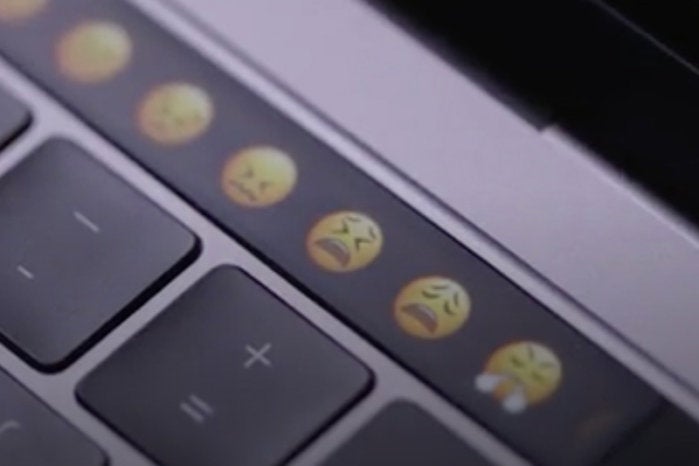
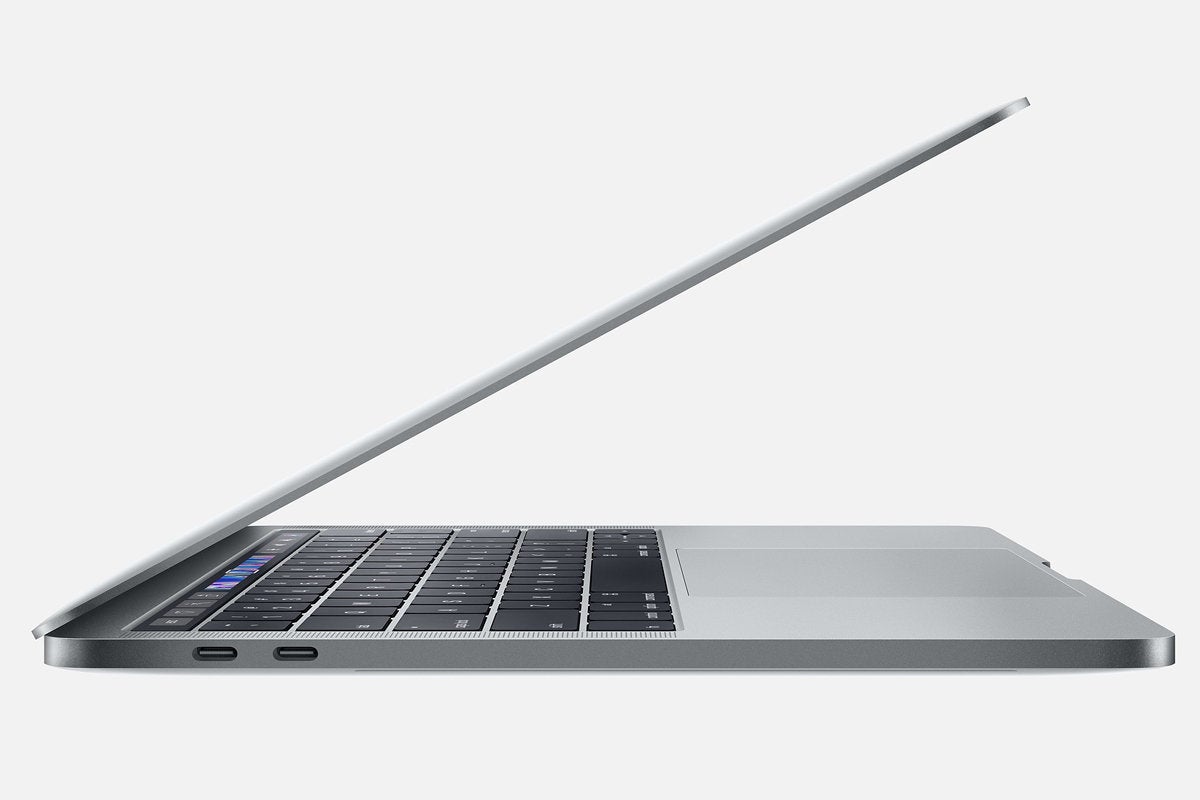
MacBook, MacBook Air, and entry-level MacBook Pro have a row of
function keys at the top of the keyboard. If you select the13-inch
2.3GHz quad-core eighth-gen Intel Core i5 MacBook Pro, you’ll get the
Touch Bar, which replaces the function keys row with a narrow screen of
keys that change based on the app you’re using.
The MacBook Pro
with the Touch Bar and the new MacBook Air come equipped with a Touch ID
fingerprint sensor at the far right of top row of the keyboard. Like
the iPhone and iPad, it can be used to unlock your Mac, authenticate
secure apps such as password managers, and make purchases. The MacBook
and 2017 MacBook Air don’t have a fingerprint sensor.
Along with
Touch ID, the MacBook Pro and 2018 MacBook Air also have Apple’s T2
security chip, which “enables a new level of security by including a
secure enclave coprocessor that provides the foundation for new
encrypted storage and secure boot capabilities.” It’s responsible for
storing and encrypting your fingerprint biometrics, protecting your
MacBook’s microphone from potential hackers.
MacBook Air vs MacBook vs 13-inch MacBook Pro: Battery
All of Apple’s small laptops will get you through a full day of work, give or take a few tasks: MacBook Air (2017): 54‑watt‑hour battery, up to 12 hours iTunes movie playback MacBook Air (2018): 50.3‑watt‑hour battery, up to 13 hours iTunes movie playback MacBook: 41.4-watt-hour battery, up to 12 hours iTunes movie playback MacBook Pro: 54.5-watt-hour battery, up to 10 hours iTunes movie playback
The
battery life of Apple’s MacBooks is largely dependent on the power and
efficiency of processor, which is why the MacBook Pro, which has the
largest battery of the group, is rated for the shortest amount of use.
Of note, if you step up to the Touch Bar model, you’ll get a slightly
larger 58-watt-hour battery, but it’s still rated for the same 10 hours
of iTunes playback.
MacBook Air vs MacBook vs 13-inch MacBook Pro: Buying advice
Now
that you know what’s different about Apple’s smallest laptops, which
one should you buy? The choice isn’t as difficult as you might think.
MacBook Air (2017): Buying advice
IDGUnless you have exactly a thousand dollars to spend (plus tax) and you absolutely
have to have a MacBook, there isn’t any reason to buy
the 2017 MacBook Air. (And even them we’d recommend getting a
refurbished MacBook.) Even with the lowest entry price among Apple
notebooks, it’s still overpriced, and the only things it has going for
it are superficial: the non-butterfly keyboard, glowing Apple logo, and
magnetic MagSafe connector. The list of things it doesn’t have is far
longer: USB-C, Retina screen, Touch ID, Force Touch trackpad,
respectable processor. And its design very much feels like it’s eight
years old. Recommendation: Only buy it if you can get it for $700 or less.
MacBook Air (2018): Buying advice
Jason Cross/IDGApple’s newest laptops are generally a safe purchase, and the 2018 MacBook Air is no
exception. While it doesn’t necessarily bring anything
revolutionary to the table, it’s a fantastic upgrade over the previous
generation and well worth the $1,199 price tag. It has a great design,
comes in three excellent colors, and is the only non-Touch Bar MacBook
to include a Touch ID sensor and T2 chip.
Unfortunately you can’t
upgrade the processor, but the 1.6GHz dual-core eighth-generation Intel
Core i5 should be plenty of power for anyone considering this machine.
The battery, storage, and Retina display are all good, too, though if
you can swing it, an extra 128GB storage will go a long way.
Recommendation: If you want the best 13-inch Mac laptop that’s not a Pro, this is it.
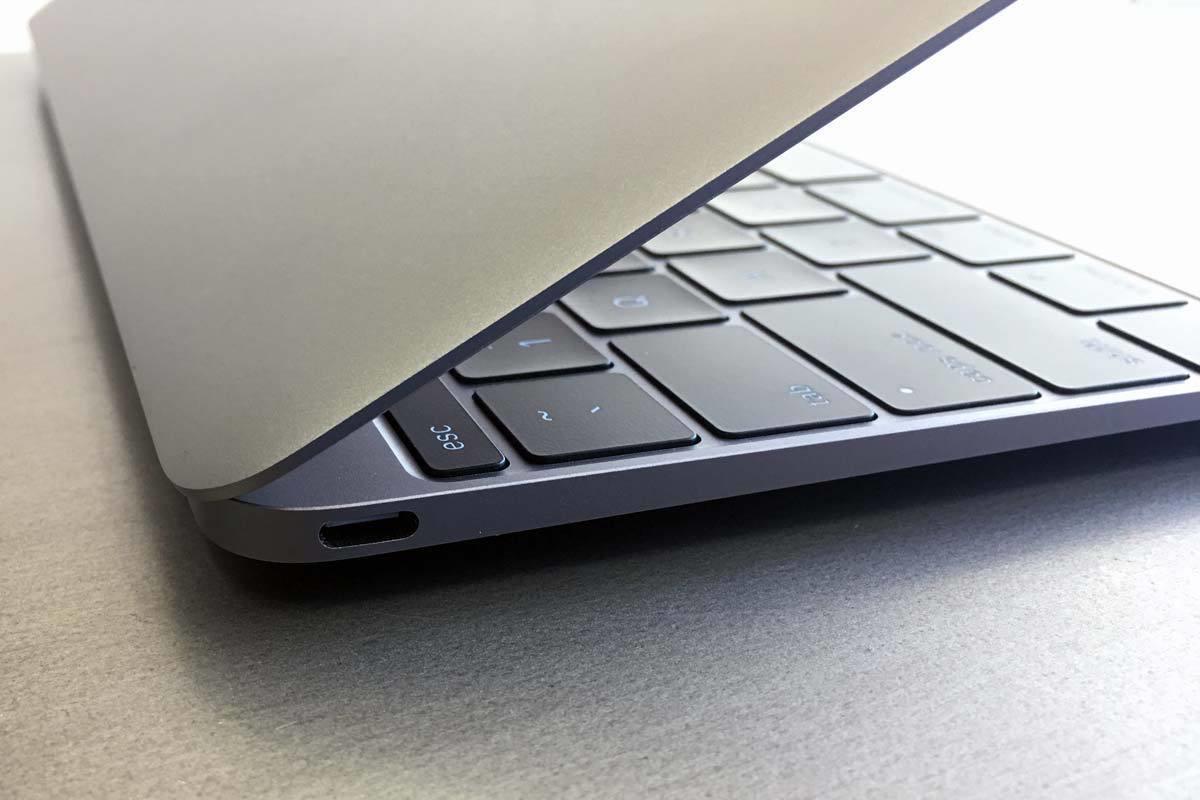
MacBook: Buying advice
Roman LoyolaUnless an inch and three-quarters of a pound mean that much to you, we can’t see
any reason to recommend paying $100 more to get the
MacBook over the new MacBook Air. The entry-level MacBook does have
256GB of storage versus 128GB on the MacBook Air, which makes the $100
price hike easier to swallow, but otherwise you get a slower processor,
smaller screen, one fewer USB-C port (and a non-Thunderbolt one at
that), and a smaller battery. And it doesn’t have Touch ID.
Recommendation: Buy the MacBook if you absolutely have to have the smallest and lightest MacBook.
MacBook Pro: Buying advice
AppleThe difference between the MacBook Pro and the other MacBooks comes down to
versatility. The $1,299 non-Touch Bar model has a better
processor than the MacBook Air, but not overly so, and it has the same
base storage, RAM, ports, and screen. The Air is lighter, feels thinner
due to its wedge design, and has better battery life. And the Air’s
Touch ID sensor is just a bonus that isn’t available on the entry-level
MacBook Pro.
But the Pro offers tremendous upgrade options. Like
the Air, you can double the RAM and add a terabyte of storage, and you
can also upgrade the processor, something you can’t do on the Air. And
of course, there’s no Touch Bar option on the Air either.
Recommendation:
For the right price, the MacBook Pro can be the ultimate 13-inch Mac,
but if you only have a budget of $1,300, we’d get an Air with 256GB of
storage for just $100 more.
MacBook Air vs MacBook vs 13-inch MacBook Pro: Our overall pick
For $1,199, the 2018 MacBook Air is hard to pass up. It’s
$100 cheaper than the MacBook and MacBook Pro, giving you room to
upgrade the storage without breaking your budget, and has a fantastic
design, Touch ID sensor, and T2 chip. The only other model we’d
recommend is the 13-inch MacBook Pro with Touch Bar, which starts at
$1,799. However, you get a lot more for your money, including a 2.3GHz
quad-core eighth-generation Intel Core i5 processor, Intel Iris Plus
Graphics 655, 256GB of storage, True Tone display, and four USB-C
Thunderbolt ports. Unless you can get a crazy deal on a MacBook or 2017
MacBook Air, those are basically your only two options.
10:25 AMHigh Tech House Calls, Expert Computer Consulting
With iOS backups, it’s still a little confusing about what happens to photos taken on an iOS device. When you perform a backup (automatic or otherwise), do your photos and videos get copied too? It varies!
Do you have iCloud Photos enabled?
Do you back up via iCloud or via iTunes to a computer?
From answers to those questions, you can figure out whether your
backup contains your images and movies, and if not, how to make
settings changes to fix that.
iCloud Photos enabled:
If your iOS device has this turned on, then neither iTunes nor iCloud
makes backups of images or video. The photo/video backup is instead
entirely handled as part of the iCloud sync. (Also note that Apple
recently changed the name from iCloud Photo Library, if you’re used to
seeing that anem.) iCloud Photos retains the full, high-resolution
versions of all your photo and videos.
iCloud Photos disabled:
In this case, iTunes will copy all photos and videos locally. You can
also use the Photos (or iPhoto) app to import images into a library, and
delete and manage what’s stored on your phone or tablet through those apps or Image Capture.
iCloud backup: An iCloud backup is a different matter. Apple notes on its support page only, “iCloud Backup may include photos and videos in your Photos or Camera Roll.”
That’s
hardly reassuring, and I’ve never been able to get a more definitive
answer from Apple nor in testing! (I don’t think it’s a plot to push
people to iCloud Photos, but it could explain the circumstances better.)
If
you’re using iCloud backup and not iCloud Photos, you should consider
routinely downloading images to ensure you don’t lose any.
10:09 AMHigh Tech House Calls, Expert Computer Consulting
Apple’s (AAPL)
iPad is the most popular tablet in the world. As of Q3 2018, the iPhone
maker’s line of slates captured 27% of worldwide tablet sales, making
it the market leader by a wide margin, market research firm IDC reports.
But tablet sales have been slowing in recent years, and Apple isn’t
immune to market trends. The company’s Q4 2018 tablet sales were down 6%
years-over-year and 16% quarter-over-quarter.
Which is where the new iPad Pro 11-inch and iPad Pro 12.9-inch
come in. Designed for use by artists, photographers, videographers and
other professionals, hence the “Pro” monicker, Apple claims these
big-screen iPads are powerful enough to rival many of the laptops on the
market.
It
doesn’t hurt that a more expensive iPad will also drive up Apple’s
average selling price, and boy are these some seriously pricey iPads.
The iPad Pro 11-inch starts at $799, while the iPad Pro 12.9-inch starts
at $999.
These
slates, which sport sleek new edge-to-edge screen designs, are the best
of what Apple has to offer, and overkill in almost every sense of the
word. And while I love a big screen as much as the next person, these
slates aren’t meant for everyone.
Like holding a piece of glass
From
a design standpoint, the iPad Pro 12.9-inch, which is the version I
reviewed, and 11-inch, are virtually mirror images of each other. And
their most striking features are their displays. That’s right, like the iPhone XR, XS and XS Max, the new iPad Pros drop their Home buttons in favor of more screen real estate.
By
doing so, Apple managed to reduce the volume of the 12.9-inch model by
25%. For the 11-inch, Apple simply stretched the screen of last year’s
10.5-inch model, leaving the 11-inch with the same roughly footprint as
its predecessor.
View photos
The iPad Pro has a fantastic edge-to-edge screen.
Of
course, the overall look of the slates are also completely different
from last year’s versions. Apple has done away with the tapered edges of
the prior generation of Pros and straightened them out. The result is a
tablet that, if you squint hard enough, bears a surprising resemblance
to the iPhone 4s.
The
11-inch Pro is more comfortable to hold than the larger 12.9-inch,
though. If I were sketching or editing a photo, I’d rather have the
bigger screen. Those screens, by the way, are absolutely stunning to
look at.
Both
models use the same Liquid Retina display LCD technology found on the
iPhone XR, which allowed Apple to curve the screens at the tablets’
corners. The displays are nearly edge-to-edge because they do have a bit
of a bezel around them. Before you jump down Apple’s throat, though,
the bezel makes practical sense as a way to hold the tablet without
interacting with the screen. It’s also where the LEDs that light up the
screen are located.
The
tablet’s top bezel is also where you’ll find the Pro’s new Face ID
camera. Yes, like the iPhone XR, XS, XS Max, you can now unlock the iPad
Pro with your face. And unlike the iPhone’s Face ID camera, the iPad
Pro’s can be used in multiple orientations, so you can hold the slate in
portrait or landscape mode and it will still work. It makes sense since
you change the way you hold a tablet fairly often depending on what
you’re doing.
The
Pros also come with Apple’s ProMotion display technology, which means
the screens’ refresh rates are set at 120Hz. That makes for a far
smoother, more appealing experience whether you’re swiping across home
screens or browsing the web. It really makes a big difference when you
see it in action.
Raw power
Both
iPad Pros come loaded with Apple’s all-new A12X Bionic. That’s one heck
of a chip for a slate, and, frankly, a little overboard for what most
people need.
Apple
says that the Pro’s 8-core, 7-nanometer processor is 25% faster than
last year’s chip in single-core performance and that GPU performance is
up a whopping 1,000% versus the original iPad. The company even claims
that the slate is more powerful than 92% of mobile computers on the
market including those packing Intel’s high-powered Intel Core i7 chips.
View photos
The iPad Pro’s A12X Bionic processor is the most powerful chip Apple has put into a mobile device.
That’s one heck of a boast. And it holds up to a degree. Using the Geekbench 4 benchmarking tool,
which is designed to give you a relative idea of a processor’s
performance, the iPad Pro actually outscored my Core i7-powered MacBook
Pro in both single-core and multi-core tests. Now, that doesn’t
necessarily mean that the iPad Pro will annihilate the MacBook Pro in
every instance, but it gives you a good idea of how powerful the slate’s
chip really is.
The
thing is, is that there aren’t a hole lot of apps that will take
advantage of that kind of power. Sure, it’s great for quick photo edits
and some video editing, but for most people that power won’t be as
useful as it would be on a Mac or PC. This is, after all, still an iPad.
The slate’s processing power is incredibly impressive, but for now it’s
more of a hedge against the tablet slowing down over time, rather than a
means to use apps that are built for high-power iPads. That’s not to
say those apps will come, though.
Those accessories
In addition to the iPad Pro, Apple has also rolled out a new Apple Pencil.
The latest version of the stylus features one flat side that helps keep
it from rolling off your desk, something that was a problem with the
original Pencil.
More
importantly, though, that flat edge is home to a wireless charger. To
power up the Pencil, you magnetically connect it to the side of the iPad
Pro, and you’re set. Only one side of the iPad works, though.
Connecting the Pencil to the iPad also allows you to sync the stylus
with your tablet, so you don’t have to go through any real setup
process.
The
lower portion of the Pencil is also now touch sensitive, which means
you can double tap it to activate features and settings within specific
apps. For instance you can switch between a pen or pencil and then
double tap to quickly pull up your eraser.
View photos
The iPad Pro uses a new Apple Pencil with wireless charging and touch-sensitive edges.
Unfortunately, you can’t use your old Apple Pencil with the new Pro, and you can’t use the new Pencil with the old Pro, which is a serious bummer.
The Pro also gets a new folio keyboard case called … the Smart Keyboard Folio. The new cover wraps completely around the Pro protecting both its display and back panel, something the old Folio didn’t do.
Typing
on it was also surprisingly comfortable. I wrote an article using just
the iPad Pro and didn’t feel like I was missing out on anything thanks
to the fact that the slate also supports multitasking.
Apple
has also switched the Pro from the company’s proprietary Lightning
connector to a universal USB C port. It makes a world of difference, as
it opens up the iPad to even more accessories, such as a secondary
display to mirror your work on the slate, or a camera. You can also
charge your iPhone from the slate, which is a pretty nifty trick if
you’re in a pinch.
Should you get it?
The
iPad Pro is a high-powered slate with a fantastic design and almost
extravagantly large near edge-to-edge display. The new Apple Pencil is a
wonderful accessory for the more artistically inclined, while the Smart
Keyboard Folio makes for a genuinely solid typing experience.
Above
all, this is the perfect expression of the iPad: Powerful, stylish and
capable. But for most people, that $799 or $999 price tag is likely too
high. If you don’t need the power, or can get by without the new stylus
or keyboard, and are more interested in a tablet for using basic apps,
watching videos and playing games, then I’d suggest going with the
6th-generation iPad for $329.
But if you love excessive performance and screen real estate, the Pro is really the only tablet for you.
1:46 PMHigh Tech House Calls, Expert Computer Consulting
Apple on Friday announced a new repair program for owners of the iPhone X. The iPhone X Display Module Replacement Program provides a fix for those having problems with the touchscreen.
According
to Apple’s support document, the issue at hand is whether the iPhone X
does not respond to touch, intermittently stops responding to touch, or
the screen reacts without being touched. If your iPhone X is
experiencing these issues, you may be able to have it fixed for free.
The
fix involves replacing the display module and the service must be done
by an Apple authorized service provider or at the Apple store.
If you paid for a prior fix for this problem, Apple says you may be eligible for a refund for the service.
For your convenience Venmo and Zelle are also accepted for payment.
Fed up with Windows based computers?
Think an Apple Computer might be what the doctor ordered?
We can help you with that decision for free! Give us a call so we can discuss your computing needs!
Gift Certificates
What will you use your certificate for?
Making the move to an Apple laptop? My business has been running on an Apple laptop for 6 years.
You bought an iPhone. Now what? We have been working on iPhone problems since they came out and we can help.
Summer will be here before you know it. You want to surf on the internet on your wireless network from your pool. We are wireless network experts in both design and deployment.
Or you can use this gift card for any help needed (including training) for the computers in your home or small business.
The perfect present for any occasion:
Available in one hour increments.
No expiration date.
Can be used for service calls or training.
Giving a technology gift that requires setup or training? Why not add a gift certificate?




 Best of all, whether your Chromebook is out for repairs or simply
gone forever, you can still get your work done on a loaner machine or a
public machine while you're waiting for a replacement Chromebook to ship
out to you. Your Chromebook is just a landing pad for your cloud
connections and your Chrome browser settings, and you can re-establish
those anywhere you, your internet, and your two-factor authentication codes are.
Best of all, whether your Chromebook is out for repairs or simply
gone forever, you can still get your work done on a loaner machine or a
public machine while you're waiting for a replacement Chromebook to ship
out to you. Your Chromebook is just a landing pad for your cloud
connections and your Chrome browser settings, and you can re-establish
those anywhere you, your internet, and your two-factor authentication codes are.



 Jason Cross/IDG
 Jason Cross/IDG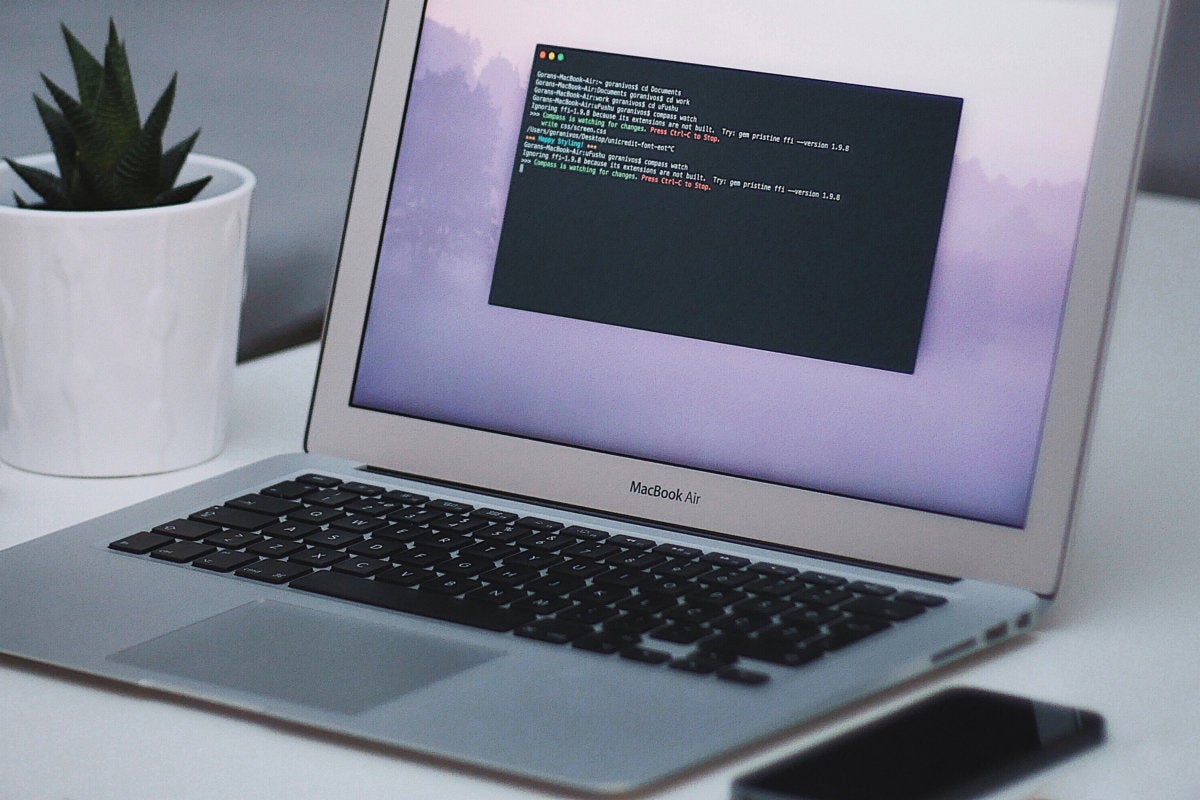
 Michael DeAgonia/IDG
 Jason Cross/IDG
 IDG
IDG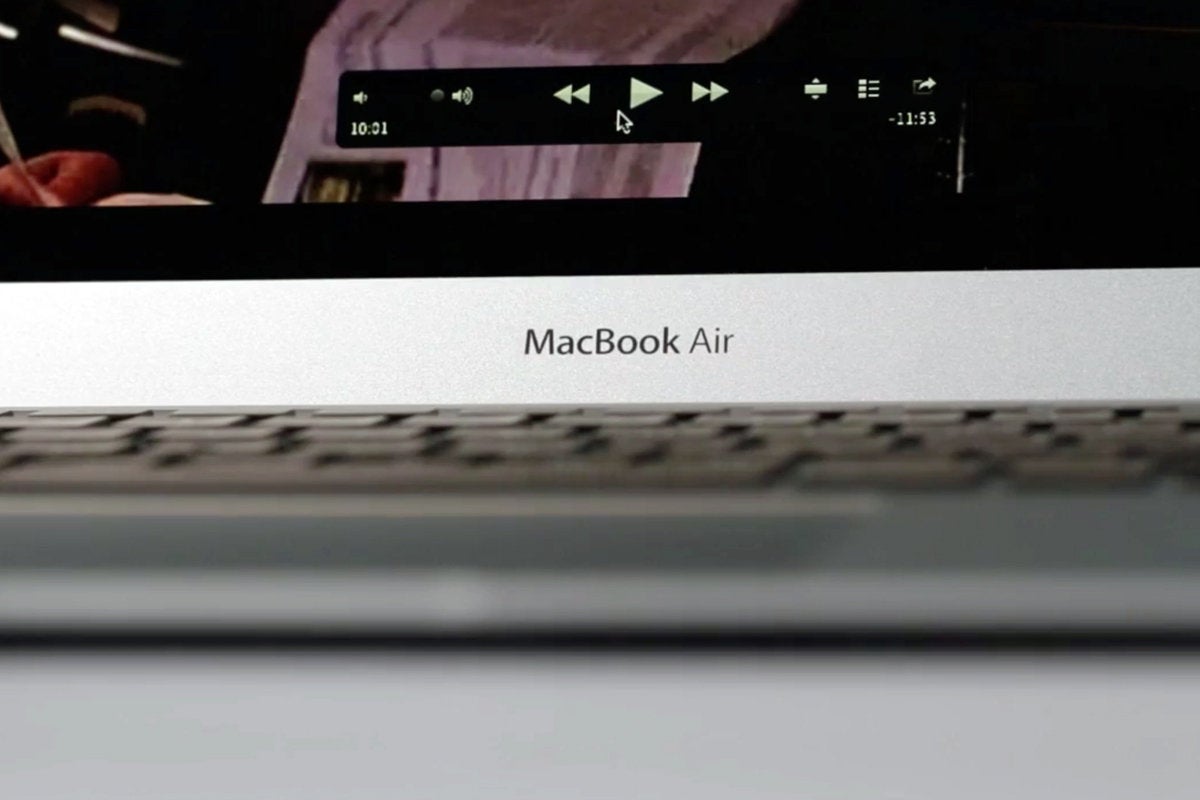 IDG
IDG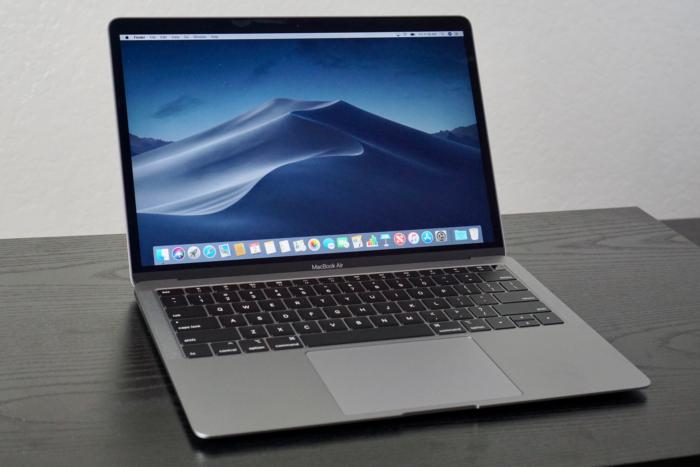 Jason Cross/IDG
 Roman Loyola
 Apple
Apple


