Google+ High Tech House Calls
Expert Computer Consulting for Homes and Small Businesses

Let there be hope...

Life has changed there is no doubt and we wanted to reach out to see how you are doing.

As we go through this interesting time, we are trying to look at this as an opportunity to focus on our family and on friends like you. Let us use this extra time to catch up and talk more. Let us cook food that is not fast, but interesting and satisfying. Let us learn to enjoy a time to try new things. Let us find ways to enjoy time at home!

Computer Security

If my client base is any experience, anyone can be a victim of a Ransomware, Malware or Virus attack.

What can you do about it?

I conduct audits of your entire computer infrastructure and apply best practice solutions to plug the security holes on your computers, Smartphones and networks.

Now offering consultations to give you the best protection possible:


404.229.0839
carlthorne@hthcatlanta.com

Jack of All Trades, Master of Many

Jack of All Trades, and Master of Many

We provide technical support for:


Homes and small businesses

Windows and the Mac OS platform

iPhones and Android Smartphones

Wireless and wired networks

New device setup

Old device upgrade or repair

One-on-one training

Remote assistance


How To Stop Malware

Sunday, August 26, 2018

Best true wireless earbuds: Free yourself from the tyranny of cords


Earbud makers have been busy doing away with wires—a good thing whether or not your phone still has a headset jack. You no longer have to deal with cords if you don't want to. True wireless earbuds connect to one another and your audio source via Bluetooth.

No wires mean no inline microphones or controls, but truly wireless earbuds sound just as good as traditional Bluetooth counterparts (for better or worse). They also boast all of the features we've come to expect from earbuds designed to work with your smartphone, tablet, or PC.

Since Apple’s AirPods became a runaway hit, an endless stream of companies have rolled out their own true wireless earbuds and earphones. As you might expect, not all of them are worth your time or money—so we've got your back with buying suggestions to meet a wide variety of needs.
Latest update (8/23/2018): We've added a review of the Crazybaby Air Nano to our overall list. Check out our full review here.

Best true wireless earbuds

The $169.99 Jabra Elite 65t are priced close to our former Best True Wireless Earbud pick, the Jaybird Run, and only cost a few bucks more than a pair of AirPods. With their customizable sound, comfortable fit, light weight and excellent battery life, we feel the Elite 65t are better than either of these truly wireless earbud options, and worthy of top honors. (Read our review here.)

There are very few downsides to owning the Elite 65t. Sure, they feel a little cheap to the touch, but their build quality is actually great. And while their bass response may not please all music lovers (even after making EQ adjustments via Jabra’s free Sound+ app), they still sound great. When looking at the 65t as a total package, you’d be hard-pressed to find a better set of truly wireless earbuds for the money.

Best low-cost true wireless earbuds

To be honest, this category doesn't really exist. Truly wireless earbuds are a luxury item and their price reflects this.

However, given the current field of true wireless earbuds, Apple AirPods do the best at offering good value for a (relatively) reasonable price. (Read our review here.) A pair costs $20 less than the Jaybird Run, and if you have ears that will work with the one-size-fits-all design, they can sound great under the right circumstance. And for iPhone and iPad users, you can't find an better set of earbuds for ease of pairing.

You should know, however, AirPods aren’t as easy to use as other true wireless earbuds for controlling your music. It also has terrible passive sound cancelation, so you’ll hear a lot of the world around you when using it.

Best true wireless earbuds for working out

Bose’s $250 SoundSport Free is water- and sweat-resistant, can go five hours between charging, and is insanely comfortable to wear. (Read our review here.) What’s more, the design of these earbuds' silicon tips makes them almost impossible to shake out of your head—but you still keep a good deal of situational awareness, making the SoundSport Free a good choice for joggers or cyclists.

The only knock against the SoundSport Free is its size: The earbuds are considerably larger than its competition, making them a less than fashionable choice for style conscious individuals.

Best true wireless headphones for audiophiles

B&O’s Beoplay E8 true wireless earbuds cost $300, but if high-fidelity sound quality is important to you, they're worth every penny. (Our review here.)
Though you can't expect a set of earbuds to match the sound you'd find in a wired set of cans, the E8s provided the most pleasurable listening experience out of all the true wireless earbuds we've tested so far. As icing on the cake, you can further modify your audio experience using the free Beoplay app.
The Beoplay B8 is incredibly easy to use, too—touch panels make changing the volume of what you’re listening to or tinkering with audio tracks no big deal.

What to look for

Sound

Sounding good is a set of earbuds' raison d’être. When you invest in a new pair of true wireless earbuds, it’s fair to assume that they should make everything sound its best.

We start each sound test by listening to a playlist of five songs that spans different genres and features strong, layered performances: that we know very very well: Feel Right (Mark Ronson, featuring Mystikal); Up & Rise (Hazmat Modine); Shake Your Hips (The Legendary Shack Shakers); Déjà Loin (Yann Tiersen); and I’m a Little Mixed up (Diana Krall).

We play this set of songs for an hour, paying attention to low, mid, and high-frequency performance, and whether they provide a broad, rich soundstage. We also listen for any sign of distortion at low or high volumes. Afterward, we use the earbuds in our daily lives for a minimum of three hours a day over the course of a week, making sure to take in at least one TV show or movie. (This allows us to verify that the audio keeps in sync with the video we see.) Finally, we pay attention to incoming and outgoing call quality, to make sure that you won't get annoyed during a chat.

Fit

A set of earbuds or earphones may sound amazing, but no one will know it if they don’t fit well—a good seal keeps environmental noise out and your audio channeled into your ears, where it belongs. Because no two pairs of ears are identical, we note if a set of true wireless earbuds comes with different ear pieces.

We also pay attention to the tightness of a seal, as a snug fit provides passive noise cancellation (aka the hush that falls over your life when you jam a pair of earphones or earplugs into your skull). If you're in a noisy airport, tuning out your environment is a plus—but it's less than ideal if you're out running, for safety reasons. We take this into consideration when evaluating earbuds designed for working out.

Comfort

They might fit and sound great, but if your new true wireless cans hurt your ears, you won’t wear them. We wear the earbuds for at least three hours a day for a week and note if a particular set becomes uncomfortable after a few hours of use.

Connectivity

True wireless headphones use Bluetooth to connect to each other and to your audio device. We pay attention to connectivity issues stemming from signal interruptions between the earbuds and their audio source, and also note if audio drops from the left or right side during playback.

Features

At minimum, a good pair of true wireless earbuds should be able to accept calls as well as play and pause music. If a pair offers additional features beyond the basics, those functions should work well and be easy to use.

Price

It almost goes without saying that if you pay a premium for earbuds, they should sound spectacular. If a pair of headphones sound great and don’t cost much? Even better!

All of our true wireless earbud reviews

Click on the links below to read the full reviews of all the products we tested. We'll continue to update this article as we put more true wireless earbuds and earphones through their paces, so keep checking for our latest opinions.


How to Position Images and Other Objects in Microsoft Word by Rob Woodgate

Wi-Fi vs. Bluetooth vs. USB tethering: Which is best for you? By Amanda Kooser, Komando.com


You have your laptop open and ready. You need to answer some emails or complete a work assignment, but there’s no Wi-Fi in sight. This could end up being a frustrating situation, but there’s a simple workaround that can get you online in a jiffy.

All you need is a device, either Apple or Android, with a cellular connection. The connections are slightly different depending on the device you use.

The first thing you have to do is set up your personal hotspot. Apple and Android mobile devices can share their data connections just like a Wi-Fi hotspot. That means you can get your laptop online and enjoy working with a full keyboard rather than tapping with your thumbs. Your  personal hotspot feature can also comes in handy when you don’t want to use your computer on an unknown or unsecured Wi-Fi network.
On Apple:

  1. Go to Settings > Cellular.
  2. Tap Personal Hotspot, then tap the slider to turn it on.
On Android:
  1. Go to Settings.
  2. Tap Network & Internet > Hotspot & tethering.
  3. Tap Wi-Fi hotspot, then turn it on.
There are three different ways you can hook your computer up to your internet connection, a process known as “tethering.” Let’s take a look at all three possibilities: Wi-Fi, Bluetooth, or USB, and how to choose which method to use.

Wi-Fi

For most people, Wi-Fi tethering is the easy way to go. It’s simple and offers a fast connection.
In Apple:
  1. Verify the name of your phone or tablet and your Wi-Fi password. Go ahead and leave this screen open while you’re connecting your computer.
  2. On your laptop, open your Wi-Fi settings and look for your iPhone’s name on the list of available networks. Select it.
  3. Enter your hotspot password.
As far as your computer is concerned, this works just like a normal Wi-Fi hotspot.
In Android:
  1. Go to Settings on your other device.
  2. Open the device's list of Wi-Fi options.
  3. Pick the phone's hotspot name, enter the password and then click Connect.
Keep in mind that your laptop will eat into your mobile data plan, so be mindful of how much data you have to spare.
Here’s how to get free Wi-Fi almost anywhere.

Bluetooth


While Wi-Fi tethering works very well and should be your first choice, you might consider Bluetooth instead if you’re concerned about battery drain. The trade-off is that you may experience a slower connection, so keep this option in reserve for those times when your battery is running down and there’s no outlet available.
In Apple:
  1. Go to Settings > Bluetooth and stay on the screen to make sure your iPhone or iPad is discoverable.
  2. Go to your computer and follow the directions to set up a Bluetooth network connection. It should be ready to go then.
Personal Hotspot supports Bluetooth connections with Mac, PC and other third-party devices. To connect another iOS device, use Wi-Fi.
In Android:
  1. Pair your phone with the other device.
  2. Set up the device to connect by Bluetooth with the instructions that came with it.
  3. Open Settings, then tap Network & internet, and then Hotspot & tethering.
  4. Tap Bluetooth tethering, and you're set.

USB


In Apple:
  1. Plug your iPhone or iPad USB cable directly into your computer. You will need to have the most recent version of iTunes installed on your laptop.
  2. If you see an alert that says "Trust This Computer?," tap Trust. You're good to go.
In Android: 
  1. Connect your phone to the other device with a USB cable. A notification that says "Connected as a ... " will pop up at the top.
  2. Open your device's Settings.
  3. Tap Network & internet, then Hotspot & tethering.
  4. Turn on USB tethering.
While simply hooking up a cable can be convenient, there can also be a speed trade-off with using USB tethering. You may prefer to stick with a Wi-Fi connection unless you’re having a technical issue that prevents you from using Wi-Fi.

Some carriers will throttle mobile hotspot data after a certain amount of usage. Check your contract or talk to your carrier if you’re unsure of what your plan allows. With occasional light use, you probably won’t have to worry, but you may run into issues if you’re using it to stream lots of high-quality video, or for other data-intensive purposes.

Think of tethering as your internet pinch hitter. It’s there when you need to call on it, but it might not make sense as an everyday way to get your computer online.

Saturday, August 25, 2018

Microsoft Surface Go review: A pint-size PC for getting work done by Daniel Howley

Microsoft’s (MSFT) Surface line of products has been a continuous bright spot for the company ever since it transitioned from Windows 8 to Windows 10. The Surface 3 and Surface Pro were fantastic tablet-laptop hybrids, and the Surface Laptop is a sleek notebook. Meanwhile, the Surface Book is an impressive powerhouse of a PC.

But Microsoft’s offerings weren’t inexpensive. Until now, that is. Meet the Surface Go, a $399, 10-inch version of the Surface tablet that’s meant to be your, well, on-the-go machine. Commuting to work? Taking a flight? Heading to class? This is the hybrid Microsoft believes can take on Apple’s (AAPL) iPad Pro and Google’s (GOOG, GOOGL) various Chromebooks.

And it does so admirably. The Surface Go can run a full desktop version of Windows 10 and offers the kind of fit and finish you’d expect from a Surface device. But the Surface Go isn’t perfect. Its keyboard is a bit too cramped for my liking, and if you want to do anything that requires serious performance, you’re out of luck.
View photos
Microsoft’s Surface Go is a pint-sized computer for working on the, well, go. But don’t expect it to replace your full-size PC.

The mini Surface

Microsoft’s Surface division makes some of the best products ever to sport the company’s logo. The brand’s trademark austere design, Alcantara soft-touch keyboards and, of course, the built-in kickstand for its 2-in-1 laptop-tablet hybrids, make for some attractive and useful devices. And all of that is present in the Surface Go.

It’s as if Microsoft’s head of hardware Panos Panay somehow got a hold of the shrink ray from “Honey I Shrunk the Kids” and decided to skip the kids part and just shrink the 12.3-inch Surface Pro.
View photos
The Surface Go is a a much smaller version of the standard Surface Pro.
There are a handful of notable differences. The edges of the Go are just a touch more rounded than those found on the Surface Pro. There’s also, mercifully, a USB C port. The Surface Pro still comes with a full-size USB port, which, at this point, is blasphemous. Especially, when you’re buying a device that starts at $799.

Outside of that, the Surface Go sports the same vibrant PixelSense display found on the Surface Pro, meaning you’ll get brilliant colors and sharp features out off the 10-inch panel. In other words, downsizing the Surface doesn’t mean you’re getting a subpar visual experience.

Smaller isn’t always better

But using Windows in desktop mode on a 10-inch tablet can also be a pain. For example, my father, who doesn’t have the best vision, would have trouble viewing text on the slate. It’s not something most people will run into, but it’s definitely worth taking into account.

In fact, I found the slate to be the perfect size for watching movies on the bus and in the car. It’s also just about the right size to prop up on my belly while catching up on “The Bachelorette” in bed.
My one complaint with the Surface Go’s size is its keyboard. Like the Surface Pro, the Go doesn’t come with a keyboard. Instead, you have to shell out an extra $99 on a basic Surface Type Cover or $129 for a Surface Go Signature Type Cover complete with soft-touch Alcantara. And you’re going to need that keyboard to use many of the Microsoft Store apps on the Surface Go.
View photos
The Alcantra-covered Surface Type Cover will cost you an extra $129.
As far as usability, though, the Surface Go’s keyboard is on a par with most Surface keyboards. There’s a good amount of key travel and the angle at which it sits when magnetically connected to the Surface is pleasant. But there’s a learning curve when it comes to typing on this pint-size puppy.

When I first began using the Surface Go’s keyboard, I regularly found myself mistyping words or pressing the caps lock button when I wanted to press the “A” key. Over time, though, I became more comfortable with the keyboard and fell right back into my normal touch-typing habit. My advice is if you have larger hands, or sausage-like fingers like me, you’ll want to try the Surface Go Type Cover before making your purchase.

Portable, not powerful

With only so much room inside to pack a processor, storage and RAM, Microsoft couldn’t pack the latest and greatest processor into the Surface Go. Instead, the tech giant equipped the small slate with an Intel Pentium Gold processor. That’s not going to give you the kind of performance you’d expect out of a Core i5, or even Core i3 processor.

That’s not to say that the Go crawls. On the contrary, I was able to have multiple tabs open in Microsoft’s Edge browser, while running Spotify, streaming Netflix and chatting on Slack without running into a problem. That said, don’t expect to play any games on this thing outside of basic tablet games.

But the Surface Go comes loaded with Microsoft’s Windows 10 in S mode, which limits you to only downloading apps from the company’s own Microsoft app store. That means you’ll end up using the tech giant’s Edge web browser rather than Google’s Chrome. You’ll get the best performance out of the Go when it’s in S mode, since the hybrid was specifically designed to work with it. But if you want to branch out to different programs, you can always switch to full Windows mode.
View photos
The Surface Go is a solid machine that’s great for productivity while you travel.
The process takes less than five minutes and doesn’t even require a system restart. I didn’t even notice the change over, and I was staring at the Go the whole time.

But Google’s Chrome is a resource hog. When I went back to browsing with several tabs open, while streaming Spotify and Netflix and chatting on Slack, I began to notice performance issues with the Go. Specifically, websites, especially image-heavy sites like Polygon.com and our own Yahoofinance.com began to load more slowly.

It’s important to note that my test machine came with 8GB of RAM, which is an upgrade from the base model of the Go which starts at $399. That upgrade will cost you, though, as the 8GB model starts at $549, plus thee extra $99 for the base keyboard.

Still, the fact that the Go gives you the ability to use full desktop apps makes it more useful than any Chromebook or Apple’s iPad Pro.

Should you get it?

I rank the Surface Go above the iPad Pro and any of Google’s Chromebooks when it comes to overall productivity. The iPad Pro’s keyboard isn’t nearly as good as the Surface Go’s, despite its size, and Chromebooks can’t run full desktop apps. As a straight-up tablet, the Pro wins, but that’s not why you buy a Pro to begin with.

I wouldn’t recommend that you purchase the Surface Go as your primary device, though. This is a machine meant for use as a secondary PC you can quickly get work done on and then go back to watching Hulu — which is exactly what I’m going to do now.

Disclosure: The writer’s spouse works for a public-relations agency that contracts with Microsoft’s Xbox division.

Smart home guide for beginners: Make your home more convenient to live in without spending lots of time or money By Christopher Null

One way to build out a smart home is to buy lots of components—sensors, smart bulbs, security cameras, speakers, and whatnot—and connect them all to a hub that helps them communicate with each other and with you, via your smartphone. But let’s be real: That can involve spending a lot of money and investing a lot of time. And for some people, it’s just overkill. If your wants and needs are simpler, just a few relatively inexpensive products will deliver most of the conveniences a high-end smart home can deliver, and on a much more modest budget.

And if you make sure those smart home products are compatible with each other, you’ll build a solid foundation that you can expand over time. The key is knowing which smart home products don’t depend on a smart home hub to operate. While hubs offer advantages—the most important of which is having a single user interface to control everything—they’re not always essential. One thing you must have, however, is a good wireless router—ideally one that can reach all corners of your home.
Here some of the a few common ways you can build a hub-free smart home system.

Smart lighting

For most people interested in living in a smart home, lighting is the entry point. Many smart lighting systems work perfectly well without a central hub and are still capable of interacting with other smart home elements. Bulbs from LIFX and TP-Link, for example, communicate over Wi-Fi, while some others communicate via the Bluetooth radio in your smartphone.
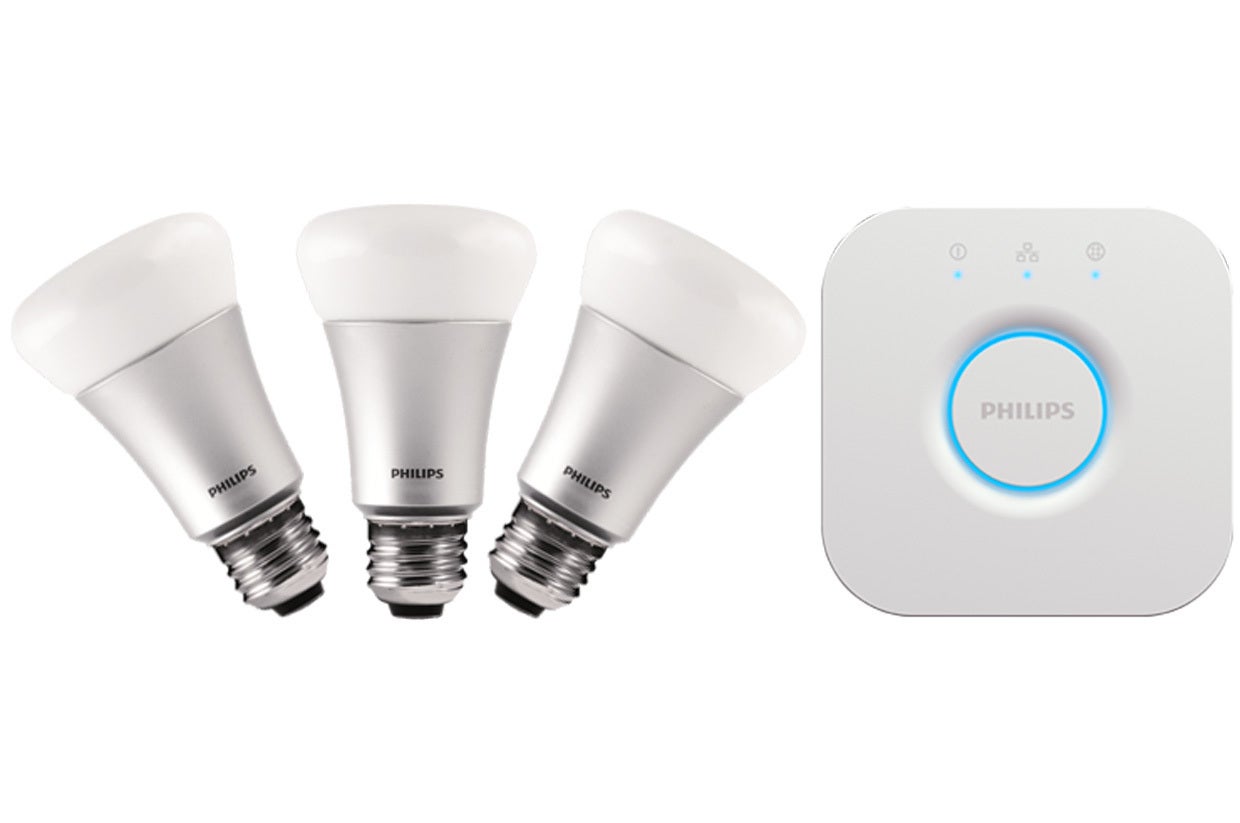
Philips Hue Color and Ambiance Starter Kit Philips
Philips leads the smart lighting market with its Hue series of bulbs and luminaires. While they don’t require a smart home hub to operate, they do depend on a ZigBee to Wi-Fi bridge that’s included with each of their starter kits.
Still other smart bulbs, including Philips Hue, Cree, and Sengled Element, rely on ZigBee radios and therefore must have a ZigBee-to-Wi-Fi bridge connected to your router. You can control any of these smart bulbs with an app on your smartphone or tablet, which you can also use to program lighting scenes and schedules.
If most of your home’s lighting is in the ceiling and controlled by a switch on the wall, you might be better served by replacing those dumb switches with smart switches and dimmers, instead. That’s because a smart bulb becomes dumb the instant you turn off the switch controlling it. Leviton, TP-Link, Lutron, Ecobee, and other manufacturers make smart light switches that operate on your Wi-Fi network and don’t require a central hub. Check out Noon Home’s system for a super sophisticated, but relatively expensive, lighting control system.

If you use lamps for most of your lighting, a smart plug such as the Wemo Mini will enable you to turn the lamp on and off—and dim its dumb light bulb—with a smartphone app.

Smart speakers

What’s more convenient than pulling out your smartphone to dim the lights on movie night? Saying “dim the lights” and having a smart speaker linked to your smart lighting do it for you. The Amazon Echo series and Google Home series are the market leaders in this space. And while Amazon has held the lead for the past few years—it has a much larger installed base, has enjoyed much broader support, and had the only smart speakers with displays for a time—Google is coming on very strong.
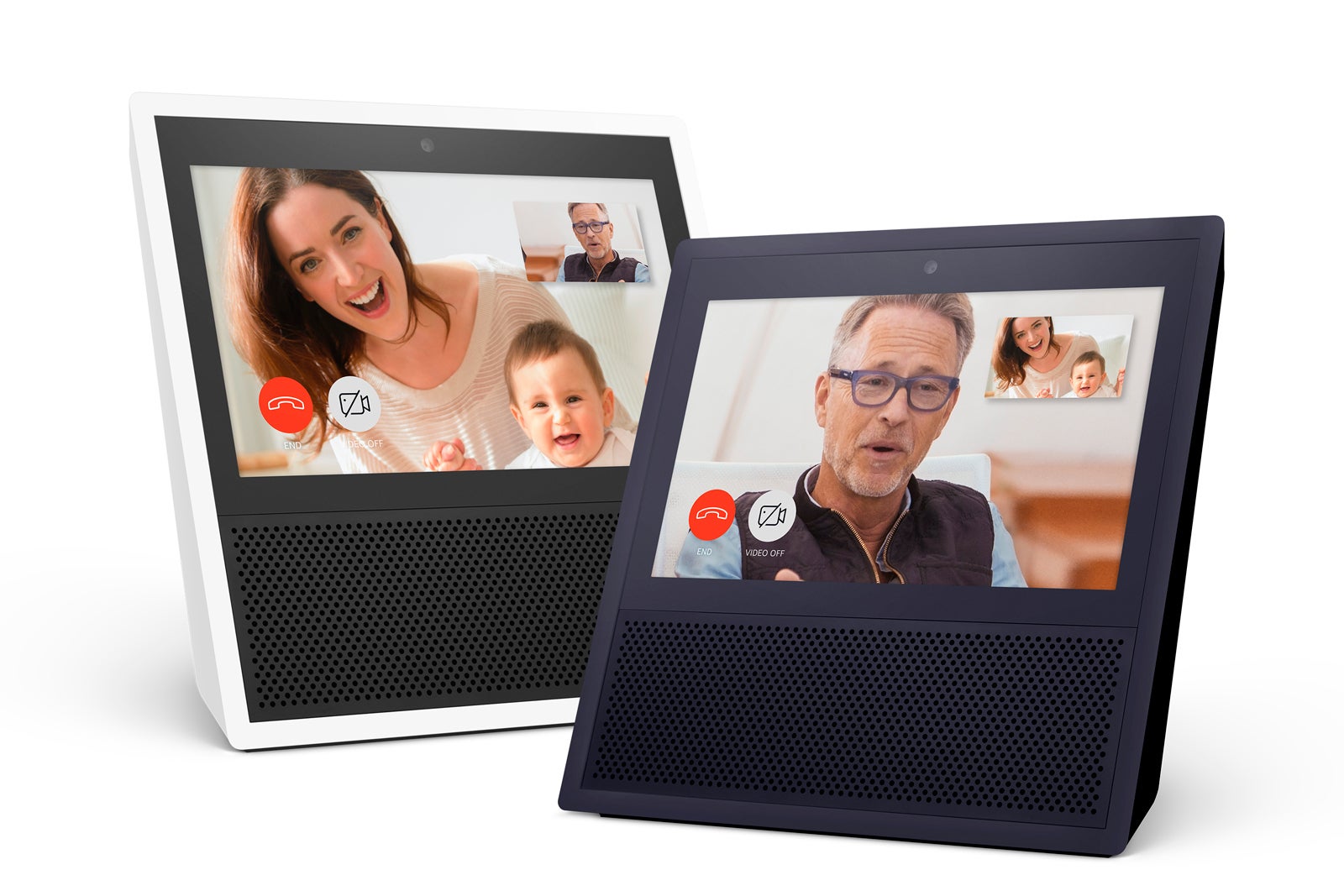
amazon echo show black and white Amazon
A display adds a lot of features to a smart speaker. You can watch movies on it, stream a live feed from your home security camera, use two of them as an in-home video intercom system, and even make video phone calls (units without displays can make voice calls).
You’ll increasingly find the two companies’ digital assistants—Amazon Alexa and Google Assistant—in unique third-party products. Ecobee puts the guts of an Echo in its Ecobee4 smart thermostat and Ecobee Switch+ smart switch, while Lenovo was first to market with Google Home devices outfitted with displays (the Lenovo Smart Display series).
And because these smart speakers have been so widely embraced by other smart home device manufacturers, they have become de facto hubs in their own right, serving as a central interaction point for everything from smart lights to home security cameras, displaying video feeds from the latter on connected TVs or their own displays, if equipped.

Smart thermostats

Few smart home devices can match a smart thermostat’s ability to deliver both comfort and cost/energy savings. These devices go far beyond establishing a heating and cooling schedule based on when you anticipate being home to enjoy those benefits. They can detect when you’re home and when you’re away, so that your HVAC system operates only when it’s needed.
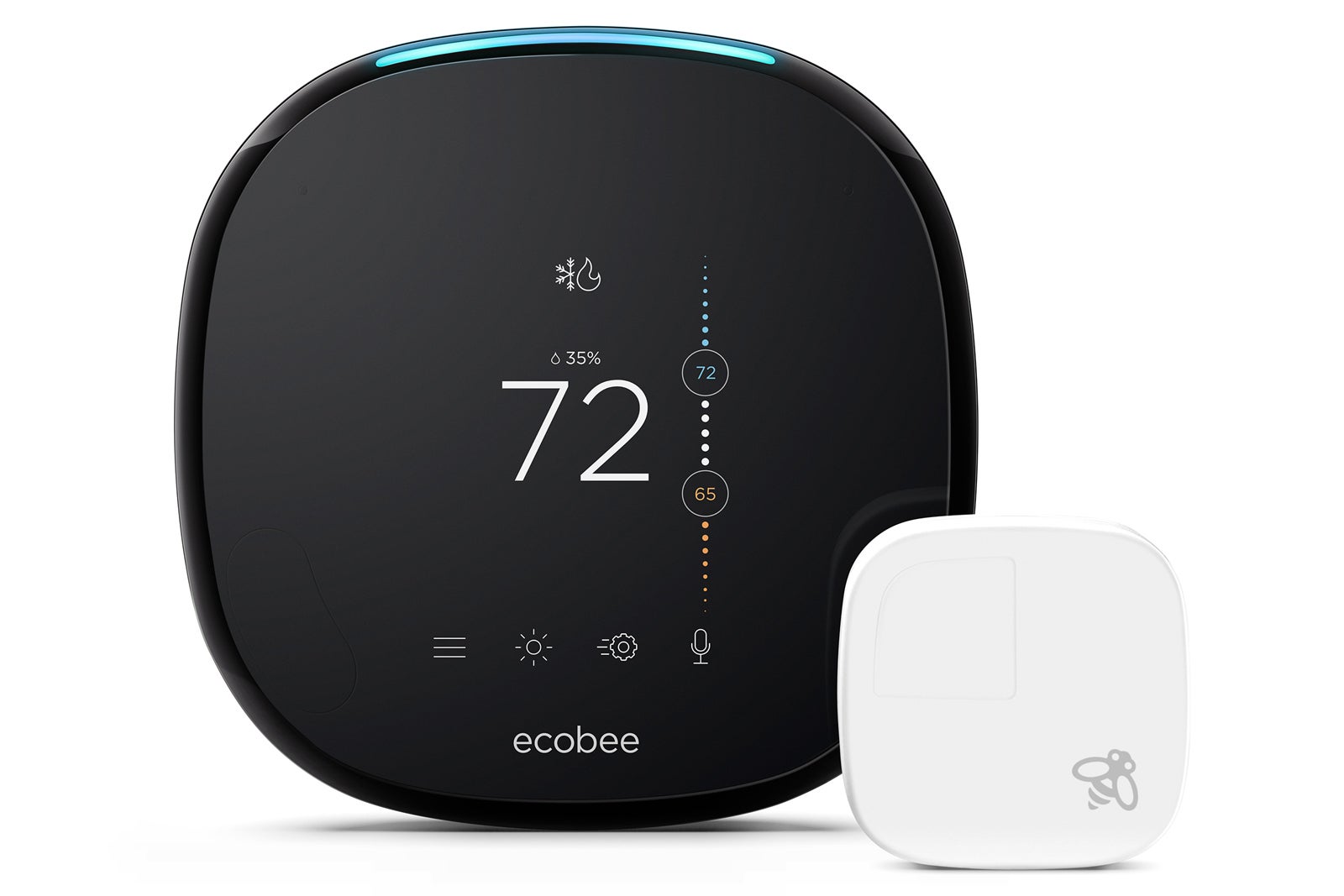
Ecobee4 Ecobee
The Ecobee4 is our favorite smart thermostat. It not only uses sensors to cue your HVAC system to heat or cool based on the room you’re currently occupying, it also features a built in Amazon Echo smart speaker.
The latest trend on this front is to equip thermostats with sensors that you can put in the rooms you occupy most frequently, so that the thermostat operates on the basis of where you are in the house, instead of triggering heating and cooling cycles based on the thermostat’s location, which is typically in a hallway you only ever pass through. The Ecobee4 is our current favorite smart thermostat because it comes with both sensors and integrated Amazon Echo smart speaker. We also like the offerings from Nest Labs, the company that did the most to jumpstart the smart thermostat market.

Home security cameras

A quality home security camera will enable you to keep a watchful eye on your home, especially while you’re away. Indoor models can help you monitor your children and pets, while outdoor models can catch prowlers in the act—and hopefully discourage them from coming around in the first place.

Some models—from Ring, Netatmo, and Maximus—incorporate lights that can illuminate your way. Cameras incorporated into doorbells can monitor your front porch and let you interact with visitors without needing to approach the door—or even be home at the time.

Multi-room audio systems

Sophisticated multi-room speaker systems from the likes of Sonos, Yamaha (MusicCast), and Denon (HEOS) are largely self-contained, enabling you to drop speakers in multiple rooms in your home so you can stream music from your own collection or from online services such as Spotify to all of them in sync, or to send different tracks to each one.
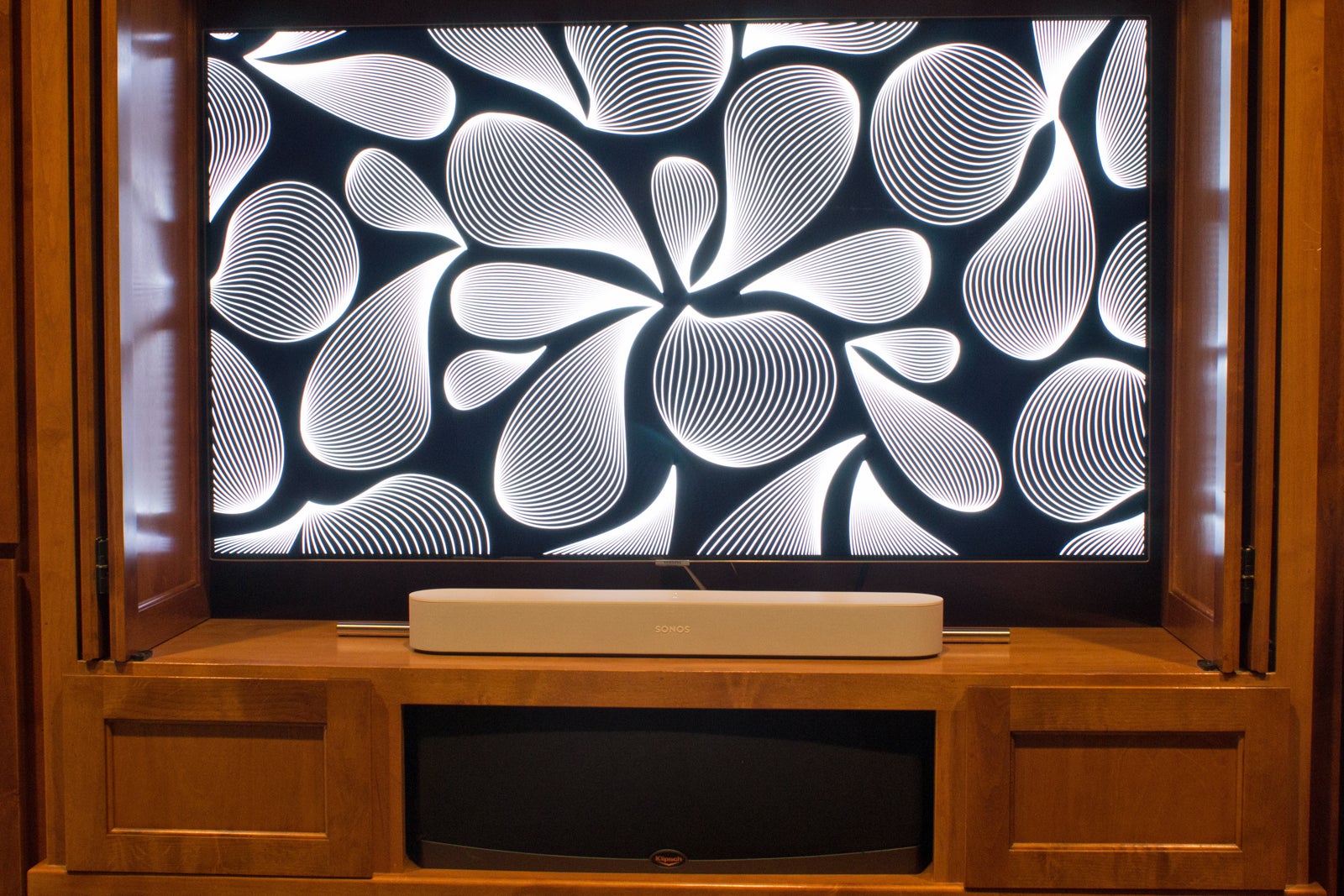
sonos beam compared to klipsch rc 35 Michael Brown / IDG
Using the soundbar in front of your TV to control the lights in your home theater? It’s easy with a speaker like the Sonos Beam that’s imbued with Amazon’s Alexa digital assistant.
Several companies have soundbars in their collections, so you can improve your TV- and movie-watching experiences when you’re not listening to music. In each case, a smartphone or tablet is all you need to control everything. Some Sonos models even include Amazon’s Alexa digital assistant, rendering them capable of controlling other smart home devices.

Smart smoke and carbon monoxide detectors

Conventional smoke and carbon monoxide detectors are inherently dumb devices. Their alarms might be loud, but if no one’s home to hear them, what good do they accomplish? A smart smoke detector will sound a local alarm, too, but it will also send an alert to your smartphone—and to anyone else you authorize as a contact—if danger is detected.
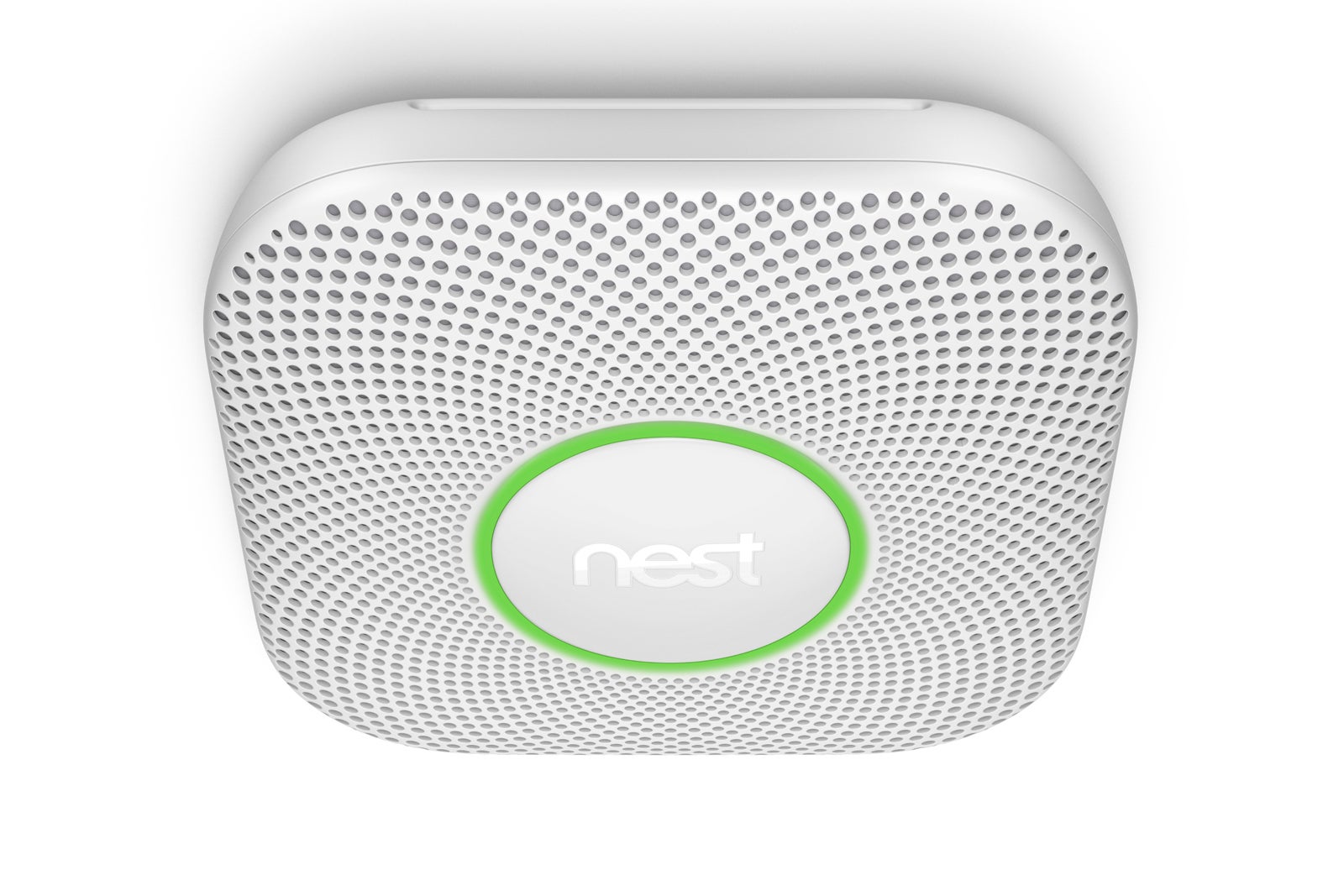
nest protect Nest Labs
Nest Labs makes our favorite smart smoke and carbon monoxide detector. If you also have a Nest Smart Thermostat, the smoke detector can instruct the thermostat to shut down your HVAC system if there’s a fire, so smoke isn’t circulated to every room in your home.
Some smart smoke alarms, such as the Nest Protect, incorporate emergency lights that can help you find your way out of a smoke-filled home; others, such as the new First Alert Onelink Safe & Sound, include such as advanced features as an integrated smart speaker. If money is an issue, Roost offers a less-expensive alternative: A smart battery that can make your existing smoke detector more intelligent. 

Smart Irrigation

Water is our most precious resource. A smart irrigation system can help ensure your lawn and garden get enough of moisture to be healthy and vibrant without wasting any of it. And of all the smart home subsystems you can invest in, this might be the one that will benefit the least from being incorporated into a hub. Smart irrigation systems can also be complex, so using a purpose-built app is usually better anyway.

A word about IFTTT

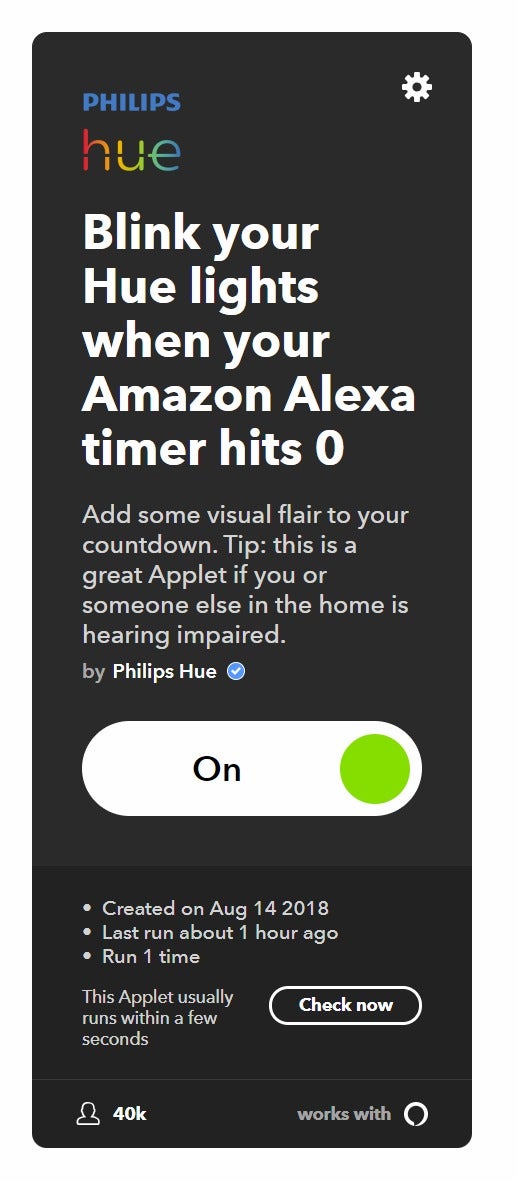
ifttt example IFTTT
IFTTT (If This Then That) is like having a smart home hub in the cloud. It can enable thousands of smart home devices to interact with thousands of other smart home devices.
One of the most powerful ways of making disparate smart home devices work together is to open a free account with IFTTT. The acronym stands for “If This Then That,” a free service in which an action by one device (or service) can trigger one or more other devices. IFTTT is very much like having a smart home hub in the cloud, and it’s widely supported—and not just by smart home products and services.

IFTTT is super simple to use: You just create what’s called an applet by going to the IFTTT website and then pointing and clicking on the service or device you wish to use as a trigger (the this in If This Then That), linking them to your IFTTT account, and then you point and click on the service or device you wish to act when that trigger is activated.

If you want to give it a try, the IFTTT site includes thousands of premade applets that you might find useful. One, for example, will trigger your Philips Hue smart bulbs to flash when a timer you set on an Amazon Echo runs out. Expressed as an applet, this would be “When the timer on my Amazon Echo runs out” (the if this half of the applet), then flash my Philips Hue smart bulbs (the then that half of the applet).

Are you ready to start?

We’ve listed smart home components roughly in the order we think most people will go about installing them, but there is no hard and fast rule. If you think installing a smart smoke detector is a higher priority than smart lighting, go for it!

If you think you might want to invest in a smart home hub that will pull all these components together under a single user interface, just make sure all the bits and pieces you buy will work with one of the most common hubs: A Samsung SmartThings, a Wink Hub 2, an Iris by Lowe’s, or another system that can host third-party devices. Much of the ultra-cheap, generic smart home gear you’ll encounter when shopping won’t be. The hub manufacturers’ websites will inform you as to which devices each one can support.

Including such compatibility in your buying criteria today will maximize the value of your initial smart home investments down the road.

To comment on this article and other TechHive content, visit our Facebook page or our Twitter feed.