Google+ High Tech House Calls
Expert Computer Consulting for Homes and Small Businesses

Let there be hope...

Life has changed there is no doubt and we wanted to reach out to see how you are doing.

As we go through this interesting time, we are trying to look at this as an opportunity to focus on our family and on friends like you. Let us use this extra time to catch up and talk more. Let us cook food that is not fast, but interesting and satisfying. Let us learn to enjoy a time to try new things. Let us find ways to enjoy time at home!

Computer Security

If my client base is any experience, anyone can be a victim of a Ransomware, Malware or Virus attack.

What can you do about it?

I conduct audits of your entire computer infrastructure and apply best practice solutions to plug the security holes on your computers, Smartphones and networks.

Now offering consultations to give you the best protection possible:


404.229.0839
carlthorne@hthcatlanta.com

Jack of All Trades, Master of Many

Jack of All Trades, and Master of Many

We provide technical support for:


Homes and small businesses

Windows and the Mac OS platform

iPhones and Android Smartphones

Wireless and wired networks

New device setup

Old device upgrade or repair

One-on-one training

Remote assistance


How To Stop Malware

Sunday, December 14, 2014

How to remove yourself from online directories by Kim Komando

Trolls don't hide under bridges anymore. For most modern day trolls, hiding behind an anonymous
name on the Internet serves them just fine. From there they can harass whoever they want with little fear of being caught.
 
If you've been following any of the major controversies surrounding Internet trolling, then you'd know that an Internet troll's strongest weapon is "doxxing." "Dox" is techie slang for someone's personal information.

Trolling organizations like Anonymous and 4Chan will choose a target, collect their information, such as name, phone number, address, online accounts, etc., and then "drop dox," or release their information online. Hundreds or thousands of Internet trolls then appear and start harassing that person.

The scary thing is it's possible to get anyone's information, especially if a troll is willing to spend a few dollars. Almost everyone's information - including yours - is publicly available through a variety of "tracking" sites.

Even if you manage to keep your real name or personal information off of the Internet, someone in your household might slip up and put their info online. Or your name and number might end up in an online phone book without your knowledge, which is all trolls need to get started. "Doxxing" a target almost always means that trolls will start crank calling your home.

Once these cyber hooligans figure out information like your home phone number, your only option is to change your number. There are preventative measure you can take, however.

Bonus tip: Want to make sure that someone in your life is trustworthy? You might want to do a background check yourself. Click here to find out how to do it.

Many of these pay-to-stalk sites stay legal by giving you the "option" to opt out. To get your name off of their lists, you'll have to find a well-hidden page that lets you tell them that you want your name gone.

Here are some of the most popular people-finding sites and tips on how to get off their lists.

BeenVerified

Price: $22.86 monthly subscription
Opt-out form: www.beenverified.com/optout

BeenVerified is a great place to get started if you want to find out just how much information these people finding sites can find. If a stalker was to search for your name, you might be surprised with just how much information that they'd find.

Go ahead and jump over to the BeenVerified website and run a search on yourself.
You'll see the silly, fake popup screens that are really just telling you what the BeenVerified product does. It took me about five minutes to find my listing, and I had to read screens like this one.
Screen Shot 2014-12-10 at 4.19.15 PM
All of these progress bars are really just trying to puff up the product. It's still extremely creepy, though.

BeenVerified's opt-out form isn't too tough to find. Click here to jump over to the opt-out page, then search for your profile.

Select it and provide your email address for removal.

Pipl

Price: Free
Free opt-out pagepipl.com/directory/remove/

Pipl is a jump-off point for many new-jacks to cyber stalking. It lets people search records listed in many people-finding sites. While you can remove a listing on Pipl's directory that's associated with your name, you can't remove search results from other sites.

Opting out of the sites that list your name, however, might take you off of Pipl's search results when it builds its next search list.

PeopleSmart

Price: $19.95 monthly
Free opt-out pagewww.peoplesmart.com/optout-go

PeopleSmart is a higher-end people finding service. While all people-finding search engines are usually designed for businesses first, people second, PeopleSmart is priced toward professionals.

Similarly, the company makes you jump through more hoops than most others if you want to opt out.
You'll have to create an account with PeopleSmart before opting out. Once the account is created, simply follow the steps outlined over at PeopleSmart's opt-out page.

CheckPeople

Price: $29.95 for a single report
Free opt-out pagewww.checkpeople.com/optout

If someone wants to find a "full" report for one person in particular, then CheckPeople is a good option. The site offers subscription options similar to many other sites.

The site has a free-to-preview search engine. You can use it to find out if you're on its records. Click here and fill out the accompanying form to keep your name off of CheckPeople's list.

Spokeo

Price: $4.95 for a six-month membership plan
Free opt-out page: www.spokeo.com/opt_out/new

One of the most popular people finding sites for Internet trolls and stalkers is Spokeo. The site uses publicly available information through the White Pages, Public Records and social media to build "profiles" about its users.

A "preview" of these profiles is freely available. Try searching your name to see if you're listed.
Did you find your name? Well you're in luck, because that means all you have to do to get your name off the list is to visit Spokeo's opt-out page.

Copy the URL of your profile, then enter your email address. Keep in mind that Spokeo might have multiple profiles for you, so be sure to perform a thorough search.

Intelius

Price: $7.95 for "seven-day full access"
Free opt-out pagewww.intelius.com/optout.php

One of the biggest names in people-hunting, Intelius is the one on this list to watch out for. If you check out Intelius's homepage, you'd find that the company offers identity protection as well as its public records search services.

Creepy, right? Well, that's just the tip of the iceberg. Getting your name off of Intelius's radar is tougher than other sites. You'll need to visit this page, provide identification, an email address and then wait for the company to get back to you.

Friday, December 12, 2014

Today only: Every book on Amazon is 25% off by Kim Komando

Amazon's most recent deals haven't been too kind to the folks out there who just can't handle e-books. Until today, most of the sales involved Amazon's Kindle e-reader or digital copies of novels.
That ends today.

You can get 25% off any one book by entering the promo code BOOKDEAL25 at checkout.
And when I say any book, I really mean any book. Watch out, because you're only allowed to get print copies of books. No digital editions. Also, this deal only works for one book. Choose wisely.
While you're at it, you might also want to check out Amazon's 12 days of deals. The site highlights different types of products every day. Today's, for example, is for people with active lifestyles.

Wednesday, December 10, 2014

Fire risk forces recall of 500,000 laptop power cables by Kim Komando

If you or someone you know has a Lenovo laptop, you need to pay attention! Lenovo is issuing a
recall on 500,000 laptop power cords due to fire and burn hazards.

Issues with these cords include overheating, sparking, burning and melting. Even though no injuries have been reported yet, it's crucial that you double-check your power cords to make sure that you or a loved one don't have one of these faulty cords.
-advertisement - article continues below-
If you do have one of these cords, contact Lenovo at (800) 426-7378 from 9 a.m. to 5 p.m. ET Monday through Friday; or online at www.lenovo.com and click on Support at the top of the page, then select News and Alerts, then click on Recalls for more information.

From the United States Consumer Product Safety Commission (USCPSC):

"This recall involves Lenovo's LS-15 AC power cord manufactured from February 2011 to December 2011. The power cords were distributed with IdeaPad brand B-, G-, S-, U-, V- and Z-series laptop computers and Lenovo brand B-, G- and V-series laptop computers. The recalled power cords are black in color and have the "LS-15" molded mark on the AC adapter end. The manufacture date code in the format REV: 00 YYMM is on a label attached to the cord."

Here is what the faulty cords look like:


LenovoCordWritingLARGE
LenovoACPowerCordLARGE
LenovoCordLabelLARGE
Be sure to read the full report at the USCPSC here.

Apple drops iOS 8.1.2 to bring back vanished ringtones by Leah Yamshon


Check your settings: Apple just released a software update for iOS 8 on Tuesday. iOS 8.1.2 includes which has been a known problem since iOS 8.0.2. 
general bug fixes and, most importantly, fixes a problem that caused ringtones purchased via iTunes to disappear from your device—

While the update itself won’t bring your ringtones back from the dead, Apple has another way to restore missing purchases: After you install the update, follow Apple’s ringtone restore link (itunes.com/restore-tones) on your device, which will redirect you to iTunes. Follow the on-screen prompts from there.

To install the update, go to General > Settings > Software Update if you’d like to install the update over the air, or connect your device to your Mac to update via iTunes. For more security info and software updates, check out Apple’s security updates page.

PC vs. Mac: Which should you buy? by Kim Komando

The tech world is known for its heated debates and few have been as fierce or long-lasting as PCs vs. Even with many users abandoning computers for tablets and joining the Android vs. iOS debate, plenty of hardcore Mac and PC users still hotly defend their chosen platform while attacking the other.
Macs.

PC fans claim Macs are too expensive and won't run a lot of important programs, and that Mac users have been brainwashed by Apple. Mac fans like to bring up Windows' history of security problems and crashes, and claim that PC users aren't very discerning.

Some of these criticisms have some truth to them and some are stereotypes that won't go away. Still, none of that helps the average computer shopper decide what to buy.
That's why I'm going to take a fresh look at the PC vs. Mac debate based on where things stand right now. That will help you decide which one you should buy.

Hardware

Since 2005, when Apple moved from IBM's PowerPC processors to Intel processors, Mac and PC hardware has been largely the same inside. There are still some differences - for example, Macs offer Thunderbolt and USB connections where most PCs stick with just USB - but the basic technology is the same. In fact, Macs can run Windows no problem, and PCs can run OS X with some semi-illegal hardware tweaking.

At the extreme high-end, Macs do have some fancy extras like 5K displays and 512GB solid-state drives that pre-made PCs don't have yet. However, those models out of the price range of most shoppers.

One of the remaining differences is customization. Apple makes a handful of computers and offers a very limited number of options for processors, RAM, storage and graphics cards. The upside is that the parts are chosen to work well together while being as stable as possible. However, it also means that upgrading computer parts yourself isn't recommended.

On the PC side, you have millions of hardware configurations and multiple manufacturers to choose from. And if you want to build your own custom computer or upgrade the one you have, it's no problem. Of course, you have fewer guarantees that the hardware is going to be as stable. PCs also work with a wider variety of third-party accessories - printers, scanners, etc.

The other big hardware difference is design. With its sleek, clean styling and aluminum chassis, Macs have long had the edge in the style department. However, PC makers are working harder to match it.
Dell's high-end XPS line of laptops uses aluminum, carbon fiber and magnesium to get a look that rivals its MacBook competitor. Lenovo's U series laptops, Acer's Aspire S7, Samsung's Ativ Book 9 Plus and Lenovo's ThinkPad X1 Carbon are just a few more of the PC laptops geared toward form as well as function.

Software

With the hardware being very similar, the biggest difference between Mac and PC is the software. Let's start with the operating system.

PCs typically run Microsoft Windows and Macs run OS X. They're both solid operating systems that work well if you're used to them.

If you're switching between them, there is a learning curve. In OS X for example, you have to learn that closing a program window doesn't actually close the program like it does in Windows. For Windows, the taskbar isn't as intuitive as OS X's Dock for launching programs.

As time goes on, however, both OSes are becoming more and more alike. The next version of Windows is adding virtual desktops and an OS X-like program switcher. OS X has added a button to maximize program windows and better supports right-click menus. Both are moving toward running "apps" instead of programs.

When it comes to working with other gadgets, OS X does have the edge with Continuity. Continuity makes it simple to seamlessly move work and conversations between OS X Yosemite and iOS 8 gadgets like the iPhone or iPad. Very little setup is required.

On a PC, you have to use third-party programs like Picasa or LightWorks and do quite a bit of fiddling to get the same thing, but unlike OS X you can do it with Android and Windows Phone. With Windows 10, there might be a similar built-in system for Windows 10 computers and Windows Phone gadgets.

At the moment, OS X has the edge over Windows on upgrading to new versions. Not only are upgrades free, you can download them right from the Mac app store with little hassle. However, Windows 10 is bringing easier updating and rumors have it that Windows 10 could be free for Windows 8.1 users.

Aside from the operating system, there are some other software differences. Macs, for example, can't run nearly as many programs as Windows.

Mac does have most of the major ones - Photoshop, Firefox, Chrome, etc. - but you might have a favorite Windows program that doesn't work, or doesn't work as well, like Microsoft Office or Quicken. Many popular video games don't have Mac versions either.

On the other hand, Macs have more software installed by default, such as the excellent iPhoto and iMovie. With Windows, you have to go hunt down a third-party programs to do the same thing.

Security 

For a long time, Macs did enjoy a reputation for not having security problems. Part of that is how the OS is designed and part of it is that so few Macs were in use hackers didn't bother attacking them.
Now that Macs are gaining in popularity, hackers are taking notice and have discovered several worrying security flaws over the last two years. OSX.XSLCmd, rootpipe and iWorm are just three recent ones.

True, Macs aren't approaching PC levels of danger and Apple fixes problems fairly fast, but you can't just assume that you're 100% safe. You still need security software. And don't forget that many threats, like phishing emails taking you to a fake banking websites, work regardless of PC or Mac.
With a PC, you do have to take more care. Most viruses are written to attack it, so running without security software is a no-no. Still, with security software installed, common sense and keeping Windows updated, you can stay just as safe as your Mac friends.

Stability

As a rule, Macs are generally more stable than PCs. Apple tightly controls its hardware and makes sure it works with OS X and the built-in software before it goes on sale.
That isn't to say PCs are always unstable. However, there are way more hardware configurations Windows has to support, plus dozens of manufacturers, some of whom don't always use quality hardware. Manufacturers also like to pre-install bloatware on new machines, which tend to slow things down.
Still, over the years I've run into very stable PCs and very unstable Macs. It depends on the software, settings and how they're being used.

Price

It is true that if you're looking for a low-cost computer, Macs are more expensive than PCs. The least expensive Mac, the Mac mini, starts at $500, while the least expensive laptop, the MacBook Air, starts at $900. On the PC side, you can get a desktop or laptop for as low as $350.

That being said, when you compare Mac and PC computers with similar hardware, they cost about the same. For example, a Dell XPS 13 ultrabook with only slightly better specs to the 13-inch MacBook Air costs $1,199 to the MacBook's $1,099.

Most of the laptops I listed earlier that match the MacBook's design and specs - Acer's Aspire S7, Samsung's Ativ Book 9 Plus and Lenovo's ThinkPad X1 Carbon - are also priced in that $1,000 to $1,100 range.

So if you're after something very cheap, a PC is your best bet. If you're planning to spend north of $900, then Macs are competitive with PCs.

What should you buy?

What you should buy really depends on what you need. If you want a stable, secure computer with good pre-installed software and don't mind spending the money, then get a Mac.

If you want something inexpensive, customizable, able to handle a wide range of games and other software, along with third-party hardware, then a PC is your best bet.

If you're on the fence as either a long-time PC or Mac user, head to the store and give the other platform a test drive. You might find something about it you like better, or you might find out it's just too different.

For situations where you are changing over, also be sure to check your software to see if there's a version for the other platform and how well it works. You don't want to make the switch only to find your accounting files or other important documents won't open.

Tuesday, December 9, 2014

Speeding up Wi-Fi by Marc Saltzman

Click on "square icon" to make Blog Post bigger.

Protect yourself against cyberattack risks by David Horowitz

Click on "square icon" to make Blog Post bigger.

Do you need to break the bank to get a good phone? by Anick Jesdanun

NEW YORK (AP) — It might seem as though everyone has an iPhone or Galaxy smartphone. But
many customers are eschewing the best cameras and screens — and their top-end price tags — and choosing models that can get the job done at less than a third of the cost.

Sales of high-end Samsung and Apple phones remain robust, but demand for budget phones is growing. About a third of the smartphones sold in the U.S. between July and September cost less than $200, up from 18 percent a year ago, according to tech research firm IDC. A top-end phone costs $600 to $700 at full price, before the subsidies some phone companies offer in exchange for committing to two-year service contracts.

No longer are these cheap smartphones mostly no-frills devices with small screens and slow processors, says Ramon T. Llamas, a research manager for phones at IDC. As the costs of parts drop, phone manufacturers are able to outfit less-expensive models with advanced features once limited to high-end devices.

These phones lack the latest innovations, such as fingerprint security sensors and heart-rate monitors. They aren't as fast, and their cameras aren't as sharp. But the technology is more than adequate for those who just want to check email, look up sports scores and play video. Many cheaper phones now even offer the fastest wireless speeds on 4G LTE cellular networks, notes Jeff Bradley, senior vice president for devices at AT&T.

"There's a certain status to carrying an iPhone or Samsung Galaxy, as an example, but there are also people who say, 'I want a good, reliable phone, but I'm not willing to spend as much money on that," says David Owens, a senior vice president at wireless carrier Sprint Corp.

Joe Liggio, 16, a high school student in New York, says many of his friends have iPhones or Samsung phones, but he's never felt envy carrying his $180 Moto G from Motorola. He says it does everything he needs well, including texting, taking pictures, playing music and accessing the Internet.
Besides the Moto G, Motorola has a $129 Moto E as an alternative to its $500 Moto X. Microsoft Corp.'s Lumia 635 costs $179 or less, compared with the $550 its flagship Lumia Icon retailed for at launch. The Nubia 5S Mini, ZTE Corp.'s most expensive phone, retails for $280 contract-free. ZTE has a few models for just $100.

The cheaper phone does mean smaller profit. According to IHS iSuppli, ZTE makes about $130 per Nubia device sold, compared with several hundred for Apple and Samsung devices before marketing and administrative costs. But targeting the budget crowd has made ZTE the No. 5 smartphone vendor in the U.S., according to IDC.

Wait, you say, $200 is "cheap?" Many consumers in the United States see a $200 price tag on a typical high-end phone and think that is what the phone costs. But the phone company actually subsidizes about $450 or so of the total cost and recovers that by charging higher service fees for voice, text and data over the life of a two-year contract. Some carriers are now pushing customers to pay a phone's full price in installments, such as AT&T's Next plan, but $27 a month over two years doesn't sound as bad as $650 all at once.

So who are the main buyers of these budget phones? The highest demand has been from those with prepaid wireless plans, which are popular among first-time smartphone buyers as well as customers who have poor credit and have to pay the full price of phones up front. But even that is changing.

Doug Kaufman, Sprint's director of device strategy, says that 90 percent of phone sales with traditional contract plans had been for high-end devices, including year-old Apple and Samsung models. That's dipped to roughly 80 percent over the past half-year. Not everyone wants to pay $27 monthly when a lower-end phone can be had for less than $10 a month. And with the rise of family plans, parents are getting cheaper phones for their kids while choosing the latest and the greatest for themselves, he says.

Michael Weaver, an executive at the mobile-messaging firm Waterfall in New York, bought a Motorola Droid Mini for $50 with a contract, compared with $200 upfront for a high-end phone. Others "feel like they need to buy (something) that can launch the space shuttle, but they don't use half the features," he says.

Sunday, December 7, 2014

Some iPhone 6/6 Plus Users Reporting Scratched Screens by Jim Karpen

First there were reports that the new iPhones bent easily, and now there's a report that some users are complaining that their displays are easily scratched. It turned out that bending wasn't as much of a problem as first reported, and I'm hoping the same will be the case regarding the scratching.

AppleInsider has posted an article about extended discussions (nearly 700 posts) on Apple's forums of the scratching issue. People say they are noticing scratching on the display after less than a week of normal use, and that these displays seem more prone to scratching than on other recent iPhone models. AppleInsider suggests the fault could lie with the new design of the iPhone 6 and 6 Plus, which lack a protruding bezel "lip" that might have helped protect earlier models from brushing against surfaces. The curved-edge design leaves the glass more exposed.

An photo posted by AppleInsider shows scratches in the corner of the display of a phone that was carried in a microfiber satchel.

Some users say that they've been able to get a replacement at an Apple Store, though others haven't been so lucky. AppleInsider says Apple hasn't yet responded to the issue. If the company decides that the material or design is flawed, they may make replacement standard.

Apple has advertised the iPhone 6's use of an ion-impregnated material in the glass to make it harder, so it's ironic that that users would be reporting scratching. Adding to the irony is Apple's failed attempt to make enough sapphire crystal for use in the displays. Also, Corning has just announced Gorilla Glass 4. The Motley Fool has suggested that the iPhone 6 models may already be using this new glass from Corning, but given the reports of scratching that seems unlikely.

LinkedIn: Beginner's guide to job searching and professional networking by Kim Komando

Facebook is one of the best ways to connect with your friends online. Finding a job online can be
tough, but you might actually want to consider a website that brings the social media experience to your job hunt.

On LinkedIn, users can post their resumes, interests, skills and connect with personal and professional contacts. The hardest part about job hunting is, well, all of the stuff that happens between the moment when you send over your resume to a business and when you actually get a call back.

The easiest way to get past this tough time, of course, is to actually know someone at the company to which you're applying. While you might not think that you're that connected, you'd be surprised with what sites like LinkedIn can help you find.

In this tip, I'll teach you how to use LinkedIn and give you some need-to-know information about getting the most out of your LinkedIn account.

Who benefits from LinkedIn?

Both job seekers and recruiting companies often find LinkedIn to be a very valuable tool. It's most valuable to people with specialized skill sets, or one set in a specific industry. It's usually harder to find specialized jobs across the Internet, and that makes LinkedIn even more valuable.

Instead of just sending a resume to a company's job listing, LinkedIn helps you to identify both a job and someone who you know that might be related to that job


And that doesn't just make getting hired easier - it changes the game for hiring.

Instead of sitting back and hoping that employees will recommend someone that they know for a job, LinkedIn actively connects job-seekers with the jobs that fit their skill set. Not only that, they can even connect with a company through someone who already works with it.

Does LinkedIn cost money?

LinkedIn has a free option for job seekers, but it's limited in many ways. Free accounts can only see the last five people who viewed his or her profile. Free users are also limited to first-come-first-serve for resume placement. Here's what changes when you throw down some money:

Job Seeker Premium
Price: $29.99/month
Benefits:
  • Become a "featured applicant" when recruiters see the people who applied for a job through LinkedIn.
  • Get more insights about who is viewing your profile and how recently the person viewed your profile.
  • InMail lets you contact anyone on LinkedIn, when free members are only allowed to contact people in their network.
There are more expensive options for people looking to hire and make professional connections for businesses on LinkedIn. If you're just looking to hire someone, however, you can post a 30-day listing on LinkedIn for $200. The prices get lower the more listings that you post.
-advertisement - article continues below-

How should I make a profile?

Making a LinkedIn profile can usually be a little more complex than the one you'd build for something like Facebook. Your LinkedIn works sort of like an online resume, and the site is very good about walking you through the steps necessary to building a worthwhile LinkedIn profile.
LinkedIn's account wizard should help you move through the preliminary steps of setting up your account. It's also valuable to figure out what you do or don't want potential employers to see. The account wizard will walk you through every part of your professional life that you may or may not want to share with potential employers.

Even if you don't end up finding a job through LinkedIn, the website's free account wizard is actually a great way to think back on your credentials. You can enter and sort through information like education, past employment, awards, past projects that you've worked on and a massive list of other cool stuff.

How should I write my 'about me' section?

One of the things that I see a lot on LinkedIn is confusion over how professional to make your profile look. While I've seen some great profiles that are written in the third person, I think that the best LinkedIn profiles acknowledge that they were created by a human being.

When you write your LinkedIn profile, I'd suggest using first person. Don't worry, you're free to post a PDF of your resume and potential employers can just look at that if they want. When someone stumbles across your LinkedIn page, they want to hire someone who looks and sounds human.

What do I do after making my account?

It's important to keep the differences between LinkedIn and Facebook in mind. While you can post statuses, interesting content and other stuff on LinkedIn, it's definitely not the place for pictures of your cat.

That's not to say that you can't socialize on LinkedIn, just be sure to keep it professional and try to spin the content that you post toward whatever career you're trying to find. You could also consider using one of these three under-the-radar job hunting sites to identify a company that you want to work for, then "follow" them for updates on the company's hiring cycles.

Unless you're actively job hunting or recruiting through LinkedIn, there definitely won't be as much stuff to do or read as you'll find on Facebook. What you can do, though, is keep an eye out on how often someone searches and visits your profile.

Like I said, recruiters actively search for new hires on LinkedIn and one of the best things that you can do is find new ways to direct them toward your profile.

You might even want to learn about basic Search Engine Optimization principles.
 
If you don't know what SEO is all about or want to brush up on your skill set, check out my tip on exactly that. It'll point you in the right direction.

After you've made your LinkedIn page, you'll be able to pick your skills. These skills are a factor in deciding where you're ranked when someone searches for a rocket scientist with management skills. You can even have friends or coworkers endorse you for these skills.

10 essential apps for your tablet or smartphone by Kim Komando

Thousands of people get new smartphones or tablets every day. Some people are upgrading their tech,
and other people are getting replacements for broken or drowned gadgets. So many are learning that they don't need a laptop or desktop computer. A tablet or smartphone fits the bill perfectly.

First, be sure to read my quick start guide to a new tablet and 7 ways you must secure your smartphone right now. These tips will keep your gadget secure and running like new.

To really get the most out of your phone or tablet, you need great apps. The word "Apps" is short for applications. These are software programs that perform various functions. There are apps for your mail, games, business, hobbies, security, banking, social networking and more.

But with millions of other apps to choose from, what should you download next? I've scoured the app stores for 10 great apps you can't do without.

1. Find my iPhone/Android Device Manager

Sometimes your smartphone or tablet can grow legs of its own and wander off. Or, sometimes it has help from some sticky-fingered thief. Whatever the reason, Find My iPhone (Free; iOS) and Android Device Manager (Free; Android) can help you locate your lost gadget, lock it, and if worse comes to worst, you can remotely wipe your mobile gadget.

2. Any.do

Get more done with Any.do (Free; Android, iOS), an award-winning app that makes it easy to keep track of your to-do list. It's got a sleek design, quick entry options and a helpful feature called "Moment" that lets you see everything that needs to be done in one glance.

3. Waze

Waze (Free; iOS, Android, Windows Phone) is a powerful GPS navigation app owned by Google that can help you avoid the frustration of getting stuck in traffic. The app pulls information from other Waze users to send you up-to-date traffic alerts. You can route around trouble spots instead of getting stuck in them.

4. Weather Channel

Before you head out on your next travel adventure, grab the Weather Channel app (Free; iOS, Android, Windows Phone). You can check the current temperature, the hourly forecast and the next 10 days of weather. You’ll also get a customizable radar map, video clips, severe weather alerts and beach conditions.

5. WhatsApp

WhatsApp (Free; iOS, Android, Windows Phone) is the world's most popular chatting app, recently acquired by Facebook for $16 billion. In addition to texts, it lets you send voice, picture and video messages. You'll even be able to group chat. The app uses your existing phone number and integrates automatically with your contacts list. It also lets you text for free from overseas. Click here for more ways to lower your cellphone bill.

6. PaperKarma

Is your mailbox completely overflowing with junk mail? PaperKarma (Free; iOS, Android, Windows Phone) can take care of that for you. Just snap a photo of the junk mail you don't want and you're done. PaperKarma will contact the mailer to remove you from its distribution list. You don't need to do anything else.

7. Dropbox

Access important files no matter where you are in the world with Dropbox (Free; Android, iOS). This cloud-based storage service lets you store files in the cloud and then access them right from your mobile gadget. It can even sync data between your gadget and home computer.

8. Fotor

For simple photo editing on your gadget, try the Fotor app (Free; iOS, Android, Windows Phone). Change the filter on the photo to achieve the best effects, customize the borders, create collages and more! And when you’ve got the perfect picture, you can share it with others online with the tap of a button. Click here for more great photo apps.

9. Flipboard

Flipboard (Free; Android, iOS) lets you turn your social networks and favorite news sites into a flippable digital magazine. You can read your Facebook and Twitter streams, and publications like The New York Times or your local newspaper, all in one easy-to-access app.

10. Venmo

Venmo (Free; Android, iOS, Windows Phone) is a money-management app that lets you make and share payments for splitting the dinner bill, rent, tickets and just about anything else. It makes it easy to transfer money from or to friends - without the hassle of having to look for the nearest ATM.
Click here to see more great money-management apps for your tablet or phone.

Last chance: Watch these Netflix movies while they last by Kim Komando

Available Dec. 1:

  • A Knight’s Tale
  • Almost Famous
  • American Beauty
  • Bewitched
  • Camp Takota
  • Crossroads
  • Jewtopia
  • Knights of Badassdom
  • Madison
  • Out of the Clear Blue Sky
  • Out of Time
  • The Out-of-Towners
  • Troop Beverly Hills
  • Turbo FAST: New Episodes
Available Dec. 3rd through 6th:
  • American Horror Story: Coven
  • Anchorman 2: The Legend Continues: Super Sized Version
  • Ava & Lala
  • Bill Burr: I’m Sorry You Feel That Way
  • Oculus
  • Sharknado 2: The Second One
  • Son of God
Available December 8th-11th:
  • Anthony Bourdain: Parts Unknown: Season Three
  • A Haunted House 2
  • Drive Hard
  • I Am Ali
  • The Village
  • The Wolf of Wall Street
Available December 12th-15th:
Broadchurch: Season One
Don’t Blink
Jake Squared
Marco Polo
Nick Offerman: American Ham

Available December 18th-23rd:
All Hail King Julien
Dark Skies
The Honourable Woman: Season One
Paranormal Activity: The Marked Ones
Ragnarok
Romy and Michele’s High School Reunion
The Trip to Italy

Available December 24th-30th:
Behaving Badly
Child of God
Comedy Bang! Bang!: Season Three
Good People
I, Frankenstein
Jessie: Season Three
Labor Day
Last Weekend
Legends of Oz: Dorothy’s Return
Maron: Season 2

Saturday, December 6, 2014

Two minutes to make you happier at work, in life ... and over the holidays by Laszlo BockInfluencer SVP, People Operations at Google

It’s Thanksgiving week in the US, so I’m reflecting on what I’m most thankful for: my family, my friends, my XBox One (a recent birthday present), the rain we’re getting in the Bay Area (finally!), and a job I love. Many of you are doing the same. The year-end is a great time for looking back, looking forward, and thanking the people around you for all they’ve done.

But it turns out that an “attitude of gratitude” is way more powerful than just saying “thanks.” Expressing gratitude makes you happier, and may even make you live longer.

Happiness research shows that when stuff happens it makes us either sadder or happier (thanks, Science!). But the effect attenuates over time. Most of us gradually revert to a baseline level of happiness or sadness. Remember the boy or girl who broke up with us in high school, and we were sure life was over and we’d never love again? Turns out most of us get over that. A person might experience a spike in happiness when they land a new job or get a new car, but as the years pass, their happiness levels out. This is called the “hedonic treadmill.”

In other words, the conventional wisdom is that some people are naturally happy and some naturally grumpy. It’s just who we are. Or is it?

Google’s People Operations Analytics team recently found that being grateful -- and expressing it -- can be the secret weapon to workplace happiness and to warding off the malaise that can come with routine.*

It’s no surprise that Nooglers (new Google employees) start full of optimism and excitement, but on average that ebullience trends ever-so-slightly downward over time. I often jokingly tell them to brace themselves, because they will never be happier here than on their first day. It’s all downhill from there! You’ve probably felt this in your own jobs: day one is awesome. Day one-thousand-and-one not so much.

But some Googlers stay delighted. Our latest research reveals that employees who self-identify as more grateful are largely immune to the sinking effects of tenure on satisfaction. They stay happier, longer.

It appears that feeling gratitude keep Googlers from habituating to the good stuff because they are constantly pausing to simply be grateful.

Happiness expert Shawn Achor, who spoke at our re:Work Conference last month, explained that “you are not just your genes and your environment….Happiness can be a choice. But it’s a choice that we can influence through our organizations. And when we do so, it becomes the greatest competitive advantage in the modern economy.”

Shawn’s prescription? Take two minutes each day to express your gratitude. For example:
  • Write down three new things for which you’re grateful, or
  • Spend two minutes each day praising or thanking a person you know, and
  • Commit to doing it for 21 days.
Shawn continues: “You get these great emails back [and] 21 days later you realize you have incredibly deep social connections … which are predictive of happiness in organizations as well as how long you will live.”

I couldn’t think of a better lesson for Thanksgiving and for the holiday season. Gratitude creates a virtuous cycle: the more you express it, the happier you are. We are not stuck as “sad people” or “happy people.” We have a choice.

Spending two minutes a day being consciously, deliberately, mindfully grateful is perhaps the secret to happiness and a longer life.

And I’m grateful to Shawn and our Analytics team for doing the hard work to discover this!

Delete old Facebook posts so they don't come back to haunt you by Kim Komando

Nothing you put up on Facebook ever goes away on its own. Your profile probably has photos and
status updates in it from years ago that you don't even remember posting.

Unfortunately, these old posts can put you at risk. You can bet that potential employers or landlords might check you out on Facebook before extending an offer. You might have put something online that hurts your reputation or gives hackers a way to breach your privacy. It's even worse if things you think are private really aren't.

In the case of the military, the FBI is sounding the alarm on posting information that could make you a terrorist target. ISIS has put out a call for sympathizers in the U.S. to attack military personnel and their families. You don't want attackers learning anything about you online that they could use to find and hurt you or your loved ones.

No matter the reason, taking some time to look at and clean up your Facebook history is never a bad thing. Fortunately, Facebook makes it easy to review and clean up old posts.

The Activity Log

The Activity Log shows you everything you've ever done on Facebook. That's handy, but if you've been on Facebook for years be aware that this could take a while.
To get started, log in to Facebook. Then click the down arrow in the upper right corner and select Activity Log.
Facebook Activity Log
The Activity Log might seem a little overwhelming at first with thousands of entries to scroll through, but Facebook has a few tools to make things easier.
Facebook Activity Log Filters
In the left-hand column you'll see a huge list of filters. These show you just the posts in your Timeline about those topics.

For example, if you only want to look at things you've posted in the past, select "Your Posts." You can also just look at "Photos," things you've "Liked" and "Comments" you've made on posts, photos and videos.

Click the "More" link to see more filters like "Videos," "Groups" and "Location History." Location History is especially helpful if in the past you were a little too free with telling people where you were.

One thing you probably didn't know Facebook tracks is your search history. Everything you've searched for on Facebook is visible to anyone who gets access to your account.

To see your search history, click "More" under "Photos, Likes and Comments." Then click "Search" near the bottom of the list.

You can delete individual entries by clicking the "circle with a slash" icon and selecting Delete. You can also click "Clear Searches" at the top to wipe everything at once.

Of course, there's no way to turn off search history recording. So, you'll need to keep coming back to delete your history if you don't want it recorded - or just stop searching on Facebook.

At the very bottom, you can also see what apps you've installed and what posts they've made on your Timeline. At the top of the log, you can also changing the settings on who can see the posts the apps make.

Limit Past Posts

I mentioned earlier that you might have posted with the wrong privacy settings in the past. Changing every past post manually from "Everyone" to "Friends" could take days.

Fortunately, Facebook has a quicker option. At the top of the page, click the upside-down triangle and select Settings.
Facebook profile menu
Then click the Privacy link in the left-hand column. Under "Who can see my stuff?" click the "Limit Past Posts" link.
Facebook Privacy Settings
Then click the "Limit Old Posts" button to change the privacy setting of every post in your profile to "Friends."

Note that if you have posts that you want everyone to see, this will change those as well, so you'll need to go change those posts back to "Everyone" manually.

Download your history

Your entire Facebook history is available in your account, but what if you want it offline? Yep, Facebook lets you download the whole thing.

In fact, it doesn't just include everything in your profile and activity log. The downloaded data includes ads you've clicked and their topics, the IP addresses of the gadgets you use to access Facebook, your entire Chat history, every email address you've every used on Facebook and more.
To download this information, open Facebook, click the upside-down triangle in the upper right corner and select Settings. On the first page, click the "Download a copy" link.
Facebook General settings
Then click the "Start My Archive" button.
Facebook Start My Archive
You'll need to re-enter your password and then click another Start My Archive button. When your information is ready for download, Facebook will send you an email with a link.

When you click the link you'll got to a page with a "Download Archive" button. Click it and then enter your password again. Then you can finally download the Zip file.

Open the Zip file by double-clicking on it, or if that doesn't work use a program like 7-Zip. Drag the file contents to your desktop or another folder, and then double-click the "index.htm" file.

Your information will appear in your browser so you can look through it. Just be aware that most of the extra information, like ad clicks and email addresses, can't be removed from Facebook if you don't want it in Facebook's records.

If you want it gone, you'll have to delete your account entirely. You can do that at this page: https://www.facebook.com/help/delete_account

Just think hard before you click "Delete Account" because it will be gone forever.

Home streaming 101: Tablet-smartphone-laptop-streaming gadget to your big screen by Kim Komando

The days of just watching whatever happens to be on TV are coming to an end. On-demand
streaming and download services let you watch what you want when you want.

While lots of my listeners would love to jump into the world of online streaming, the big question they often have is how to watch online videos on your TV screen. After all, not everyone wants to squint at a smartphone screen to watch their favorite show, or gather the family round a laptop for movie night.
Fortunately, getting your TV in on the streaming action isn't that hard. I've rounded up the most popular streaming options and I'll tell you what it takes to hook them into your TV. So, let's get started.

Before that, however, if you do want to watch broadcast TV - it's still the best way to get local news and sports after all - don't keep paying a monthly fee. Click here to learn how you can watch high-definition broadcasts for free.

OK, now back to streaming.

Streaming gadget

This is the obvious place to start. Streaming gadgets like the Roku, AppleTV, Fire TV, Nexus Player and others are built exactly for this purpose. Click here for the full details of the popular streaming gadgets.

Any of them will plug into your TV via a standard HDMI cable - HDMI is the main type of connector for home entertainment gear - and you're done. If you have an older TV without HDMI, you can get the Roku 1 or 2, which have component video connections for hooking up to older TVs.
Of course, a streaming gadget will set you back anywhere from $50 to $100. Plus, not every gadget supports every streaming service. AppleTV is the only one that supports iTunes, for example, and it doesn't support Amazon Instant Video. Click here to learn the pluses and minuses of the major streaming services.

Pros: Easy to setup and control
Cons: Pricey for some; One gadget won't support every service

Tablet/Smartphone

Most major streaming services have free smartphone and tablet apps to pick and watch videos. That means a tablet or smartphone makes a good streaming gadget, and you probably already own one.
You might even have an old one lying around you can re-purpose. Click here for more things you can do with an old smartphone or tablet.

The only downside - when you're not on the go - is the small screen. Fortunately, quite a few tablets - including my affordable new KomandoTab™ - and even some smartphones have an HDMI or micro-HDMI port.

You can plug a cable right from your tablet or smartphone into your TV, and start watching. That's easy, but it does mean getting up to start and stop the video, unless you have a long HDMI cable or sit close to the TV.

As an alternative, you can stream from your mobile gadget to the TV wirelessly with the $35 Chromecast. This USB-drive sized dongle plugs into a free HDMI port on your TV.

Your smartphone or tablet connects to the Chromecast wirelessly and streams video from a compatible streaming app - most popular streaming apps are compatible now. That way you can keep your tablet or smartphone close to control it.

Pros: You probably already own a tablet or smartphone, so it won't cost much
Cons: Not every phone or tablet supports every streaming service; Your phone or tablet might not have HDMI

Laptop/Desktop

The most powerful streaming gadget around is one you already have in your home - your computer. Unlike other streaming gadgets, it can stream from any online service or website through the Web browser.

Plus, you can load up home movies, photo slideshows or anything else you want to display. You can do this manually or grab an all-in-one media front-end program like Kobi (formerly XBMC).
Even better, connecting a computer to a TV isn't as hard as it might seem. Some computers already have an HDMI connector you can use to connect to a TV.

If you have an older computer, it might only have the older DVI or VGA connectors, but some TVs have those as well. You can also get DVI to HDMI adapters.

Note: VGA is so old it won't give you very good quality video, so don't bother using it. Click here for a full rundown of the difference between HDMI, DVI and VGA. If that's all your computer has, and you feel up to it, you can add a $70 third-party internal or external video card that has HDMI.

You can also use a Google Chromecast like I mentioned earlier to stream video from the Chrome browser on your computer to the TV. This won't be as flexible as connecting the computer directly, but at $35 it is less expensive and easier to set up.

The only other thing to think about is how to control the computer from a distance. Your best option is a wireless mouse and keyboard.

Pros: You probably have a computer that will work, so it won't cost much; Streams anything you can watch on your computer; Watch home videos or photo slideshows
Cons: Might need to add HDMI with a new video card or buy a Chromecast; Need a way to control the computer from a distance; May be out of place if you put it in your living room

Smart TV

Of course, you might be able to skip the extra hardware and just get a TV that can stream video on its own. Most TVs you'll find on sale now are "smart" TVs. They include apps that support most major streaming services, aside from iTunes, of course.

That does mean buying a whole new TV, which is going to be a bit expensive. So, you should only take this option if you're already planning to buy one. Click here for my essential HDTV buying guide.

Note also that smart TV software isn't quite as flexible or powerful as third-party options, unless you get one running Google's Android TV. And either way, until Apple makes a TV, no smart TV is going to connect to iTunes.

Pros: No extra hardware cluttering up your living room; Easy control
Cons: Expensive if you don't already own one; Limited future flexibility with streaming options and apps

Why Apple wiped some of your iPod songs without telling you by Caitlin McGarry


Interesting nuggets of information tend to come out of Apple trials, and this week’s iTunes class-action courtroom drama is no exception. The plaintiffs claim Apple would delete songs downloaded from rival music services when iPod owners synced their devices to iTunes over a two-year period from 2007 to 2009.

Apple didn’t deny the claim raised by attorney Patrick Coughlin in U.S. District Court Wednesday. Security director Augustin Ferrugia said Apple would remove songs to prevent users from syncing malicious files to their computers, according to a Wall Street Journal report from the courtroom.
But the problem, Coughlin argued, is that Apple didn’t tell users which songs were potentially harmful. Instead, the company would push an error message telling the user to restore factory settings on the iPod and remove the offending files in the process.

“We don’t need to give users too much information,” Farrugia offered by way of explanation.
Why this matters: The Apple-knows-best policy may come back to bite the company, even if its actions were in the interest of protecting iTunes from hackers. Plaintiffs are seeking $350 million in damages over claims that Apple violated California antitrust law by preventing iTunes music from being played on non-Apple devices and vice versa. If Apple did remove rival services’ songs from iTunes libraries without disclosing what it was doing, as Ferrugia indicated, the company might have to pay up.

The class-action suit has been in the making for more than a decade—Apple actually removed DRM from iTunes five years ago, so class-action status only covers iPod purchases from September 2006 to March 2009.

We expect to hear more fun facts when Eddy Cue, Phil Schiller, and videotapes of Steve Jobs appear in court this week.

5 essential keyboard shortcuts for a happier tech life by Kim Komando

Computers can be frustrating. There, I said it. (I hope I didn't shock anyone.)

One big frustration is that things you think would be fast are really slow. For example, you're in the middle of typing up a letter and you decide to be a good computer user and save it.
So, you move your hand off the keyboard and over to the mouse, move the mouse up to the program's toolbar, hunt around for the Save icon, click it and then move your hand back to the keyboard. Often during those long seconds, your train of thought is totally derailed.

Fortunately, this is one frustration you don't have to live with. With just a few split-second key presses, you can perform many common computer tasks that would require several mouse movements and clicks. Talk about a time-saver!

While there are hundreds of keyboard shortcuts you can use - and I list most of them in my downloadable shortcut guides for Windows and Mac - there are five that I use many times nearly every day. In fact, every computer user should know these ones.

First I should explain how keyboard shortcuts work. When written, a keyboard shortcut looks like this: CTRL + S

That just means to press the "Control" key and the "S" key at the same time.

Hitting multiple keys at the exact same second isn't easy, so most people press and hold the Control key first (there's no time limit, so don't feel like you have to rush) and then hit the "S" key.

Once you've pressed both, you can release them. It's no different than using the Shift key to type a capital letter. Over time, it becomes second nature.
So, on to the shortcuts!

Save

Windows: CTRL + S
Mac: CMD + S

The first thing I stress to anyone learning to use a computer is SAVE YOUR WORK OFTEN! You never know when the program you're using, or your entire computer, is going to crash.

Anything you haven't saved will be lost. I've seen people spend hours writing a paper and never saving once! Then, Word crashes and it's all gone, forever.

For the last decade, many programs have included auto-save features that save your work every 5 to 10 minutes. That's fine as a last resort, but I still prefer to make a habit of manual saving. It comes in handy when you use programs that don't have auto-save.

That's why the CTRL + S shortcut is so handy. It works in nearly every program in existence and takes only a fraction of a second to type. You don't have to take your hands off the keyboard and move the mouse cursor up to the Save icon.

When writing, I generally press CTRL + S after every few sentences I type or whenever I pause for a new thought.

Undo

Windows: CTRL + Z
Mac: CMD + Z

One of the best things about using a computer for content creation is the Undo feature. With a typewriter, handwriting or traditional photo manipulation, undoing a mistake is a major process.
With a computer, the Undo button give you the freedom to experiment and makes mistakes, and then change things back if you don't like it. I use it all the time when editing photos.

Many beginning computer users don't even realize Undo exists. I've seen even more advanced users not fully appreciate how powerful it can be.

Using the CTRL + Z shortcut, you can undo a mistake very quickly. Hitting CTRL + Z several times will often undo the last several changes. If you go too far back, hit CTRL + Y to Redo.
-advertisement - article continues below-

Copy and Paste

Windows: CTRL + C and CTRL + V
Mac: CMD + C and CMD + V


Another joy of using a computer is copying and pasting. It makes moving text, photos, files, folders and everything else a breeze.

Every program has Copy and Paste icons, and if you right-click on files and folders in Windows, you'll see Copy and Paste as options. For those who do a lot of copying and pasting, however, the keyboard shortcuts are a big time saver.

Just use the mouse to select what you want to copy, hit CTRL + C, click the mouse where you want to paste, and hit CTRL + V. You're done!

Bonus tip: In cases where you want to move something instead of copy it, use CTRL + X to Cut instead of CTRL + C to Copy.

Lock your screen

Windows: Windows Key + L
Mac: CTRL + Shift + Power Button

Whether you're using a public computer or stepping away from your work desk for a moment, you're taking a risk. If your browser has saved passwords or important files, anyone could easily steal them with only a few keystrokes.

While putting your computer into sleep mode is an easy way to lock your screen, there's a keystroke that can solve all of your problems. First, be sure that your computer needs a password to be woken up from sleep mode.

Check out my tips that explain how to set up passwords for both OSX and Windows if you want to make sure that your security is up to par.

From there, any time you need to keep your computer safe when you make a trip to the restroom, just lock your screen. That way, no one will be able to touch your computer without a password.

Shut down problem programs

Windows: CTRL + ALT + DEL (also known as "the 3-finger salute")
Mac: CMD + OPT + ESC

Years ago, this is the first keyboard shortcut most people learned. In the olden days of computers, it rebooted your computer if it was acting up, which happened quite a bit. You could solve a lot of problems with these three keys.

Bonus history: CTRL + ALT + DEL was first added to computers in the '80s by David Bradley, an engineer at IBM. He wanted a quick way to reboot test systems that were locked. Ironically, he never intended for the public to actually use it.

In modern computers, CTRL + ALT + DEL either brings up Task Manager, or a list of options including Task Manager. Task Manager is useful for killing programs that are acting up or unresponsive. Plus, you can see what is slowing down your system.

Not enough shortcuts for you? Here are 5 more handy keyboard shortcuts that everyone should know.
And why not get your mouse in on the action. I can tell you 5 ways to use it more effectively.
Don't forget that I sell shortcut guides in my store. These list nearly every shortcut you could ever want for Windows and Mac in a convenient format. Click here to find these and other great guides.

8 essential browser Tips & Tricks by Kim Komando

The Web browser is a funny thing. It's one of the most-used computer programs, but many people myths and misconceptions.
don't really understand it. That's why in the past I've tackled common browser

Today, I'm helping you get the most out of your browser with a few simple tricks that you really need to know. Your friends and family probably want to know these as well, so be sure to click the Share button.

Choose your home page

What's the first thing you see when your browser starts up? If you're using Internet Explorer, it's probably MSN's website. Chrome loads up a modified Google page and Firefox has its own start page.

But if you then type in an address or hit a bookmark button to go to the same website first thing, then why not have your browser start there?

In Chrome, click the icon on the right with the three horizontal bars and choose Settings. On the left column, choose Settings and then look under On Startup.

Set it to "Open a specific page or set of pages" and then click the "Set pages" link.  Type in one or more Web addresses and click OK. Those will load up when Chrome starts.

Need a suggestion for a home page? Try the all-new www.komando.com. It's your one-stop site for the best in tech news, tips, tricks, reviews, downloads, videos and so much more. And now it's updated all day long.

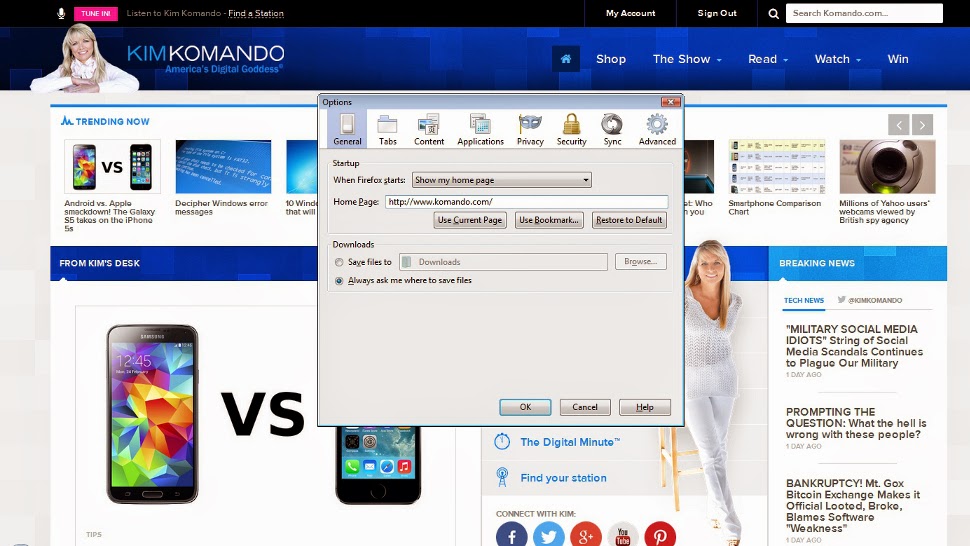
In Firefox, click the orange Firefox button and select Options>>Options. On the General tab, set "When Firefox starts" to "Show my homepage." Then under that, type in the address you want for your home page. Then click OK.

If you want to load multiple pages, load them up in tabs and then click the "Use Current Pages" button. Or you can click "Use Bookmark..." and select a folder of bookmarks.

In Internet Explorer, click the gear icon on the right and select Internet Options. Go to the General tab and under "Home page" enter the Web address or addresses you want to see on startup.
In Safari on Apple, go to Safari>>Preferences. On the General tab, go do to "Homepage" and type in an address.

Pin tabs

This one is for Chrome and Firefox users who have favorite sites they leave open all day. Load up the site, right-click on the browser tab and choose "Pin Tab."

Your tab will be moved to a smaller tab on the left side of the tab bar. That way no matter how many tabs you have open, you always know where your favorite sites are.
To unpin a tab, just right-click and choose "Unpin Tab."

Middle-click to open tabs

If you're using a mouse that was made after the mid-2000s, then it probably has a scroll wheel. Did you know that if you press down on the scroll wheel it acts as a middle mouse button?

OK, you knew that. But did you know that clicking on a link with the middle mouse button opens that link in a new browser tab? If you didn't, give it a try. It will change your life - or at least your browsing.

For laptop users, sometimes pressing both trackpad buttons at once works as a middle click. Or you can left-click a link while holding the CTRL key.

Zoom text

Have you ever visited a page with text that was too small? If you've ever leaned in close to a computer monitor to read, you need to know this.

To zoom text - and images - in any browser, just press CTRL and the plus key at the same time. Hit it a few time to zoom way in. Too far? Hit CTRL and the minus key to zoom back out. CTRL and the zero key resets the zoom.
Or, you can hold down the CTRL key and spin your mouse scroll wheel. That will zoom in and out as well.

Browse privately

Don't want your significant other knowing what his or her birthday present is? Want to make it hard for snoops to know where you're going online? Just fire up your browser's privacy mode.
Click here for the simple instructions.

See if your browser needs updating

An out-of-date browser is very dangerous. It might have unfixed security flaws that hackers can use to take over your computer.

Or you might just be missing out on some of the latest and greatest Internet sites that use newer Web standards. Either way, keeping your browser up to date is essential.

Click here to instantly find out what browser you're using and if there's a newer version.

See your online accounts and passwords

Do you remember every online account you’ve ever made? I know I sure don’t. If you’re like me, you’ve probably created dozens of accounts that you only used once.

That’s actually very dangerous. It means your information is floating around on dozens or hundreds of websites that may or may not be secure.

Click here to make your browser show you old accounts and passwords.

Turn on encryption

What's the difference between "http://" and "https://" in your browser's address bar? If you see the first one while you're on a sensitive site, you have a problem. That's because it means your connection isn't encrypted.

Encryption is what keeps your communication safe from hackers. While any sensitive site supports encryption, some of them don't have it turned on by default because it slows things down. Well, you can force it to use encryption anyway so you stay safe.

Click here to automatically turn on encryption for any site that supports it.

Power through tabs like a pro

In Firefox, Chrome, and IE, try CTRL + Tab to move across your tabs quickly; this is a great tip for power users who have a lot of tabs to rush through.

On the Mac, Firefox and Chrome let you do the same thing with OPT + CMD + right arrow.
And did you close a tab you didn't mean to? ALT + SHIFT + T will bring it back!

3 signs you have an Android virus by Kim Komando

As smartphones and tablets match laptop and desktop computers in power and become our main way
to communicate and store sensitive information, it's no surprise they've become a serious target for hackers. Criminals around the world are working hard to slip viruses on to your smartphone and tablet to steal data or just cause trouble. 
With its open ecosystem and ability to install untrusted apps, Android gadgets are a bit more vulnerable to these kinds of threats than their Apple counterparts. Of course, Apple is having its own struggles recently - click here to learn more.

While Android still doesn't have nearly the range of threats a typical Windows computer does, the ones it does have are serious. Here are some of the recent highlights:
Those are just in the last two months.

The problem is that while most Android attacks at this point come in the form of malicious apps, they aren't that noticeable. So if you do accidentally install a malicious app, here's how you can tell.

Big slowdowns

Similar to a computer, a virus working in the background is going to slow things down. If your formerly fast phone or tablet is suddenly acting like it's stuck in molasses  - and closing all the open apps and restarting doesn't help - then you may have picked up something malicious.

Lots of Internet activity

A spam-sending virus working in the background is going to be using your Internet like crazy. If you're burning through your cellular data all of a sudden, that could be why.

It's harder to notice on a tablet over Wi-Fi, but an occasional glance at Settings->Data Usage can show you any substantial changes in your Internet use.

In both cases, you'll also notice much shorter battery life - constant communication takes a heavy toll. Check your battery use under Settings->Battery or install a third-party battery-monitoring app like Battery Doctor. This will tell you which apps or phone features are the culprit.

New apps you didn't install

Speaking of apps, you might download one that isn't malicious on its own, but brings a bunch of malicious apps along with it. So, keep tabs on your app list and look for any new apps that you don't recognize.

Get things back to normal

If you do get a malicious app, you want to get rid of it as quickly as possible. So, the first thing to do is switch your gadget to airplane mode to stop the virus from sending any more information. Usually you get this option by holding the power button, or it might be in the notification area if you swipe down from the top of the screen.

Next, you need to go remove the app in question. You can do this under Settings->Applications. Find the app, tap it and then tap Uninstall. You'll need to do this for any other questionable apps you have. If you aren't sure which app is the culprit, start with the last ones you installed before the gadget started acting up.

You might run into a malicious app that refuses to uninstall. To get rid of it, you'll need to switch your gadget over to Safe Mode - click here for the step-by-step instructions.

If you absolutely can't get rid of the app, or you feel like your gadget is no longer trustworthy, then your last-ditch option is to wipe it and start over.

Transfer your photos and any important documents that aren't stored in the cloud over to a computer via USB or upload them to a service like Dropbox. Then go to Settings->Backup and reset.

Make sure your app data, passwords and settings are set to be backed up to Google's servers. Once you've confirmed they're backed up, choose the factory data reset option.

When the reset is done, sign in to your Google account and your information will restore. Then you can reinstall the apps you know are good and move your photos and documents back to your gadget.
After the malicious app is gone, you should make sure you can't install any more untrusted apps. Go to Settings->Security and uncheck the Unknown Sources option. This should keep you safe from most malicious apps.

You'll also want to change your passwords for any online accounts you access with your smartphone like Facebook, Twitter, email or your bank. You don't know what the malicious app might have stolen and sent to a hacker.

Largest collection of free full-length books from Microsoft by Kim Komando

I think it's safe to say that most people are familiar with the software mega giant, Microsoft. In fact,
you've probably used Windows or Office at least once in your life - that was an intentional understatement, just to be clear. Microsoft claims around 1.5 billion people use Windows everyday!
Even if you use a Mac, you've probably used Microsoft software.


While Microsoft's software is just about everywhere and does just about everything, it doesn't always work the way you want. Or maybe you just want to know more about it.

The next time you run into trouble with a program, or you're ready to learn more ins and outs of Windows, Visual Studio, Office or dozens of other Microsoft products, take a look at the largest collection of free Microsoft e-books available online.

These helpful guides are offered by Eric Ligman, Microsoft's Senior Sales Excellence Manager. There are over 130 free guides to download, from introductions to Windows 8.1 and Office 365 to building software in the Cloud.

Feel free to browse through as many as you need, they're all free to download and over a million copies have already been given away.

Looking for Excel Online Keyboard Shortcuts? Right here. Want to learn how to build your own app? There's a manual for that. Really, everything you need is right here.

Some of these program e-guides are for advanced users only, but others will help beginners expand and enrich their user experience. You can also work your way through each manual, and in no time you can be a Microsoft software guru yourself.

Download Instructions

To download a Microsoft e-guide, navigate to Eric Ligman's blog using the button below and find an e-guide title you're interested in. These guides are available in PDF, EPUB, MOBI (Kindle), and DOCX formats.

If you want to look at these guides on your computer, click the PDF or DOCX format. You will need a PDF reader or a word processing program to read these files.

The MOBI format is for Kindle e-readers. You can also get the Kindle program on your computer to read these. The EPUB format works with all other e-readers.

When you click on the link, your download should begin immediately. When the download is complete, open and view the e-guide with the correct program.