Google+ High Tech House Calls: iPhone
skip to main | skip to sidebar
High Tech House Calls
Expert Computer Consulting for Homes and Small Businesses
  • Home

Featured Post

Student Studying Abroad: I've Gone Through This Twice and Lived to Tell the Tale by Carl Thorne

Always, always, always go through the school's study abroad program to sign up for a program. Forget about the semester aboard hav...

Popular Posts

  • One thing you must do right now in response to the ‘Heartbleed’ bug by Kim Komando
    In case you missed it, the big news of the week is the “Heartbleed” bug that’s been exposing sensitive However, I’ve gotten lots of questi...
  • Home Upgrades: Ideas on New Laptops and Better Wi-Fi by Marc Saltzman
    The Costco Connection - February 2017 by Carl Thorne on Scribd
  • Secret Hotkey Opens Windows 10’s New Emoji Picker in Any App by CHRIS HOFFMAN
    Windows 10 has a hidden emoji picker you can use to type emoji in any application, even desktop programs like Google Chrome. It’s accessible...
  • (no title)
    September 2011 eNewsletter
  • Student Studying Abroad: I've Gone Through This Twice and Lived to Tell the Tale by Carl Thorne
    Always, always, always go through the school's study abroad program to sign up for a program. Forget about the semester aboard hav...
  • Roku vs. Amazon Fire TV Stick, my choice by Carl Thorne
    I have both Roku and Amazon Fire TV Sticks. All the blogs I read that compared these two devices left out the re...
  • Five Things You Must Do Before You Ditch Your Old Gadgets by Dan Tynan
    Getting rid of your old electronics? Whether you’re donating, selling, or recycling your aging gear, you’ll want to take the following s...
  • Pay Attention to Details Regarding Your Backup Procedure
    Here are some questions to consider, when determining if your backup procedure still works: Do   you check the backup log to see if the ba...
  • Watch these Netflix movies before they're gone by Kim Komando
    It's that time again! Licenses for individual movies and TV shows are set to expire on Netflix at the end of the month, so that mean...
  • iMac Buyer's Guide: Is the 5K iMac Right For You? by Roman Loyola
    The new Retina iMac, also known as the iMac with 5K Retina display , came at a time when the iMac lin...

About Me

My Photo
High Tech House Calls, Expert Computer Consulting
Atlanta, Georgia, United States
View my complete profile
View Carl Thorne's profile on linkedin

Blog Archive

  • ▼  2020 (49)
    • ▼  December (3)
      • New Computer Setup Checklist by Carl Thorne
      • How to Receive Mail Notifications for Important Co...
      • How to Find a Specific Picture in the Photos App w...
    • ►  October (12)
    • ►  August (1)
    • ►  July (1)
    • ►  June (4)
    • ►  May (7)
    • ►  April (5)
    • ►  March (3)
    • ►  February (9)
    • ►  January (4)
  • ►  2019 (105)
    • ►  December (2)
    • ►  November (8)
    • ►  October (21)
    • ►  September (7)
    • ►  August (4)
    • ►  July (1)
    • ►  June (9)
    • ►  May (8)
    • ►  April (7)
    • ►  March (28)
    • ►  February (5)
    • ►  January (5)
  • ►  2018 (93)
    • ►  November (6)
    • ►  October (11)
    • ►  September (1)
    • ►  August (7)
    • ►  July (5)
    • ►  June (7)
    • ►  May (9)
    • ►  April (19)
    • ►  March (23)
    • ►  February (2)
    • ►  January (3)
  • ►  2017 (100)
    • ►  November (1)
    • ►  October (26)
    • ►  September (1)
    • ►  August (2)
    • ►  April (3)
    • ►  March (12)
    • ►  February (53)
    • ►  January (2)
  • ►  2016 (284)
    • ►  December (73)
    • ►  September (2)
    • ►  August (3)
    • ►  July (30)
    • ►  May (20)
    • ►  April (28)
    • ►  March (60)
    • ►  February (42)
    • ►  January (26)
  • ►  2015 (288)
    • ►  December (12)
    • ►  November (63)
    • ►  September (4)
    • ►  August (11)
    • ►  July (37)
    • ►  June (34)
    • ►  May (30)
    • ►  April (26)
    • ►  March (25)
    • ►  February (19)
    • ►  January (27)
  • ►  2014 (169)
    • ►  December (27)
    • ►  November (29)
    • ►  October (13)
    • ►  September (43)
    • ►  August (6)
    • ►  July (17)
    • ►  April (12)
    • ►  March (8)
    • ►  February (6)
    • ►  January (8)
  • ►  2013 (123)
    • ►  December (5)
    • ►  November (5)
    • ►  September (4)
    • ►  August (13)
    • ►  July (32)
    • ►  June (24)
    • ►  May (29)
    • ►  March (8)
    • ►  February (1)
    • ►  January (2)
  • ►  2012 (51)
    • ►  December (5)
    • ►  November (1)
    • ►  October (11)
    • ►  September (3)
    • ►  July (11)
    • ►  May (2)
    • ►  April (5)
    • ►  March (9)
    • ►  February (1)
    • ►  January (3)
  • ►  2011 (49)
    • ►  December (1)
    • ►  November (8)
    • ►  October (4)
    • ►  September (6)
    • ►  August (3)
    • ►  July (12)
    • ►  June (6)
    • ►  April (5)
    • ►  February (4)
  • ►  2010 (40)
    • ►  November (8)
    • ►  August (2)
    • ►  July (8)
    • ►  June (9)
    • ►  May (1)
    • ►  April (11)
    • ►  January (1)
  • ►  2009 (42)
    • ►  December (3)
    • ►  November (4)
    • ►  October (7)
    • ►  September (3)
    • ►  August (8)
    • ►  July (4)
    • ►  June (8)
    • ►  May (5)

Categories

  • Android (127)
  • Chromebook (4)
  • Digital Media (246)
  • Email (23)
  • Internet (147)
  • iPhone (394)
  • Mac OS (162)
  • Safety (182)
  • Social Media (57)
  • Tablet (76)
  • Windows (164)

We Love Apple Computers


Let there be hope...

Life has changed there is no doubt and we wanted to reach out to see how you are doing.

As we go through this interesting time, we are trying to look at this as an opportunity to focus on our family and on friends like you. Let us use this extra time to catch up and talk more. Let us cook food that is not fast, but interesting and satisfying. Let us learn to enjoy a time to try new things. Let us find ways to enjoy time at home!

Computer Security

If my client base is any experience, anyone can be a victim of a Ransomware, Malware or Virus attack.

What can you do about it?

I conduct audits of your entire computer infrastructure and apply best practice solutions to plug the security holes on your computers, Smartphones and networks.

Now offering consultations to give you the best protection possible:


404.229.0839
carlthorne@hthcatlanta.com

Jack of All Trades, Master of Many

Jack of All Trades, and Master of Many

We provide technical support for:


Homes and small businesses

Windows and the Mac OS platform

iPhones and Android Smartphones

Wireless and wired networks

New device setup

Old device upgrade or repair

One-on-one training

Remote assistance


How To Stop Malware

Showing posts with label iPhone. Show all posts

Home » Posts filed under iPhone

Thursday, December 10, 2020

How to Receive Mail Notifications for Important Contacts Only by iPhoneLife

10:44 AM  High Tech House Calls, Expert Computer Consulting  


This article will tell you how to only receive notifications from your VIP contacts on your iPhone. Not all emails are created equal. Between spam and miscellaneous messages, there are a lot of emails we get notifications for that don't need to be read right away. On the other hand, there are business emails and notes from family members that we may want to reply to immediately. By turning on email notifications for only your VIP Mailbox in the Mail app, you'll receive fewer non-urgent notifications. Or, you can set a separate notification sound for your VIPs to differentiate between the two.

Related: How to Save Images, Pictures & Photos from an iPhone Message or Email

How to Add a Contact to Your VIP List

In order to get alerts for your VIP emails, you need to have your VIP mailbox set up. If you already have it set up, skip to the next section on how to set up Mail notifications for only VIP emails.

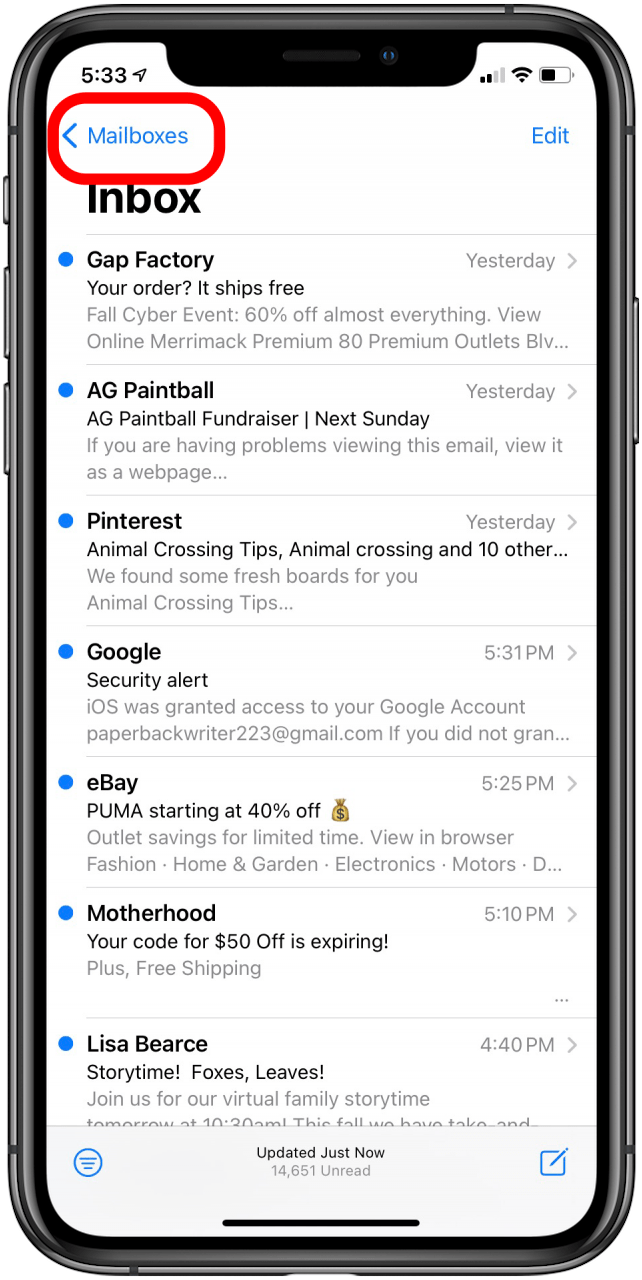
  1. Open your Mail app and tap Mailboxes.
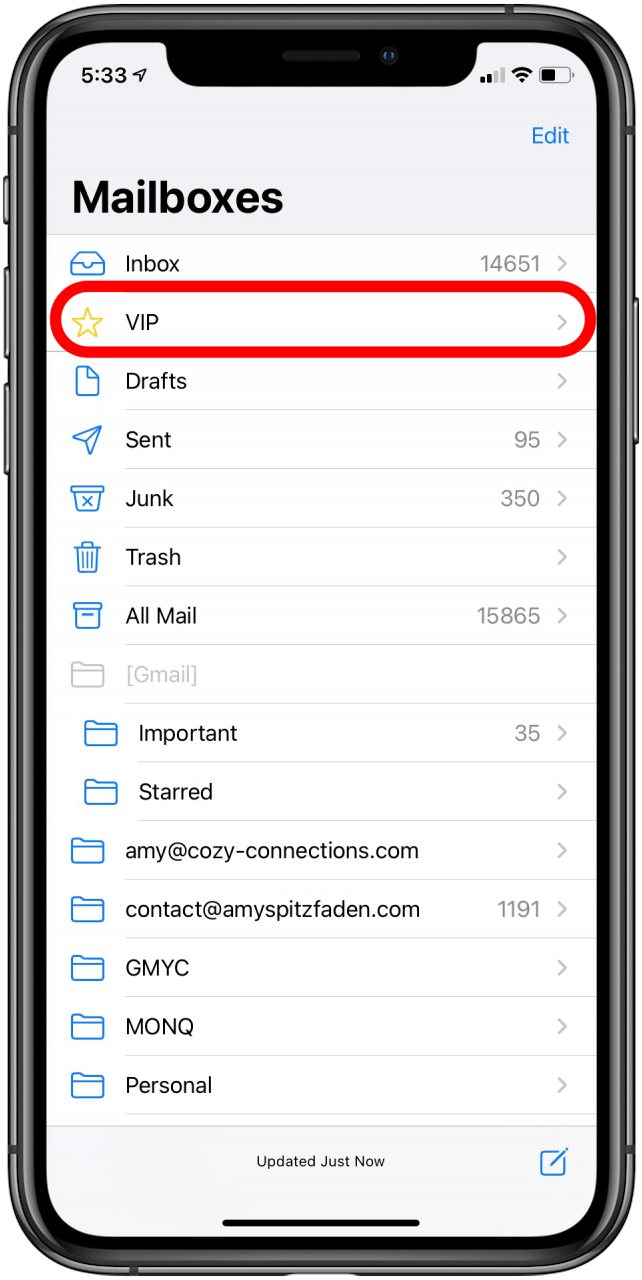
  2. Tap VIP. (Don't see the VIP inbox? Read our article on adding email mailboxes to learn how to add a VIP inbox)


Enjoying Your Tip of the Day?

If you'd like to learn more about iPhone Life's premium paid subscription, click here


tap VIP
 

  1. If you have no previous VIP contacts, select Add VIP.


  1. The list of your phone contacts will appear; select your new VIP contact. To add another, select Add VIP and repeat the steps. 
  2. You can also add someone to the VIP list through their email. This can help if you don't have a contact saved to your phone contacts. Just open an email from the contact and tap their name. A contact screen will pop up. Tap Add to VIP.


How to Turn on Alerts for Only Your VIP List

Once you have your VIP mailbox set up, you can set up alerts for your VIP emails. (Pro tip: you can also set up and receive alerts for specific Mail threads. )

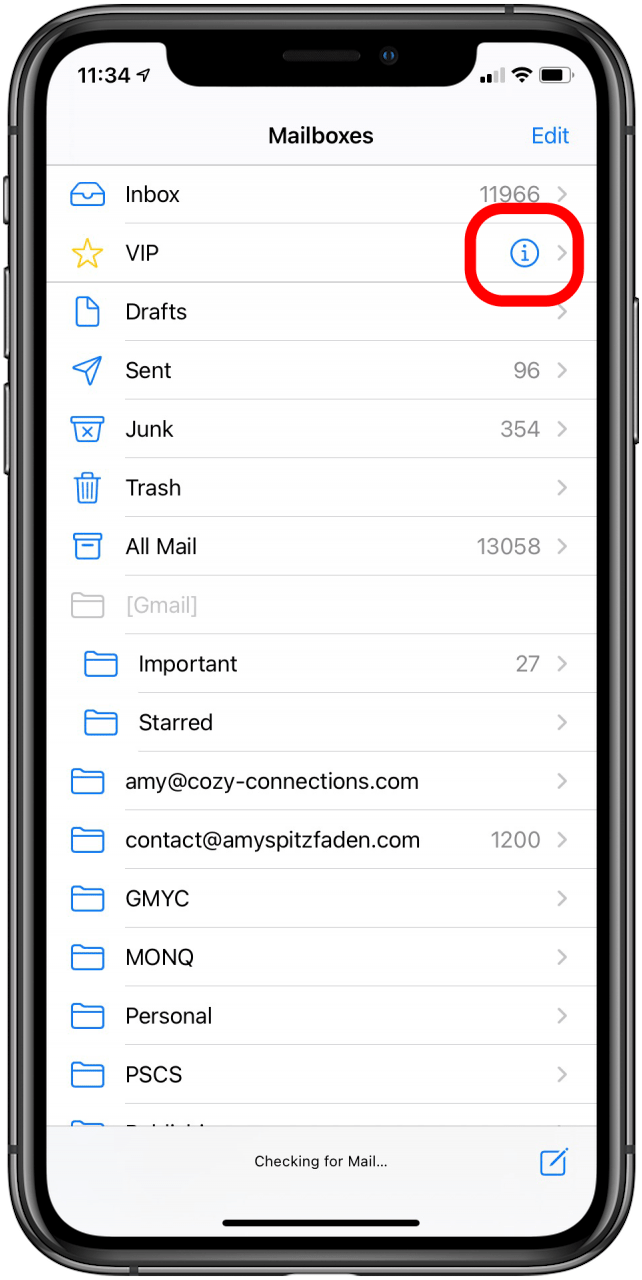
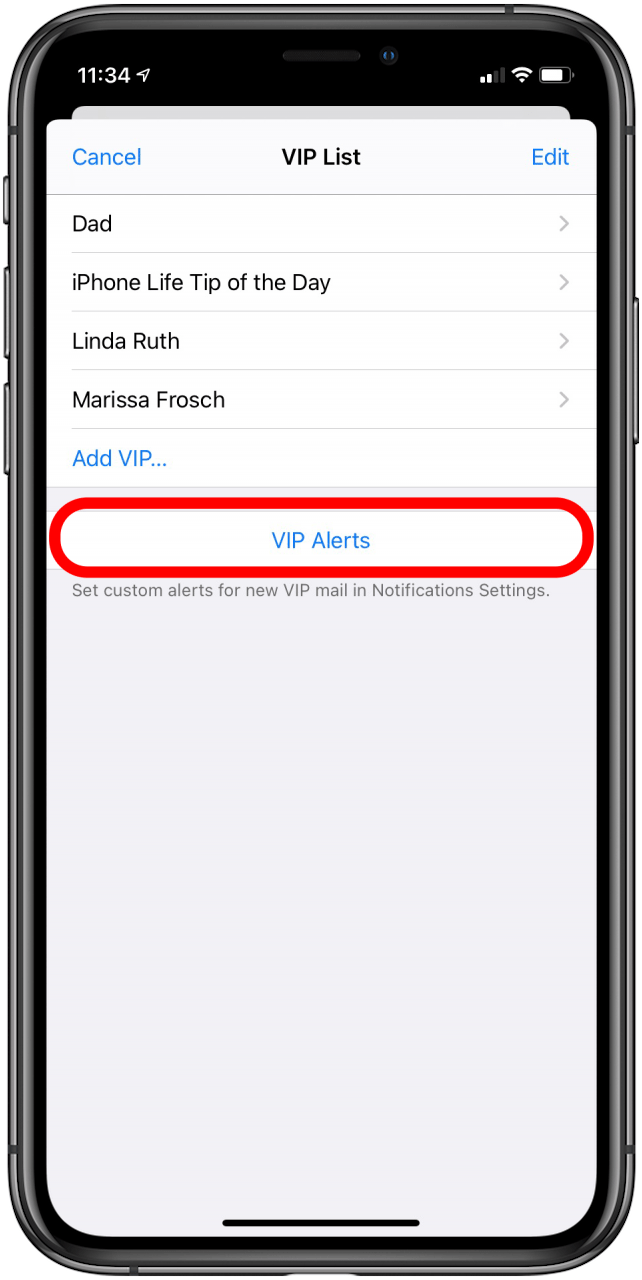
  1. Tap the i symbol next to your VIP mailbox to access the contact list. 
  2. From the contact name list, you can turn off other email notifications by tapping VIP Alerts (You can also access this menu by going to Settings > Notifications > Mail > VIP).


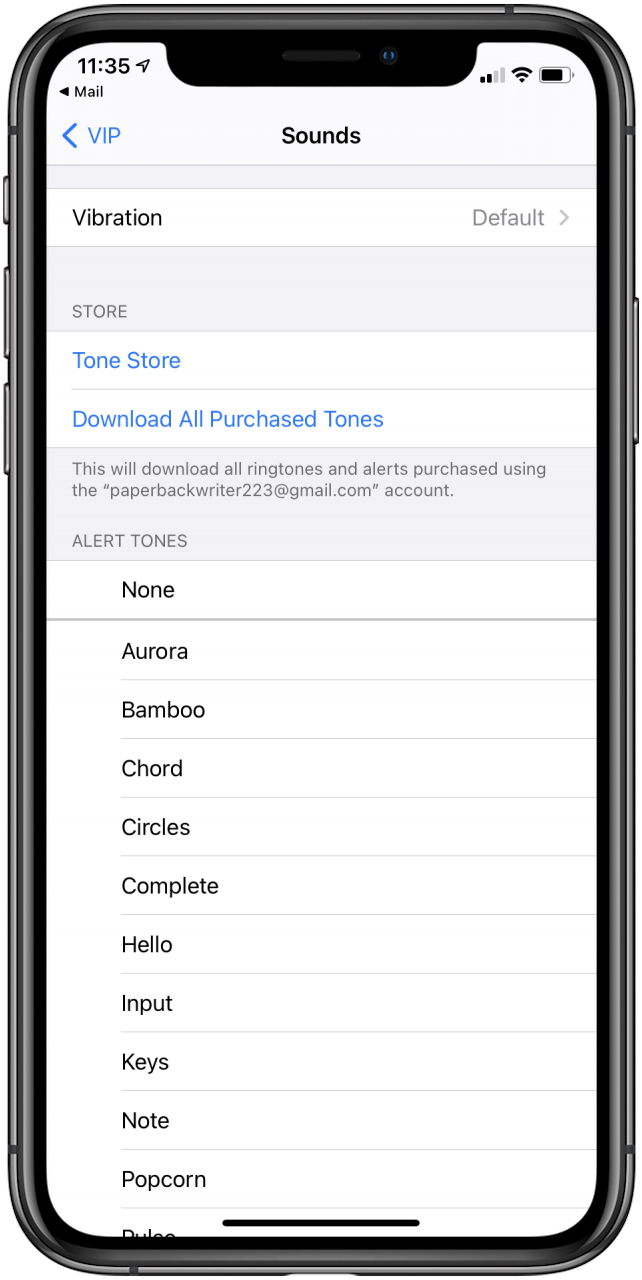
  1. You can change the alert sound by tapping Notification Sound and selecting from your sound library.
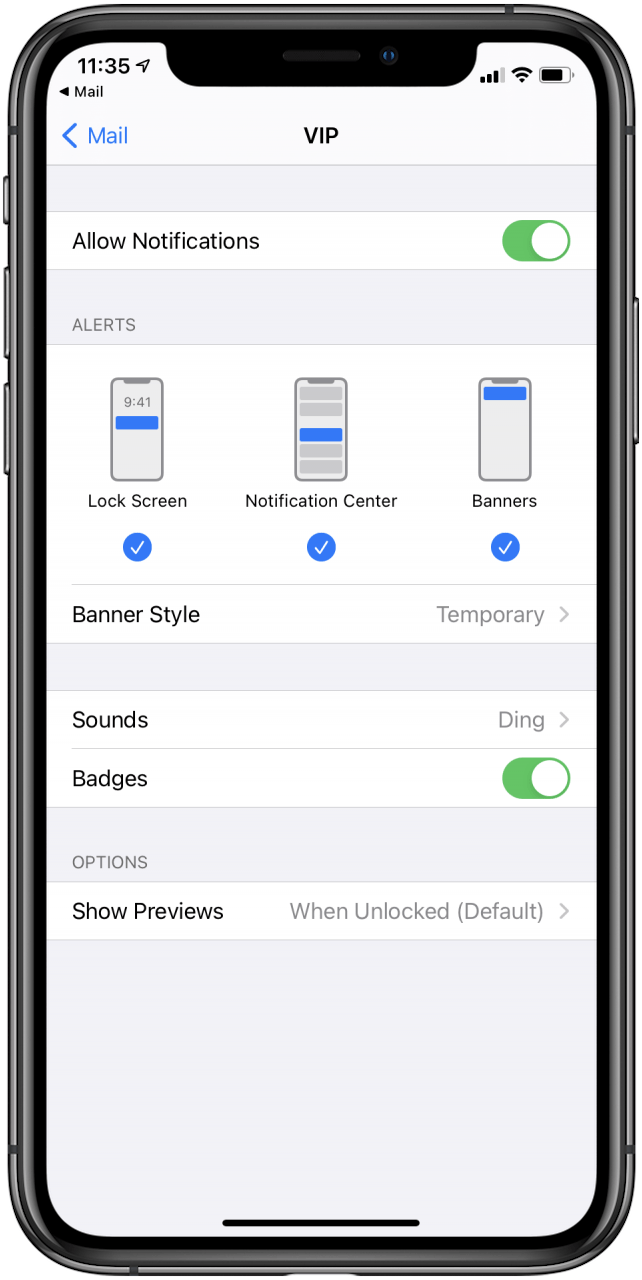
  2. Return to the VIP menu to change other aspects of the Alert Style.


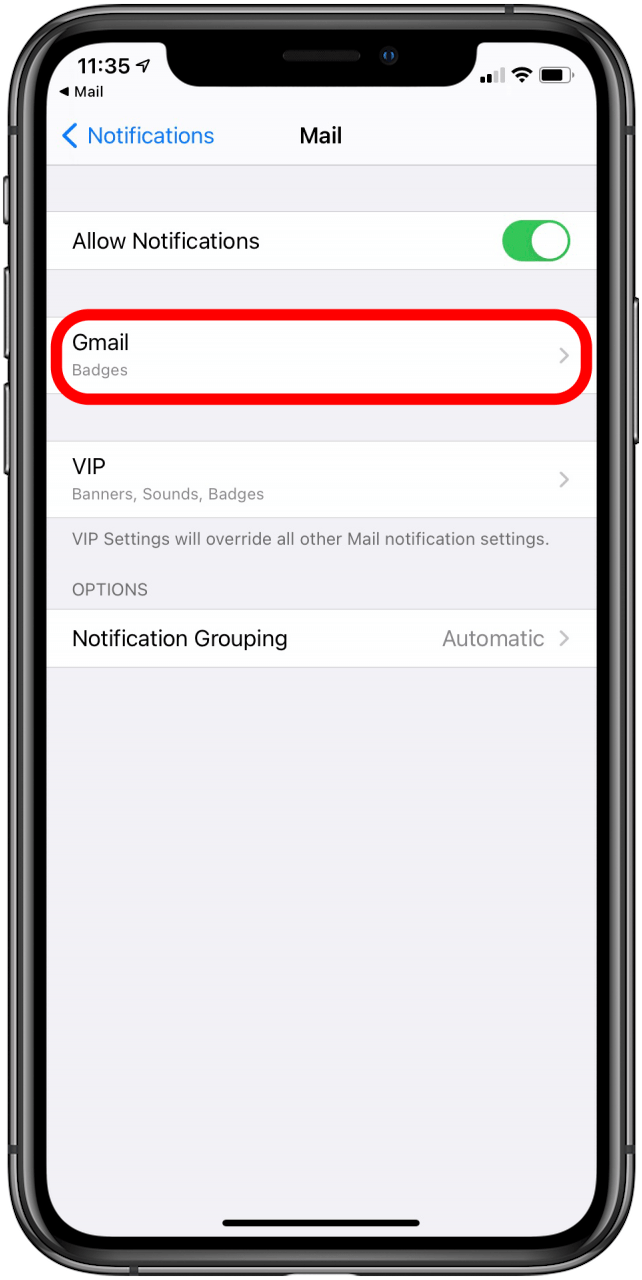
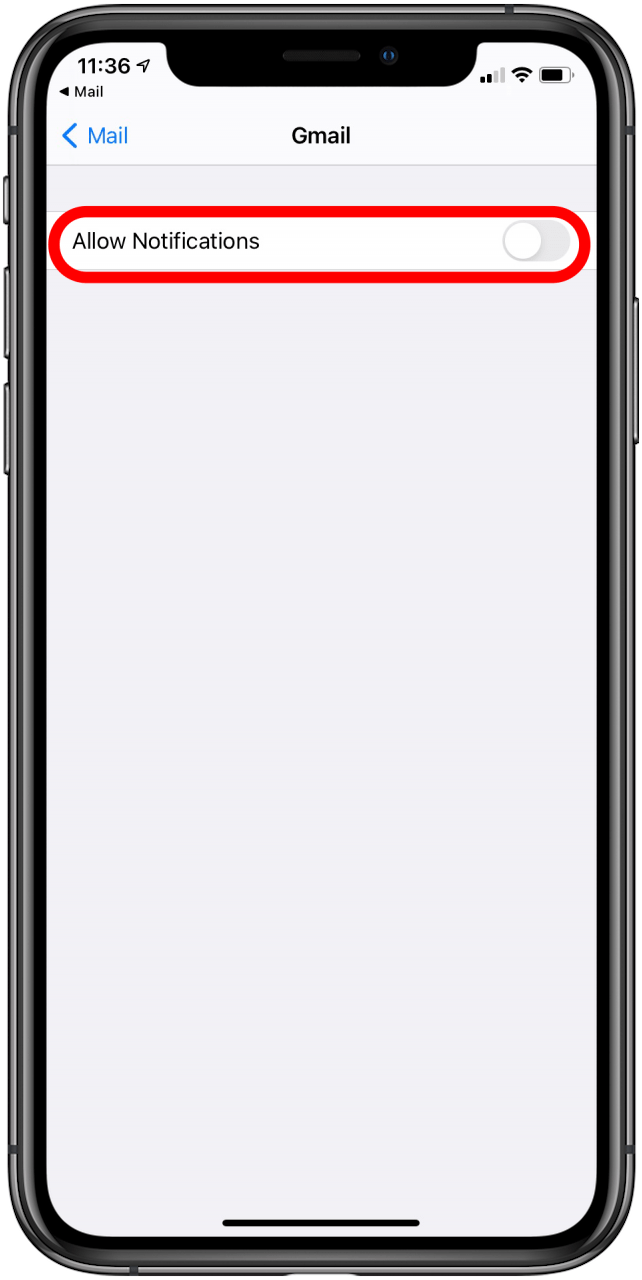
  1. To turn off non-VIP email alerts, go back one screen to Mail in the Notification Settings. Tap on an email account in the list above VIP. 
  2. On the next screen, you can adjust the Notifications: To receive no notification via your lock screen, uncheck all options under Alerts. Tap Sounds and select None. Toggle Badges to OFF to not see the number notification on the app icon. Below that is Show Previews, tap Never. Repeat for each account.


With these settings enabled, you'll now only be notified of emails from your VIP contacts.

Did you enjoy this tip? Sign up here to get the tip of the day delivered right to your inbox.


Read More

Print Friendly and PDF

How to Find a Specific Picture in the Photos App with Multiple Search Terms by iPhoneLife

10:42 AM  High Tech House Calls, Expert Computer Consulting  


This article will tell you how to find a specific picture in your Photos app using multiple search terms. One of my favorite apps on my iPhone is Apple's Photos app. Not only are Apple's native Camera and Photos apps free, but they also keep improving with every new operating system. With iOS 12 and later, you can use multiple search terms to find specific pictures in the Photos app. This photo search feature can use one or more of the following categories: date, location, business name, events, people, and type of photo. I'll show you how to use this time-saving feature to search for specific pictures faster and more accurately than ever before.

Related: How to Play Slideshows from the Photos App on iPhone

How to Find a Specific Picture in the Photos App with Multiple Search Terms

For more great tutorials on organizing photos on your iPhone and using the iPhone Camera app, check out our Tip of the Day.

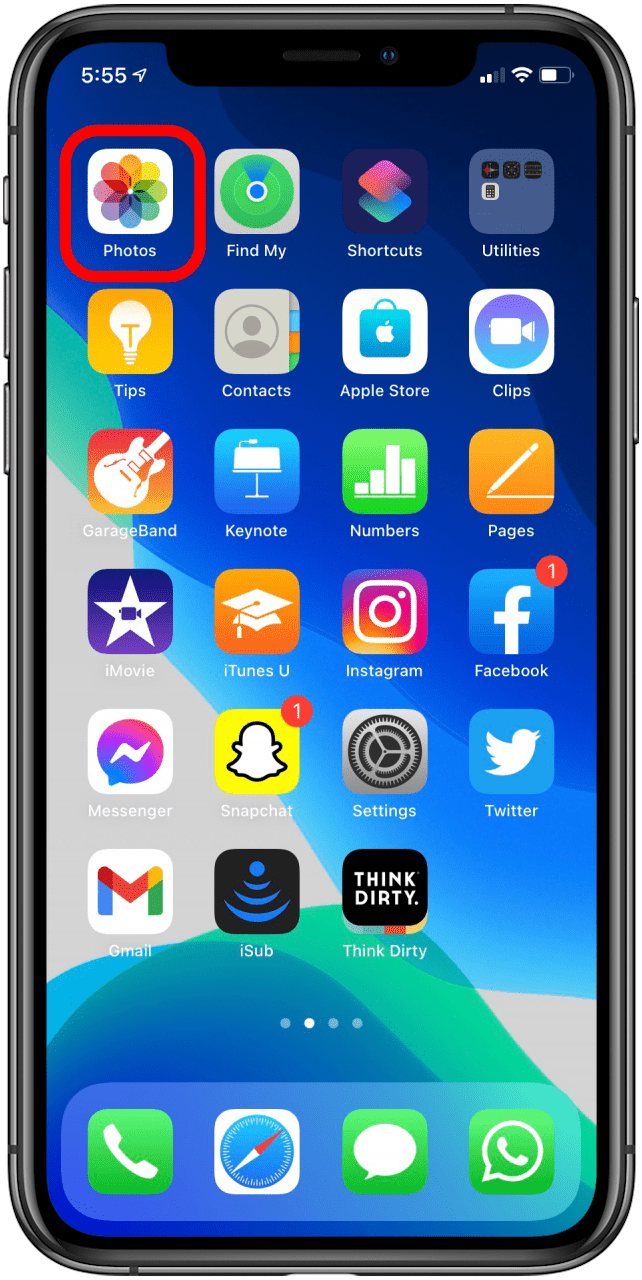
  1. Open the Photos app.
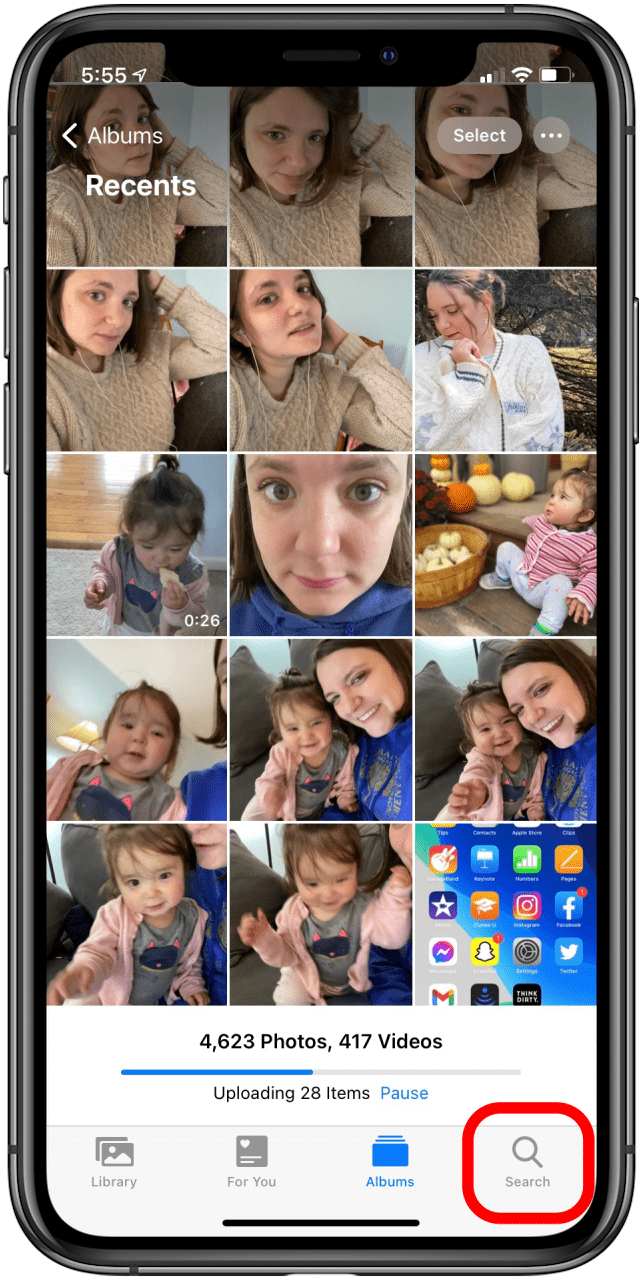
  2. Tap the Search icon at the bottom-right of your display.


Enjoying Your Tip of the Day?

If you'd like to learn more about iPhone Life's premium paid subscription, click here


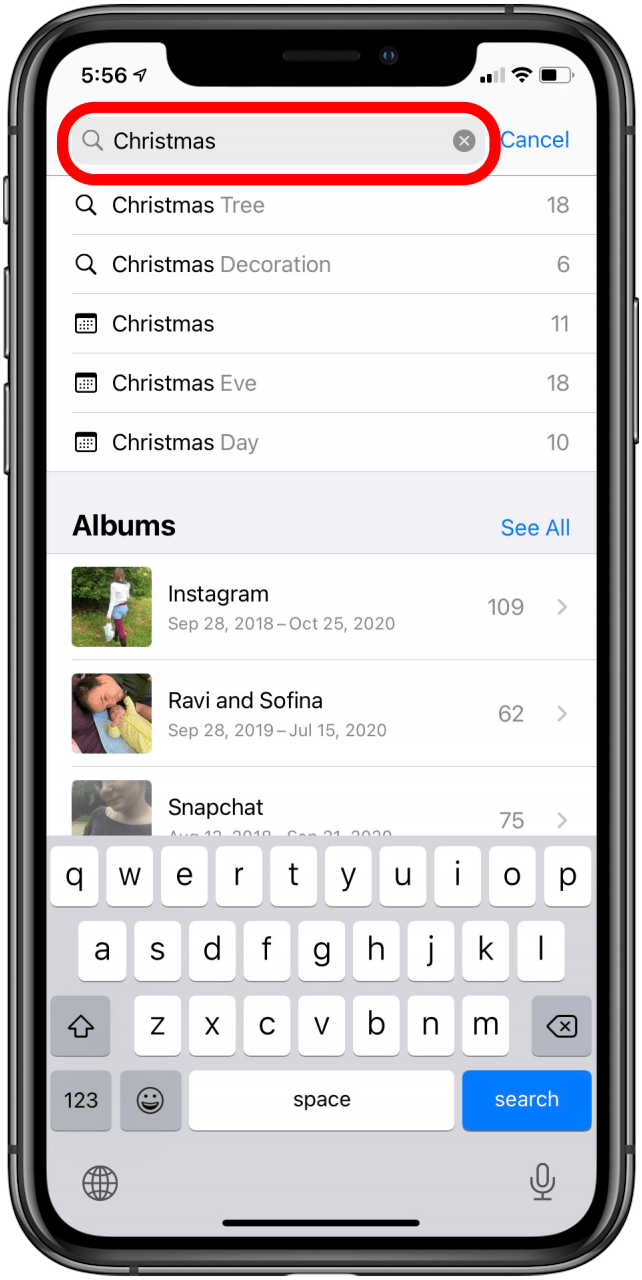
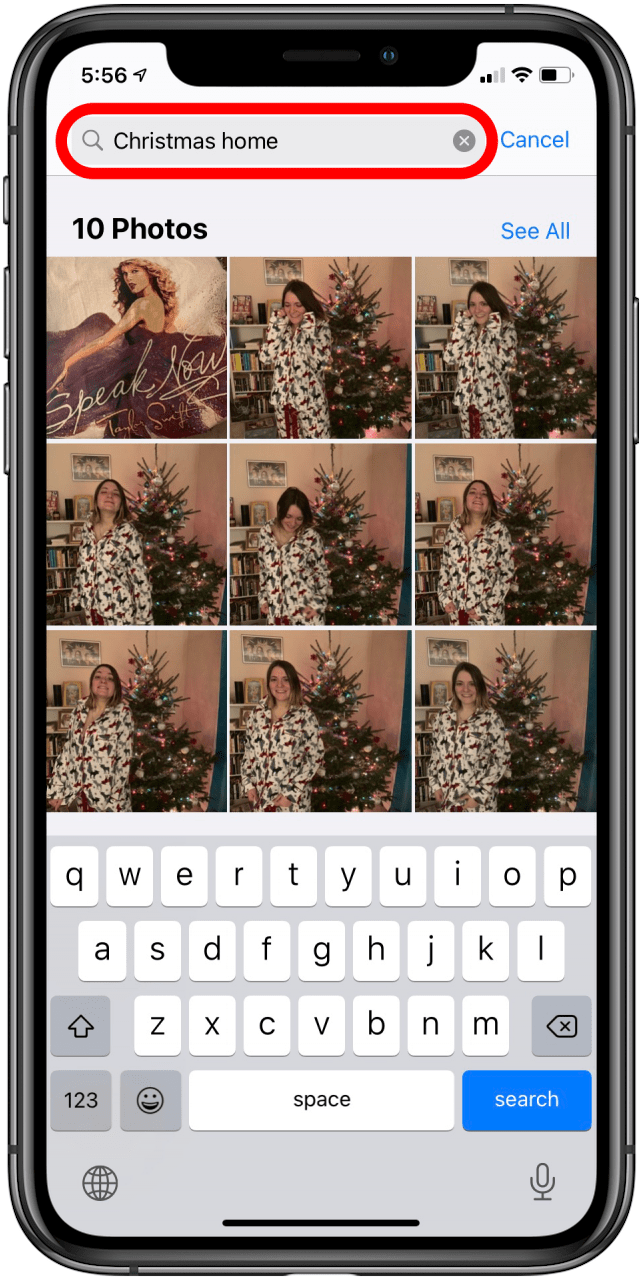
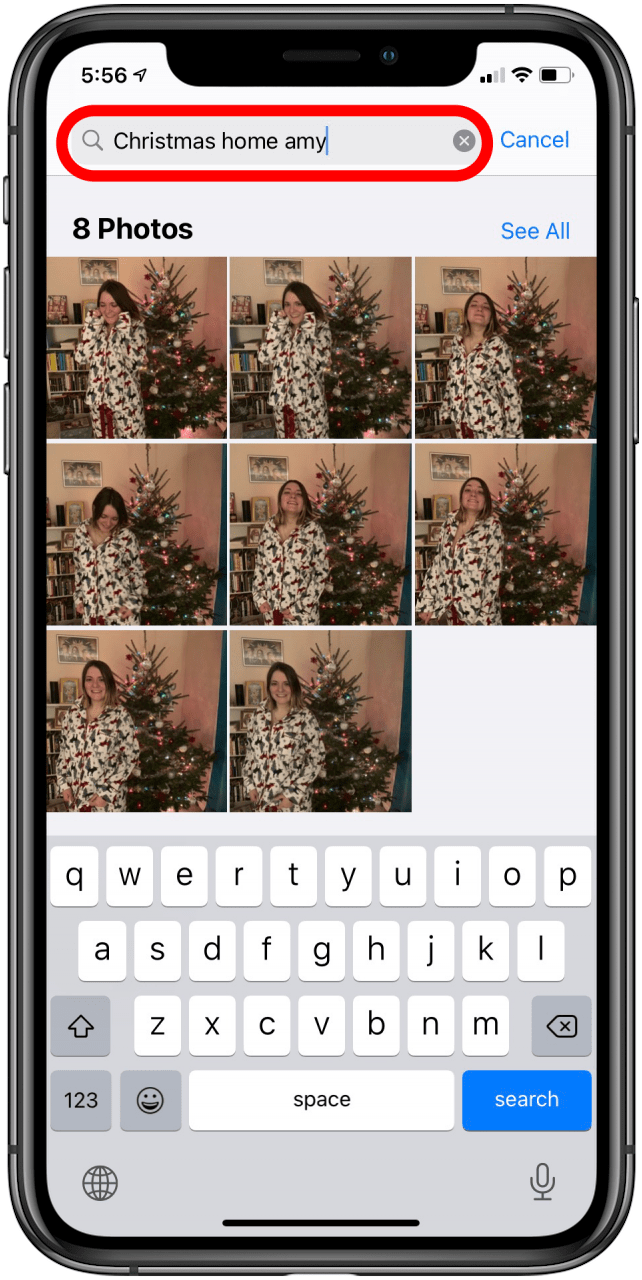
  1. Type your search into the Search Bar at the top of the page.
  2. The Photos app is capable of handling three search terms at a time.
  3. Mix and match people, places, dates, and more to find the picture you want.


  1. Using two terms narrowed my search down to eight photos; using three terms narrowed it to one.


I hope this tip helps you find the photos you need quickly and efficiently!

Did you enjoy this tip? Sign up here to get the tip of the day delivered right to your inbox.


Read More

Print Friendly and PDF

Tuesday, October 27, 2020

How to Use Remind Me Later on Your iPhone When You Need to Decline a Call by iPhone Life

10:17 AM  High Tech House Calls, Expert Computer Consulting  


If I get a call on my iPhone when I'm busy, I'll tap Decline and immediately forget that someone called me. I was happy to discover that there's a callback feature on my iPhone that will remind me to call back later. Here's how to decline phone calls and get a callback reminder with Remind Me Later, so you won't be playing phone tag for days on end.

Related: How to Block a Phone Number on iPhone: Texts & Calls

What Does Remind Me Later on the iPhone Do & How Does It Work?

Remind Me Later gives iPhone users the ability to tap more than just Decline or Accept when a call comes through. The callback reminder feature was introduced with iOS 6 and the steps changed slightly with the introduction of compact call notifications in iOS 14. Here's how Remind me Later works:

  1. When you receive an incoming call, tap the call notification to see additional options.
  2. Tap Remind Me, which is above Decline. 


tap the call notification


Enjoying Your Tip of the Day?

If you'd like to learn more about iPhone Life's premium paid subscription, click here


choose when i leave or remind me in an hour
 

  1. Now, tap When I leave to receive a callback reminder when you've left your current location, or In 1 hour for a reminder one hour from when you declined the call.


tap remind me option on iPhone
 

  1. When you tap your selection, the call will be automatically declined and sent to Voicemail; that's it! Now you won't forget to call people back when you've had to decline a call from them.

Check out our free Tip of the Day for more great Apple device tutorials. 

Did you enjoy this tip? Sign up here to get the tip of the day delivered right to your inbox.


Read More

Print Friendly and PDF

Wednesday, October 14, 2020

The iPhone 12 vs. the competition: Now with 5G And even prettier colors. by Kris Naudus, @krisnaudus

1:30 PM  High Tech House Calls, Expert Computer Consulting  

Early fall always means iPhone announcements, and this year we’re looking at four new models. If you’d prefer something on the larger side check out the iPhone 12 Max and Max Pro, while the iPhone 12 mini will suit those will smaller hands. Right here, however, we’re going to focus on the middle-sibling iPhone 12. It’s far from ordinary thanks to 5G mmWave technology, along with the new A14 Bionic. Of course, it’s competing against rival flagships like Google’s Pixel 5 and the Samsung Galaxy S20, so we’d laid out all their specs for a quick idea of which might offer the most for your money. For a final verdict, however, be sure to check out our full review of the iPhone 12 in a few weeks.

iPhone 12

Pixel 5

Galaxy S20

Pricing

Starts at $799

$699

Starts at $999

Dimensions

146.7 x 71.5 x 7.4 mm (5.78 x 2.82 x 0.29 inches)

144.7 x 70.4 x 8 mm (5.7 x 2.8 x 0.3 inches)

151.7 x 69.1 x 7.9 mm (5.97 x 2.72 x 0.31 inches)

Weight

164g (5.78 ounces)

151g (5.33 ounces)

163g (5.75 ounces)

Screen size

6.1 inches (154.94 mm)

6 inches (152.4 mm)

6.2 inches (157.58 mm)

Screen resolution

2,532 x 1,170 (460 ppi)

2,340 x 1,080 (432 ppi)

3,040 x 1,440 (563 ppi)

Screen type

Super Retina XDR OLED

FHD+ Flexible OLED

Quad HD+ Dynamic AMOLED 2X

Battery

Up to 17 hours video (non-streamed)

4,080 mAh

4,000 mAh

Internal storage

64 / 128 / 256 GB

128 GB

128 GB

External storage

None

None

micro SD

Rear camera(s)

Two cameras:
Ultrawide, 12MP, f/2.4
Wide, 12MP, f/2.6

Two cameras:
Ultrawide, 16MP, f/2.2
Dual-pixel, 12.2MP, f/1.7

Three cameras:
Ultrawide, 12MP, f/2.2
Wide, 12MP, f/1.8
Telephoto, 64MP, f/2.0

Front camera(s)

12MP, f/2.2

8MP, f/2.0

10MP, f/2.2

Video capture

4K at 60 fps

4K at 60 fps

8K

SoC

Apple A14 Bionic

Qualcomm 765G

Samsung Exynos 9825

CPU

Not available

2.4 GHz octa-core

2.7 GHz octa-core

GPU

Not available

Adreno 620

ARM Mali-G76 MP12

RAM

Not available

8 GB

12 GB

WiFi

802.11ax

802.11ac

802.11ax

Bluetooth

v5.0

v5.0

v5.0

NFC

Yes

Yes

Yes

Operating system

iOS 14

Android 11

Android 10

Other features

IP68 certified, Lightning connector, MagSafe and Qi wireless charging

IP68 certified, USB-C, Qi wireless charging

IP68 certified, USB-C, WPC/PMA wireless charging

Read More

Print Friendly and PDF
Older Posts Home

The Hat Says It All!

The Hat Says It All!
Carl Thorne
High Tech House Calls

Expert Computer Consulting
Voice: 404.229.0839
Email: carlthorne@hthcatlanta.com
Website: www.hthcatlanta.com
Blog: www.hthcatlanta.blogspot.com


Search My Blog

  • Android (127)
  • Chromebook (4)
  • Digital Media (246)
  • Email (23)
  • Internet (147)
  • iPhone (394)
  • Mac OS (162)
  • Safety (182)
  • Social Media (57)
  • Tablet (76)
  • Windows (164)

Credit Card Payments Processed by

Credit Card Payments Processed by

Venmo and Zelle Accepted

For your convenience Venmo and Zelle are also accepted for payment.

Fed up with Windows based computers?

Think an Apple Computer might be what the doctor ordered?

We can help you with that decision for free!
Give us a call so we can discuss your computing needs!

Gift Certificates

What will you use your certificate for?

  • Making the move to an Apple laptop? My business has been running on an Apple laptop for 6 years.
  • You bought an iPhone. Now what? We have been working on iPhone problems since they came out and we can help.
  • Summer will be here before you know it. You want to surf on the internet on your wireless network from your pool. We are wireless network experts in both design and deployment.
  • Or you can use this gift card for any help needed (including training) for the computers in your home or small business.

  • The perfect present for any occasion:
  • Available in one hour increments.
  • No expiration date.
  • Can be used for service calls or training.
  • Giving a technology gift that requires setup or training? Why not add a gift certificate?

Click here for more information:
http://hthcatlanta.com/gift_certificates.htm
High Tech House Calls
Expert Computer Consulting

voice: 404.229.0839
email: carlthorne@hthcatlanta.com
web: hthcatlanta.com
blog: hthcatlanta.blogspot.com

 
Copyright © 2011 High Tech House Calls

Blue Night Template designed by Don Caprio.